

Free Huion Manuals – Read, Download & Print
34 Manuals
Manuals
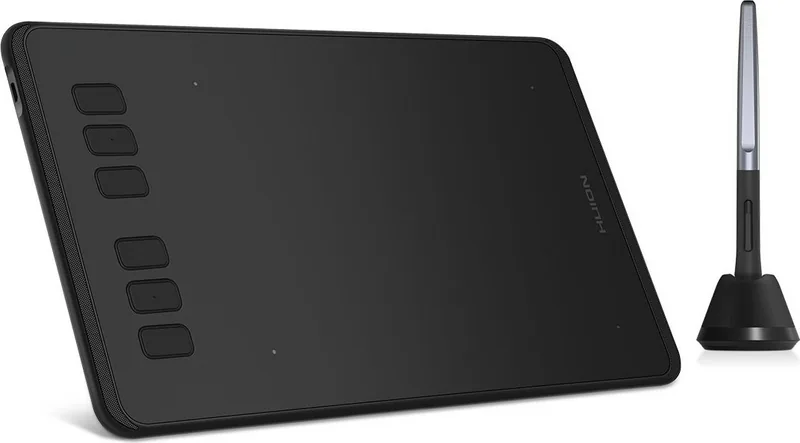
17 Pages
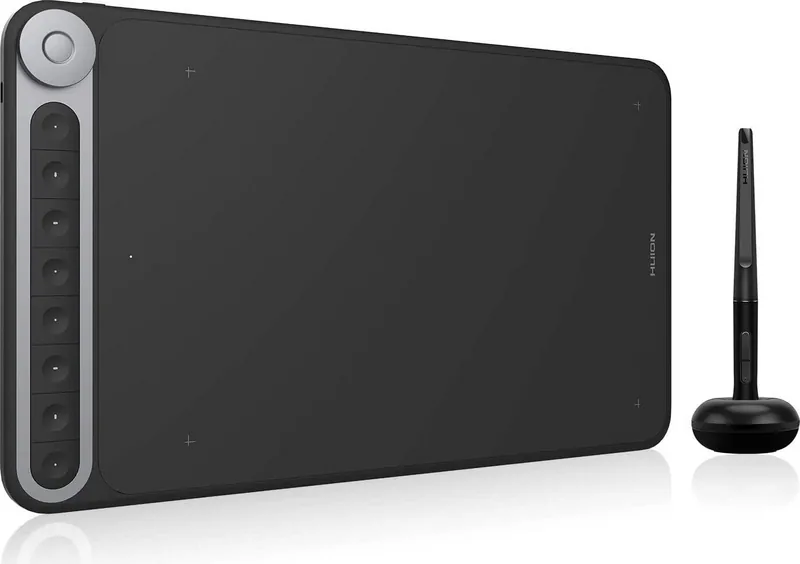
119 Pages
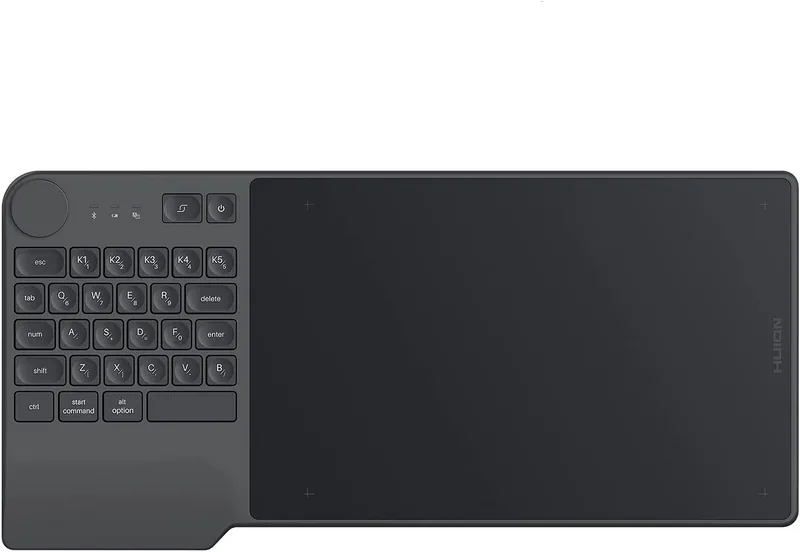
38 Pages
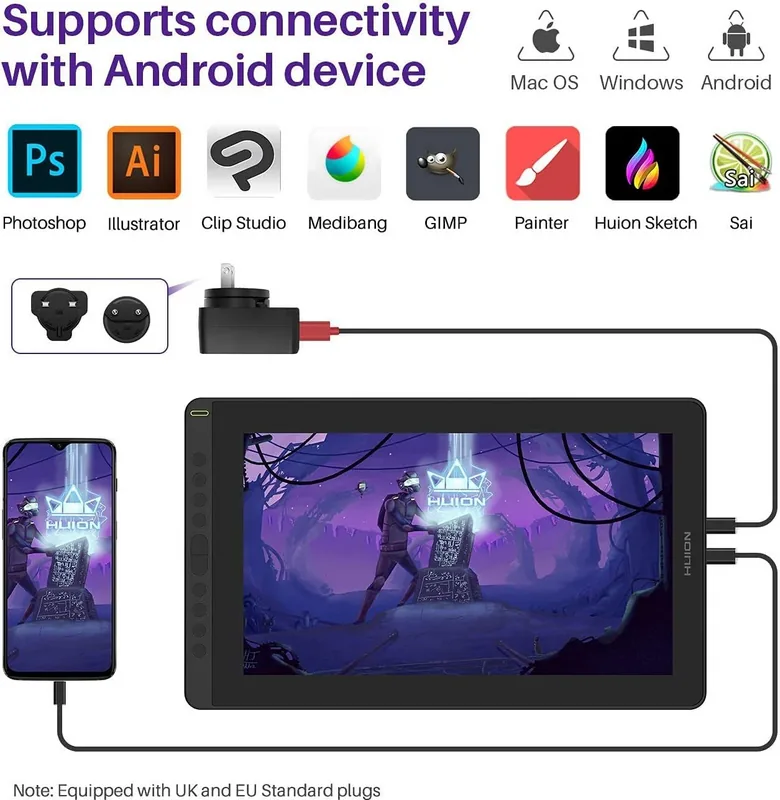
131 Pages
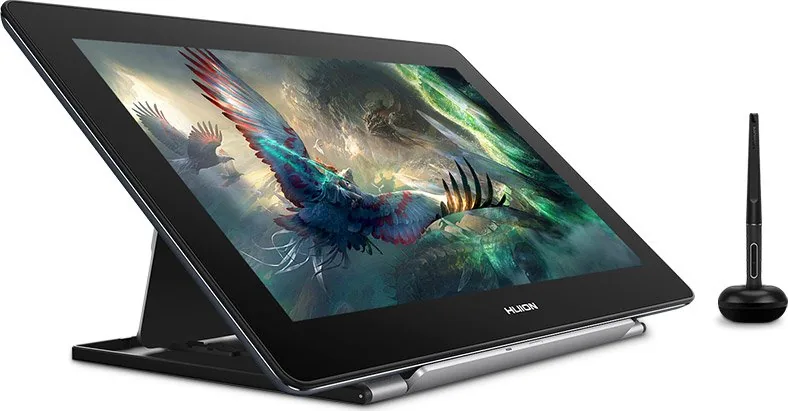
135 Pages
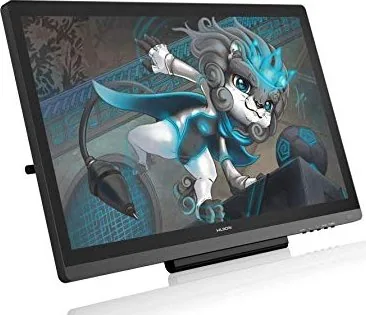
21 Pages
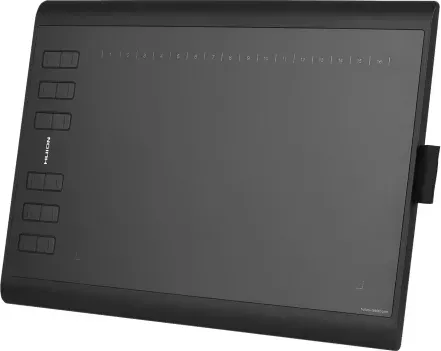
16 Pages
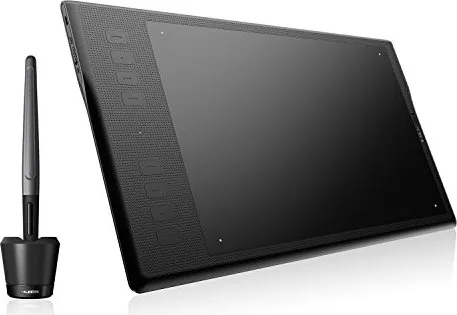
20 Pages
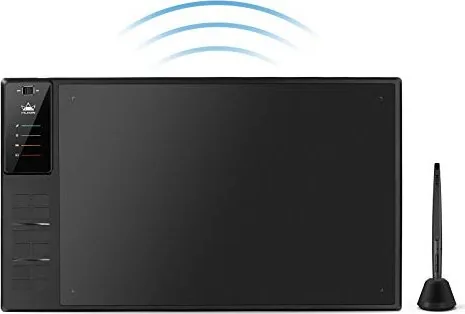
13 Pages
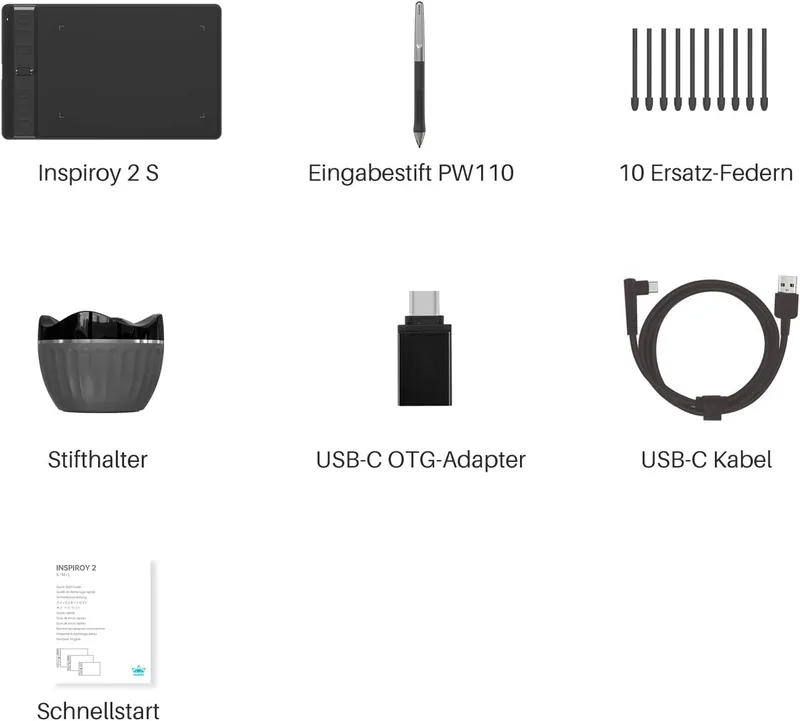
48 Pages
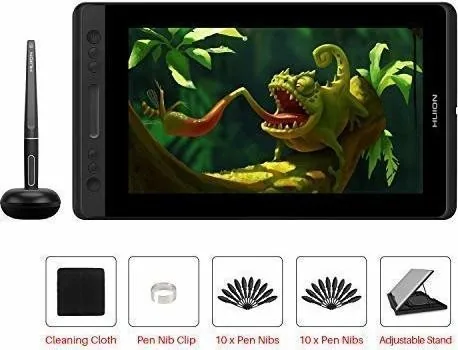
20 Pages
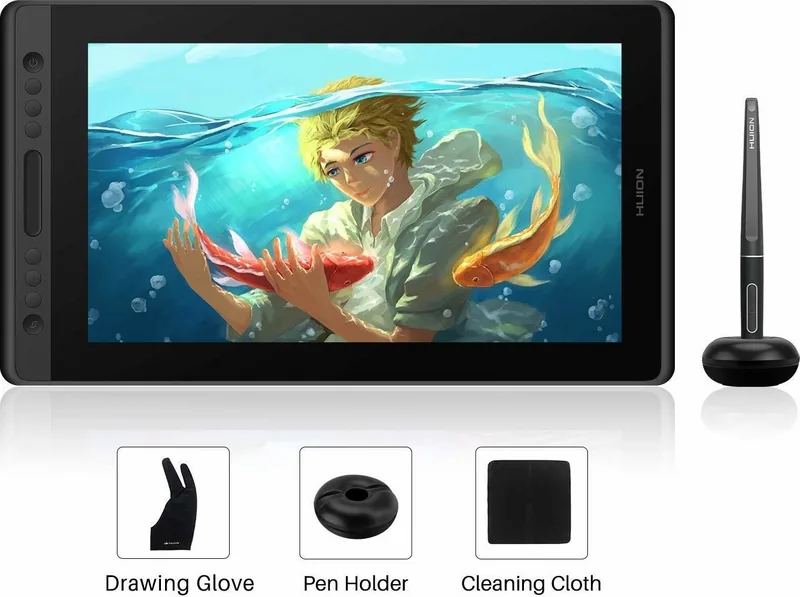
20 Pages
20 Pages
22 Pages
30 Pages
33 Pages
34 Pages
36 Pages
35 Pages
32 Pages

31 Pages
50 Pages
23 Pages
20 Pages
16 Pages
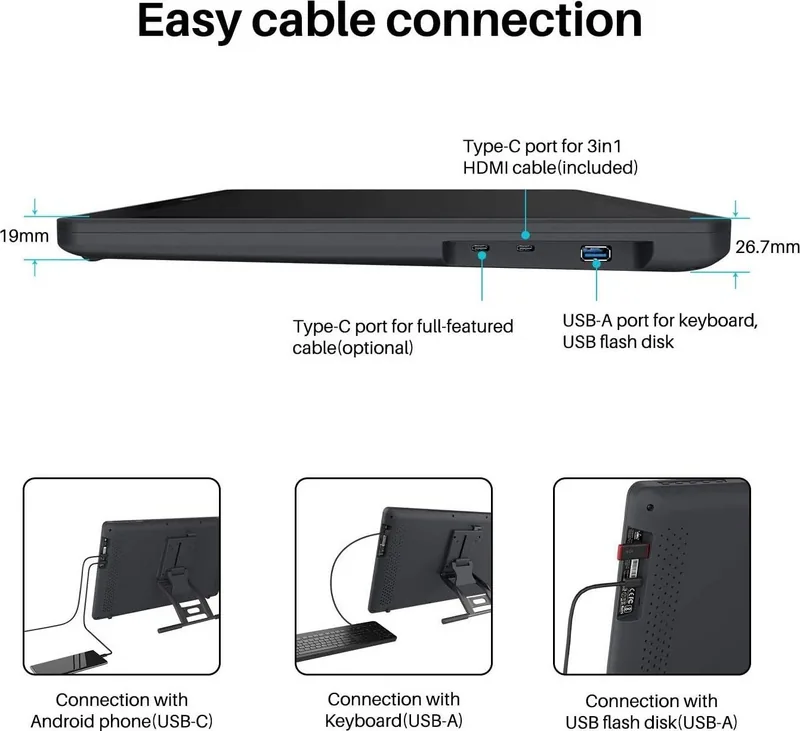
125 Pages
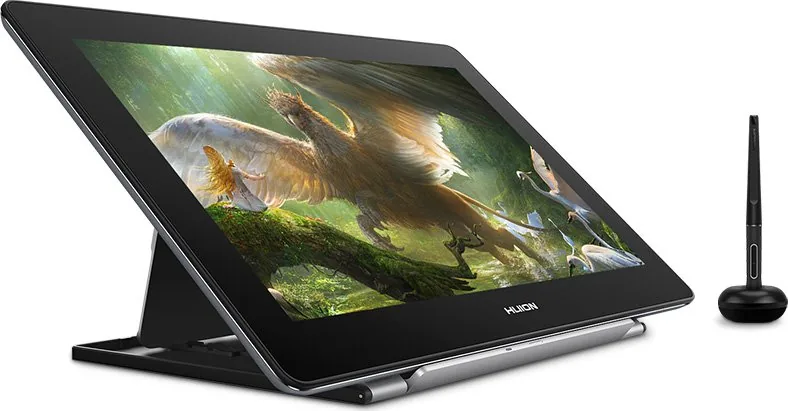
135 Pages
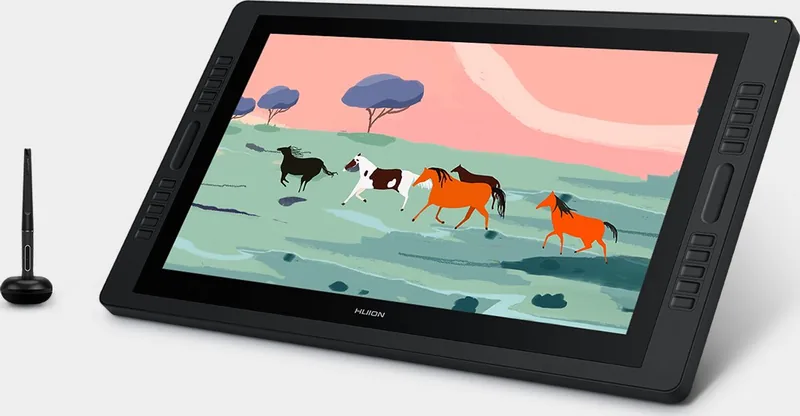
128 Pages
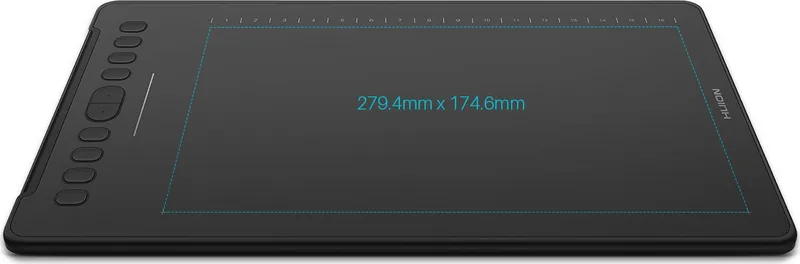
16 Pages
16 Pages

113 Pages
125 Pages
16 Pages
16 Pages
Categories

Free Huion Manuals - Read, Download & Print
Find Huion Manuals for Drawing Tablets and Pen Displays
Free Huion manuals help artists, designers, students, photographers, and digital creators get the most from their pen tablets, pen displays, accessories, and related software. Whether you have recently purchased a Huion device or need help with an older model, a user manual is a practical source for setup instructions, technical details, troubleshooting steps, and daily operating guidance.
Huion products are designed to support digital drawing, photo editing, animation, online teaching, note-taking, 3D work, and many other creative tasks. However, each model can have different buttons, connection requirements, pen settings, driver functions, display controls, and compatibility options. Reading the correct manual makes it easier to configure your device properly and avoid common setup problems.
This collection is intended to help users read Huion manuals online, download them for offline reference, and print important pages when a paper copy is more convenient. From compact graphic tablets to professional drawing monitors, manuals provide the instructions needed to begin working confidently.
Why a Huion User Manual Is Useful
A Huion manual explains the main functions of a device in a clear, organized format. It often starts with an overview of the tablet or display, including the included accessories, physical controls, cable connections, pen components, and supported operating systems. This information is especially useful when setting up a new device for the first time.
Many users need guidance on installing the Huion driver. The driver is important because it allows the computer to recognize the tablet or display and gives access to features such as pressure sensitivity, express key assignments, pen button settings, monitor mapping, workspace configuration, and calibration. Manuals usually describe the recommended installation process and may include notes about removing older drivers before installing a newer version.
The manual can also help users understand the difference between basic hardware connections and software settings. A pen display, for example, may require HDMI or another video connection, a USB data connection, and external power depending on the model. A pen tablet may connect through USB or Bluetooth. Knowing which cables and ports are needed can save time during installation.
Read Huion Manuals Online
Reading a Huion manual online is a simple way to quickly locate setup information without saving a file. Online manuals are useful when you need immediate answers about a device feature, button layout, connection diagram, or driver setting. They can be viewed on a desktop computer, laptop, tablet, or phone, making them accessible wherever you are working.
Digital manuals are often searchable, which helps users find specific terms such as "pressure sensitivity," "calibration," "express keys," "pen nib," "monitor settings," or "firmware." Instead of browsing every page, you can use a search function to go directly to the relevant section.
Online reading is also helpful for comparing different Huion models. If you are deciding between a pen tablet and a pen display, manuals can show the available controls, screen specifications, compatible accessories, and connection methods. This makes product research more practical and helps users identify the correct instructions for their hardware.
Common Information Found in Huion Manuals
Most Huion manuals include several key sections that guide users from unboxing through regular use. Depending on the product, these sections may include:
- Product overview and package contents
- Device specifications and compatibility details
- Pen, nib, stand, cable, and accessory descriptions
- Hardware connection diagrams
- Driver download and installation guidance
- Pen pressure and button customization instructions
- Express key and dial configuration
- Display calibration and color settings
- Multi-monitor mapping options
- Wireless or Bluetooth pairing information
- Maintenance, storage, and safety guidance
- Troubleshooting questions and solutions
These details are valuable for both beginners and experienced users. Beginners can follow the initial setup steps, while experienced artists can use the manual to customize shortcuts, improve workflow efficiency, or resolve a technical issue.
Download Huion Manuals for Offline Access
Downloading a Huion manual provides a convenient reference when internet access is unavailable or when you want to keep documentation with your creative tools. A saved manual can be stored on your computer, phone, tablet, cloud drive, or external storage device for easy access at any time.
Offline manuals are especially useful while traveling, working in classrooms, setting up a studio, or using a device in locations with unreliable internet service. Saving the correct document also makes it easier to build a personal library of manuals for multiple devices, such as a Huion pen display, a separate drawing tablet, and a compatible stand or remote controller.
Before downloading a manual, confirm the exact product name and model number. Huion devices may have similar names but different features, dimensions, ports, or control layouts. Using the manual for the wrong model can lead to confusion, particularly when following connection diagrams or configuring programmable keys.
It is also helpful to keep driver documentation and product manuals together. If you update your operating system or replace your computer, having both resources available can make reinstalling and configuring your Huion device much easier.
Print Huion Manuals and Important Setup Pages
Printing a Huion manual is useful for users who prefer a physical reference while setting up a tablet or drawing display. A printed guide can be kept near a workstation, stored with device accessories, or placed in a classroom or shared studio environment.
You may not need to print the entire document. Many users choose to print only the pages that are most useful, including the quick start guide, cable connection diagram, driver installation instructions, express key layout, pen replacement steps, and troubleshooting section. This approach saves paper while keeping essential information within reach.
Printed pages can be particularly convenient during initial installation. For example, you can review a connection diagram while plugging in cables without switching between browser windows. Artists who work with several monitors may also find printed display mapping instructions useful when adjusting their workspace.
When printing, check the page orientation and scaling options so diagrams, labels, and button illustrations remain easy to read. If the manual contains color-coded cable images or display calibration examples, color printing may offer additional clarity, though standard black-and-white printing is usually sufficient for text instructions.
Setup Guidance for Huion Tablets and Displays
A successful Huion setup usually begins with checking the package contents and identifying every cable and accessory. Depending on the device, the box may include a battery-free pen, pen holder, replacement nibs, USB cable, 3-in-1 cable, power adapter, display stand, glove, cleaning cloth, or quick guide.
Next, connect the device according to the manual for your specific model. Pen tablets typically need a USB connection or wireless pairing. Pen displays often need video, data, and power connections. Make sure each connection is secure before turning on the device or opening the driver software.
After the hardware is connected, install the latest compatible driver and restart the computer if required. Open the driver settings to test pen movement, pressure levels, side buttons, express keys, touch controls, or dials. If the cursor appears on the wrong monitor, use the working area or display mapping settings to select the correct screen.
For pen displays, calibration is an important final step. Calibration aligns the pen tip with the on-screen cursor. Follow the on-screen targets carefully and hold the pen naturally, as your normal drawing position can affect accuracy.
Troubleshooting Common Huion Issues
Huion manuals often include solutions for common concerns. If the pen is not working, check the cable connection, battery status if applicable, driver installation, and operating system permissions. If pen pressure does not work in an art program, verify that the correct input settings are enabled in both the Huion driver and the creative application.
If a pen display shows no image, review the video cable, input source, power connection, and graphics output compatibility. If the screen works but the pen tracks incorrectly, check monitor mapping and recalibrate the display. For express keys that do not respond as expected, open the driver settings and confirm that each key has an assigned function.
Regular maintenance can also prevent avoidable issues. Keep the screen and tablet surface clean, protect the pen tip from damage, store cables carefully, and replace worn nibs when drawing begins to feel rough or inaccurate.
Get More from Your Huion Device
Free Huion manuals are a useful resource for learning, setup, customization, maintenance, and troubleshooting. Reading online offers fast access, downloading supports offline use, and printing provides a convenient hands-on reference. With the correct manual for your model, you can connect your device properly, configure its tools, and focus more time on creating.
Use the manual as a companion whenever you install a new driver, change computers, add a second monitor, customize shortcut keys, replace accessories, or solve a performance issue. Clear documentation helps turn a Huion tablet or pen display into a reliable part of your digital creative workflow.
Search for 67,706 Manuals online


Type-in Brand or Model