
Huion Kamvas 22 Plus Manual
PDF manual · 125 Pages
English



Quick check
Incorrect answer, please try again.
Chat with your Huion Kamvas 22 Plus manual using AI
Get instant AI answers from your Huion Kamvas 22 Plus manual
Ask anything about the Huion Kamvas 22 Plus. Answers come from this manual, with the pages they are based on.
Ask a Question
Do you recommend Kamvas 22 Plus?
Yes NoFrequently Asked Questions
It has a 21.5-inch IPS display with a 1920 x 1080 Full HD resolution and a 16:9 aspect ratio. Its active drawing area measures 476.64 x 268.11 mm.
Is this answer helpful?
Yes. It includes the battery-free Huion PW517 digital pen, a pen holder, replacement nibs, and a nib clip. The pen has two customizable side buttons and supports 8192 levels of pressure sensitivity.
Is this answer helpful?
It can connect using the included 3-in-1 cable with HDMI, USB, and power connections. It can also use a USB-C to USB-C connection when the computer and cable support the required video and data capability.
Is this answer helpful?
The display supports Windows 7 or later and macOS 10.12 or later. Installing the current Huion driver is recommended for pen pressure, button customization, display mapping, and other configurable features.
Is this answer helpful?
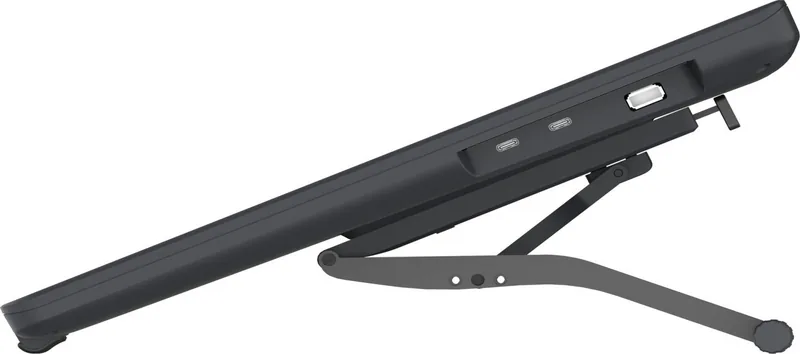
Yes. The included ergonomic stand adjusts from 20 to 80 degrees. This allows users to choose a lower angle for drawing or a more upright position for viewing, editing, and general desktop work.
Is this answer helpful?
Use the Huion driver to adjust the pressure sensitivity slider, test pressure response, and assign functions to the pen's two side buttons. The driver also supports app-specific shortcuts and importing or exporting custom settings.
Is this answer helpful?
Advantages and Disadvantages
Advantages

- 21.5-inch IPS screen with Full HD resolution provides a large, clear workspace for creative tasks.
- 140% sRGB gamut and 16.7 million colors support vivid color-focused illustration and editing.
- Battery-free PW517 pen offers 8192 pressure levels and two customizable side buttons.
- Adjustable stand supports angles from 20 to 80 degrees for a more comfortable drawing position.
- Driver settings support multi-monitor mapping, workspace rotation, pressure adjustment, and profile export.
Disadvantages

- Brightness is rated at 220 cd/m2, which may be less suitable for very bright rooms.
- The display needs an external power adapter in addition to its computer connection.
- HDMI setup uses a 3-in-1 cable, which can require more desk space and cable management.
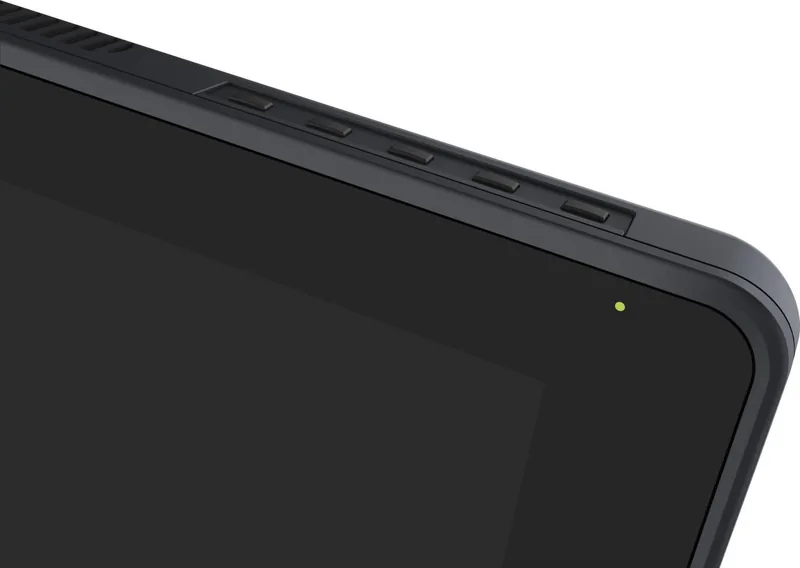
- No built-in express keys are listed on the display; shortcuts rely on pen buttons or keyboard controls.
- Maximum stated corner accuracy is lower than center accuracy, at plus or minus 3 mm.
Product Specification
Type
Graphics tablet with display
Active area
18.77 x 10.56 in
Pen
Wireless, tip, 2 buttons
Resolution
5,080 lpi
Pressure levels
8,192
Tilt range
60 degrees
Max. pen distance
0.39 in
Display
21.5 in, 1,920 x 1,080, IPS, adjustable (20-80 degrees), 140% sRGB, full lamination
Signal input
HDMI (via 3-in-1 cable), USB-C with DisplayPort 1.2
Brightness
250 cd/m2
Contrast
1,200:1
Response time
14 ms
Buttons
N/A
CPU
N/A
RAM
N/A
Storage
N/A
Graphics
N/A
Host connection
USB-C
Other ports
1x USB-A 2.0, 1x USB-C 3.0 with DisplayPort 1.2
Wireless
N/A
Card reader
N/A
Webcam
N/A
Operating system
N/A
Power consumption
12.3 W (typical), 0.5 W (standby), 0.3 W (sleep)
Dimensions
21.5 x 12.72 x 1.05 in (without stand)
Weight
8.6 lb (with stand)
Special features
Stand
Package contents
Main unit, stand, pen (PW517), pen holder, 10x replacement nibs, power adapter, 3-in-1 cable, USB-C cable, glove, cleaning cloth
SDR energy efficiency class (A to G)
D
SDR energy consumption
12 kWh/1,000 h
Product Description
Huion Kamvas 22 Plus, HDMI/DP - Read, Download & Print Free
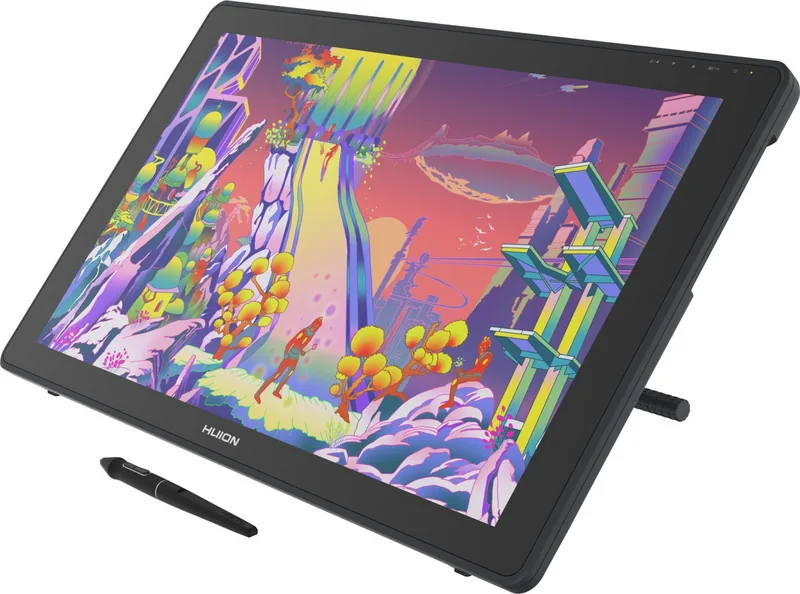
The Huion Kamvas 22 Plus is a professional creative pen display designed for digital artists, illustrators, designers, and anyone who prefers the natural feel of drawing directly on screen. Its 21.5-inch IPS display provides a spacious workspace with a Full HD 1920 x 1080 resolution and a 16:9 aspect ratio, making it comfortable for detailed artwork, image editing, annotations, and creative production.
A key visual highlight is the display's 140% sRGB color gamut, which supports rich, lively color presentation. With 16.7 million display colors, a 1200:1 contrast ratio, and wide viewing angles, the Kamvas 22 Plus is built to give creators a clear, consistent view of their work. The active area measures 476.64 x 268.11 mm, offering plenty of room for broad strokes as well as precise finishing touches.
The included PW517 battery-free pen supports 8192 pressure levels, allowing line weight and opacity to respond naturally to the artist's hand. It also has two customizable side buttons for frequently used actions. Pressure sensitivity can be adjusted through the driver, while a built-in pressure test helps users find settings that suit their drawing style. Replacement nibs and a nib clip are included in the pen holder for convenient maintenance.
For a flexible desktop setup, the Huion Kamvas 22 Plus supports connection through its 3-in-1 cable with HDMI and USB, or through a USB-C to USB-C cable when compatible hardware is available. The display requires its power adapter and works with Windows 7 or later and macOS 10.12 or later. Driver software makes it possible to map the working area, select a monitor in multi-display setups, rotate the workspace, assign pen-button functions, and save custom configurations.
An adjustable stand is included to improve comfort during long creative sessions. It can be positioned from 20 to 80 degrees, helping users create an ergonomic angle for sketching, painting, retouching, or writing. On-screen display controls also provide access to display settings and adjustments.
Notes
- Set the computer display resolution to 1920 x 1080 for the intended image quality.
- Install the latest Huion driver and remove conflicting tablet drivers before setup.
- Keep the pen off the screen when it is not in use to avoid unwanted cursor activity or interrupted sleep mode.
Search for 67,706 Manuals online


Type-in Brand or Model