
Huion Inspiroy RTE-100 Manual
PDF manual · 34 Pages
English



Quick check
Incorrect answer, please try again.
Chat with your Huion Inspiroy RTE-100 manual using AI
Get instant AI answers from your Huion Inspiroy RTE-100 manual
Ask anything about the Huion Inspiroy RTE-100. Answers come from this manual, with the pages they are based on.
Ask a Question
Do you recommend Inspiroy RTE-100?
Yes NoFrequently Asked Questions
Connect the tablet using the included Micro USB cable. Download the Pen Driver from the website and install it. Open the driver to see the device picture confirm connection. You can then start using the tablet.
Is this answer helpful?
No, the digital pen utilizes battery-free Electromagnetic Resonance technology. You do not need to charge or replace batteries for the pen itself.
Is this answer helpful?
Yes, provided you use Android 6.0 or later. You may need to enable OTG in your phone settings and use the OTG adapter from the package.
Is this answer helpful?
Use the Driver Interface to find the slider for Pressure Sensitivity Adjustment. Dragging the slider changes sensitivity levels. You can reset to default using the Redo button.
Is this answer helpful?
The tablet supports Windows 7 or later, macOS 10.12 or later, and Android 6.0 or later.
Is this answer helpful?
Rotate the pen holder anticlockwise to open. Remove the old nib using a nib clip or tilting the pen. Insert the new nib straight and push firmly until it stops.
Is this answer helpful?
Select the Working Area tab in settings. You can choose Full Area, Screen Ratio, or define a Customized Area. Rotate the area for left or right hand operation.
Is this answer helpful?
Advantages and Disadvantages
Advantages

- Battery-free pen eliminates charging needs and maintenance
- 8192 pressure levels provide highly nuanced control
- Supports Android via OTG for mobile drawing
- Customizable express keys and pen buttons
- Wide compatibility with Windows and macOS systems
Disadvantages

- Connectivity relies on older Micro USB standard
- Active area size may be small for some professionals
- Driver installation requires system restart sometimes
- Android connection needs specific OTG settings enabled
- Nibs require replacement after prolonged use
Product Specification
Type
Graphics Tablet
Active Area
4.80x2.99in
Pen
Wireless, Tip, 2 Buttons
Resolution
5080 lpi
Pressure Levels
8192
Max. Pen Height
0.39in
Display
N/A
Signal Input
N/A
Brightness
N/A
Contrast
N/A
Response Time
N/A
Buttons
4 Buttons
CPU
N/A
RAM
N/A
Storage
N/A
Graphics
N/A
Host Port
USB 2.0 Micro-B
Additional Ports
N/A
Wireless
N/A
Card Reader
N/A
Webcam
N/A
Operating System
N/A
Power Consumption
No data (typical), No data (Sleep)
Dimensions
7.31x5.44x0.25in
Weight
5.29oz
Package Contents
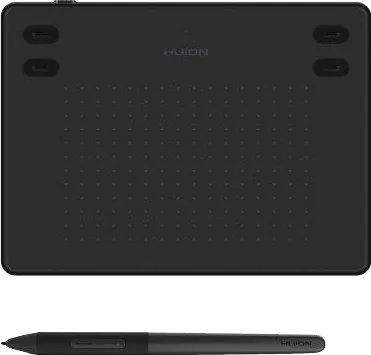
Main Unit, Pen (PW400), 10x Replacement Tip (PN04S), USB Cable
Product Description
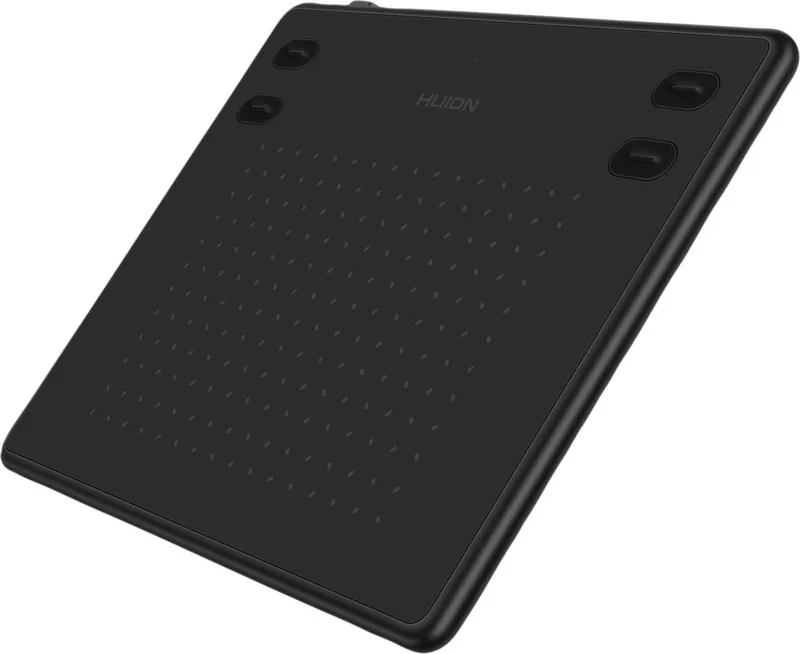
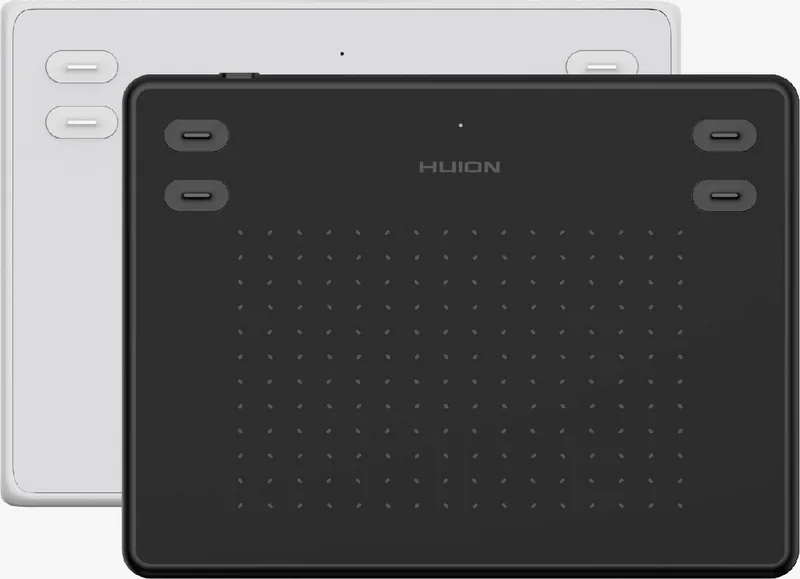
Explore the Huion Inspiroy RTE-100 Cosmo Black for Digital Creativity
Discover the potential of digital art with this creative tool. It brings a new generation of professional drawing tablets to your workspace. This battery-free pen tablet significantly improves work efficiency for painting and creation. You can freely paint and write, depicting different lines and colors just as a pen writes on real paper. To understand this fully, we look at how it handles daily tasks.
Performance and Precision
The tablet features 8192 levels of pressure sensitivity for nuanced strokes. The digital pen utilizes battery-free Electromagnetic Resonance technology for consistent performance. A sensing height of 10mm allows you to work without touching the surface constantly. The active workspace measures 121.9 by 76.2mm, providing ample space for detailed illustrations. Report rates exceed 300 PPS ensuring zero lag during fast movements. Accuracy sits at +/-0.3mm for precise cursor control during intricate designs.
Connectivity and Compatibility
Connection utilizes a standard Micro USB cable for stability. Download the driver from the website to activate full functionality on your computer. Open the driver interface and the device picture appears indicating successful connection. Android users with version 6.0 or later can connect via OTG adapter settings. Windows 7 or later and macOS 10.12 or later operating systems are fully supported. This flexibility allows creators to work across different devices seamlessly.
Customization and Control
Express keys on the tablet frame allow customization of functions according to habits. You can switch between programs or activate shortcuts like Ctrl+A instantly. The digital pen includes side buttons usable when within 10mm of the surface. Driver settings let you adjust pressure sensitivity via a slider for personal preference. Working area settings map the tablet to monitor screens in Full, Screen Ratio, or Customized modes. Rotation functions adapt the tablet to 0, 90, 180, or 270 degrees for ergonomic comfort.
Software Features
The driver software includes an Add Programs tab for unique settings per application. This ensures shortcuts adapt when you launch specific creative suites. You can browse to select a program to launch quickly via a single press. The Store section allows access to FAQs and sales promotions for accessories. Backup settings let you export configurations to avoid repeated setup tasks for new projects.
Package and Support
The unboxing includes a tablet, one battery-free pen, eight replacement nibs, and a cable. Guides help resolve initial setup questions. Troubleshooting solutions address pressure issues if they arise. Replacement nibs ensure longevity as the tool wears over time. The sleek Cosmo Black design fits any modern desk aesthetic. Whether you are a hobbyist or professional, this tool delivers value through robust software and hardware integration. Ensure your system meets OS requirements before starting.
Search for 67,706 Manuals online


Type-in Brand or Model