
Huion Kamvas Pro 16 Manual
PDF manual · 20 Pages
English



Quick check
Incorrect answer, please try again.
Chat with your Huion Kamvas Pro 16 manual using AI
Get instant AI answers from your Huion Kamvas Pro 16 manual
Ask anything about the Huion Kamvas Pro 16. Answers come from this manual, with the pages they are based on.
Kamvas Pro 16 Maintenance Schedule
Unplug the USB cable and wipe with a soft damp cloth. Do not use any kind of detergents.
The nib will wear out after long-term use; replace it with a new one when necessary.
Ask a Question
Do you recommend Kamvas Pro 16?
Yes NoFrequently Asked Questions
Drivers support Windows 7 or later and macOS 10.12 or later.
Is this answer helpful?
The pen supports 8192 levels of pressure sensitivity.
Is this answer helpful?
You use the 3-in-1 cable for HDMI, USB, and power connections.
Is this answer helpful?
Click the red cross center point on the screen to complete calibration.
Is this answer helpful?
It is a 15.6 inch screen with 1920 x 1080 resolution.
Is this answer helpful?
Yes, you can change the direction for left or right hand operation.
Is this answer helpful?
Contact Huion service via email or website for authorized repairs.
Is this answer helpful?
Advantages and Disadvantages
Advantages

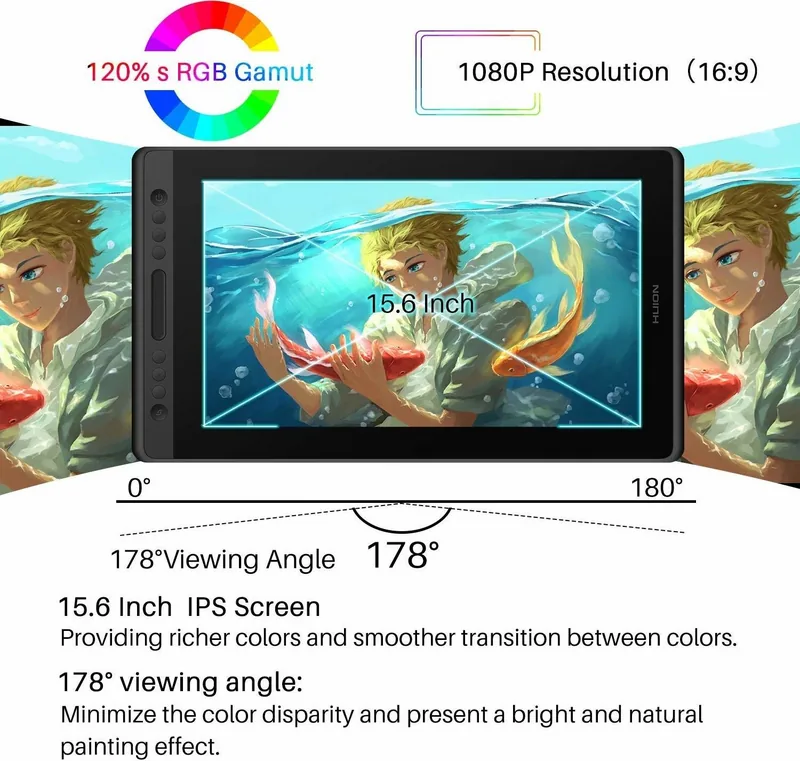
- IPS panel with 120% sRGB color gamut for accurate color reproduction
- 8192 pressure levels provide fine control for digital art creation
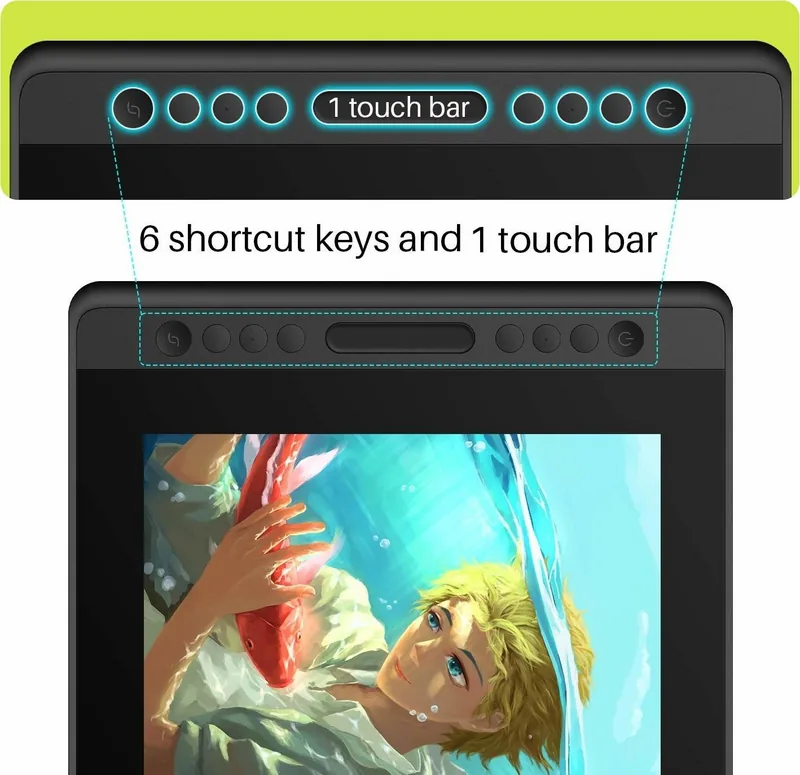
- Includes customizable press keys and a touch bar for workflow efficiency
- Supports Windows 7 and macOS 10.12 with compatible drivers
- 3-in-1 cable simplifies HDMI, USB, and power connections
Disadvantages

- Stand is optional and not included in the standard package units
- Response time is 25ms which may lag for high speed gaming
- Requires external PC connection as it does not have built-in processing
- Brightness is 220 cd/m2 lower than premium standalone monitors
- Pen nibs wear out over time and require periodic replacement costs
Product Specification
Type
Graphics Tablet with Screen
Active Area
13.54 x 7.64 in
Pen
Wireless, Tip, 2 Buttons, Eraser Function
Resolution
5080 lpi
Pressure Levels
8192
Tilt Range
90 degrees
Max. Pen Distance
0.39 in
Display
15.6", 1920x1080, IPS
Signal Input
HDMI
Brightness
220 cd/m^2
Contrast
1000:1
Response Time
25 ms
Buttons
8 Buttons, 1 Touchstrip
CPU
N/A
RAM
N/A
Storage
N/A
Graphics
N/A
Host Connection
USB-C
Additional Connections
N/A
Wireless
N/A
Card Reader
N/A
Webcam
N/A
Operating System
N/A
Power Consumption
7.8W (typical), 0.2W (Standby), 0.2W (Sleep)
Battery
N/A
Dimensions
17.24 x 9.88 x 0.45 in
Weight
2.98 lbs
Package Contents
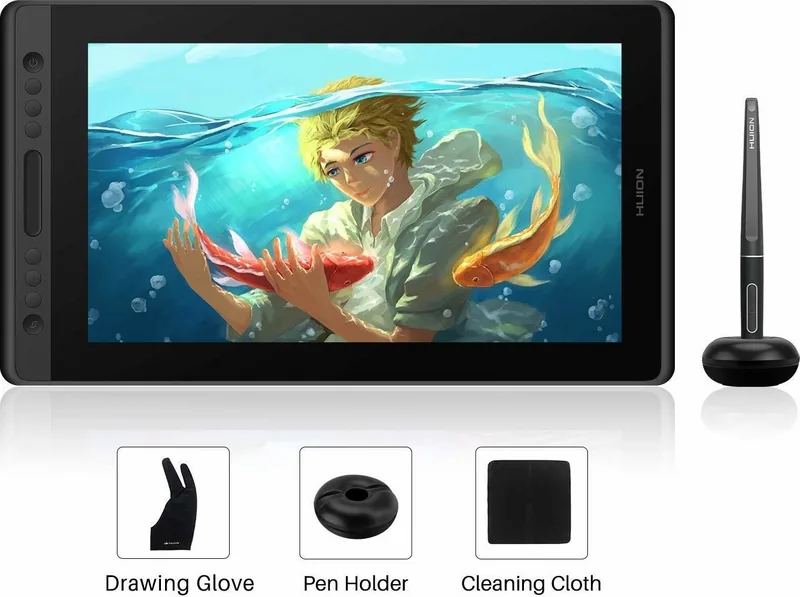
Main Device, Pen (PW507), Pen Holder (PH05), 10x Replacement Nibs, 3-in-1 Cable, Charger
Energy Efficiency Class SDR (A to G)
C
Energy Consumption SDR
8 kWh/1000h
Product Description
Discover the Versatility of the Huion Kamvas Pro 16
Creating digital art requires a tool that feels natural and responsive to every stroke. The Huion Kamvas Pro 16 delivers exactly that high standard of performance. This pen display brings the precision of professional graphics tools to your desktop workspace. It features a large 15.6 inch IPS screen with Full HD resolution for clarity. Users can enjoy a vibrant viewing experience with a wide color gamut coverage. The screen supports 8192 levels of pressure sensitivity for fine control. This ensures every stroke looks smooth and dynamic during creation. The active area measures 344 x 193 millimeters for comfortable drawing space throughout long sessions.
Essential Connectivity and Setup
Connection is made easy with the included 3-in-1 cable design. This cable handles HDMI, USB, and power signals efficiently for all systems. You can also use Type-C connections for compatible laptops with ease. The device relies on external software to function correctly and fully. Drivers are necessary for Windows 7 or later and macOS 10.12 or later. The setup process involves downloading software from the official website portal. Once installed, the system recognizes the hardware immediately without issues. The driver icon appears in the system tray to confirm success. Always close antivirus software during installation to prevent conflicts and errors.
Customization for Workflow
Efficiency is key for creative professionals managing tight deadlines. The display includes four customizable press keys on the bezel area. A touch bar on the left side allows for zoom and brush adjustments smoothly. The digital pen features two side buttons that can be remapped for shortcuts. You do not need to touch the screen to activate these buttons physically. The pen height sensing is up to 10 millimeters off the surface. Calibration tools help align the cursor with the pen tip accurately on glass. You can also import or export configuration data for different software setups later.
Maintenance and Reliability
Proper care ensures longevity for your expensive equipment and display. Do not place the unit near water sources like sinks or swimming pools. Cleaning requires a soft damp cloth without detergents on the glass screen. The back case has ventilation grooves to prevent overheating during heavy use. It is crucial not to cover these vents with soft surfaces like blankets. If issues arise, consult the service center instead of opening the unit yourself. The manual covers troubleshooting for common display or function breakdowns thoroughly. Unplug power during blackouts or long periods of non-use to protect the circuitry.
Display Settings and OSD
Adjusting brightness and colors is possible through the OSD menu interface. Press the function button for three seconds to access specific settings. The menu allows adjustments for auto, brightness, contrast, and more. The monitor boasts a brightness of 220 cd/m2 for indoor viewing needs. Response time is recorded at 25 milliseconds for general graphics tasks. Viewing angles are standard at 89 degrees horizontally and vertically for sharing. Gamut coverage reaches 120 percent sRGB for accurate color reproduction on screen.
Final Thoughts on the System
Whether you are designing, drawing, or annotating, this monitor enhances productivity significantly for everyone. The guide serves as a comprehensive manual for optimal use of the unit. It details driver installation and OS support clearly for both major platforms. The HDMI Manual resource helps connect visuals smoothly with computers for work. This combination makes it a strong choice for artists seeking reliability and comfort. Always keep the power settings in mind for safety and electrical protection. Weigh the benefits of the stand against the portable nature when setting up your workspace.
Search for 67,706 Manuals online


Type-in Brand or Model