
Huion Kamvas GT-191 Manual
PDF manual · 21 Pages
English



Quick check
Incorrect answer, please try again.
Chat with your Huion Kamvas GT-191 manual using AI
Get instant AI answers from your Huion Kamvas GT-191 manual
Ask anything about the Huion Kamvas GT-191. Answers come from this manual, with the pages they are based on.
Kamvas GT-191 Maintenance Schedule
Charge the digital pen every 3 months to prevent lithium battery damage even if not in low battery mode.
Replace the pen nib when it wears out after long-term use by rotating the holder and inserting a new nib.
Free maintenance reminders
Timed to your purchase date. Always free, unsubscribe anytime.
Ask a Question
Do you recommend Kamvas GT-191?
Yes NoFrequently Asked Questions
It is a good fit for artists, illustrators, designers, and students who want a desktop pen display with a natural drawing feel. It works well for sketching, painting, editing, and note-taking in a fixed workstation setup.
Is this answer helpful?
The GT-191 supports Windows 7 or later and macOS 10.11 or later. The driver helps enable pen input, calibration, and other display functions on both platforms.
Is this answer helpful?
Assemble the stand, connect the power adapter, HDMI cable, and USB cable, then power on the display. After that, install the driver so the computer can recognize the device and enable pen features.
Is this answer helpful?
Check that the driver is installed correctly, the pen battery is charged, and the USB cable is connected securely. Restarting the computer or reinstalling the driver can also solve the issue.
Is this answer helpful?
Yes. The driver lets you assign custom functions to the pen’s side buttons. You can set them for actions like right-click, brush switching, or other shortcuts depending on your workflow.
Is this answer helpful?
Use the calibration tool in the driver and make sure the screen resolution is set to 1920 x 1080. If you use multiple monitors, map the correct working area so the cursor follows the right display.
Is this answer helpful?
Advantages and Disadvantages
Advantages

- Large 19.5-inch Full HD screen gives artists more room to draw and work comfortably.
- 8192 pressure levels provide smooth control for lines, shading, and detailed brushwork.
- Adjustable stand helps users find a better working angle for longer sessions.
- Driver tools support calibration, button customization, Windows Ink, and workspace mapping.
Disadvantages

- Requires multiple cables and an external power adapter, so the setup is less portable.
- The rechargeable pen needs regular charging, which adds another maintenance task.
- Driver conflicts or missing USB recognition can cause setup trouble for some users.
- The display is limited to 1080p, which may feel modest compared with newer higher-resolution tablets.
Product Specification
Type
Graphics tablet with screen
Active area
17.13x9.41in
Pen
wireless, nib, 2 buttons
Resolution
5080lpi
Pressure levels
8192
Display
19.5", 1920x1080, IPS, tiltable (10-80°)
Signal input
VGA, DVI, HDMI
Brightness
250cd/m²
Contrast
3000:1
Response time
25ms
Buttons
6
CPU
N/A
RAM
N/A
Storage
N/A
Graphics
N/A
Host interface
USB
Wireless
N/A
Card reader
N/A
Webcam
N/A
Operating system
N/A
Power consumption
36W (typical), <1W (Sleep)
Battery
N/A
Dimensions
18.70x11.73x13.94in
Weight
7.28lb
Special features
Stand
Package contents
Main unit, Pen, HDMI cable, USB cable, 8x replacement nib
Product Description
Huion Kamvas GT-191: A Comfortable Pen Display for Everyday Creation
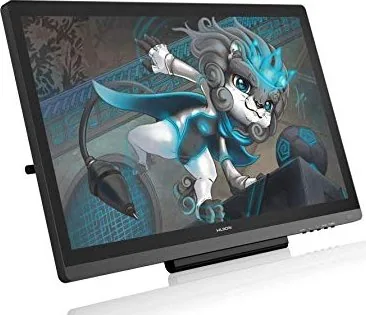
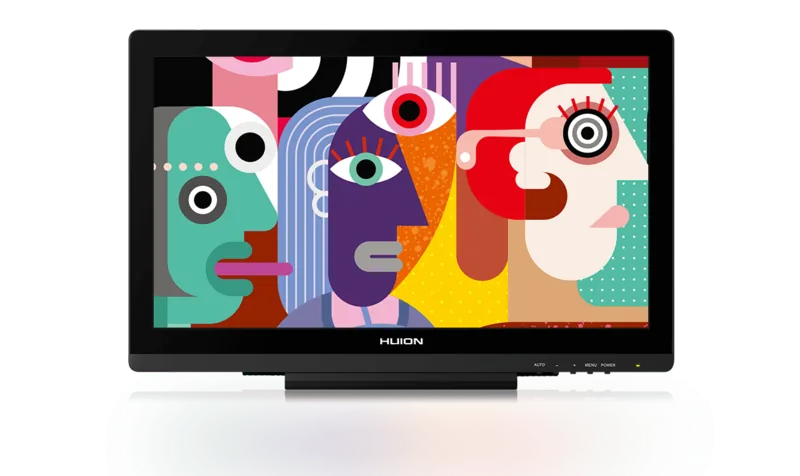
If you are looking for the Huion Kamvas GT-191 Manual, the main idea is simple: this pen display is built to make digital drawing feel natural and efficient. With a 19.5-inch Full HD screen, the GT-191 gives artists a roomy canvas for sketching, retouching, illustration, and everyday visual work. It is meant to feel familiar, like drawing on paper, while still giving you the control and flexibility of a modern creative device.
One of its biggest strengths is the pen experience. The rechargeable stylus supports 8192 levels of pressure sensitivity, which helps create smoother line changes, subtle shading, and more accurate brush control. Whether you are working on clean line art or expressive painting, the pen is designed to respond with enough precision to keep the process comfortable and natural.
The display itself focuses on practical usability. A 1920 x 1080 IPS panel offers wide viewing angles and solid image clarity, while the adjustable stand lets you change the working angle from 20° to 80°. That makes it easier to find a posture that suits your desk setup, reducing strain during longer sessions. The GT-191 also supports useful display adjustments such as brightness, contrast, color temperature, and aspect ratio settings, so you can tune the screen to match your workflow.
Setup and customization are another important part of the experience. The device connects through power, HDMI, and USB, and the driver adds tools for working area mapping, pressure calibration, pen button assignment, and Windows Ink support. These features are especially helpful for users who switch between programs, use multiple monitors, or want to fine-tune how the pen behaves in creative software.
In daily use, the GT-191 feels like a reliable desktop companion rather than a flashy gadget. It supports nib replacement, pen charging, and configuration export/import, which makes maintenance and workflow changes easier over time. For artists who want a dependable pen display with a straightforward learning curve, the Huion Kamvas GT-191 remains a practical and appealing choice.
Notes
- Keep the pen charged regularly to avoid interruptions.
- Calibrate the screen after setup for better cursor accuracy.
- Match the resolution to 1920 x 1080 for the clearest image.
- Recheck cable connections if the display or pen behaves oddly.
Search for 67,706 Manuals online


Type-in Brand or Model