

Huion Kamvas 22 Manual
PDF manual · 125 Pages
English



Quick check
Incorrect answer, please try again.
Chat with your Huion Kamvas 22 manual using AI
Get instant AI answers from your Huion Kamvas 22 manual
Ask anything about the Huion Kamvas 22. Answers come from this manual, with the pages they are based on.
Ask a Question
Do you recommend Kamvas 22?
Yes NoFrequently Asked Questions
Yes, the display supports macOS 10.12 or later. You will need to download the specific driver from the official website to ensure full compatibility with your system.
Is this answer helpful?
Check that the driver is installed correctly and that no other tablet drivers are running. Use the pressure testing tool in the driver to calibrate the pen and adjust the sensitivity slider to your preference.
Is this answer helpful?
Yes, the driver allows you to map the active area of the Kamvas 22 to any specific monitor in your multi-screen setup, whether in extended or mirror mode.
Is this answer helpful?
This often occurs if the pen is left resting on the screen surface. Always store the pen in its holder when not in use to allow the computer to sleep properly.
Is this answer helpful?
Yes, the PW517 pen uses electromagnetic resonance technology and does not require batteries, ensuring uninterrupted creative sessions.
Is this answer helpful?
Rotate the pen holder counter-clockwise to open it, remove the old nib using the clip, and insert the new nib straight into the holder until it stops.
Is this answer helpful?
Advantages and Disadvantages
Advantages

- High-resolution 1920x1080 IPS display with 120% sRGB color gamut
- Battery-free pen with 8192 pressure levels for natural drawing feel
- Ergonomic adjustable stand with 20° to 80° tilt range
- Flexible connectivity via HDMI, DisplayPort, and USB-C
- Customizable driver settings for multi-monitor and pressure sensitivity
Disadvantages

- No built-in touch functionality despite being a display panel
- Requires external power adapter which adds cable clutter
- Response time of 14ms may cause slight lag for fast-paced animation
- Screen brightness at 220cd/m2 might be low for very bright rooms
- Pen nibs require periodic replacement due to wear and tear
Product Specification
Type
Graphics tablet with screen
Active area
18.76x10.56in
Pen
wireless, tip, 2 buttons
Resolution
5080lpi
Sensitivity levels
8192
Tilt range
60°
Max pen distance
0.39in
Display
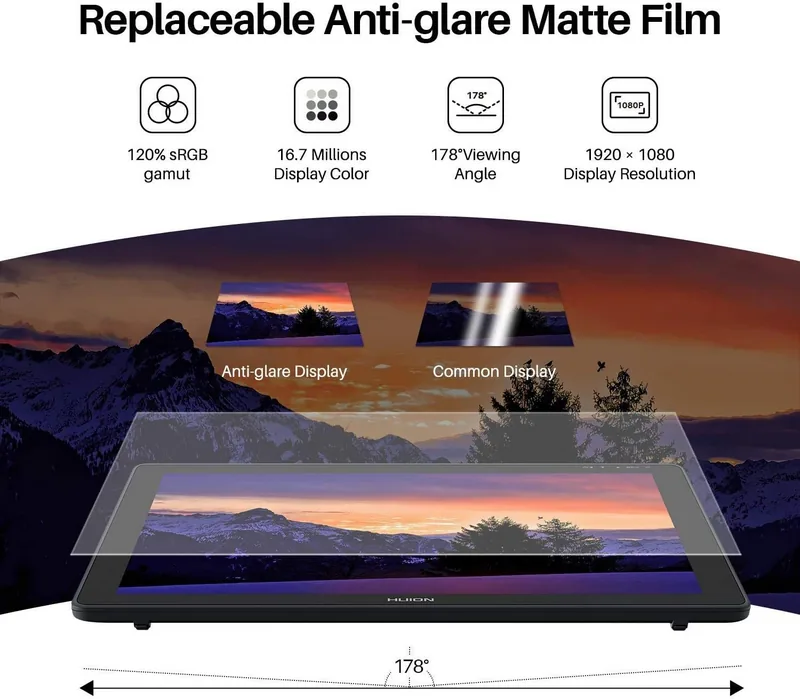
21.5", 1920x1080, IPS, tiltable (20-80°), 120% sRGB
Signal input
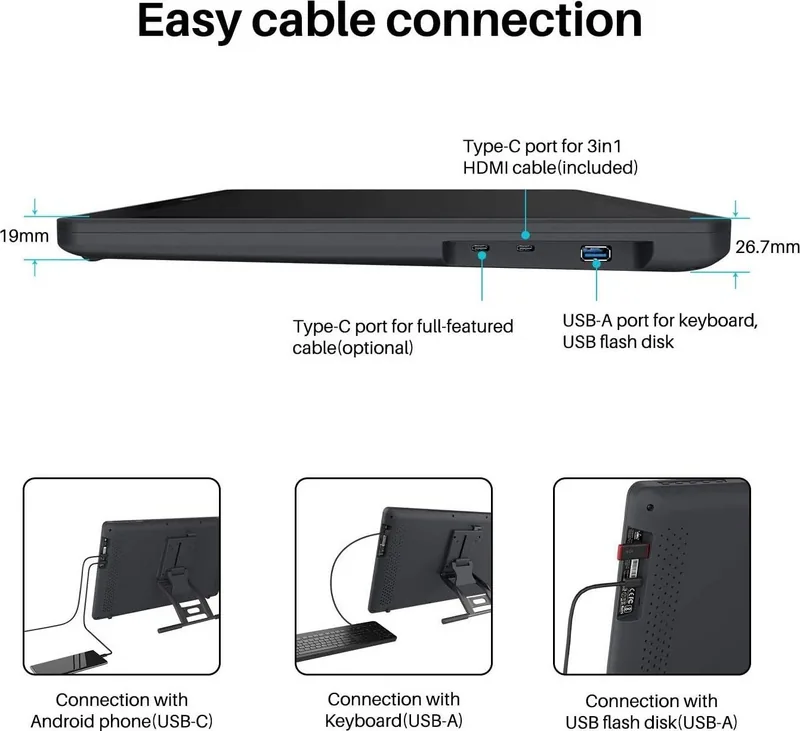
HDMI (via 3-in-1 cable), USB-C with DisplayPort 1.2
Brightness
66 cd/ft²
Contrast
1,000:1
Response time
14ms
Keys
N/A
CPU
N/A
RAM
N/A
Storage
N/A
Graphics
N/A
Host port
USB-C
Other ports
1x USB-A 2.0, 1x USB-C 3.0 with DisplayPort 1.2
Wireless
N/A
Card reader
N/A
Webcam
N/A
Operating system
N/A
Power consumption
12.3W (typical), 0.5W (standby), 0.3W (sleep)
Dimensions
21.5x12.72x1.05in (without stand)
Weight
8.60lb (with stand)
Features
Stand
Package contents
Main unit, stand, pen (PW517), pen holder, 10 replacement tips, power adapter, 3-in-1 cable, glove, cleaning cloth
Energy efficiency class SDR (A to G)
D
SDR energy consumption
12kWh/1000h
Product Description
Discover the Huion Kamvas 22 HDMI/DP - Your Gateway to Digital Artistry
The Huion Kamvas 22 represents a significant leap forward in desktop-level creative displays, designed specifically for artists who demand precision and comfort. This 21.5-inch IPS panel delivers a stunning visual experience with a resolution of 1920 x 1080 and a wide color gamut covering 120% sRGB. Whether you are sketching intricate details or painting vibrant landscapes, the battery-free PW517 pen offers 8192 levels of pressure sensitivity, ensuring that every stroke feels natural and responsive.
Setting up your workspace has never been easier. The display comes with an ergonomic adjustable stand that allows you to tilt the screen between 20° and 80°, accommodating various drawing styles and reducing neck strain during long sessions. Connectivity is flexible, supporting both HDMI and DisplayPort inputs via a versatile 3-in-1 cable or direct USB-C connections on compatible systems. The driver software provides extensive customization options, including working area mapping for multi-monitor setups, customizable pen buttons, and adjustable pressure curves to match your unique hand movements.
Beyond its hardware capabilities, the Kamvas 22 prioritizes user safety and longevity. Precautions outlined in the manual emphasize proper ventilation and protection from moisture to ensure optimal performance. The included accessories, such as replacement nibs, a cleaning cloth, and a pen holder, make it a complete package ready for immediate use. By enabling Windows Ink support, this tablet integrates seamlessly with popular applications like Adobe Photoshop, Corel Painter, and Microsoft Office, streamlining your creative workflow.
Whether you are a professional illustrator, a graphic designer, or a hobbyist exploring digital art, the Huion Kamvas 22 offers the tools necessary to bring your imagination to life. Its robust build quality, combined with intuitive software controls, makes it an ideal choice for anyone looking to elevate their digital drawing experience without breaking the bank.
Important Notes
Always ensure the display is unplugged before cleaning to avoid electrical hazards. Do not place the device near water sources or magnetic fields. If the screen shows abnormalities or if the power adapter is damaged, contact customer service immediately rather than attempting repairs yourself.
Search for 67,706 Manuals online


Type-in Brand or Model