
Huion Kamvas Pro 16 Plus (4K) Manual
PDF manual · 135 Pages
English



Quick check
Incorrect answer, please try again.
Chat with your Huion Kamvas Pro 16 Plus (4K) manual using AI
Get instant AI answers from your Huion Kamvas Pro 16 Plus (4K) manual
Ask anything about the Huion Kamvas Pro 16 Plus (4K). Answers come from this manual, with the pages they are based on.
Ask a Question
Do you recommend Kamvas Pro 16 Plus (4K)?
Yes NoFrequently Asked Questions
The Kamvas Pro 16 Plus features a 15.6-inch IPS panel with 3840×2160 (4K) resolution and a wide 145% sRGB color gamut, delivering high detail and vibrant color reproduction suitable for professional digital art and design.
Is this answer helpful?
The display ships with the PW517 battery-free pen, offering 8192 pressure levels, 5080 LPI resolution, ±0.3 mm center accuracy, two customizable side buttons, and a sensing height up to 10 mm for accurate, paper-like drawing performance.
Is this answer helpful?
You can use the included 3‑in‑1 cable (USB data + HDMI + USB power) or a USB-C to USB-C cable that meets USB3.1 Gen1 and DP1.2 specs. Ensure the power supply is 5V/3A. On desktops, plug HDMI into the discrete GPU port rather than the motherboard.
Is this answer helpful?
Supported OS are Windows 7 or later and macOS 10.12 or later. Download the latest Huion driver from www.huion.com/download, uninstall other tablet drivers before installation, and close graphics/antivirus software to avoid conflicts.
Is this answer helpful?
Common fixes: uninstall conflicting tablet drivers, close drawing apps, reinstall the Huion driver, restart the computer, ensure the original pen is used, and verify pressure sensitivity settings in the Huion driver and application.
Is this answer helpful?
Yes. The driver lets you map the display’s active area to a specific monitor in extended setups and supports rotating the working area 0°, 90°, 180°, or 270° to suit left- or right-handed workflows.
Is this answer helpful?
Set the display resolution to 3840×2160 in system settings to avoid blurriness. For missing colors, check that signal cable pins are intact and that connections are secure; use recommended adapters and ensure HDMI is connected to the GPU when applicable.
Is this answer helpful?
Advantages and Disadvantages
Advantages

- 3840×2160 UHD IPS panel with 145% sRGB for detailed, vivid color work.
- Battery-free PW517 pen with 8192 pressure levels and 5080 LPI for natural, precise strokes.
- Flexible connectivity: bundled 3‑in‑1 (HDMI + USB) or USB-C (USB3.1 Gen1 + DP1.2) support.
- Driver features: working-area mapping, pressure tuning, hotkeys, profile export/import, and OSD control.
- Ergonomic adjustable stand and comprehensive accessory kit (pen holder, spare nibs, cables).
Disadvantages

- Requires 5V/3A power; some USB-C setups need separate power cable or adapter.
- 200 cd/m² brightness may be low for very bright work environments.
- Driver installation can conflict with other tablet drivers; requires uninstalling previous drivers.
- Large 4K resolution needs sufficient GPU bandwidth; HDMI must be on discrete GPU for desktops.
- No built-in touch input; pen-only interaction may limit some workflows.
Product Specification
Type
Graphics tablet with display
Active Area
13.61x7.65in
Pen
wireless, nib, 2 buttons
Resolution
5080lpi
Pressure Levels
8192
Tilt Range
60°
Max. Pen Reading Height
0.39in
Display
15.6", 3840x2160, IPS, 145% sRGB, Full Lamination
Signal Input
HDMI 2.0 (via 3-in-1 cable), USB-C with DisplayPort 1.2
Brightness
200cd/m²
Contrast
1,200:1
Response Time
25ms
Buttons
N/A
CPU
N/A
RAM
N/A
Storage
N/A
Graphics
N/A
Host Connection
USB-C
Other Connections
1x USB-A 2.0, 1x USB-C 3.0 with DisplayPort 1.2
Wireless
N/A
Card Reader
N/A
Webcam
N/A
Operating System
N/A
Power Consumption
9.8W (typical), 0.2W (standby), 0.2W (sleep)
Dimensions
15.86x10.13x0.51in
Weight
2.80lb
Special Features
Stand (20°/45° tiltable, foldable)
Scope of Delivery
Main unit, Stand (ST200), Pen (PW517), Pen holder, 10x Replacement nib, Power adapter, 3-in-1 cable, Glove, Cleaning cloth
Energy Efficiency Class SDR (A to G)
E
Energy Consumption SDR
10kWh/1000h
Product Description
Huion Kamvas Pro 16 Plus (4K) Dark Grey, HDMI/DP Manual
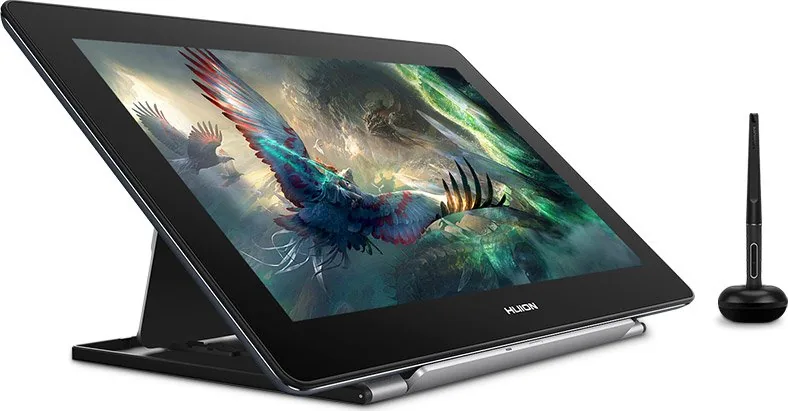
The Huion Kamvas Pro 16 Plus (4K) Dark Grey is a professional pen display built for digital artists, illustrators, and designers who need high resolution, accurate color, and natural pen performance. Featuring a 15.6-inch IPS panel with a 3840×2160 UHD resolution, 145% sRGB gamut, and 16.7 million colors, this display delivers crisp detail and vibrant tones for demanding creative work. The slim dark grey chassis, adjustable ergonomic stand, and bundled accessories make it ready for studio or mobile setups.
Equipped with a battery-free electromagnetic PW517 pen, the tablet supports 8192 pressure levels, 5080 LPI resolution, ±0.3 mm center accuracy and a 10 mm sensing height for precise, paper-like strokes. The pen includes two customizable side buttons and a set of replacement nibs stored in the pen holder. Connectivity is flexible: use the bundled 3‑in‑1 cable (USB data + HDMI + USB power) or a USB-C (USB 3.1 Gen1 with DP1.2) connection. Power requirements call for a 5V/3A supply; an extension cable is supported when needed.
The Kamvas Pro 16 Plus emphasizes usability through a dedicated driver that allows mapping of working area across multiple monitors, rotation to suit left- or right-handed users, pressure sensitivity customization, pen button assignment, and export/import of user profiles. An on-screen display (OSD) can be accessed with the pen or driver to fine-tune brightness, color temperature (Standard, Game, Movie, User), and aspect ratio settings. Windows Ink support is available to ensure compatibility with mainstream creative apps like Photoshop, SketchBook, and Adobe suites.
Installation guidance covers supported OS: Windows 7+ and macOS 10.12+, with driver download from Huion’s site. The manual stresses removing old tablet drivers before installing and closing graphics and antivirus software to avoid conflicts. Troubleshooting steps include checking cables, verifying HDMI is connected to the GPU (not motherboard) on desktops, setting the display resolution to 3840×2160 to avoid blurriness, and adjusting display/driver settings for multi-monitor setups. Common fixes for pen pressure or button issues include reinstalling drivers, using the original pen, and ensuring correct USB ports and driver settings.
Overall, the Kamvas Pro 16 Plus (4K) Dark Grey balances professional-grade display specs, a responsive battery-free stylus, and practical features—making it a strong choice for creators who need high resolution, color fidelity, and precise pen input in a compact, well-supported package.
Notes
- Includes PW517 battery-free pen, pen holder with spare nibs, 3-in-1 cable, USB-C cable, power adapter, adjustable stand, cleaning cloth, pen case, quick start guide, and warranty card.
- Recommended cable specs for USB-C: USB3.1 Gen1 and DP1.2 or above.
- Use a 5V 3A power adapter; some setups may require purchase of separate USB-C or power cables.
- For multi-monitor setups, map the working area in the driver and set Windows/Mac display modes appropriately.
Search for 67,706 Manuals online


Type-in Brand or Model