
Huion Kamvas Studio 16 Manual
PDF manual · 23 Pages
English



Quick check
Incorrect answer, please try again.
Chat with your Huion Kamvas Studio 16 manual using AI
Get instant AI answers from your Huion Kamvas Studio 16 manual
Ask anything about the Huion Kamvas Studio 16. Answers come from this manual, with the pages they are based on.
Kamvas Studio 16 Maintenance Schedule
Replace the pen nib with a new one when it is badly worn to ensure proper function.
Clean the screen of the pen computer if debris affects operation or response time.
Ask a Question
Do you recommend Kamvas Studio 16?
Yes NoFrequently Asked Questions
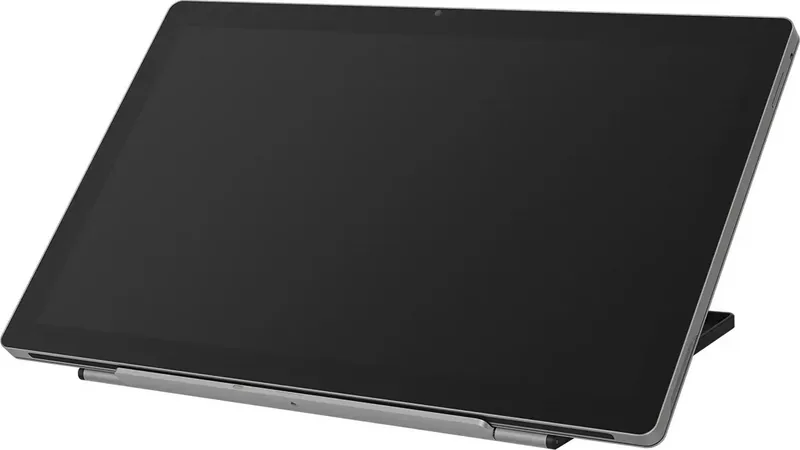
Yes, the kickstand supports stepless angle adjustment allowing positions between 30 and 75 degrees with the desktop surface for video watching or browsing purposes.
Is this answer helpful?
You can check and update the driver from the official website www.huion.com/download/ to ensure the device has the latest features and stable functionality.
Is this answer helpful?
Yes, users can adjust the pressure sensitivity level by dragging the slider in the Pressure Sensitivity Adjustment box according to their personal usage habits.
Is this answer helpful?
If the pen rests on the working area, the computer might not be able to enter sleep mode, so please place the pen on the table when not using it.
Is this answer helpful?
Yes, the press keys can be programmed to launch programs, toggle mouse modes, change brush sizes, or control multimedia functions through the driver settings.
Is this answer helpful?
It supports finger gestures like swipe, tap, and pinch in cooperation with the electromagnetic digital pen to improve creation efficiency on Windows.
Is this answer helpful?
Advantages and Disadvantages
Advantages

- Powerful Core i7-1165G7 CPU ensures smooth handling of heavy graphic design software without lag.
- Built-in Windows 11 Pro operating system allows full computer functionality alongside drawing tasks.
- Adjustable kickstand provides viewing angles from 30 to 75 degrees for comfortable media consumption.
- Customizable driver software supports unique key mapping and pressure sensitivity adjustments for pen tools.
- High speed 512GB SSD enables rapid file access and quick boot times for efficient workflow management.
Disadvantages

- Included kickstand has limited bearing capacity making it unsuitable for active drawing sessions.
- Minor color deviation may occur depending on environmental temperature affecting display consistency.
- Electronic interference from nearby devices can potentially cause image dithering or signal ripple issues.
- Device fails to enter sleep mode if the digital pen remains placed on the active working surface.
- Touch input functions require specific software support and cannot override application level limitations.
Product Specification
Type
All-in-One
Active Area
13.76 x 7.74 inches
Stylus
Wireless, Tip, 2 Buttons
Resolution
5080 lpi
Pressure Levels
8192
Tilt Range
60°
Max. Pen Distance
0.39 inches
Display
15.8", 2560x1440, Multi-Touch, IPS, 100% Adobe RGB, Full Lamination
Signal Input
USB-C with DisplayPort 1.4
Brightness
400 cd/m²
Contrast
1,200:1
Response Time
14 ms
Keys
N/A
CPU
Intel Core i7-1165G7, 4C/8T, 1.20-4.70 GHz, 12MB+5MB Cache, 12W TDP, 12-28W cTDP, Codename "Tiger Lake-UP3" (Willow Cove, Intel 10nm SuperFin)
RAM
16 GB DDR4
Storage
512 GB SSD
Graphics
Intel Iris Xe Graphics (iGPU), 6 Xe/96 EU/768 SP, 1.30 GHz, Architecture "Xe-LP / Gen 12.1" (Tiger Lake GT2)
Host Port
USB-C
Other Ports
2x USB-C 3.2 (20 Gb/s, PD), 1x 3.5mm Jack
Wireless
Wi-Fi 6 (WLAN 802.11a/b/g/n/ac/ax), Bluetooth 5.0
Card Reader
N/A
Webcam
5.0 Megapixel (Front), 8.0 Megapixel (Rear)
Operating System
Windows 11 Pro
Power Consumption
Not specified (typical), Not specified (Standby), Not specified (Sleep)
Battery
58 Wh, up to 6h runtime, 2h charging time
Dimensions
15.12 x 9.21 x 0.47 inches
Weight
3.75 lbs
Features
Stand Base (tiltable 20°/45°, foldable), Speakers (2x 2W), Fingerprint Sensor, Gyroscope
Package Contents
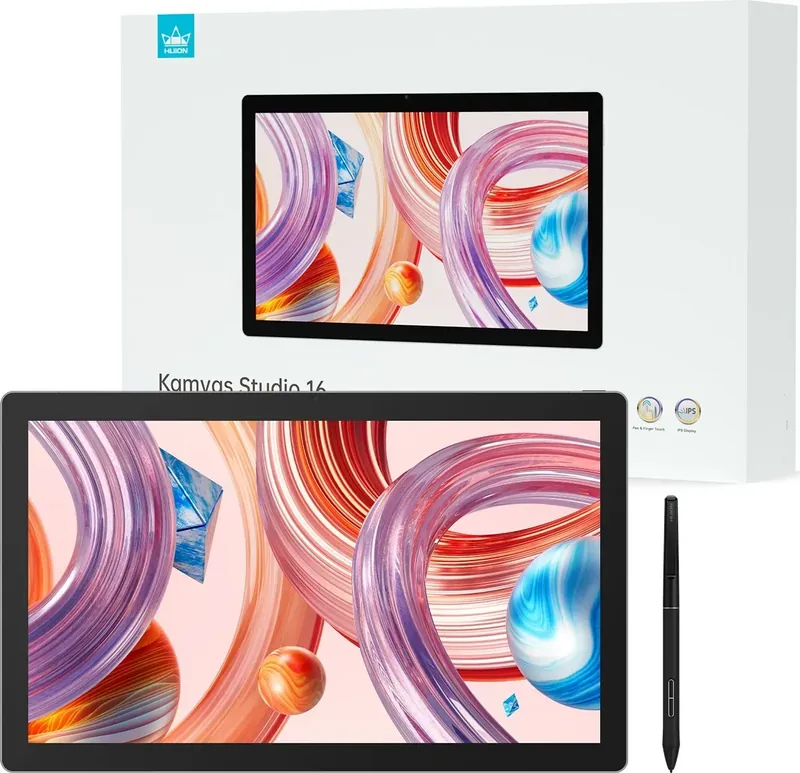
Main Device, Stand Base (ST200), Pen (PW550S), Pen Case (PB02), 6x Replacement Tips, Power Adapter (65W), USB-C Cable, 3-Finger Glove, Cleaning Cloth
Product Description
Unleash Your Creativity with the Huion Kamvas Studio 16
Discover the ultimate creative companion designed for professionals who demand power and portability. The Huion Kamvas Studio 16 Dark Grey represents a seamless blend of hardware and software tailored for artistic expression. Powered by the efficient Core i7-1165G7 processor, this machine handles complex graphic tasks with impressive speed. With 16GB RAM installed, users can multitask across multiple heavy applications without lag or slowdown. The system reliability is further enhanced by the inclusion of a 512GB SSD, providing rapid storage access for large media files.
Comprehensive System Experience
Running natively on Windows 11 Pro, the device offers a full PC experience rather than just a display tablet. The Windows 11 Pro Manual guides users through essential settings and configuration options available within the OS. Touch controls complement the digital pen, allowing for intuitive gesture-based navigation like pinching to zoom or swiping to switch windows. The pen itself offers high precision with adjustable pressure sensitivity curves managed directly through the dedicated driver software. Artists can map specific functions to pen buttons for quicker workflow integration. This flexibility allows for customized interactions tailored to individual artistic styles and industry standards.
Precision and Adjustment Features
Ergonomic comfort is prioritized with adjustable viewing angles ranging from thirty to seventy-five degrees using the built-in stand. For serious drawing work, the accompanying standalone draw stand is recommended for maximum stability during intricate detailing. The software interface allows deep customization, enabling users to calibrate the pen display area relative to their external monitors or use the full screen mapping mode. Rotation settings support both left and right handed users by flipping the working area orientation easily. Battery management requires connecting the power adapter during first use for optimal performance longevity. If issues arise regarding pressure sensitivity or connectivity, the driver includes diagnostic tools to resolve common conflicts with background processes effectively.
Long Term Usage Considerations
Replacing the pen nib is straightforward and ensures consistent line quality over time without additional cost. Color accuracy remains high despite minor temperature variations causing tiny deviations which are industry standard. Image clarity depends on avoiding electronic interference nearby to prevent ripple effects. Proper maintenance ensures the device enters sleep mode correctly when the pen is stored away from the surface completely. This all-in-one solution empowers creators to work anywhere while maintaining desktop level performance and reliability throughout their daily projects. The extensive driver support ensures continuous updates for compatibility with new creative applications.
Search for 67,706 Manuals online


Type-in Brand or Model