
Huion Inspiroy Dial 2 Q630M Manual
PDF manual · 33 Pages
English



Quick check
Incorrect answer, please try again.
Chat with your Huion Inspiroy Dial 2 Q630M manual using AI
Get instant AI answers from your Huion Inspiroy Dial 2 Q630M manual
Ask anything about the Huion Inspiroy Dial 2 Q630M. Answers come from this manual, with the pages they are based on.
Ask a Question
Do you recommend Inspiroy Dial 2 Q630M?
Yes NoFrequently Asked Questions
Connect the USB-C cable from the box to the tablet and computer for wired use. For wireless, turn on Bluetooth on your device, press the power button on the tablet, and find Inspiroy Dial 2 in your Bluetooth settings. Long press pairing if needed.
Is this answer helpful?
Uninstall other drivers, close graphic software, and reinstall the Huion driver. Restart your computer. Check the driver interface to ensure pressure sensitivity is enabled. Ensure the program supports pen input, as some basic apps may not.
Is this answer helpful?
Open the driver, go to the Pen Tablet section, and select Working Area tabs. Choose Full Area, Screen Ratio, or Custom Area to adjust ratios. For multiple monitors, select Extended or Mirror mode as per your setup configuration needs.
Is this answer helpful?
Blue solid means connected. Blinking blue is pairing. Steady green is full charge. Blinking red is low battery. White means no pen signal. Pulsing white is sleeping mode. These lights help you monitor status quickly.
Is this answer helpful?
Enable Mouse Mode in the driver settings. Move the nib across the tablet to move the cursor. Lifting the pen stops cursor movement. You can also adjust cursor sensitivity levels to match your habits.
Is this answer helpful?
You can assign Zoom, Brush Size, Scroll, or Multimedia controls. You can also set Radial menu tools via Windows settings. Rotate the dial to test the new function assigned in the driver interface.
Is this answer helpful?
Advantages and Disadvantages
Advantages

- Dual dial controllers significantly increase drawing efficiency and workflow speed
- Battery-free digital pen ensures continuous use without pen charging interruptions
- Flexible connectivity options via USB-C cable or Bluetooth wireless connection
- Highly customizable driver software with extensive press key and dial programming
- Adjustable pressure sensitivity levels and precision modes for detailed artwork
Disadvantages

- The pen tablet itself requires a battery charge unlike the passive digital pen
- Full functionality requires specific driver installation and software dependency
- Learning curve exists for mastering customized dial and key functions initially
- Windows Ink compatibility may vary depending on the third-party application used
- Placing the pen on the tablet area may interfere with computer sleep mode
Product Specification
Type
Graphics Tablet
Active Area
10.50 x 6.56 inches
Pen
Wireless, Tip, 2 Buttons
Resolution
5080 lpi
Pressure Levels
8192
Tilt Angle
60 degrees (120 Levels)
Max Pen Height
0.39 inches
Display
N/A
Signal Input
N/A
Brightness
N/A
Contrast
N/A
Response Time
N/A
Buttons
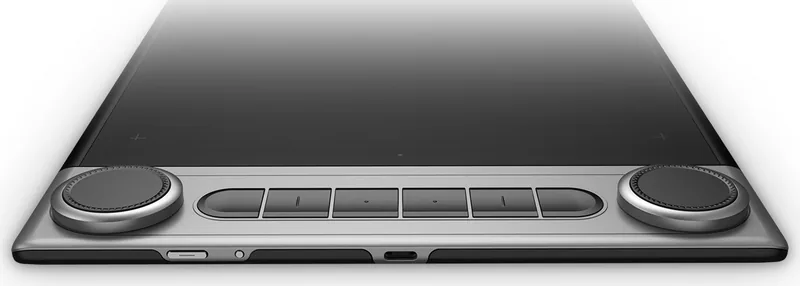
8 Buttons (6 programmable), 2 Touch Rings
CPU
N/A
RAM
N/A
Storage
N/A
Graphics
N/A
Host Port
USB-C, Bluetooth 5.0
Additional Ports
N/A
Wireless
N/A
Card Reader
N/A
Webcam
N/A
Operating System
N/A
Power Consumption
No info (Typical), No info (Sleep)
Battery
Li-Ion, up to 18h run time, 2.5h charge time
Dimensions
14.04 x 8.94 x 0.31 inches
Weight
1.57 lbs
Package Contents
Main device, Pen (PW517), Pen Holder (PH05F), 10x Replacement tips, USB-C cable
Product Description
Product Highlights and Features
The Huion Inspiroy Dial 2 Q630M stands as a top-tier professional Bluetooth pen tablet for creators. It features dual dial controllers that enable you to enjoy drawing and creating with much higher efficiency. With this powerful device, you can freely write and draw, making lines vary in width while painting pictures in different shades of colors. This pen-on-paper experience is what professionals look for in digital media. The second generation of the Inspiroy Dial series brings significant improvements to workflow speed and control. The included battery-free digital pen allows you to focus on art without worrying about charging the pen itself constantly. You can switch modes easily to suit different tasks like painting or photo editing. Users often check the Huion Inspiroy Dial 2 Q630M Manual to understand every button function fully. Installation requires closing antivirus programs for smooth operation.
Connection and Software Setup
Connection methods are flexible, allowing a USB-C cable or Bluetooth link to your computer. The indicator light helps you check status instantly with blue or green signals. Driver installation on Windows or Mac is simple and crucial for all features to work. The Driver Interface Overview provides access to pen tablet settings and digital pen options. You can customize press keys for shortcuts or change dial functions for zoom and scroll. Some programs allow different keys so you can switch settings automatically. Working area settings define active space mapping to monitor screens effectively. Precision modes let you toggle between normal and fine detail levels for intricate work.
Usage, Maintenance, and Support
The tablet includes a low battery warning notification to prevent sudden power loss during sessions. Sedentary reminders encourage healthy breaks after two hours of continuous use. If issues arise, the troubleshooting section helps resolve pressure sensitivity or connection failures. Game mode speeds up cursor movement for specific gaming needs while mouse mode mimics a standard mouse. Backup settings allow you to export and import custom configurations to save time. The interface supports multiple languages and color themes for user preference. Ultimately, this hardware delivers value for artists wanting freedom and control. Ensure to download the official software for full functionality and updates. Battery levels are visible via indicator lights on the device side.
Search for 67,706 Manuals online


Type-in Brand or Model