
Huion Kamvas Pro 12 Manual
PDF manual · 20 Pages
English



Quick check
Incorrect answer, please try again.
Chat with your Huion Kamvas Pro 12 manual using AI
Get instant AI answers from your Huion Kamvas Pro 12 manual
Ask anything about the Huion Kamvas Pro 12. Answers come from this manual, with the pages they are based on.
Kamvas Pro 12 Maintenance Schedule
Unplug the USB cable and wipe with a soft damp cloth. Do not use any kind of detergents.
The nib will wear out after long-term use. Replace it with a new nib when this occurs.
Ask a Question
Do you recommend Kamvas Pro 12?
Yes NoFrequently Asked Questions
The device supports Windows 7 or later as well as macOS 10.12 or later versions.
Is this answer helpful?
Use the 3-in-1 cable to connect USB, HDMI and power to your PC for functionality.
Is this answer helpful?
Check power status, verify cable connections, ensure signal mode is extended or duplicate on the computer settings.
Is this answer helpful?
Yes, the drivers allow you to customize the press keys and pen buttons to specific software functions.
Is this answer helpful?
Use a soft damp cloth and never use detergents to avoid damaging the display surface.
Is this answer helpful?
The stylus supports 8192 pressure levels for nuanced control during digital drawing tasks.
Is this answer helpful?
Adjust the calibration settings in the software or re-insert the USB cable to fix alignment issues.
Is this answer helpful?
Advantages and Disadvantages
Advantages

- 11.6 inch Full HD IPS screen provides vibrant colors
- 8192 pressure levels allow for detailed artistic strokes
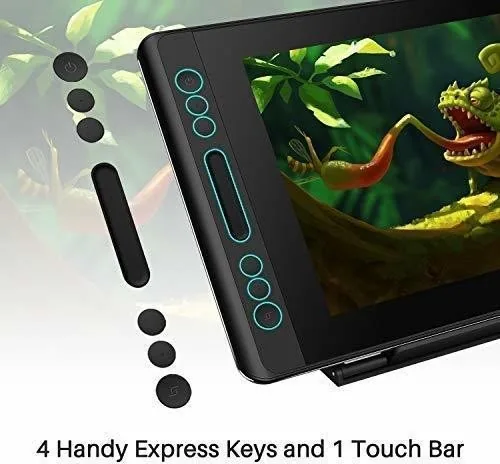
- Built-in touch bar offers easy function shortcuts
- Support for Windows and Macintosh operating systems
- 120 percent sRGB color gamut coverage ensures accuracy
Disadvantages

- Requires external power adapter for operation
- Stand may not be heavy enough for some users
- Driver installation required before first use
- Calibration needed for cursor alignment accuracy
- No built-in battery limits portable usage duration
Product Specification
Type
Graphics Tablet with Screen
Active Area
10.08 x 5.67 in
Pen
Wireless, Tip, 2 Buttons, Eraser Function
Resolution
5080 lpi
Sensitivity Levels
8192
Tilt Range
90 deg
Max. Pen Distance
0.39 in
Display
11.6", 1920x1080, IPS
Signal Input
HDMI
Brightness
220 cd/m2
Contrast
1000:1
Response Time
25ms
Keys
6x Keys, 1x Touchstrip
CPU
N/A
RAM
N/A
Storage
N/A
Graphics
N/A
Host Port
USB-C
Other Ports
N/A
Wireless
N/A
Card Reader
N/A
Webcam
N/A
Operating System
N/A
Power Consumption
6W (typical), 0.5W (standby), 0.0W (sleep)
Battery
N/A
Dimensions
13.78 x 7.83 x 0.43 in
Weight
1.69 lbs
Features
Kickstand
Package Contents
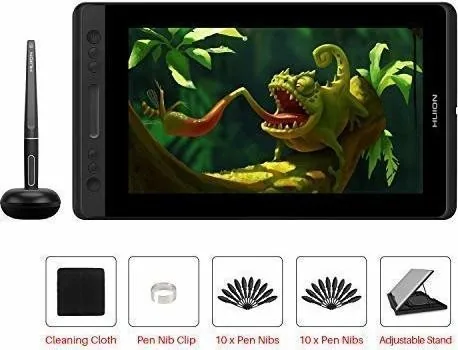
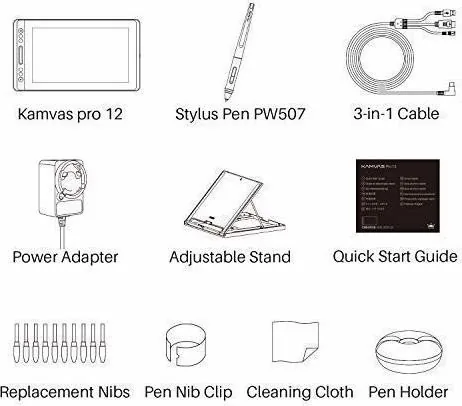
Main Device, Pen (PW507), Pen Holder, Kickstand, 10x Replacement Tips, 3-in-1 Cable, Charger
Energy Efficiency Class (A to G)
C
Energy Consumption SDR
6kWh / 1000h
Product Description
Discover the Huion Kamvas Pro 12 HDMI Manual Experience
The Huion Kamvas Pro 12 is a professional drawing display designed for artists who demand precision and portability. This device brings a full HD screen to your desk setup, allowing for detailed work without straining your eyes. This hardware provides excellent visual clarity. When you look at the Huion Kamvas Pro 12, HDMI Manual, you find critical information regarding connectivity and setup. It supports Windows and Mac systems easily for broad compatibility. Users appreciate the seamless integration into their creative environments.
Creative Freedom
Artists can paint and write freely with the digital pen. The screen responds to pressure levels effectively. This creates a natural feel similar to real paper. The touch bar and press keys allow for quick adjustments while working. Drivers ensure smooth integration with graphics software like Photoshop and SketchBook. Windows ink support is native for better application performance across different tools.
Connectivity and Power
The unit connects via a multi-functional cable. It handles HDMI signals and power delivery simultaneously. You must ensure the power adapter is plugged in correctly for stability. The stand helps adjust the viewing angle for comfort. The display needs to be plugged into a compatible power source for the LED indicator to show green status. Orange indicates no signal input.
Technical Details
The resolution reaches 1920 by 1080 pixels. Color accuracy is key for professional output. The active area fits most standard workflow requirements. Sensing height allows the pen to hover slightly above the glass. It offers 8192 pressure levels for nuanced strokes. The color gamut covers 120 percent of sRGB standards. The response time ensures minimal lag during fast drawing sessions.
Usage and Maintenance
Keep the screen clean with a soft damp cloth. Avoid liquids or detergents near the monitor surface. Do not open the case for repairs yourself. Contact authorized service for maintenance issues. Ensure the ventilation grooves remain free from debris to prevent overheating. Place the device on stable surfaces to avoid falls.
Important Notes
Always read safety precautions before operating. Do not place near water or magnetic fields. Keep ventilation holes clear for cooling. Regular cleaning with a soft cloth prevents damage. Unplug during blackouts to protect internal components. Check cables regularly for wear before connection.
Driver Setup
Software installation is simple via the official website. Old drivers should be removed before new ones. Close graphics apps during the process. The icon in the tray confirms success. Calibration features are built into the software for precision alignment. Export settings helps move configurations between different computers easily. Troubleshooting guides address common connection issues.
Search for 67,706 Manuals online


Type-in Brand or Model