
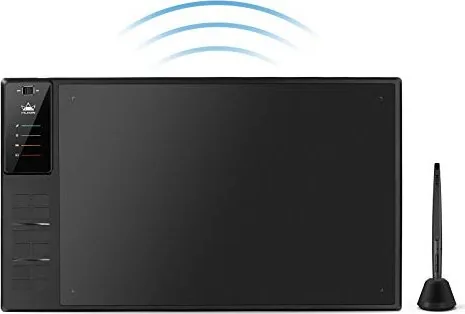
Huion Giano WH1409 Manual
PDF manual · 13 Pages
English



Quick check
Incorrect answer, please try again.
Chat with your Huion Giano WH1409 manual using AI
Get instant AI answers from your Huion Giano WH1409 manual
Ask anything about the Huion Giano WH1409. Answers come from this manual, with the pages they are based on.
Giano WH1409 Maintenance Schedule
Remove old battery and insert new AAA alkaline battery when depleted. Dispose of old batteries according to local regulations.
Use the pen clip tool to remove worn tips and insert new ones from the included holder. Test operation after replacement.
For AAA pens, remove battery and store without tip pressure. For rechargeable pens, remove tip and battery if storing long-term.
Ask a Question
Do you recommend Giano WH1409?
Yes NoFrequently Asked Questions
It is well suited for digital drawing, photo editing, writing, signing, and other precision tasks that benefit from pen input and pressure sensitivity.
Is this answer helpful?
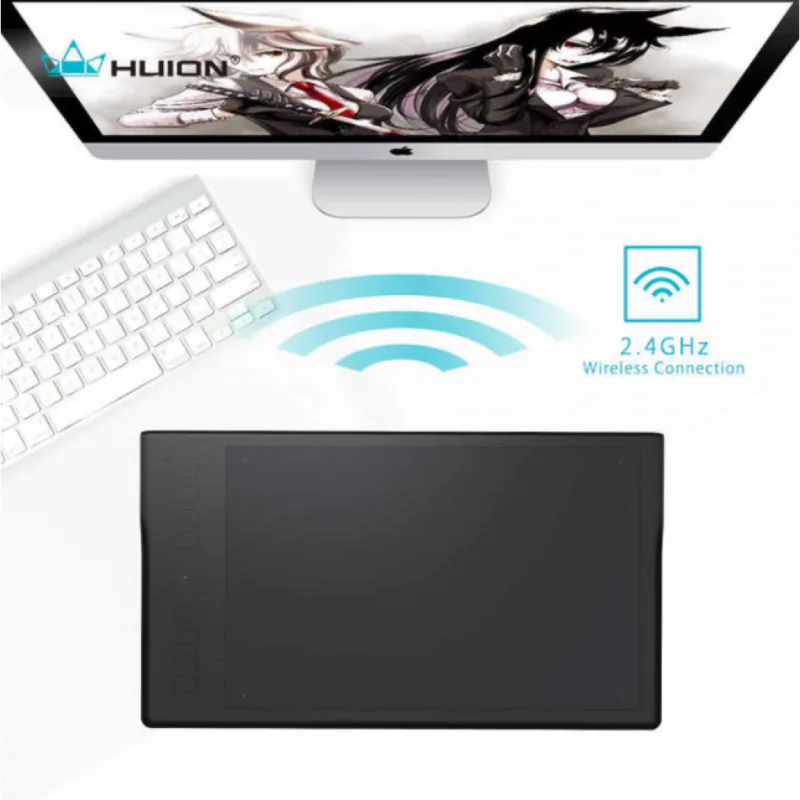
Yes. It supports wireless operation through a receiver, and it can also be used in wired mode with a USB cable when needed.
Is this answer helpful?
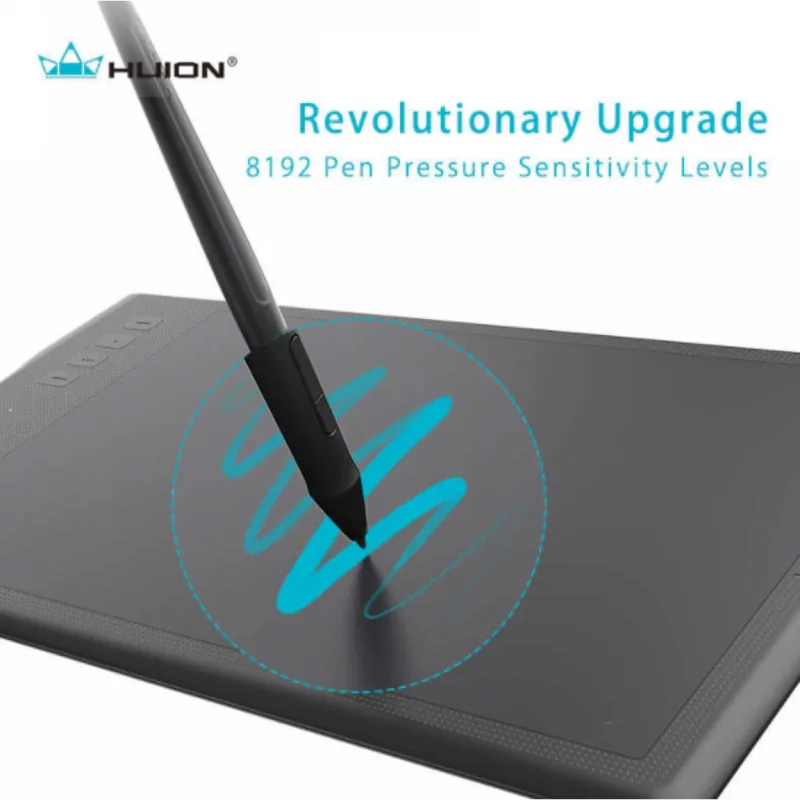
The tablet supports 2048 levels of pressure sensitivity, allowing for smoother variation in line thickness and shading control.
Is this answer helpful?
Yes. The driver allows button assignment changes, so you can map functions like mouse clicks, keyboard actions, or tool switching to fit your workflow.
Is this answer helpful?
After charging, the tablet can work for a long time in wireless mode. The text indicates up to about 40 hours, depending on usage conditions.
Is this answer helpful?
Check the driver installation, confirm that the software supports tablet input, and review settings such as TabletPC support or related pen options.
Is this answer helpful?
Keep the pen tip from touching surfaces for long periods. Store it in a holder or place it horizontally to reduce wear on the tip and internal parts.
Is this answer helpful?
Advantages and Disadvantages
Advantages

- Large working area supports comfortable sketching and precise control.
- Wireless and wired modes give flexible setup options.
- Pressure sensitivity helps create natural-looking lines and shading.
- Customizable pen buttons and driver settings improve workflow.
- Long battery life makes it suitable for extended creative sessions.
Disadvantages

- Initial driver setup may take extra attention for new users.
- Battery-powered use requires occasional charging.
- Some features depend on software and driver compatibility.
- Pen and tablet care is important to avoid tip wear or damage.
Product Specification
Type
Graphics tablet
Active area
13.78x8.62in
Pen
wireless, nib, 2 buttons
Resolution
5080lpi
Pressure levels
2048
Tilt range
90°
Max. pen distance
0.59in
Display
N/A
Signal input
N/A
Brightness
N/A
Contrast
N/A
Response time
N/A
Buttons
12x buttons
CPU
N/A
RAM
N/A
Storage
8GB
Graphics
N/A
Host connection
USB 2.0 Micro-B, wireless (2.40GHz)
Other connections
N/A
Wireless
N/A
Card reader
SD
Webcam
N/A
Operating system
N/A
Power consumption
not specified (typical), not specified (Sleep)
Battery
Li-Ion, up to 40h runtime
Dimensions
17.91x10.47x0.63in
Weight
2.42 lb
Package contents
Main unit, pen, 4x replacement nib, USB cable
Product Description
Huion Giano WH1409 Manual: A Practical Take on a Large Wireless Drawing Tablet
The Huion Giano WH1409 is designed for artists, designers, students, and anyone who wants a more natural way to interact with a computer. Instead of relying on a mouse, this tablet lets you point, sketch, sign, and edit with a pressure-sensitive pen that feels closer to traditional drawing tools. It supports both wireless and wired use, making it flexible for desk setups, portable workflows, and long creative sessions.
One of its standout strengths is the generous active area, which gives you room to draw comfortably without feeling cramped. Combined with 2048 levels of pressure sensitivity and 5080 lpi resolution, the tablet is built to capture smooth strokes, subtle shading, and cleaner line control. That makes it a useful companion for digital painting, photo editing, calligraphy, and general precision work.
The tablet also includes driver settings that let users customize pen buttons, adjust pressure response, and configure the working area. For people who use multiple displays, screen mapping options help match the tablet to the right monitor. These details matter because they make the tablet feel more personal and efficient after setup.
Wireless freedom is another major benefit. After charging, the WH1409 can work for long periods without a cable, while wired mode remains available whenever you want a direct connection or need to recharge. The included indicators help show battery status, connection mode, and pen activity, which is helpful when switching between tasks. It is a practical design that balances convenience with functionality.
There are also a few care tips worth noting. Keeping the pen tip protected, avoiding unnecessary pressure, and storing the device properly can extend its lifespan. The manual also suggests installing the latest driver before use and closing drawing software during setup for smoother installation.
Notes
- Best for users who want a spacious tablet with wireless flexibility.
- Driver customization adds value for both beginners and experienced artists.
- Proper pen storage and regular charging help maintain performance.
- If pressure response feels off, check driver settings and software support first.
Search for 67,706 Manuals online


Type-in Brand or Model