
Huion Kamvas Pro 20 (2019) Manual
PDF manual · 22 Pages
English



Quick check
Incorrect answer, please try again.
Chat with your Huion Kamvas Pro 20 (2019) manual using AI
Get instant AI answers from your Huion Kamvas Pro 20 (2019) manual
Ask anything about the Huion Kamvas Pro 20 (2019). Answers come from this manual, with the pages they are based on.
Kamvas Pro 20 (2019) Maintenance Schedule
Unplug the USB cable and wipe with a soft damp cloth. Do not use any kind of detergents.
The nib will wear out after using for a long time, then you need to replace it with a new one.
Ask a Question
Do you recommend Kamvas Pro 20 (2019)?
Yes NoFrequently Asked Questions
Click the red point on the screen in the driver software to complete calibration.
Is this answer helpful?
Yes it supports macOS 10.12 or later with the installed drivers.
Is this answer helpful?
The stylus provides 8192 levels of pressure sensitivity.
Is this answer helpful?
Yes set the working area in the driver software for extended mode.
Is this answer helpful?
Use the provided nib clip tool to remove old and insert new nibs.
Is this answer helpful?
The screen has a 25 millisecond response time for standard use.
Is this answer helpful?
The package includes HDMI USB and power cables for setup.
Is this answer helpful?
Advantages and Disadvantages
Advantages

- Full lamination reduces parallax for accurate drawing experience.
- 8192 pressure levels ensure nuanced line weight control.
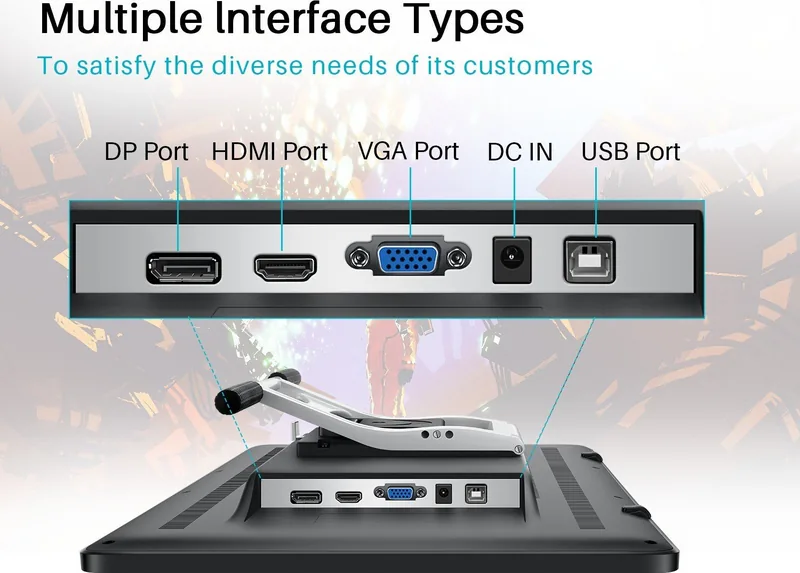
- HDMI DP and VGA support wide connectivity options.
- Adjustable stand allows ergonomic viewing from 20 to 80 degrees.
- Battery-free pen prevents weight imbalance during long sessions.
Disadvantages

- 1920 by 1080 resolution may appear pixelated on 20 inch screen.
- OSD menu navigation requires manual button presses instead of touch.
- Driver installation can be complex for non-technical users.
- No USB-C connectivity limits portability with modern laptops.
- Accuracy at corners is lower than center point measurement.
Product Specification
Type
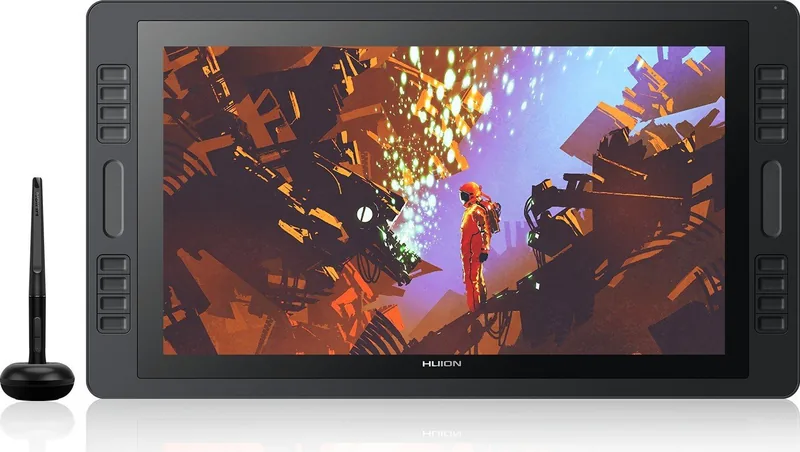
Graphics Tablet with Screen
Active Area
17.13x9.41 inches
Pen
Wireless, Tip, 2 Buttons, Eraser Function
Resolution
5080 lpi
Pressure Levels
8192
Tilt Range
90 degrees
Max. Pen Distance
0.39 inches
Display
19.5", 1920x1080, IPS, Tiltable (60 degrees), 120% sRGB
Signal Input
HDMI, DisplayPort, VGA
Brightness
250 cd/m2
Contrast
1000:1
Response Time
25ms
Keys
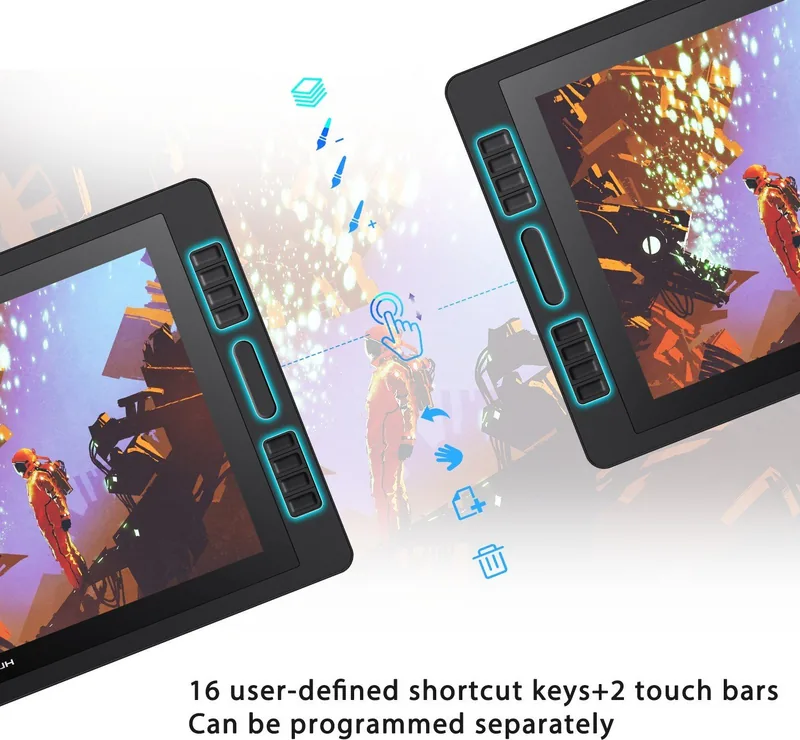
16 Keys, 2 Touch Strips
CPU
N/A
RAM
N/A
Storage
N/A
Graphics
N/A
Host Port
USB
Other Ports
N/A
Wireless
N/A
Card Reader
N/A
Webcam
N/A
Operating System
N/A
Power Consumption
18W (typical), No info (Sleep)
Battery
N/A
Dimensions
18.70x11.73x1.38 inches
Weight
2.98 lbs
Package Contents
Main Device, Pen (PW507), Pen Holder (PH05), 10x Spare Tips, HDMI Cable, USB Cable, Charger, Glove
Product Description
Revolutionize Your Digital Art Workflow Today
Art professionals require precision and reliability in their tools daily for success. The display delivers exactly that for modern creators around the world consistently. This high-quality pen display bridges the gap between digital creativity and physical intuition seamlessly for every single user. Users will find the transition from standard mouse input to stylus much easier with this dedicated hardware included in the box.
Immersive Display Experience First
The screen features full lamination technology to reduce parallax significantly during intense drawing sessions. This ensures the pen tip touches exactly where the digital ink appears on the glass surface accurately without delay. With 19.53 inches of viewing area, creators have ample space for detailed sketches and complex illustrations. The IPS panel ensures color accuracy across wide viewing angles for group reviews and client presentations.
Connectivity and Power Options Available
The Huion Kamvas Pro 20 (2019), HDMI/DP/VGA Manual device supports integration options effectively for various hardware setups. The product guide outlines HDMI, DisplayPort, and VGA inputs clearly for maximum flexibility users need. This allows connection to various laptops and desktops without needing extra adapters for older computer systems. Power consumption is low enough for most desktop tower setups to handle safely without issues.
Ergonomics and Professional Design
The adjustable stand allows angles from 20 to 80 degrees easily for maximum comfort. Ergonomics are critical for long creative sessions without physical fatigue or strain on the wrist. The included pen is battery-free and offers 8192 pressure levels for nuanced control over fine lines. A touch bar and press keys speed up frequent editing commands quickly for efficiency.
Software Integration and Driver Setup
Drivers support Windows and macOS ecosystems fully for broad system compatibility. Features include pressure sensitivity adjustment and calibration tools for pixel-perfect accuracy on screen. The touch bar adds significant workflow efficiency during complex editing phases or layer management. Windows Ink support ensures compatibility with major painting apps like Photoshop easily and directly.
Pen Maintenance and Safety Protocols
The pen nib will wear out after extensive use and needs replacement tools provided. Users can replace nibs using the provided nib clip tool inside the initial purchase kit. Safety instructions warn against water sources or strong magnetic fields located nearby. Prevent overheating by keeping ventilation grooves clean and unblocked at all times during operation.
Troubleshooting and Support Needs
Connection issues often resolve by unplugging and reconnecting the USB cable firmly. If the display blinks off, check the power socket is active and functional. The OSD menu allows brightness and contrast adjustment for visibility in different lighting. Restore factory settings if customization becomes too complicated for daily tasks.
Final Thoughts on the Product
Artists seeking a dedicated drawing pad should consider this unit GT1901 specifically. It balances performance with affordability well within this competitive price range. Ensure cables are secure for optimal connection stability during heavy use daily. Follow care precautions regarding temperature and humidity to protect the investment long term effectively.
Search for 67,706 Manuals online


Type-in Brand or Model