

Free Sandberg Manuals – Read, Download & Print
42 Manuals
Manuals
1 Pages
1 Pages
8 Pages
8 Pages
1 Pages

1 Pages

4 Pages
8 Pages
8 Pages
8 Pages
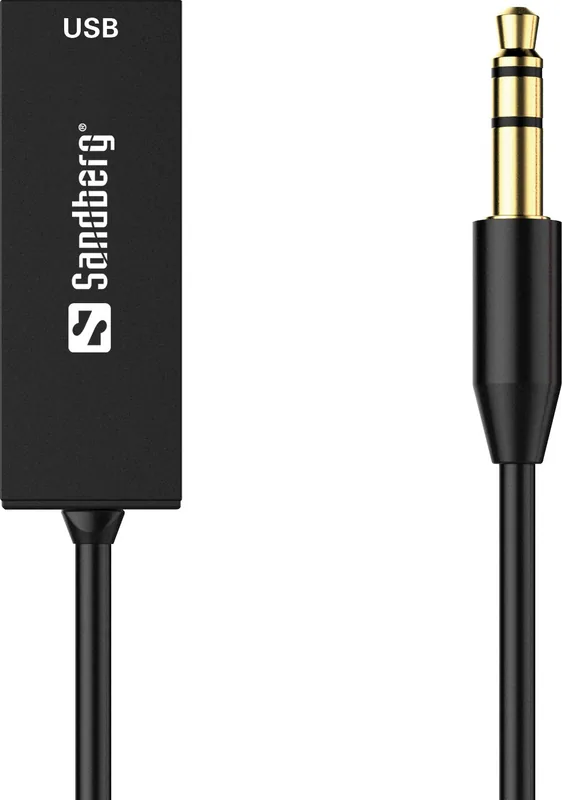
4 Pages

8 Pages
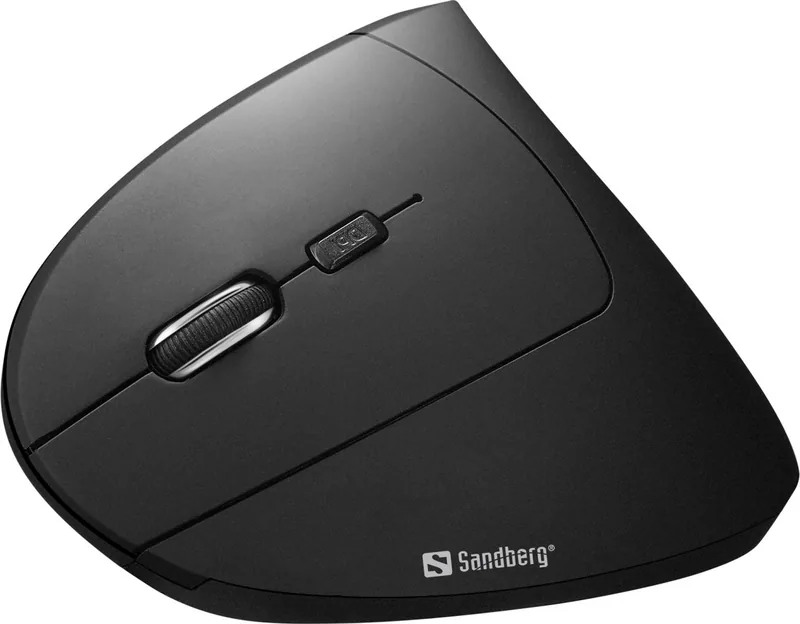
4 Pages
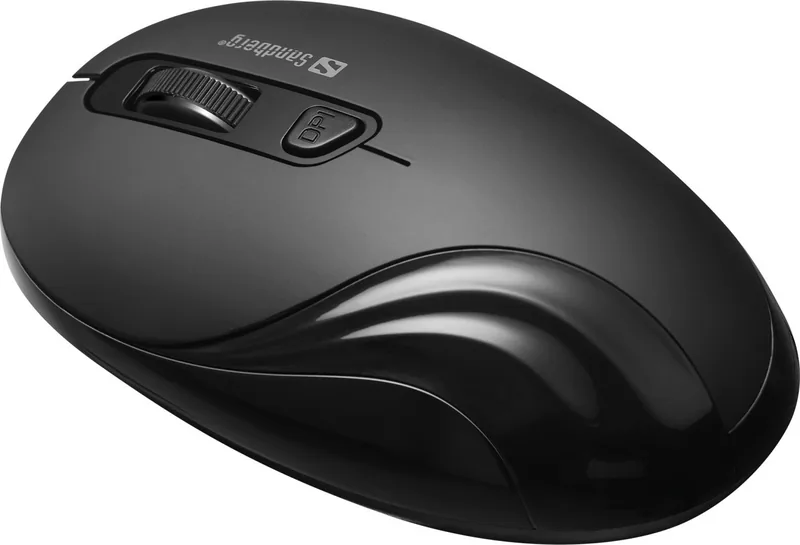
4 Pages
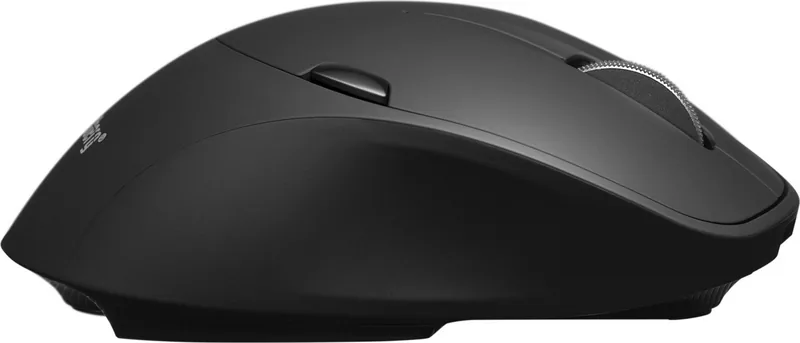
8 Pages
4 Pages
8 Pages
4 Pages
1 Pages
4 Pages
4 Pages
1 Pages
1 Pages

4 Pages

8 Pages
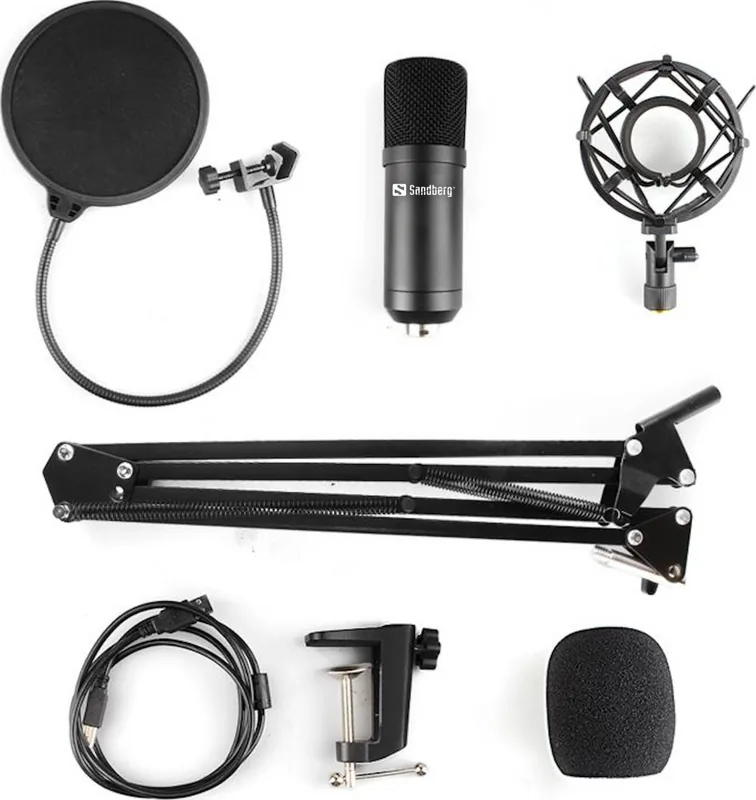
8 Pages
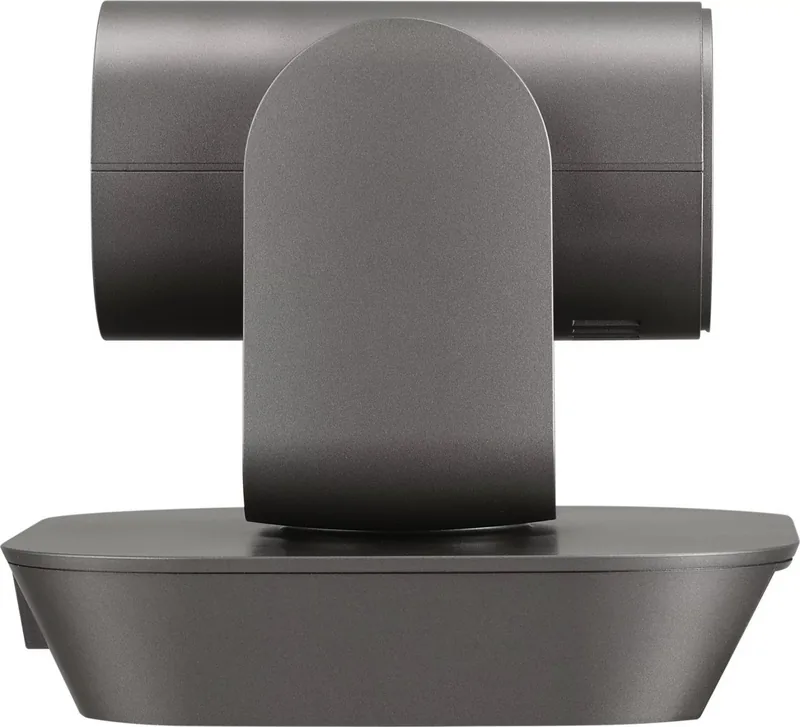
16 Pages

8 Pages
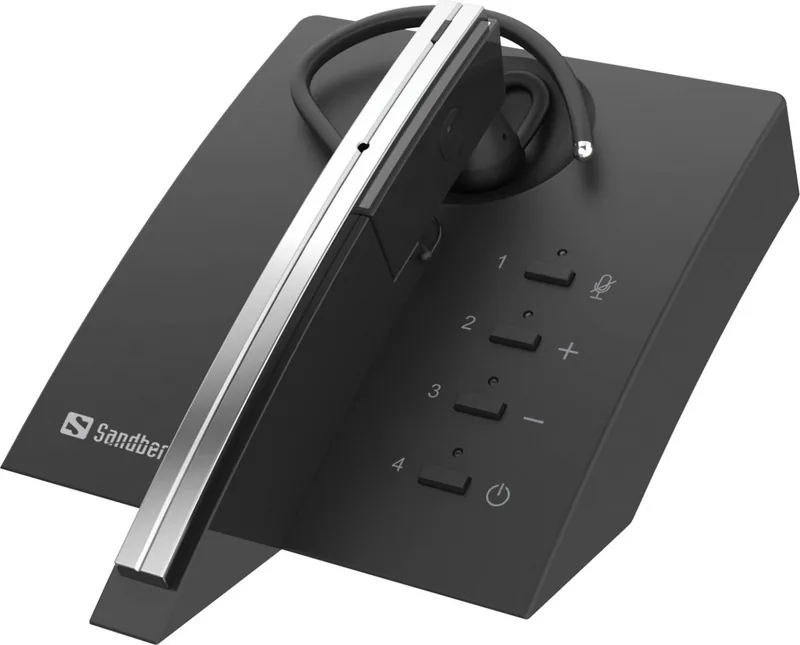
12 Pages

8 Pages

28 Pages
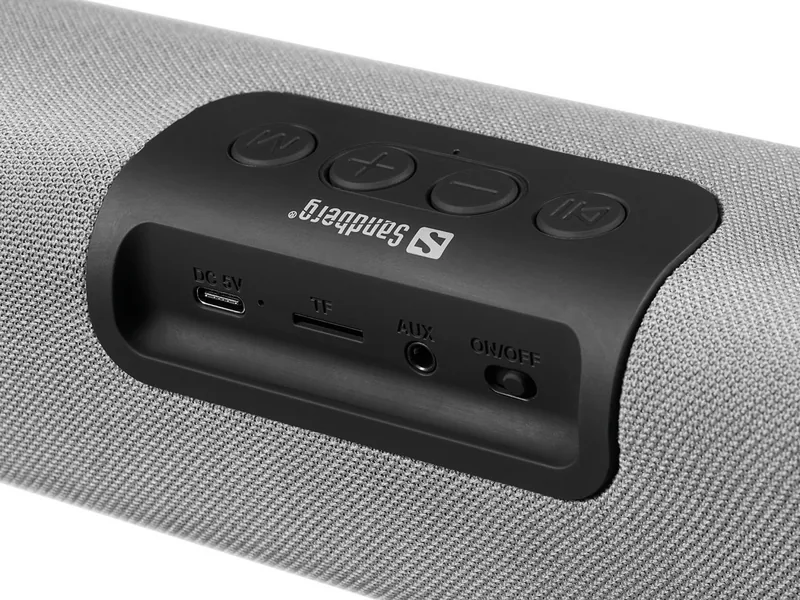
8 Pages
4 Pages
12 Pages
8 Pages
4 Pages

4 Pages
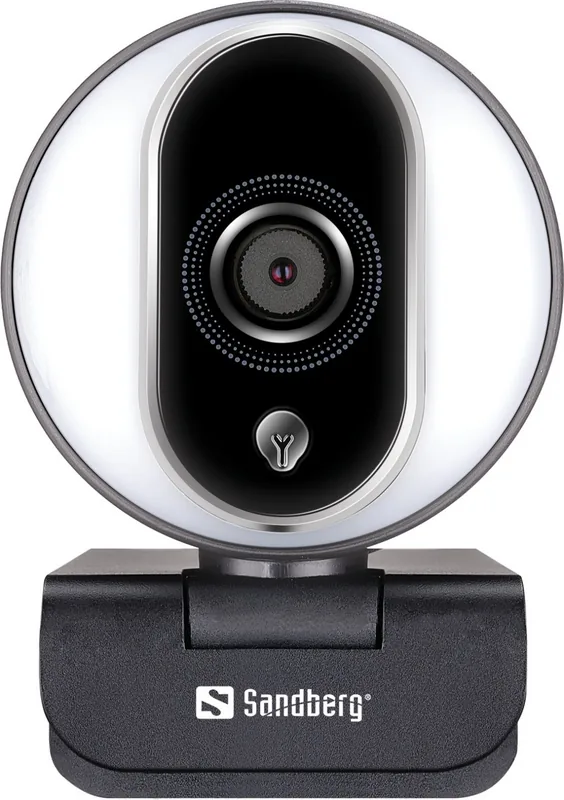
4 Pages
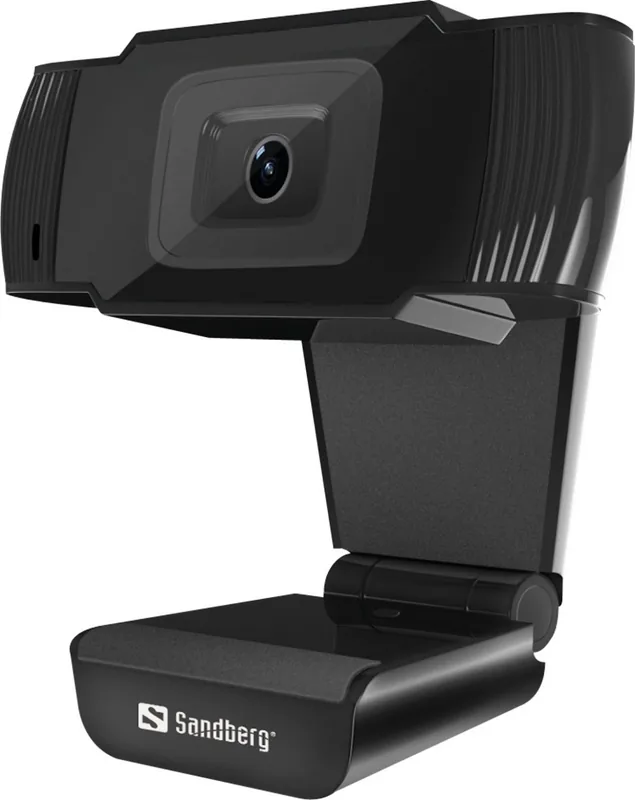
2 Pages
1 Pages
1 Pages
1 Pages
Categories


Free Sandberg Manuals - Read, Download and Print
Find helpful Sandberg manuals, setup guides, quick-start instructions, and product documentation for compatible accessories, cables, chargers, adapters, headsets, webcams, networking products, and other technology solutions. A manual is often the fastest way to understand a product's features, confirm its connections, locate specifications, and solve common operating issues. Whether you are setting up a new device, replacing a lost guide, or checking a technical detail before installation, accessible documentation can make the process simpler.
This page is designed to help users locate Sandberg product manuals that may be available for online reading, downloading, or printing. Always use documentation that matches the exact product model, revision, and regional version of your device. For the most current and authoritative files, consult the official Sandberg product page or support resources.
What You Can Find in a Sandberg Manual
Sandberg manuals vary by product type, but many include practical information intended for everyday installation and use. A downloadable guide may provide step-by-step connection instructions, button and port descriptions, safety information, technical specifications, and troubleshooting advice. Quick guides are useful when you need the essentials, while full manuals can provide more detail for advanced settings and maintenance.
Common information found in a manual includes:
- Product identification and package contents
- Connection diagrams and setup steps
- Compatibility requirements for computers, phones, tablets, or other equipment
- Charging, pairing, and power instructions
- Driver or software installation details where required
- Indicator light meanings and button functions
- Technical specifications such as cable length, power input, dimensions, or supported standards
- Safety, storage, cleaning, and disposal guidance
- Troubleshooting steps for common problems
- Warranty and support contact information
Reviewing the manual before connecting a product can prevent avoidable problems. For example, a power adapter may have specific input requirements, a wireless device may need to be placed in pairing mode, and a USB accessory may require a particular port type or operating system version.
Read Manuals Online Before Downloading
Reading a manual online is convenient when you only need a quick answer. Search for the exact Sandberg model number on the device packaging, label, receipt, or product itself. Model numbers are especially important because products with similar names can have different connectors, capacities, features, or setup procedures.
When viewing documentation in a browser, use the document search function to locate terms such as "setup," "charging," "pairing," "reset," "LED," "USB-C," "Bluetooth," or "troubleshooting." This can save time when the guide contains multiple languages or several sections. Zooming in on diagrams can also help identify ports, switches, and included accessories.
Online manuals are useful for checking information while away from home, during installation at a desk, or when helping another person configure a device remotely. If the document is supplied as a PDF, most browsers allow you to read it without installing additional software.
Download a Copy for Offline Access
Downloading a Sandberg manual can be useful when you expect to need the information later without an internet connection. Save the file with a clear name that includes the product model and document language, such as "Sandberg-Model-Manual-EN.pdf." Keeping a local copy makes it easier to find when troubleshooting a device in the future.
Before downloading, verify that the file belongs to the correct product. Check the title page, product number, images, connector type, and revision details. If the document does not match your unit exactly, return to the official product listing and look for the correct guide. Using the wrong manual can lead to incorrect configuration, unsuitable charging methods, or confusion about supported features.
Keep downloaded manuals in a folder dedicated to household electronics or office equipment. You may also store them in a cloud drive so they are available on a phone, tablet, or computer when needed. If a newer manual or firmware note becomes available, replace the older copy or clearly label it as an earlier version.
Print the Sections You Need
Printing a manual is helpful for workshops, classrooms, shared offices, travel kits, or installations where a computer is not always available. Rather than printing an entire long document, consider printing only the pages that cover setup, safety instructions, key diagrams, and troubleshooting. This reduces paper use while keeping the most important information close at hand.
Before printing, use print preview to confirm page orientation, scaling, and selected pages. Diagrams may be easier to read in landscape mode, while text-heavy pages can often be printed in a compact format. If the manual has a color-coded port diagram, color printing may be worthwhile for that page. Store printed instructions with the product, its original packaging, or related cables and adapters.
How to Identify the Correct Sandberg Product
Accurate identification is the most important step when looking for a manual. Check the product label for a model name, item number, barcode reference, serial number, or part number. On some products, the label may be located on the underside, back panel, cable tag, battery compartment, or original packaging.
If you are unsure which product you own, compare visible details with product images. Look at the number and type of ports, connector shapes, button placement, indicator lights, color, and included accessories. A USB hub, for example, may look similar to another model but support different transfer speeds or power delivery features. A headset may have different controls depending on whether it is wired, wireless, or designed for a specific platform.
Avoid relying only on a broad product category name. Searching for "Sandberg charger manual" or "Sandberg webcam guide" may return many results. Adding the exact product number greatly improves the chance of finding the right document.
Setup Tips for Common Product Types
Many Sandberg accessories are designed for straightforward use, but following the manual remains important. For wired products, inspect the connector and make sure it fits the intended port without force. For wireless products, charge the unit if necessary, enable the required wireless setting on the host device, and follow the pairing sequence described in the guide.
For chargers, power banks, and power-related accessories, use compatible cables and power sources. Confirm supported voltage, current, and charging standards before connecting sensitive equipment. Do not use damaged cables, loose connectors, or power supplies that show signs of overheating.
For computer peripherals, check whether the device is intended to work automatically or whether software, drivers, or permissions are needed. Webcams, microphones, audio adapters, and network accessories may require settings changes in the operating system or application. The manual can explain how to select the device as an input or output source.
Troubleshooting With the Manual
A manual is often the best first resource when a product does not behave as expected. Begin with the basic checks: confirm the device has power, inspect all cable connections, try another compatible port, and restart the connected equipment if appropriate. For wireless devices, verify charging status, distance from the host device, and pairing mode.
Look for a troubleshooting section that matches the symptom. Common topics include no power, no sound, charging failure, connection loss, device not detected, low performance, or indicator lights flashing unexpectedly. Follow steps in order and test one change at a time. This makes it easier to identify what resolved the issue.
If a reset procedure is listed, use it only as described for the specific model. Resetting may remove saved pairings, preferences, or configurations. For products that use software or firmware, check official support resources for current updates and installation instructions.
Use Official and Current Documentation
Product documentation can change as products are revised, software is updated, or compatibility information is expanded. The official Sandberg website and authorized support channels are the preferred sources for current manuals, technical documents, drivers, and product notices. They can also provide warranty information and guidance when a product requires service.
Be cautious with third-party files that do not clearly identify their source, model number, or publication date. Avoid downloading executable files or unrelated software when you only need a PDF manual. A legitimate guide should be clearly connected to the product and should not require unnecessary registrations, browser extensions, or suspicious downloads.
Keep Your Manual Handy
Saving, printing, or bookmarking a Sandberg manual gives you a useful reference throughout the life of the product. Use the correct model documentation for installation, daily operation, accessory compatibility, and basic troubleshooting. When in doubt, compare the product label with the manual title and consult official Sandberg support for the latest information.
With the right guide available, you can spend less time searching for answers and more time using your Sandberg equipment with confidence.
Search for 67,706 Manuals online


Type-in Brand or Model