

Free Cooler Master Manuals – Read, Download & Print
37 Manuals
Manuals
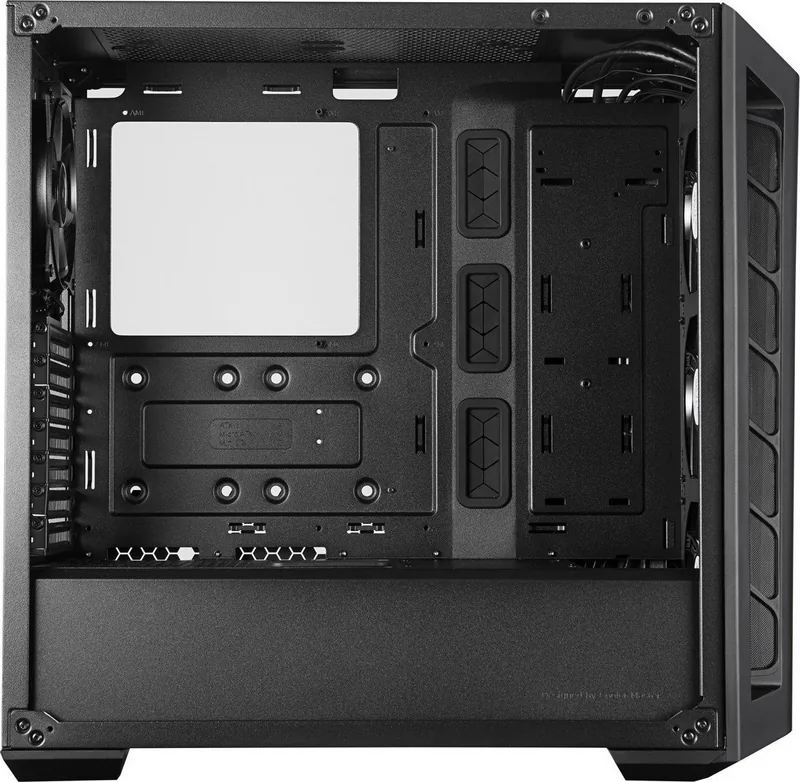
2 Pages
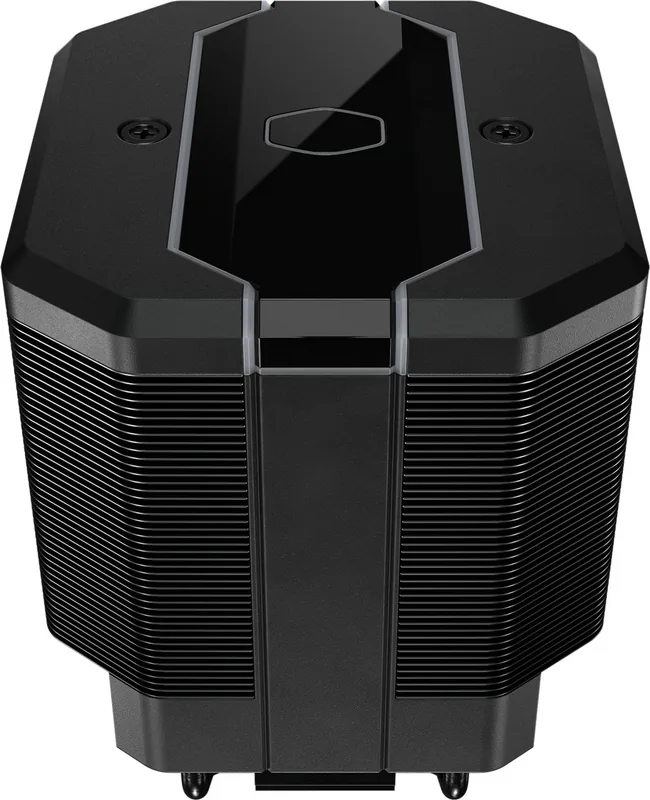
20 Pages
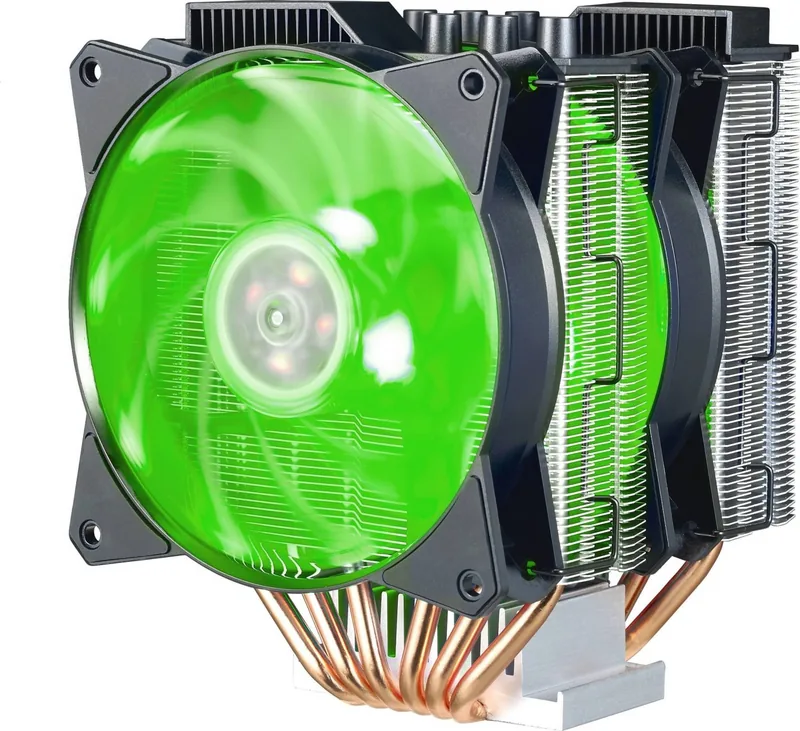
18 Pages
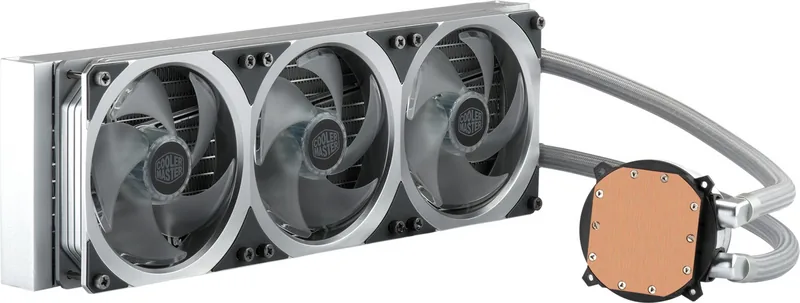
18 Pages
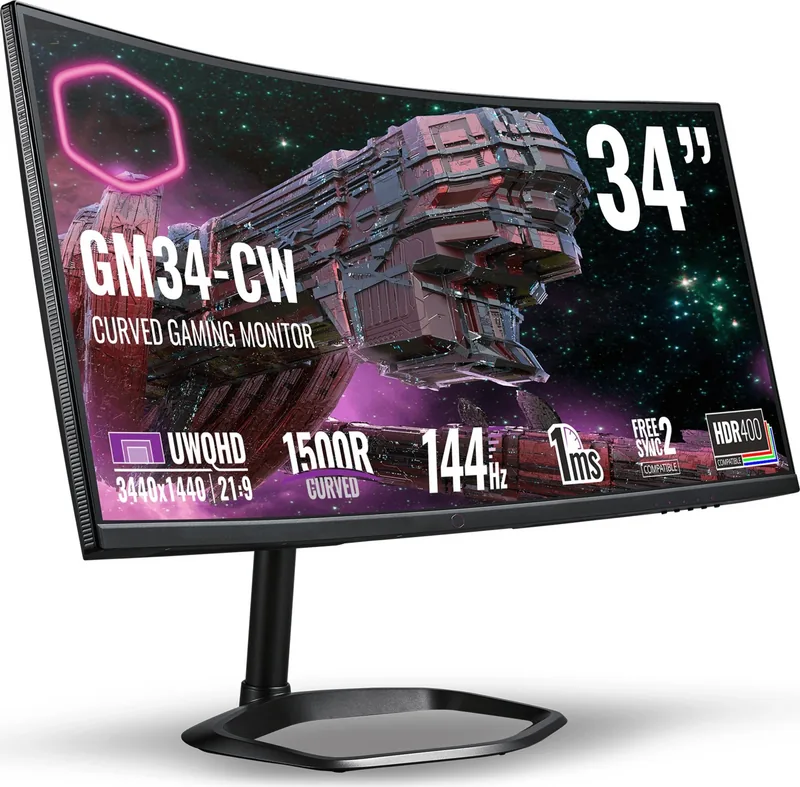
156 Pages
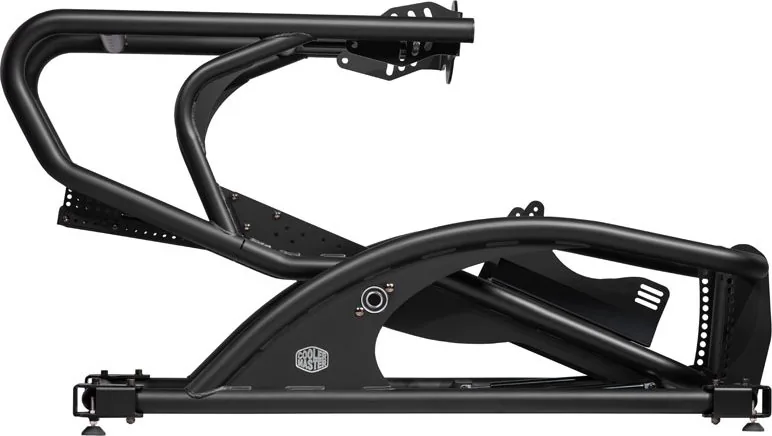
26 Pages
11 Pages
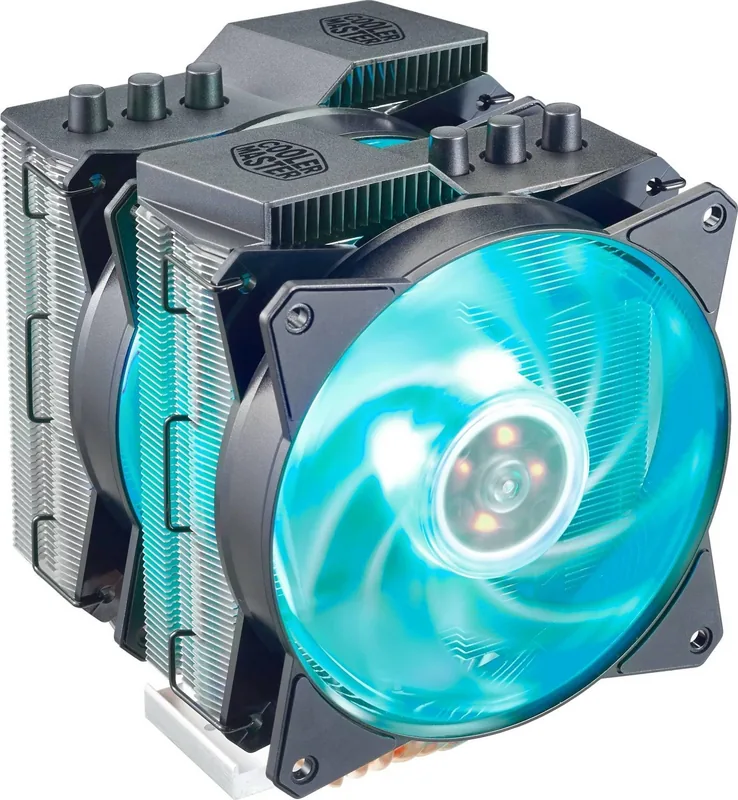
12 Pages
16 Pages
18 Pages
16 Pages
2 Pages
36 Pages

28 Pages
6 Pages
18 Pages
6 Pages
20 Pages
20 Pages

8 Pages
22 Pages
2 Pages
2 Pages
6 Pages
19 Pages
20 Pages
24 Pages
2 Pages
2 Pages
4 Pages
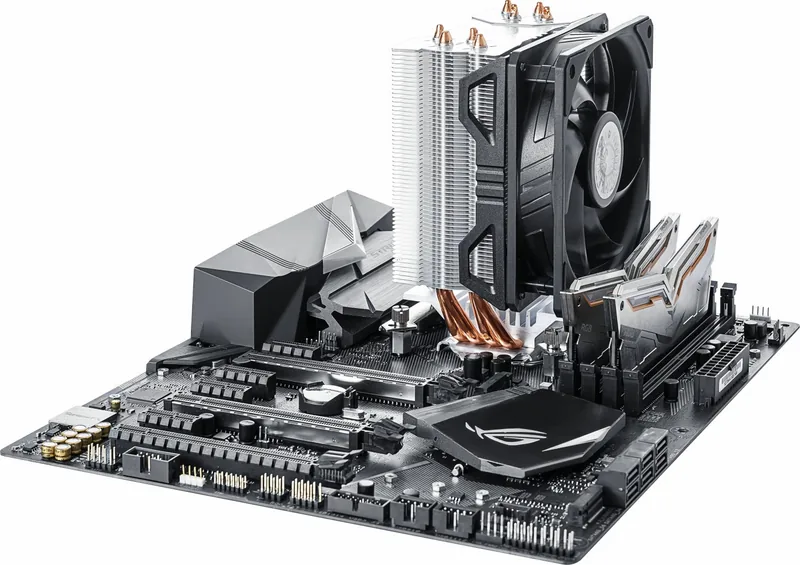
20 Pages
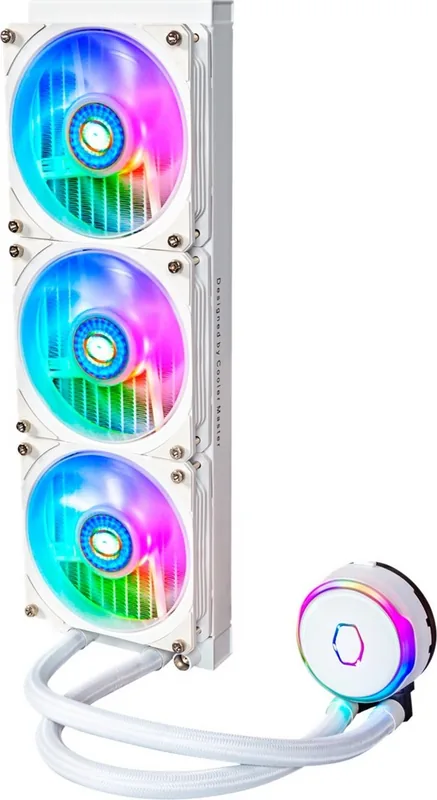
24 Pages
24 Pages
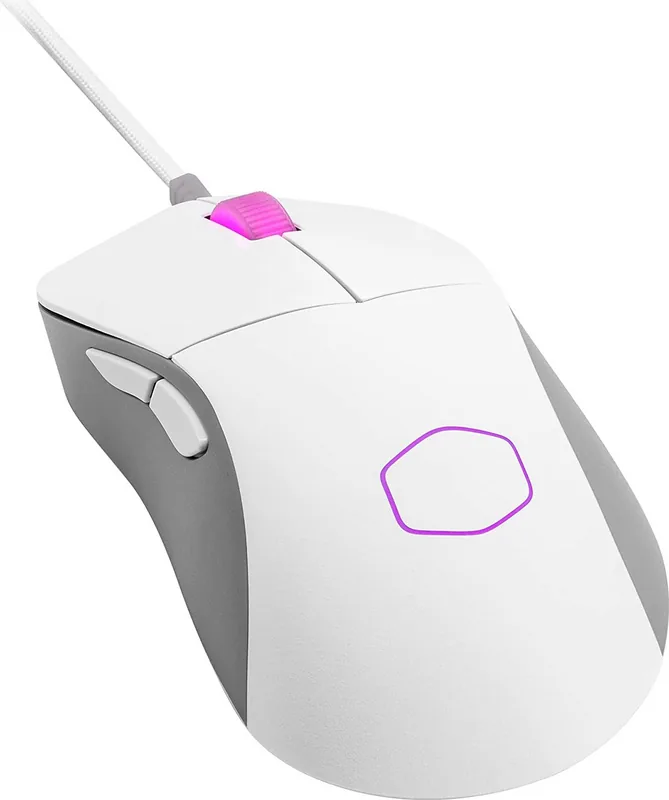
6 Pages
65 Pages
19 Pages
16 Pages
Categories


Free Cooler Master Manuals - Read, Download & Print
Find free Cooler Master manuals for computer cases, CPU coolers, liquid cooling systems, power supplies, gaming peripherals, monitors, fans, hubs, and related accessories. These documents help owners set up, install, operate, clean, maintain, and troubleshoot Cooler Master hardware with confidence. Whether you are building a new PC, replacing a fan, configuring RGB lighting, or checking product specifications, the right manual can save time and prevent installation mistakes.
Manuals for Cooler Master Products
Cooler Master creates a wide range of PC components and gaming equipment. Product manuals commonly include package contents, component diagrams, compatibility notes, safety information, installation steps, cable connection guidance, and technical specifications. Many manuals also provide illustrations that make it easier to identify mounting brackets, screws, connectors, and controls.
Available documentation may cover both current and older Cooler Master products. This is useful when working with an established desktop setup, upgrading a legacy system, or locating instructions for discontinued hardware. Manuals can also help confirm whether a product supports a particular processor socket, motherboard header, graphics card size, radiator position, or operating system.
CPU Air Cooler Manuals
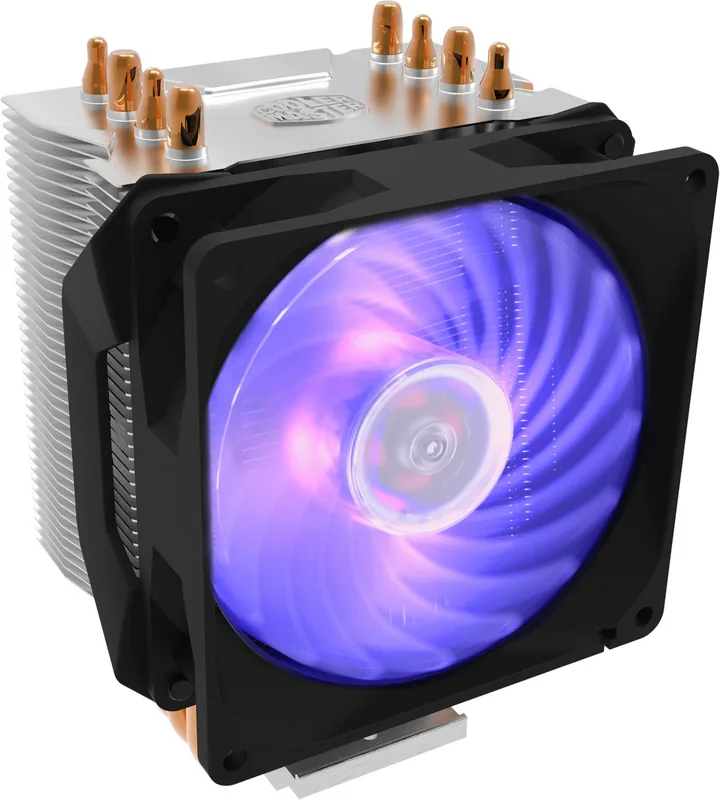
Cooler Master CPU cooler manuals provide instructions for securely attaching an air cooler to a compatible motherboard and processor. Installation procedures vary by socket type, so it is important to use the correct backplate, standoffs, brackets, and screws included with the cooler. Manuals often show separate procedures for Intel and AMD platforms.
Before fitting a CPU cooler, review the manual for clearance and orientation details. The fan should usually direct airflow toward the rear or top exhaust area of the case. Confirm that the heatsink does not interfere with memory modules, motherboard heatsinks, or the side panel. The documentation may also explain how to connect the fan to the CPU_FAN header and how to install additional fans using splitters or adapters.
Liquid Cooling System Instructions
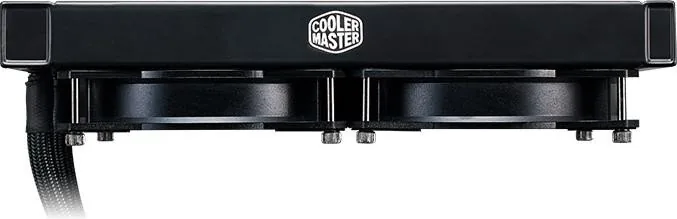
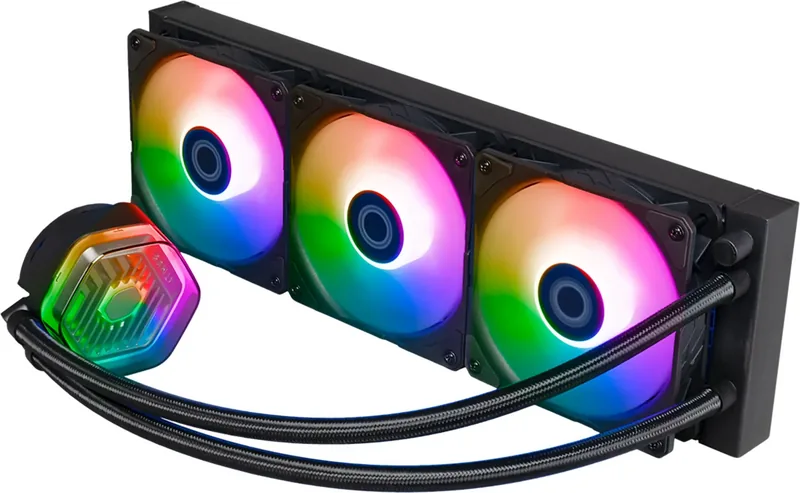
Manuals for Cooler Master all-in-one liquid coolers explain radiator placement, pump mounting, fan orientation, power connections, and lighting control. Proper installation is especially important because radiator size and tube routing must fit the selected PC case. A manual can help determine whether the radiator should be installed at the front, top, or rear of the chassis.
Review all safety and compatibility notes before installation. Ensure the pump cable is connected to the recommended motherboard header, and verify that radiator fans are connected correctly for stable cooling performance. If the cooler includes RGB or addressable RGB features, the manual may describe supported connectors, controllers, software options, and synchronization methods.
PC Case Setup Guides
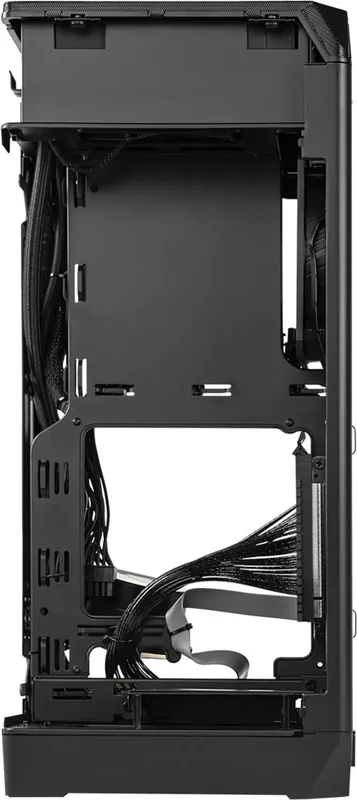
Cooler Master case manuals are valuable for first-time builders and experienced users alike. They typically identify the locations of motherboard standoffs, drive bays, fan mounts, radiator brackets, front-panel connectors, dust filters, cable-routing channels, and removable panels. A case guide can also list supported motherboard formats, maximum graphics card length, CPU cooler height, power supply dimensions, and storage options.
When installing a system in a Cooler Master case, use the manual to plan the build before mounting components. Check which front-panel cables connect to the motherboard, including power switch, reset switch, power LED, audio, USB, and USB Type-C connections where available. The guide may also explain how to remove the front panel, open tempered glass side panels, clean filters, or reposition drive cages.
Power Supply Documentation
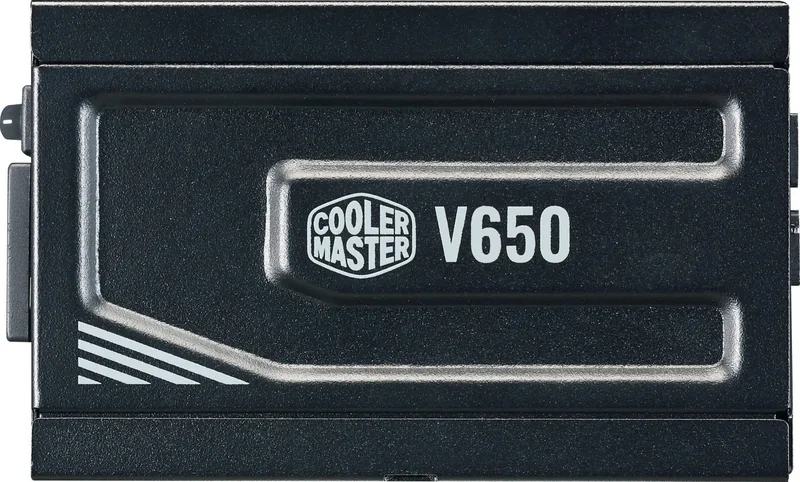
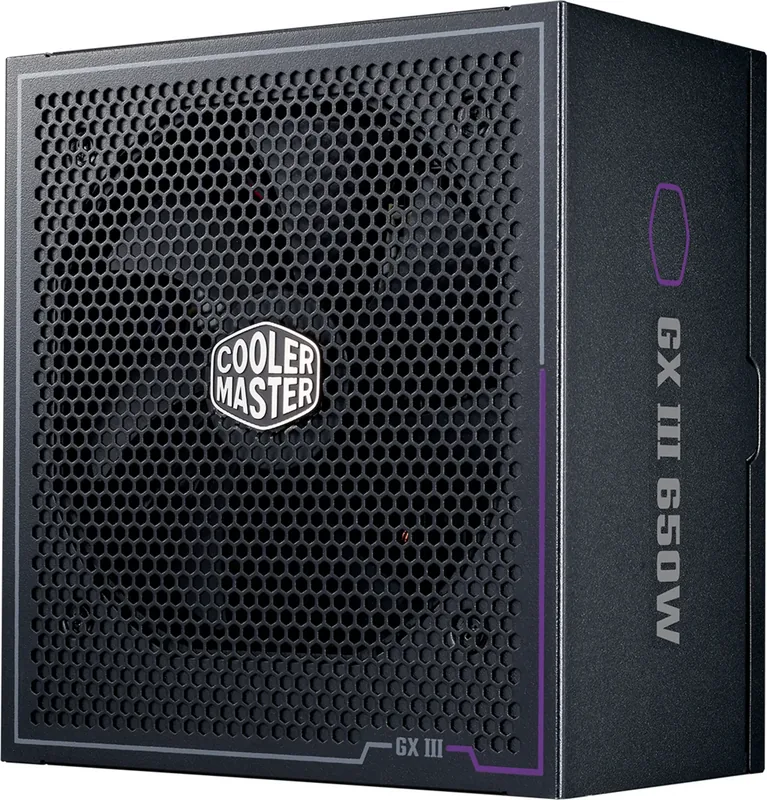
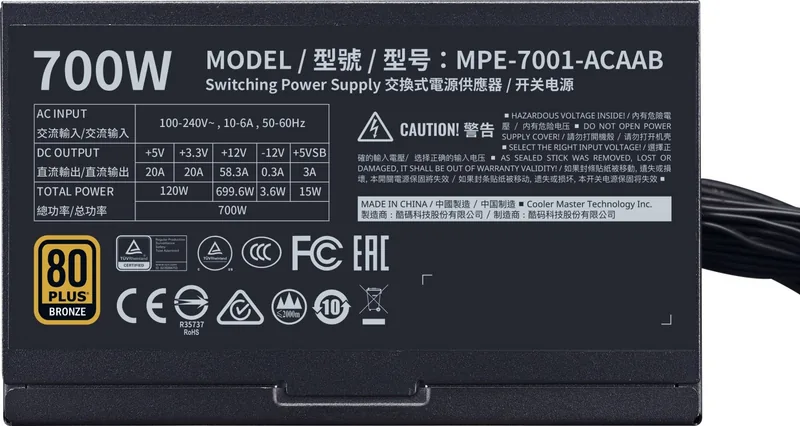
Cooler Master power supply manuals contain important electrical and connection information. They may identify modular cable types, explain how to connect motherboard, CPU, graphics card, SATA, and peripheral power cables, and list rated wattage or protection features. Use only the cables supplied with the specific power supply model, even if cables from another unit appear to fit. Modular cables are not universally compatible between power supply models or brands.
A power supply guide can also help you plan cable routing and identify the correct connector for each component. Confirm that all connections are fully seated before powering on the system. For modular models, attach only the cables required for the build to reduce clutter and improve airflow. Never open a power supply housing, as internal components can retain hazardous electrical charge.
RGB Lighting, Fans, and Controller Manuals
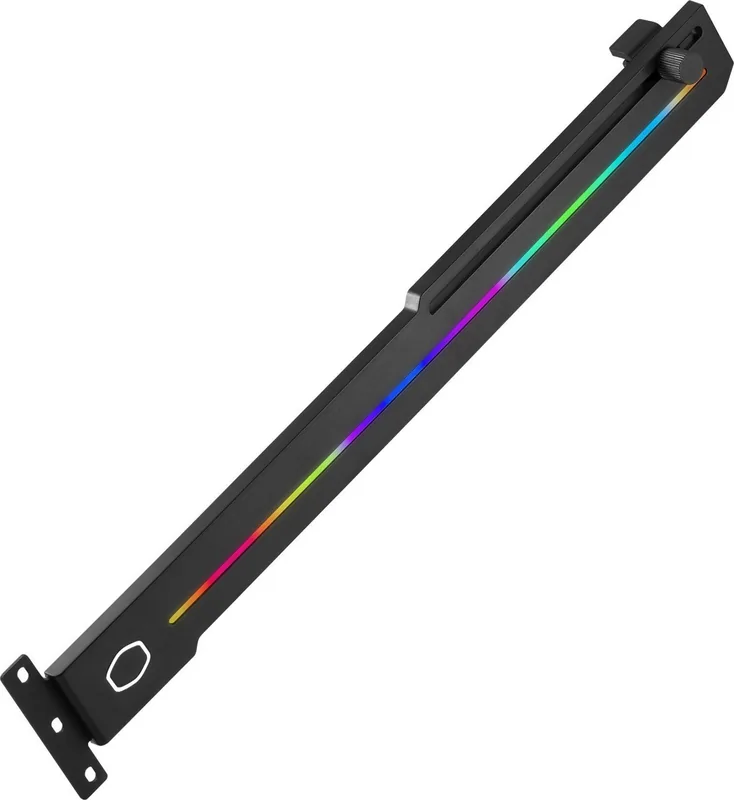
Cooler Master offers fans, LED strips, RGB controllers, fan hubs, and accessories designed to personalize system lighting and airflow. Manuals for these products explain connector types, controller buttons, remote functions, software setup, and compatible motherboard lighting headers. This information is particularly helpful when distinguishing between standard RGB and addressable RGB connections.
Before connecting lighting equipment, check the manual for voltage and pin layout requirements. Connecting an addressable RGB device to an incompatible header can damage the LEDs or controller. Fan and lighting manuals may also include recommended wiring diagrams for multiple devices, helping users avoid overloading a header or connecting cables incorrectly.
Gaming Peripheral User Guides
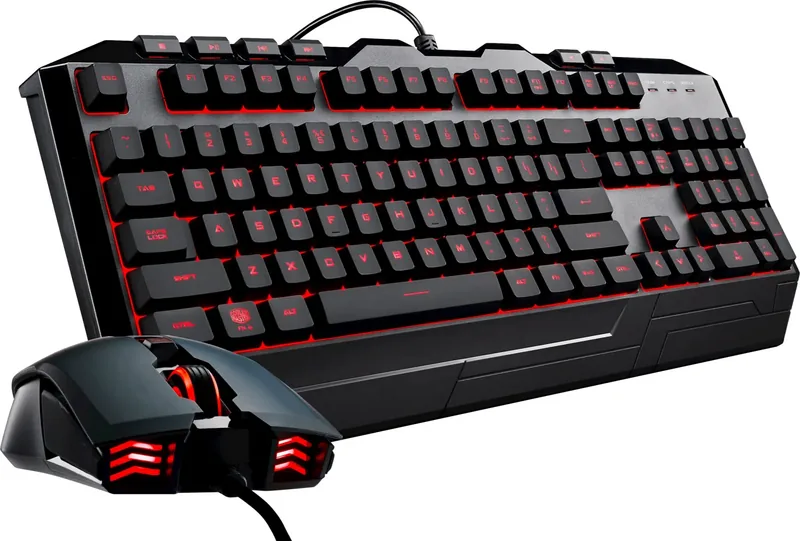
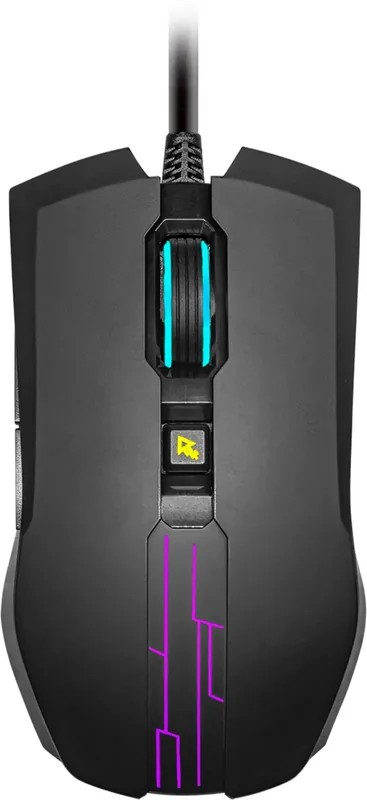
Cooler Master manuals may also be available for keyboards, mice, headsets, mouse pads, and other gaming peripherals. These guides can explain button functions, DPI settings, onboard profiles, media controls, lighting modes, charging instructions, and software features. For wired and wireless devices, documentation may cover USB receiver setup, Bluetooth pairing, battery status, and firmware update procedures.
If a peripheral is not detected, consult the user guide before making changes. It may recommend trying another USB port, checking cable connections, charging the device, resetting the hardware, or installing companion software. Product-specific instructions are useful because control combinations and reset methods can differ between models.
How to Use a Cooler Master Manual
Start by identifying the exact product name and model number. This information is usually printed on a label on the product, packaging, power supply side panel, cooler base, controller, or rear of a peripheral. Similar Cooler Master products can have different mounting hardware, connector layouts, and specifications, so choosing the correct manual matters.
Once you have located the appropriate document, read the safety notes and compatibility section before starting installation. Gather all required parts, including the correct screws, brackets, cables, and tools. Follow the illustrated sequence in the manual instead of forcing components into place. If a part does not align properly, pause and confirm that the correct hardware and mounting position are being used.
Downloading and Printing Manuals
Digital manuals are convenient for viewing on a phone, tablet, or computer while working on a PC build. Downloading a copy allows you to keep instructions available offline for future maintenance, upgrades, or troubleshooting. Saved manuals can also be useful when selling, transferring, or documenting a system.
For printed reference, use the print option in your PDF viewer or browser. Consider printing only the installation pages, connector diagrams, and specifications you need to reduce paper use. Make sure diagrams remain clear when printed, especially pages showing motherboard headers, cable pinouts, fan orientation, and mounting sequences.
Maintenance and Troubleshooting Tips
Regular maintenance helps Cooler Master hardware perform reliably. Clean case filters, fans, radiators, and heatsinks with care to prevent dust buildup that can restrict airflow. Power off and unplug the computer before cleaning internal components. Hold fan blades still while using compressed air to avoid spinning them excessively.
If you experience high temperatures, unusual noise, lighting problems, or startup issues, review the troubleshooting section of the relevant manual. Check that fans and pumps are connected to the proper headers, filters are clean, cables are secure, and the cooler is mounted correctly. For RGB issues, verify connector compatibility and controller power. Product manuals provide a dependable starting point for resolving common setup and maintenance concerns.
Keep Your Product Information Handy
Store your Cooler Master manual alongside receipts, warranty details, and product model information. Having these records available makes future upgrades, support requests, replacement part searches, and configuration changes easier. With clear documentation at hand, you can read, download, and print the instructions needed to get the most from your Cooler Master equipment.
Search for 67,706 Manuals online


Type-in Brand or Model