

Cooler Master MasterMouse MM311 Manual
PDF manual · 16 Pages
English



Quick check
Incorrect answer, please try again.
Chat with your Cooler Master MasterMouse MM311 manual using AI
Get instant AI answers from your Cooler Master MasterMouse MM311 manual
Ask anything about the Cooler Master MasterMouse MM311. Answers come from this manual, with the pages they are based on.
Ask a Question
Do you recommend MasterMouse MM311?
Yes NoFrequently Asked Questions
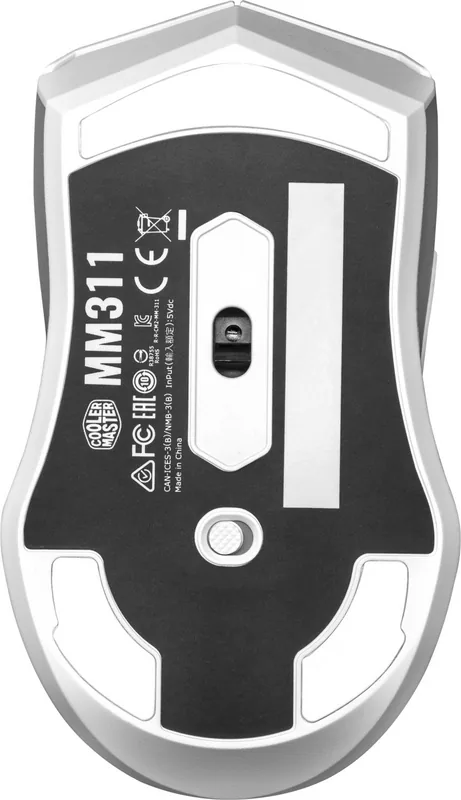
Set the physical switch on the bottom of the mouse to 2.4 GHz mode and plug the included dongle into the desired device. The mouse should connect automatically. Blue flashing indicates it is searching, and a solid white light for three seconds confirms success.
Is this answer helpful?
Rapid blue flashes three times per second indicate Pairing Mode. A blue flash once per second indicates Connecting Mode, meaning the MM311 is attempting to connect to a device through its 2.4 GHz dongle.
Is this answer helpful?
Turn off the mouse with the underside switch and unplug the dongle. Hold the DPI button for five seconds while toggling the physical switch to enter Pairing Mode. Insert the dongle into the target device and wait for the white confirmation light.
Is this answer helpful?
A solid white indicator displayed for three seconds means pairing or wireless connection was successful. It appears after the MM311 connects to the device through the included 2.4 GHz dongle.
Is this answer helpful?
The indicator flashes red three times every 20 seconds when battery level is below 15 percent. The alert repeats until the mouse enters Sleep Mode or is connected to a PC, laptop, or power source. The threshold can be customized in Cooler Master software.
Is this answer helpful?
Below 5 percent battery, the MM311 enters Deep Sleep Mode. All mouse lighting turns off, including the indicator, to conserve power.
Is this answer helpful?
If the connection or pairing attempt is unsuccessful, the MM311 enters Sleep Mode after 30 seconds. All mouse lighting turns off in Sleep Mode. Try reconnecting the dongle or repeat the manual pairing process.
Is this answer helpful?
Advantages and Disadvantages
Advantages

- Included 2.4 GHz dongle supports automatic wireless connection to a PC, laptop, or other desired device.
- Clear blue, white, and red indicator patterns communicate pairing, connection success, and low battery status.
- Manual pairing is available through the DPI button and physical underside switch.
- Low-power warning threshold can be customized with Cooler Master software.
- Sleep and Deep Sleep modes turn off lighting to help preserve battery power.
Disadvantages

- The supplied details describe only 2.4 GHz wireless operation and do not mention Bluetooth or wired connectivity.
- An unsuccessful connection sends the mouse into Sleep Mode after 30 seconds, requiring another connection attempt.
- Manual pairing requires several steps, including holding the DPI button for five seconds.
- At below 5 percent battery, Deep Sleep Mode disables all lighting, including the status indicator.
Product Specification
Suitability
right-handed
Buttons
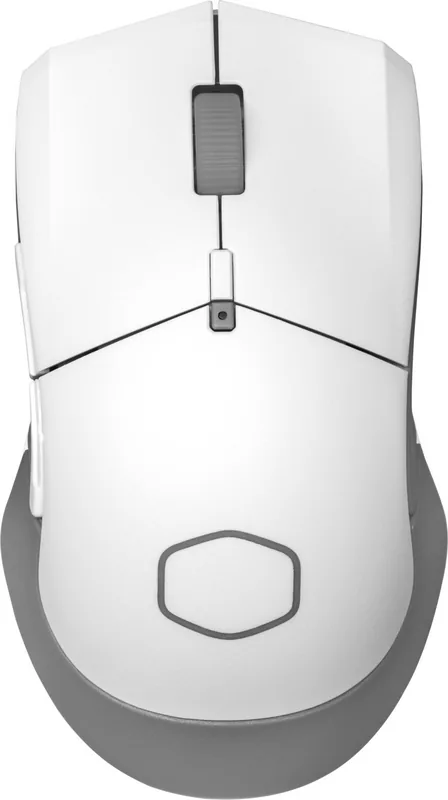
6 total, 2 primary, 1 top, 2 left, 1 scroll wheel click
Scroll wheel
1 x 2-way
Tracking
red LED/IR
Resolution
10,000 dpi, adjustable down to 6,400/3,200/1,600/1,200/800/400 dpi
Sensor
PixArt
Switches
mechanical switches, 60 million clicks
Polling rate
1,000 Hz, adjustable to 500/250/125 Hz (wireless 2.4 GHz)
Lighting
RGB
Connection
wireless (2.4 GHz), USB-A (USB-A receiver)
Power supply
1 x AA
Dimensions (W x H x D)
2.8 x 1.59 x 4.94 in
Approximate volume
5.74 in3 (approximate shape)
Weight
2.72 oz (including battery)
Special features
stowable receiver
Product Description
Cooler Master MasterMouse MM311 - Read, Download & Print Free
The Cooler Master MasterMouse MM311 is a wireless mouse designed around simple 2.4 GHz connectivity, clear status lighting, and practical power management. This overview of the Cooler Master MasterMouse MM311 - Read, Download & Print Free highlights how the mouse connects through its included dongle, how its onboard controls support pairing, and what its indicator colors mean during everyday use.
Straightforward 2.4 GHz Wireless Use
To begin using the MM311, switch the control on the underside of the mouse to 2.4 GHz mode and connect the included dongle to a PC, laptop, or compatible device. The mouse attempts to establish a connection automatically. While it is searching, the indicator flashes blue once per second. A solid white light for three seconds confirms that the connection has been completed successfully.
This approach keeps wireless setup uncomplicated. To use the mouse with another device, unplug the dongle and insert it into the new device. The MM311 then attempts to connect automatically, using the same blue and white light signals to show its status. If a connection does not succeed, the mouse enters Sleep Mode after 30 seconds and turns off its lighting.
Manual Pairing and Indicator Signals
Manual pairing is available when a fresh connection is needed. Turn the mouse off with the physical switch, unplug the dongle, hold the DPI button for five seconds, and toggle the switch to enter Pairing Mode. The indicator rapidly flashes blue three times per second to confirm the mode. After the dongle is inserted, a solid white light for three seconds signals a successful pairing.
The lighting system also makes connection states easy to identify at a glance. Rapid blue flashes indicate Pairing Mode, while a blue flash once per second indicates Connecting Mode. White illumination confirms success. These simple patterns help users distinguish between a mouse that is ready to pair, searching for a receiver, or connected and ready for use.
Battery Awareness and Sleep Features
The MM311 provides clear low-battery feedback. When battery power drops below 15 percent, the indicator flashes red three times every 20 seconds. This warning repeats until the mouse enters Sleep Mode or is connected to a computer, laptop, or power source. The low-power threshold can be customized through Cooler Master software, allowing users to adapt the warning behavior to their preferences.
When the battery level falls below 5 percent, the mouse moves into Deep Sleep Mode. All lighting, including the indicator, turns off to conserve remaining power. Together, the warning light, standard Sleep Mode, and Deep Sleep Mode create a practical system for monitoring power and reducing unnecessary illumination.
Notes
- Blue means pairing or connection activity.
- White confirms a successful wireless connection.
- Red signals a battery level below 15 percent.
- All lighting turns off during Sleep and Deep Sleep modes.
Search for 67,706 Manuals online


Type-in Brand or Model