
Cooler Master GM34-CW Manual
PDF manual · 156 Pages
English



Quick check
Incorrect answer, please try again.
Chat with your Cooler Master GM34-CW manual using AI
Get instant AI answers from your Cooler Master GM34-CW manual
Ask anything about the Cooler Master GM34-CW. Answers come from this manual, with the pages they are based on.
Ask a Question
Do you recommend GM34-CW?
Yes NoFrequently Asked Questions
The monitor’s native resolution is 3440×1440. Over DisplayPort 1.4 it supports up to 144Hz; over HDMI 2.0 it supports up to 100Hz.
Is this answer helpful?
Yes. The monitor supports FreeSync (Adaptive Sync) to reduce tearing and stutter with compatible GPUs. The manual warns that FreeSync may cause flicker with some video cards or settings and recommends updating GPU drivers or disabling FreeSync when changing resolutions.
Is this answer helpful?
It uses a 34" VA panel with a 1ms MPRT specification and an OD (gray-to-gray) response of about 4ms. Response-time override and MPRT modes can be adjusted to reduce perceived motion blur.
Is this answer helpful?
The stand offers 0–100mm height adjustment, tilt from -5° to +15° and 45° left/right swivel. The stand is removable and the monitor supports VESA wall mounting for alternate setups.
Is this answer helpful?
The OSD provides gamma adjustment (1.8–2.6), picture modes (Standard, Graphic, Movie, Game), color temperature presets, low-blue-light, hue/saturation, sharpness, super resolution and dynamic luminous control for fine-tuning.
Is this answer helpful?
Yes. The monitor supports PIP and PBP modes with selectable sub-window input, adjustable PIP sizes (Small/Medium/Large), positions and a swap function to exchange primary and sub-window sources.
Is this answer helpful?
The GM34-CW has a maximum brightness around 400 nits and a static contrast ratio of approximately 3000:1 (typical for VA panels), delivering deep blacks and strong contrast for HDR-adjacent content though HDR performance depends on content and settings.
Is this answer helpful?
Advantages and Disadvantages
Advantages

- Ultrawide 3440×1440 resolution on a 34" curved VA panel for immersive viewing and productivity.
- Supports DP1.4@144Hz and HDMI2.0@100Hz for high-refresh gaming and smooth motion.
- Comprehensive OSD with gamma, picture modes, low-blue-light, color temperature and sharpness controls.
- Gaming features include FreeSync adaptive sync, response-time override, MPRT and in-game crosshair toggle.
- Ergonomic stand with 0–100mm height, tilt, 45° swivel, removable base and VESA mount for flexible setup.
Disadvantages

- VA panel may exhibit slower pixel transition than top-tier IPS in some scenes despite MPRT/OD options.
- FreeSync can cause flicker or tearing in certain GPU/configurations; driver updates or disabling may be needed.
- Built-in 3W speakers provide only basic audio—external speakers or headphones recommended for quality sound.
- HDR functionality is limited by peak brightness and panel type; contrast/HDR impact varies by content.
- Max power draw up to 80W may be higher than more power-efficient monitors in similar sizes.
Product Specification
Function
Monitor (stationary)
Diagonal
34" (34.02in)
Resolution
3440x1440 (UWQHD), 21:9, 110ppi
Panel
VA, Quantum-Dot, Manufacturer: Samsung (LSM340YP05)
Backlight
LED, Blue light filter, flicker-free
Brightness
400cd/m² (typical)
Contrast
3,000:1 (static)
HDR
VESA DisplayHDR 400
Response time
4ms (GtG), 1ms (MPRT)
Refresh rate
144Hz (3440x1440)
Variable Synchronization
Adaptive Sync, AMD FreeSync Premium certified (48-144Hz via DisplayPort, 48-144Hz via HDMI, with LFC support, with HDR)
Signal frequency
71-214kHz (H) / 48-144Hz (V)
Connections
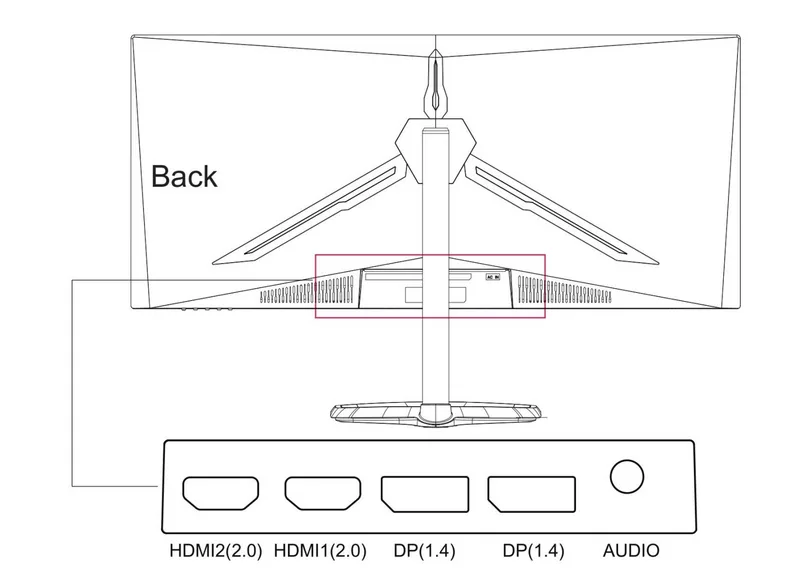
2x HDMI 2.0, 2x DisplayPort 1.4, 1x 0.14in jack (Line-Out), 1x AC-In C13 (Power connector)
Shape
curved, 1500R/4.92ft
Viewing angle
178°/178°
Coating
non-glare (matte)
Color depth
8bit (16.7 million colors)
FRC
unknown
sRGB
125%
DCI-P3
95%
Speakers
Speakers (2x 3W)
Controls
mechanical buttons
Ergonomics
with stand, height adjustable (3.94in), Pivot N/A, rotatable (+45°), tiltable (+15°/-5°)
VESA
75x75 (occupied)
Power consumption
80W (maximum), 54W (typical)
Energy efficiency SDR (A to G)
38kWh/1000h (G)
Energy efficiency HDR (A to G)
48kWh/1000h (G)
Special features
Lighting on back (violet), Slim Bezel
Screen-to-Body Ratio
Inf% (calculated)
Dimensions
31.85x20.51x10.39in (WxHxD) with stand compressed
Color
black (display frame) / black (lower bezel) / black (stand) / black (back)
Weight
15.47lb (with stand)
Power supply
internal
Warranty
two years
USB notation
Link
Product Description
Cooler Master GM34-CW Curved Gaming Monitor, 34" Manual
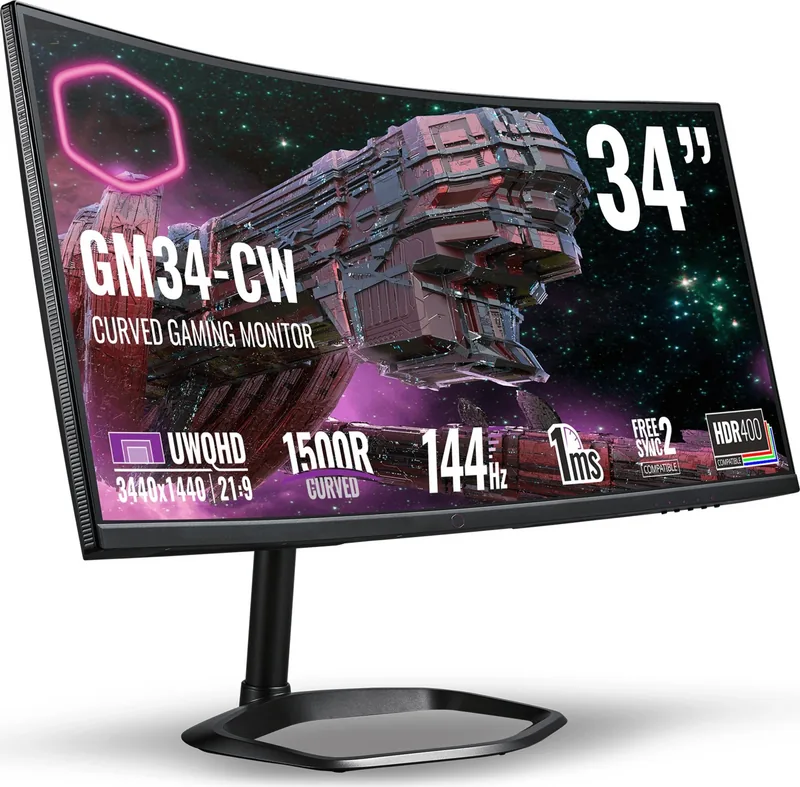
The Cooler Master GM34-CW Curved Gaming Monitor is a 34-inch ultrawide VA panel designed for immersive gaming and multimedia. With a 3440×1440 native resolution, 400 nits peak brightness, 3000:1 contrast ratio and 178° viewing angles, it delivers deep blacks and wide color coverage across a sweeping 21:9-like field of view. The monitor supports DP 1.4 at up to 144Hz and HDMI 2.0 at up to 100Hz, letting gamers choose high-refresh connectivity for smoother motion and reduced input lag.
Beyond raw specs, the GM34-CW packs gamer-focused features in its on-screen display (OSD): selectable picture modes (Standard, Graphic, Movie, Game), adjustable gamma (1.8–2.6), low-blue-light control, color temperature presets and user color settings for precise calibration. Picture-quality controls include sharpness, response-time override (Off, Normal, Fast, Fastest), super resolution, dynamic luminous control and MPRT options to reduce motion blur.
The monitor’s external control buttons offer quick-access toggles for scene modes, HDR, FreeSync and an in-game crosshair. FreeSync (Adaptive Sync) is supported to reduce tearing and stutter when paired with compatible GPUs, though the manual notes occasional flicker and advises driver updates or disabling FreeSync when changing resolution. Multi-window PIP/PBP modes let you display multiple inputs simultaneously with adjustable sizes and positions, which is handy for streaming, multitasking or using consoles alongside a PC.
Ergonomics and build features include a removable stand with 0–100mm height adjustment, tilt (-5° to +15°) and 45° swivel, plus VESA wall-mount compatibility. Built-in dual 3W speakers provide basic audio, while the power draw is typical for the class (about 54W typical, 80W max). Environmental tolerances cover standard operation (0–40°C) and storage (-20–60°C).
The manual emphasizes safe use and maintenance—cleaning guidance, warnings against pressure on the screen and instructions to seek authorized service. It also documents regulatory, environmental and restricted-substances declarations and provides step-by-step OSD menus and default values to help users fine-tune the display.
Overall, the GM34-CW targets gamers and creators who want a large curved VA panel with flexible OSD controls, adaptive-sync support, ultrawide resolution and performance-tuned options for motion handling and image clarity.
Notes
- Native resolution: 3440×1440; DP 1.4: 144Hz, HDMI 2.0: 100Hz.
- Panel: 34" VA, 400 nits max, 3000:1 contrast, 1ms MPRT / 4ms G-to-G.
- Connectivity: DP1.4, HDMI 2.0; built-in 3W x2 speakers.
- Ergonomics: Height, tilt, swivel, removable stand, VESA mount.
- Manual covers safety, OSD navigation, PIP/PBP, FreeSync/HDR notes and troubleshooting.
Search for 67,706 Manuals online


Type-in Brand or Model
maria_k
8 months ago
I want to use HDR with this Samsung VA Quantum-Dot QLED monitor. Can I calibrate HDR (profile, response time overdrive) after turning HDR on, and will it work well for gaming?
Manual.ly
8 months ago
Based on user experience, when HDR is enabled many picture settings become locked. That means you typically cannot calibrate the HDR profile, and features like Response Time Override (response time overdrive) are not configurable in HDR mode, which can lead to smeary motion on a VA panel. For best results, users recommend doing tuning with HDR turned off (e.g., standard picture mode and settings like Gamma 2.2, USER RGB values) and then using the calibrated setup for gaming. If you can live without HDR, the monitor delivers good contrast and color accuracy; if HDR is essential, it is generally not the best choice.