

Free Razer Manuals – Read, Download & Print
22 Manuals
Manuals

26 Pages

4 Pages
31 Pages
9 Pages
30 Pages

29 Pages
18 Pages
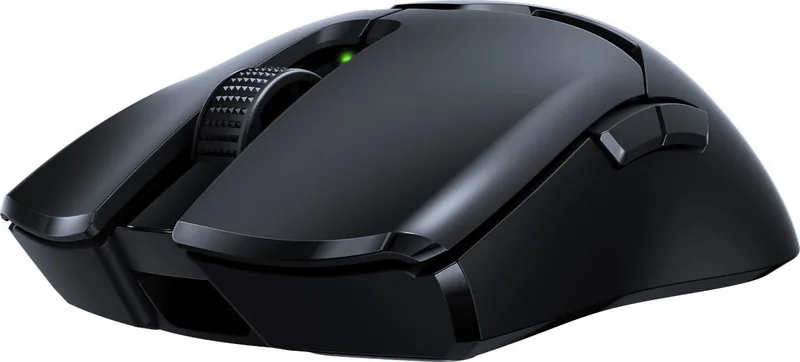
31 Pages
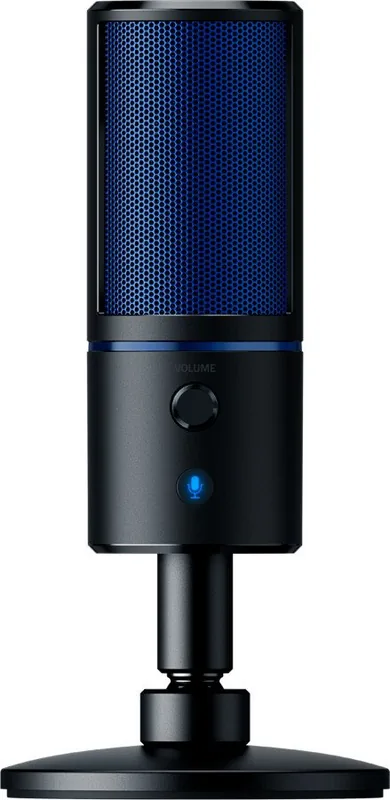
15 Pages
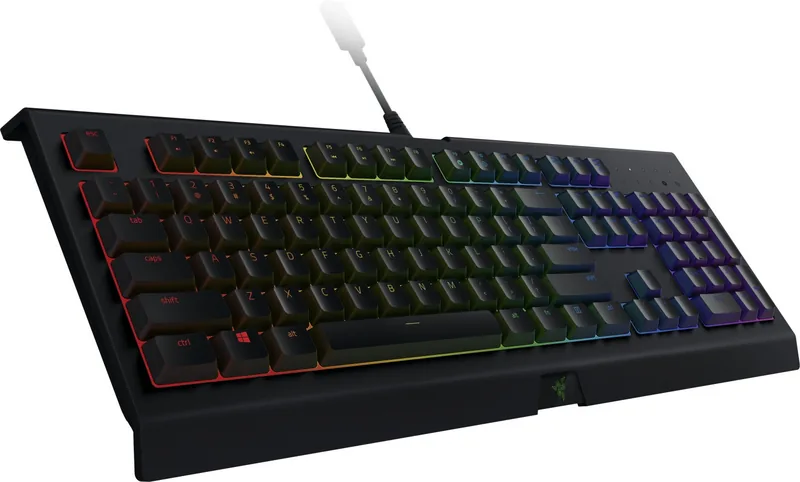
34 Pages
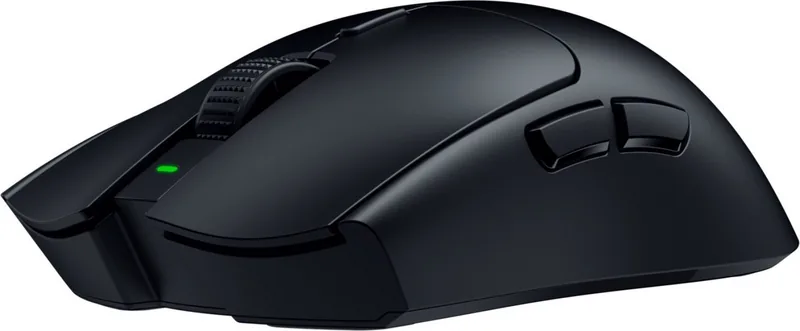
30 Pages

36 Pages
9 Pages

23 Pages

21 Pages
32 Pages
25 Pages

31 Pages
29 Pages

24 Pages

32 Pages

23 Pages
Categories


Free Razer Manuals - Read, Download and Print
Find free Razer manuals for gaming laptops, keyboards, mice, headsets, controllers, streaming gear, and other accessories. This page helps you locate product documentation quickly, whether you need setup instructions for a new device, troubleshooting guidance for a feature that is not working, or technical specifications before making a change to your gaming setup. Manuals are useful for both new and experienced Razer users because they provide model-specific information that may not be included in a quick-start leaflet.
Razer products often include customizable controls, lighting effects, wireless connections, audio features, and software options. The correct manual can explain how those functions work, where each port or button is located, how to pair devices, and how to maintain hardware safely. Browse available manuals online, download them for offline reference, or print the pages you need for convenient access.
Read Razer Manuals Online
Reading a Razer manual online is a practical way to find answers without saving a file first. Online manuals let you review instructions directly from a browser on a desktop computer, laptop, tablet, or phone. This is especially helpful when you are setting up a device at your desk and want to search for a specific topic, such as Bluetooth pairing, charging status, macro keys, microphone controls, or RGB lighting.
Look for your exact product name and model number before opening a manual. Razer may release several versions of a product with similar names, including wired, wireless, compact, regional, and refreshed editions. A manual for a closely related model can be helpful for general information, but it may show different buttons, ports, switch types, battery capacities, or supported features. Matching the document to the correct model gives you the most reliable instructions.
Most product manuals are organized into clear sections, making it easier to locate the information you need. Common sections include package contents, system requirements, device layout, installation, operating instructions, technical specifications, safety information, and support details. If the manual viewer provides search tools, enter a keyword such as "charging," "pairing," "reset," "firmware," or "Synapse" to move directly to the relevant section.
Download Manuals for Offline Use
Downloading a Razer manual gives you access to important information even when an internet connection is unavailable. Saving a copy can be useful while traveling, troubleshooting on another computer, setting up equipment at an event, or keeping records for devices used at home or work. Many manuals are provided in PDF format, which can be opened with common document readers and stored on computers or mobile devices.
Before downloading, confirm that the title and model details match your device. The model number may be printed on the product label, packaging, receipt, or original documentation. For peripherals, it is often located on the underside of the device. For laptops, check the identification label on the base or use the system information available through the operating system. Keeping the downloaded file named with the product model and purchase date can make it easier to find later.
A downloaded manual can also serve as a useful reference when updating a workspace or replacing accessories. For example, you may need to confirm connector types, dimensions, power requirements, compatibility details, or instructions for using a removable cable, receiver, charging dock, or adapter. Consult the manual before connecting third-party equipment or attempting maintenance steps that are not clearly described for your model.
Print the Pages You Need
Printing a Razer manual, or selected pages from one, is useful when you prefer a paper reference near your gaming station, repair bench, or office setup. Rather than printing an entire document, consider printing only the pages that cover installation, shortcut keys, connection diagrams, cleaning instructions, or safety notices. This can save paper while ensuring the most useful information is easy to reach.
For keyboards and mice, a printed button or key layout can be helpful when configuring profiles, assigning macros, or learning secondary functions. For headsets, print the pages that explain controls, charging indicators, microphone adjustment, and connection modes. For Razer laptops and desktop accessories, keep a copy of port diagrams, power guidance, and maintenance recommendations with your equipment records.
When printing, use the print preview to check page orientation and ensure diagrams remain readable. Some manuals include wide layouts, detailed illustrations, or small labels that are easier to view in landscape mode. If you only need a short section, select a custom page range. You can also print to a PDF file if you want a smaller document containing only the pages relevant to a particular task.
Manuals for Popular Razer Product Categories
Razer creates hardware for many types of gamers, creators, and computer users. Each category has different setup requirements and features, so the right manual is an important starting point.
Razer Keyboards
Keyboard manuals typically cover connection methods, cable routing, media controls, dedicated macro keys, onboard profiles, and lighting functions. Wireless keyboard documentation may also explain receiver placement, Bluetooth switching, charging, sleep behavior, and battery indicators. If your keyboard supports customizable switches, detachable wrist rests, or multiple device connections, consult the product-specific guide for the correct procedure.
Razer Mice
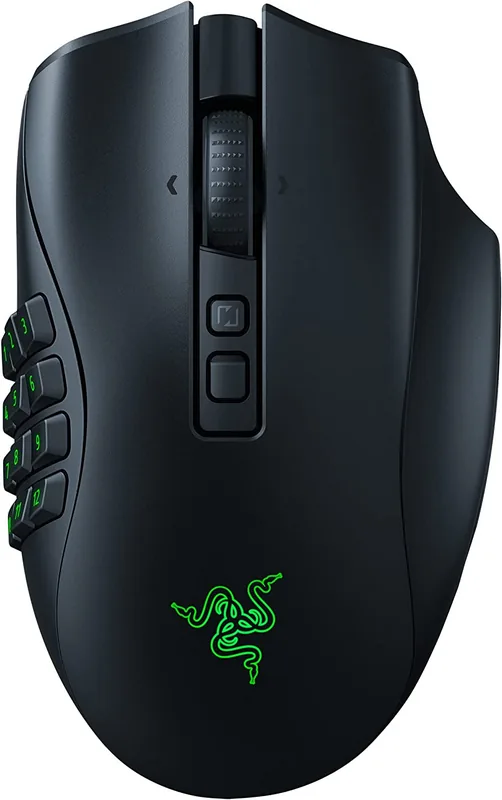
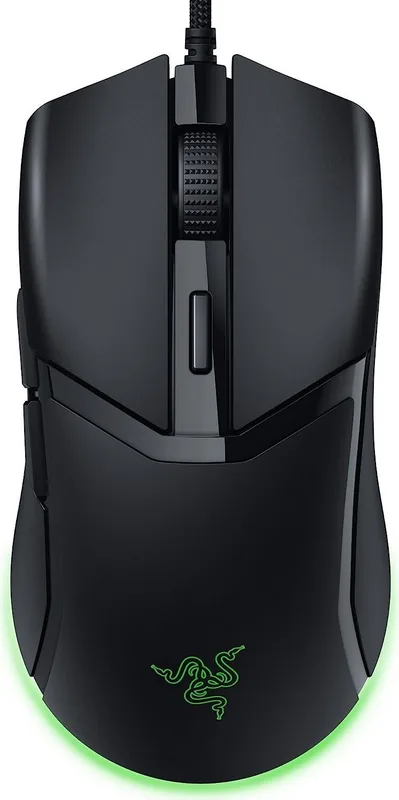
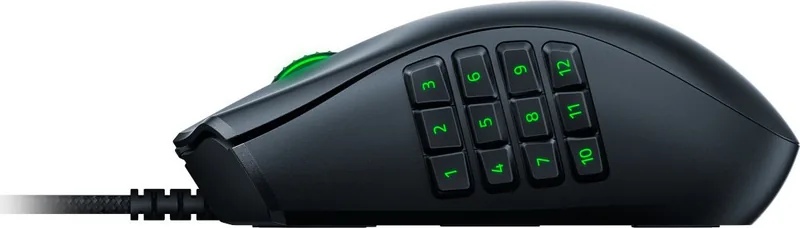
Mouse manuals can help identify button functions, sensor settings, charging methods, wireless receiver options, and profile controls. They may also include advice on using the mouse on appropriate surfaces and maintaining the sensor area. For models with docking stations or interchangeable parts, use the manual to verify installation and charging instructions before use.
Razer Headsets and Audio Devices
Headset and audio manuals provide details about connecting through USB, 3.5 mm, Bluetooth, or wireless receivers. They can explain volume controls, mute indicators, microphone positioning, equalizer features, surround sound compatibility, and charging. If audio is missing or the microphone is not detected, the manual can help you confirm the correct connection mode and control settings.
Razer Laptops and Accessories
Laptop manuals cover ports, indicators, charging, basic care, storage, ventilation, and regulatory or safety information. Documentation for laptop stands, docks, cooling accessories, webcams, capture cards, and other gear may also describe supported connections and power requirements. Always follow the stated operating conditions and avoid blocking ventilation areas during use.
Use Manuals for Setup and Troubleshooting
A manual is often the first place to check when a Razer device does not behave as expected. Start with the basic setup section and verify that all cables, receivers, adapters, and power sources are connected correctly. For wireless products, confirm that the battery is charged, the device is switched on, and the intended connection mode is selected. If a product supports multiple modes, it may connect through a different method than you expect.
For software-related features, review the manual for compatibility and setup notes. Many Razer devices work with Razer Synapse for customization, lighting, profiles, and updates, but available options can vary by product and operating system. The manual may indicate which features require software, which are stored in onboard memory, and which settings are controlled directly from the hardware.
If basic steps do not solve the issue, check the troubleshooting section for model-specific guidance. Restarting the device, reconnecting it, trying another USB port, checking charge level, or reviewing indicator light meanings may resolve common problems. Avoid disassembling products or using procedures not authorized in the documentation, as this may create damage or affect warranty coverage.
Find the Correct Razer Manual
To locate the best manual, begin with the exact name shown on the device or packaging. Include relevant terms such as wired, wireless, Bluetooth, Pro, Mini, V2, V3, or the product size when searching. These details help separate similar models. If you are unsure which version you own, compare the physical layout, connection type, labels, and listed features with the information in available documents.
Use manuals as a dependable reference for installing, operating, cleaning, storing, and troubleshooting Razer hardware. Whether you choose to read online, download a PDF, or print selected pages, the right documentation can help you get more from your device while using it safely and correctly.
Search for 67,706 Manuals online


Type-in Brand or Model