

Free Biostar Manuals – Read, Download & Print
23 Manuals
Manuals
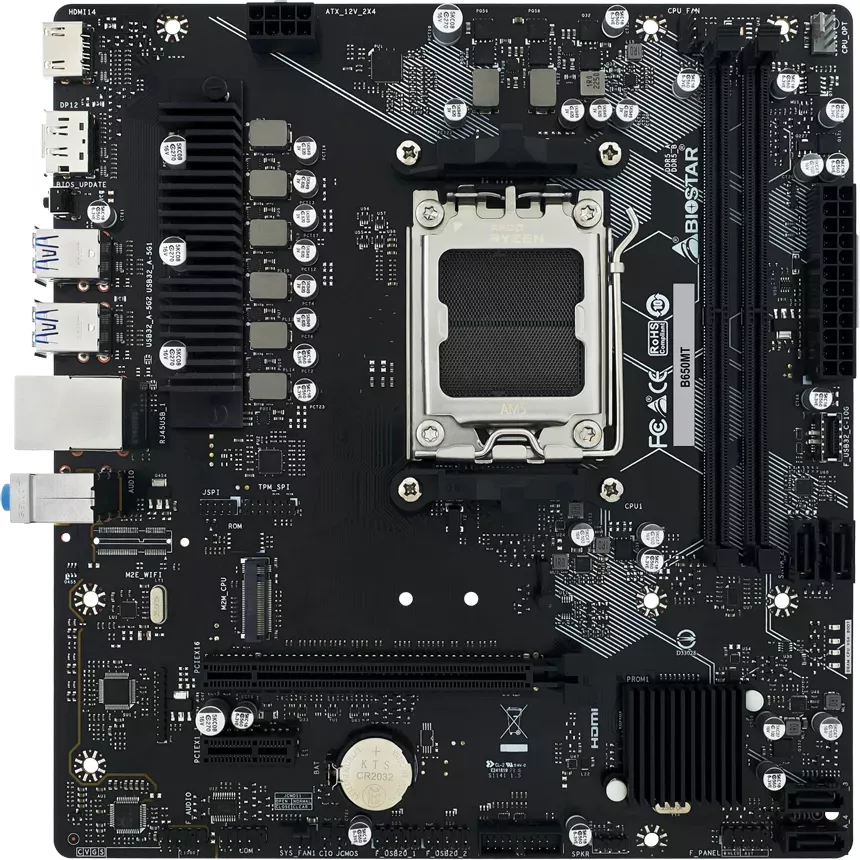
141 Pages
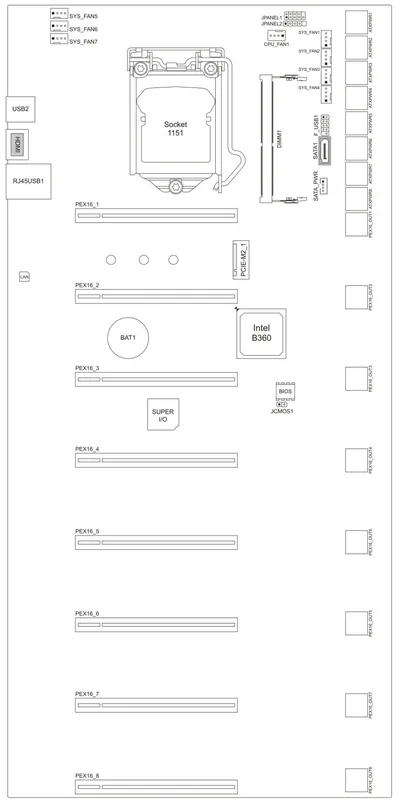
59 Pages
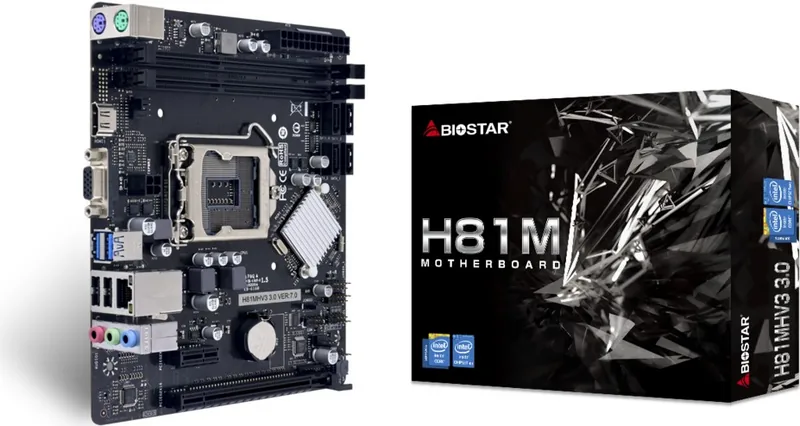
37 Pages
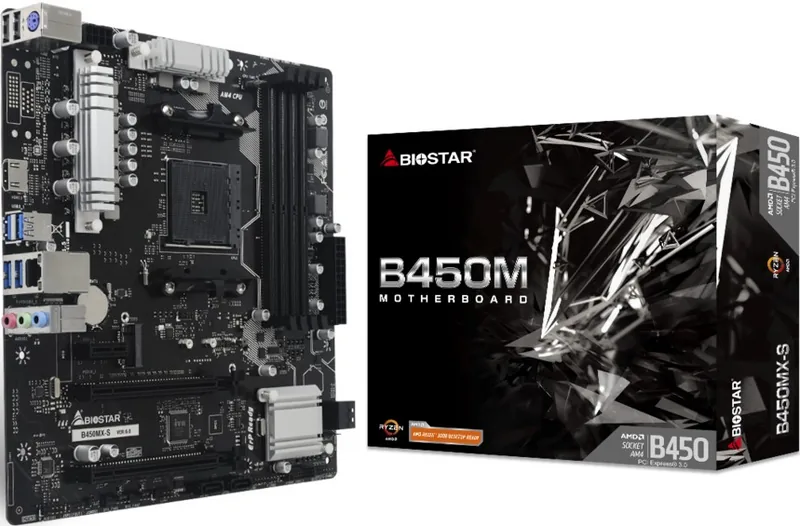
98 Pages
64 Pages
133 Pages
87 Pages
92 Pages
109 Pages
156 Pages
118 Pages
114 Pages
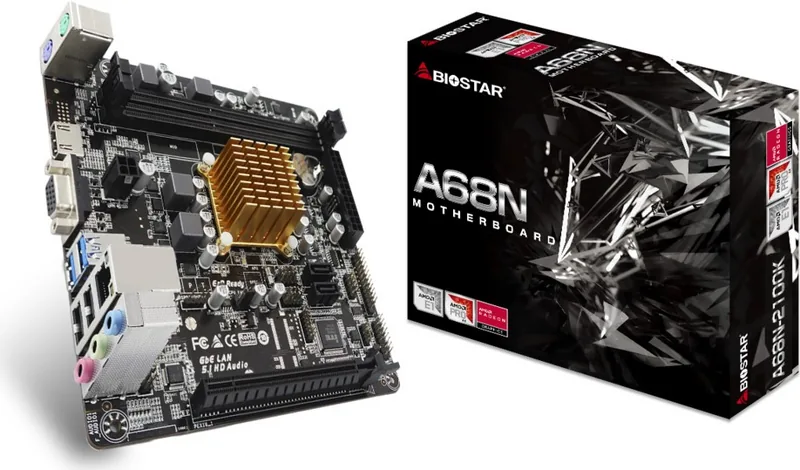
34 Pages
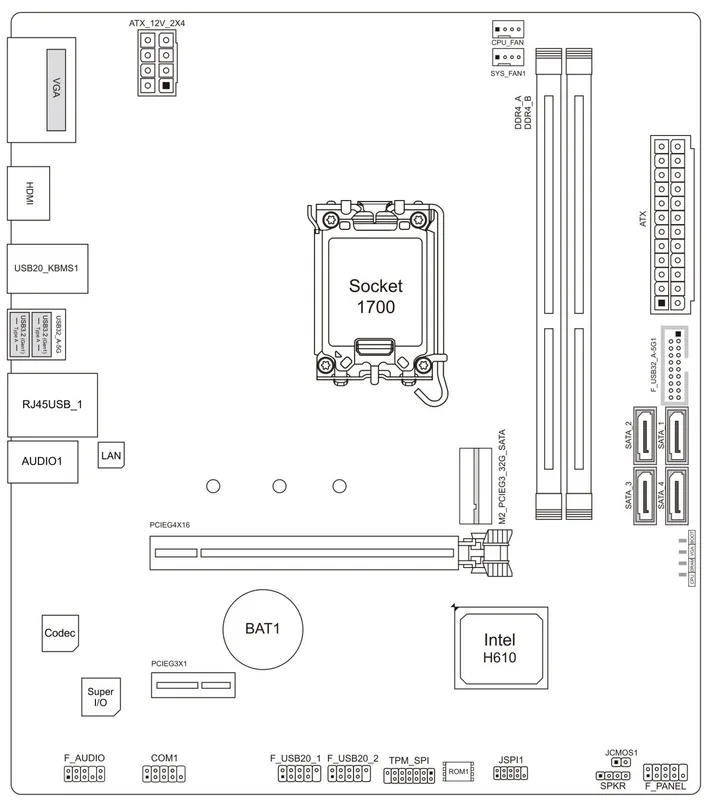
160 Pages
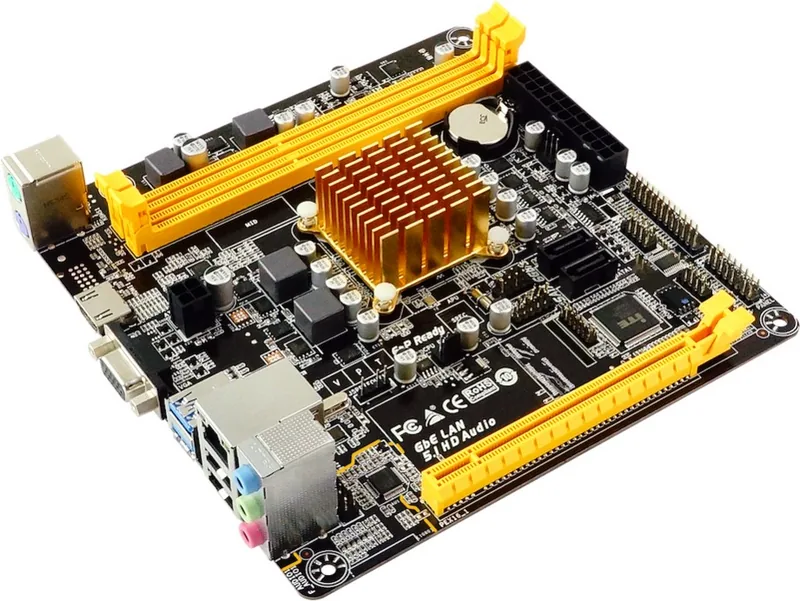
52 Pages
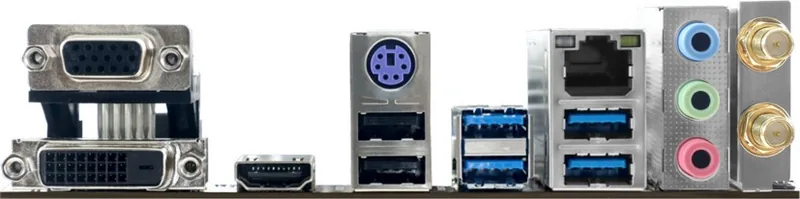
140 Pages
109 Pages
132 Pages
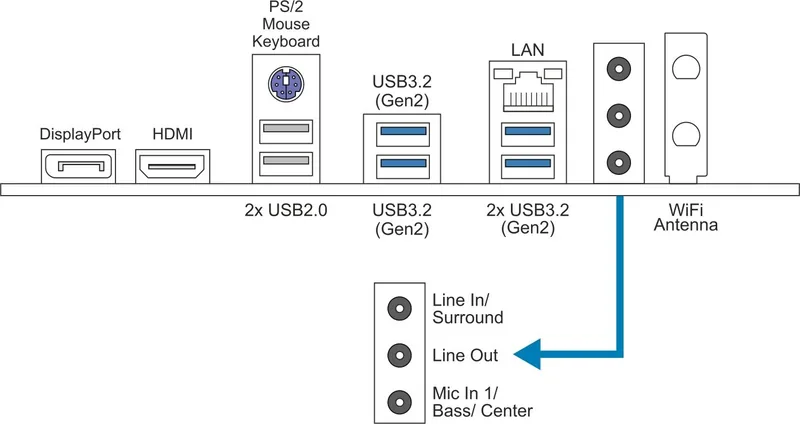
180 Pages
194 Pages
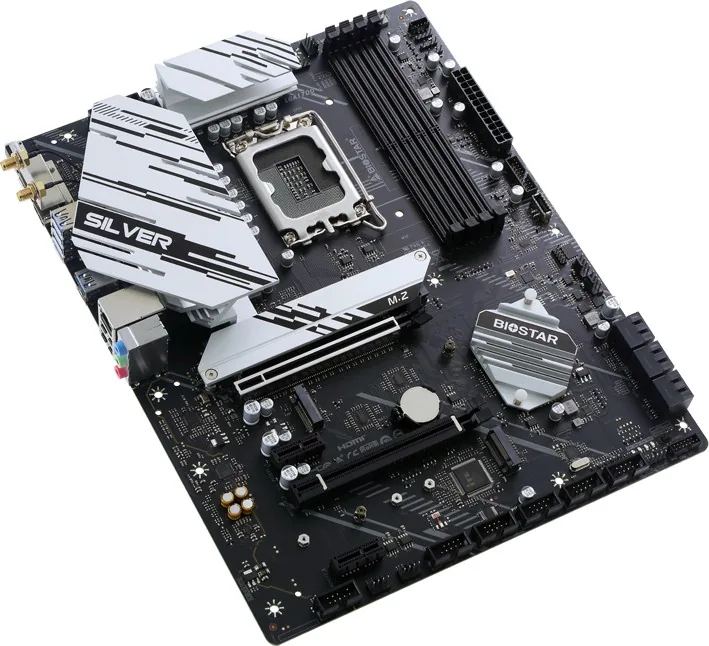
196 Pages
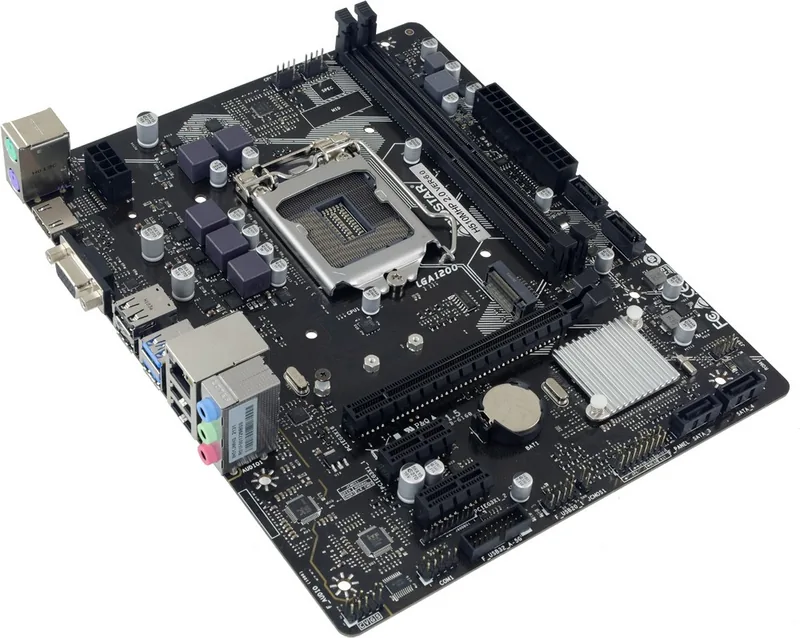
92 Pages
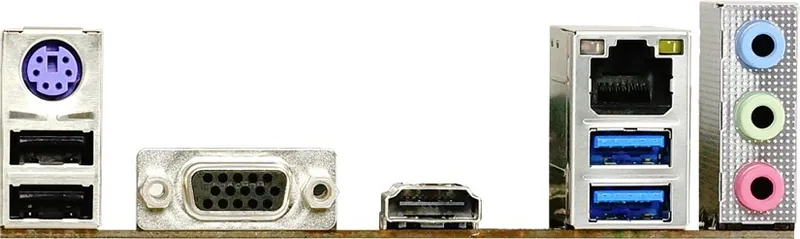
51 Pages
Categories

Free Biostar Manuals - Read, Download & Print
Find clear, practical documentation for Biostar motherboards, graphics cards, mini PCs, industrial systems, and other computer hardware. Free Biostar manuals help users understand product features, install components correctly, configure BIOS settings, troubleshoot common issues, and keep their systems running reliably. Whether you are building a new desktop PC, replacing a motherboard, maintaining an office computer, or looking for a quick connector diagram, the right manual can save time and prevent costly mistakes.
Read Biostar Manuals Online
Reading a Biostar manual online is a convenient way to access important product information without waiting for a printed guide. Digital manuals are useful when you need to confirm a specification, check the location of a header, review supported memory types, or find instructions for a specific BIOS option. Most manuals are organized into clear sections that make it easier to locate the information you need.
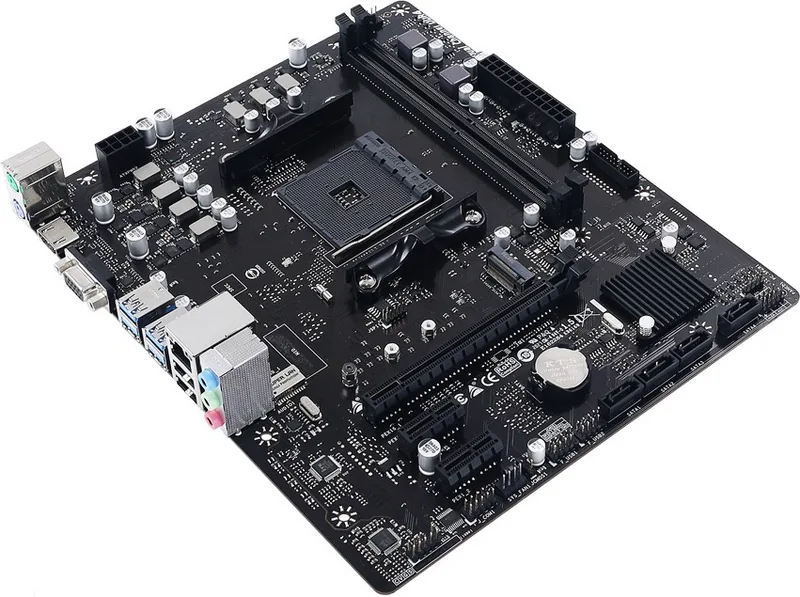
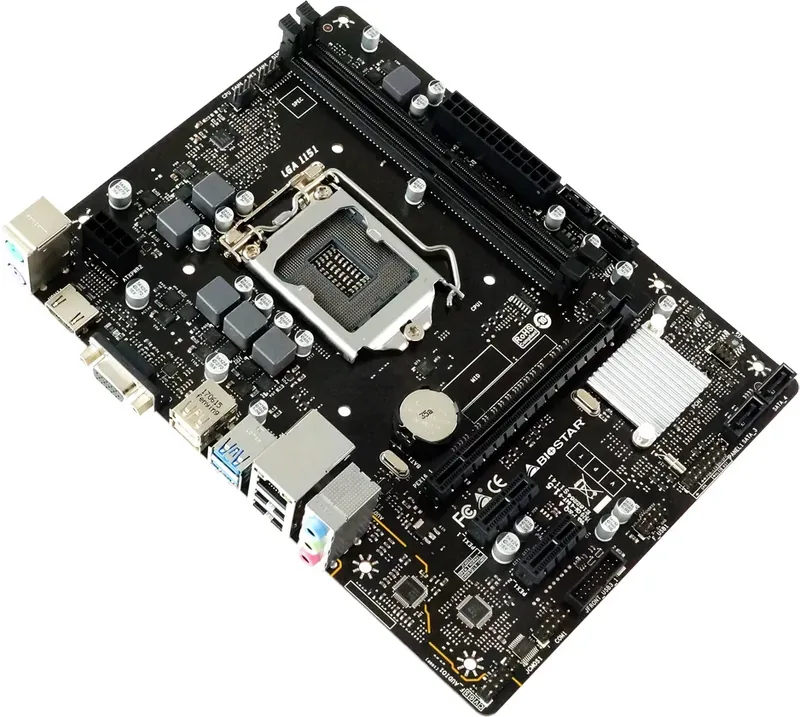
A typical Biostar manual may include product overviews, hardware layouts, installation steps, technical specifications, software setup details, and troubleshooting notes. Many documents also contain diagrams of the motherboard or device, showing the location of CPU sockets, memory slots, SATA ports, fan connectors, front-panel headers, USB headers, audio connectors, and expansion slots.
Common Information Found in Biostar Manuals
Biostar product manuals commonly provide details such as:
- Model name and board revision information
- Supported processor families and chipset features
- Memory slot configuration and supported RAM specifications
- Storage connections for SATA, M.2, or other devices
- PCI Express expansion slot descriptions
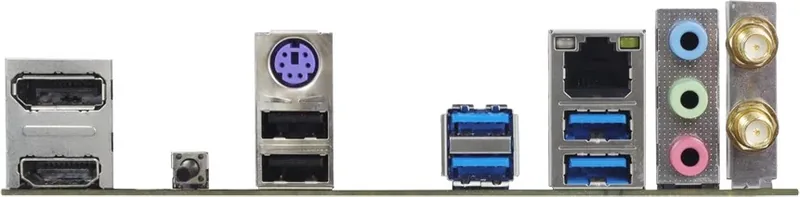
- Rear input and output port layouts
- Front-panel power, reset, LED, and speaker pin assignments
- Fan header locations and supported cooling options
- BIOS and UEFI configuration guidance
- Driver and utility installation instructions
- Safety notes and basic troubleshooting steps
Reading the manual before installing hardware is especially helpful for first-time builders. A connector that looks similar to another connector may have a different purpose, and the manual can confirm the correct location and pin layout before anything is connected.
Download Biostar Manuals for Offline Access
Downloading a Biostar manual lets you keep a copy available even when you do not have an internet connection. This can be useful during a computer build, while working in a repair area, or when troubleshooting a system that cannot access the web. Save the manual to a laptop, phone, tablet, or USB drive so it is easy to reference whenever needed.
PDF manuals are often preferred because they preserve diagrams, page layouts, tables, and technical details. They can also be searched quickly for terms such as "clear CMOS," "boot order," "M.2," "front panel," or "memory installation." Using the search feature can be much faster than manually scanning a printed document.
Tips for Choosing the Correct Manual
Before downloading any manual, verify that it matches your exact Biostar model. Motherboard names can be similar, and different revisions may use different layouts or support different features. Check the model number printed directly on the motherboard, usually near the expansion slots, memory slots, or CPU socket area. Also look for a revision number if one is listed.
When selecting a manual, confirm the following details:
- The complete product model matches your hardware.
- The manual applies to the correct board revision when revisions are available.
- The chipset, socket type, and form factor match your system.
- The manual language is appropriate for your needs.
- The document includes the sections required for your task, such as BIOS setup or connector diagrams.
Using documentation for the wrong model can lead to confusion, especially when connecting case cables, configuring storage drives, or updating firmware. Always compare the printed model name with the manual title before following technical instructions.
Print Biostar Manuals for Easy Reference
Printing a Biostar manual can make hardware installation and repair work more convenient. A printed copy is useful when you are assembling a PC away from a screen or when you want to mark important pages for future reference. You may not need to print the entire document. Often, printing only the motherboard layout, connector pages, memory installation instructions, and BIOS recovery information is enough.
For best results, print diagrams in high quality and use landscape orientation for wide tables or detailed board layouts. Color printing can make labels and diagrams easier to read, but black-and-white printing is usually sufficient for most connector charts and setup instructions.
Useful Pages to Print
The most helpful manual pages to print often include:
- Motherboard component layout diagram
- Front-panel header pinout chart
- CPU and memory installation instructions
- Storage drive connection diagrams
- M.2 installation steps
- BIOS navigation and boot configuration guidance
- Clear CMOS or reset jumper instructions
- Troubleshooting and beep code references
Keeping these pages near your workspace can reduce interruptions during installation. It also helps when troubleshooting a system that will not boot, display video, recognize a drive, or detect installed memory.
Biostar Motherboard Setup and Installation Help
Biostar motherboard manuals are particularly valuable when building or upgrading a desktop computer. They explain how to install the processor, apply cooling hardware, insert memory modules, connect power cables, attach storage devices, and configure the case front-panel wiring. Following the recommended order of installation can make the process smoother and help avoid accidental damage.
Start by reviewing the supported CPU socket and memory requirements. Install the processor carefully according to the socket instructions, align the orientation markers, and avoid forcing any component into place. After installing the CPU cooler and memory, connect the required motherboard power cables, including the main power connector and CPU power connector. The manual can identify their exact positions.
Front-Panel and Internal Header Connections
One of the most common reasons to consult a motherboard manual is to connect the front-panel cables from a computer case. These small cables control the power button, reset button, power LED, storage activity LED, and sometimes an internal speaker. The labels on case cables may vary, so the header diagram in the manual is essential.
The manual can also identify internal USB, front audio, RGB, fan, and additional power headers. Before connecting accessories, check the header type and orientation. Using the correct header protects the motherboard and connected devices while ensuring that front USB ports, audio jacks, cooling fans, and lighting controls work as intended.
BIOS and UEFI Configuration Guidance
Biostar manuals can help users become familiar with BIOS or UEFI settings. These settings control fundamental system functions, including boot priority, memory configuration, processor options, fan behavior, security features, integrated graphics, and storage mode. The exact options vary by model, BIOS version, and chipset, but the manual provides a useful starting point for understanding the available menus.
For a new build, one of the first tasks may be setting the correct boot device so the operating system installer can start. Users may also need to confirm that the system recognizes installed drives and memory. If a device is missing, the manual can help identify relevant settings and compatible connection options.
Important BIOS Precautions
Change BIOS settings only when you understand their purpose. Incorrect settings can cause boot problems, reduced stability, or hardware compatibility issues. Record original values before making changes, especially when adjusting memory profiles, processor settings, storage modes, or security options.
Firmware updates should be handled carefully. Check the exact product model and revision, use the appropriate update file, follow official instructions, and avoid interrupting power during the update process. A failed firmware update can prevent the system from starting normally.
Troubleshooting With a Biostar Manual
A Biostar manual is an excellent first resource when a computer does not start or a newly installed component is not detected. The troubleshooting section may provide checks for power issues, memory problems, display failures, keyboard or USB errors, storage detection concerns, and startup messages.
If a system fails to boot, begin with basic checks. Confirm that the power supply is switched on, motherboard power connectors are secure, memory modules are fully seated, and the monitor cable is connected to the appropriate output. If a dedicated graphics card is installed, make sure the display cable is connected to the graphics card rather than the motherboard video output when required.
For storage problems, verify SATA data and power cables, M.2 drive seating, and BIOS detection settings. For memory issues, consult the recommended slot population order in the manual. Some boards require memory modules to be installed in specific slots for dual-channel operation or reliable startup.
Get More Value From Your Biostar Hardware
Free Biostar manuals make it easier to use your hardware with confidence. They provide reliable reference information for installation, maintenance, upgrades, configuration, and troubleshooting. Instead of guessing where a cable belongs or which setting controls a feature, use the product documentation to make informed decisions.
Keep a copy of your manual with your system records, along with purchase details, driver information, and notes about upgrades. This simple habit can make future maintenance much easier. Whether you choose to read online, download a PDF, or print key pages, a Biostar manual is a useful tool for getting the best performance and reliability from your computer hardware.
Search for 67,732 Manuals online


Type-in Brand or Model