

Free Avision Manuals – Read, Download & Print
29 Manuals
Manuals
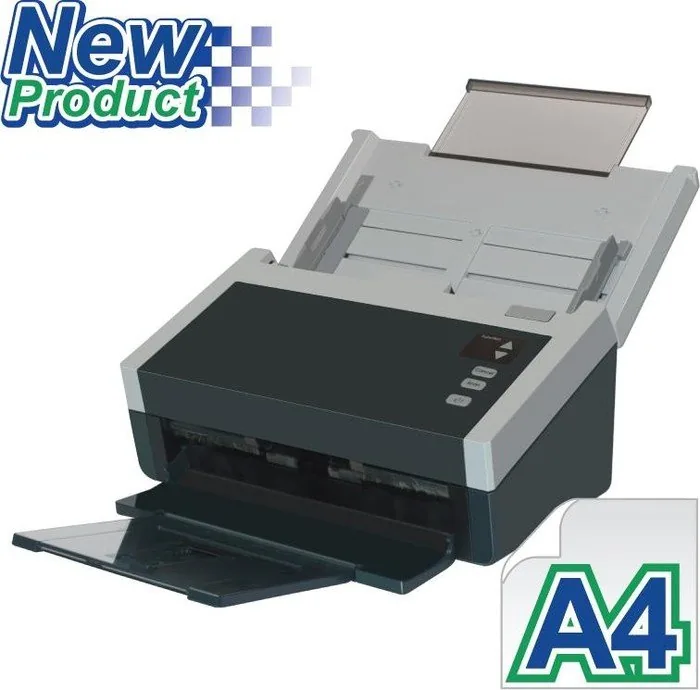
133 Pages
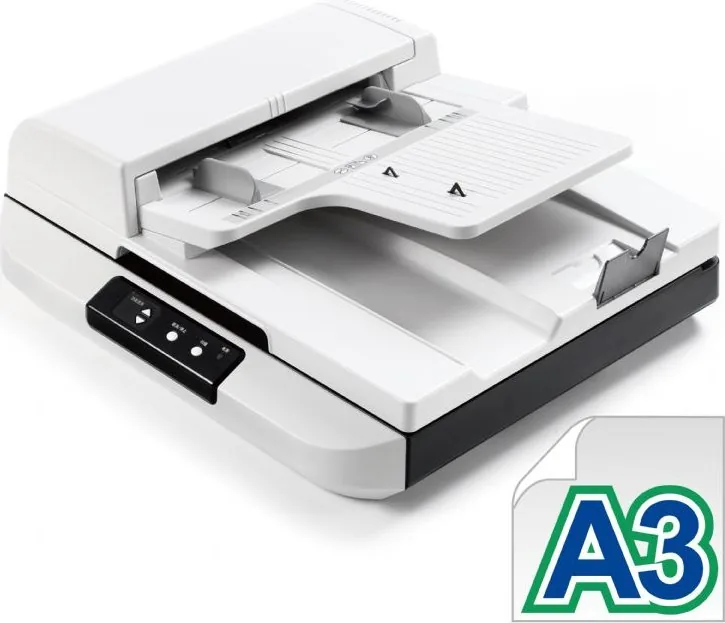
109 Pages
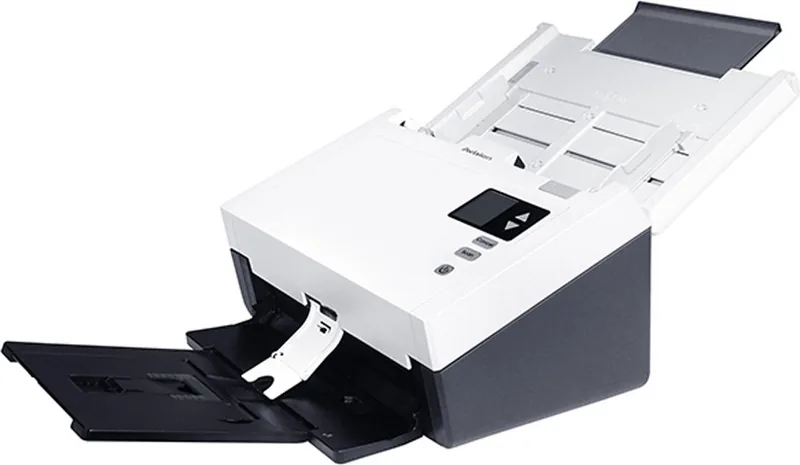
157 Pages
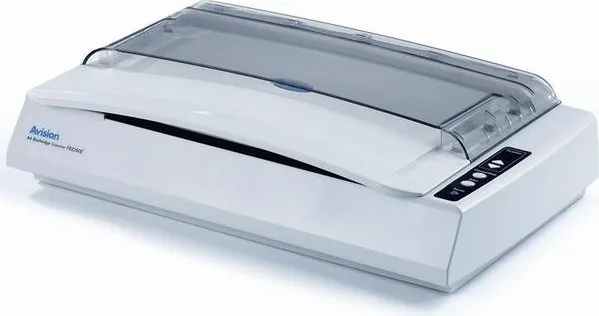
127 Pages
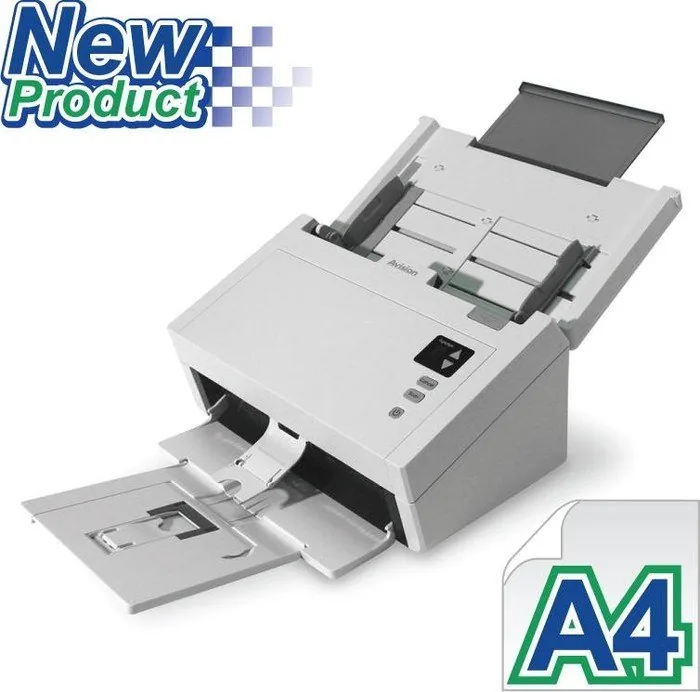
132 Pages
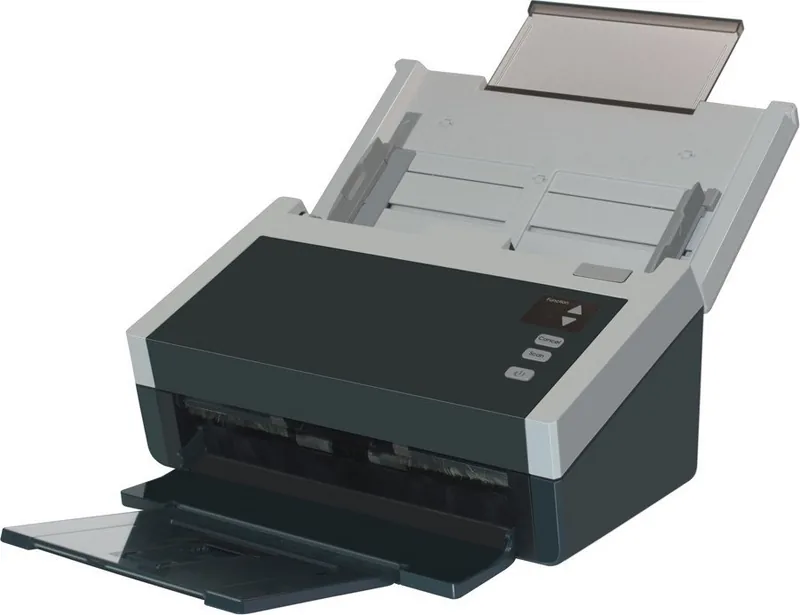
138 Pages
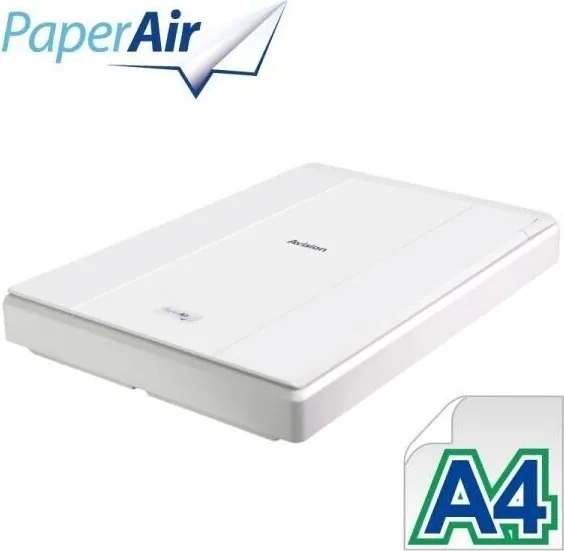
38 Pages
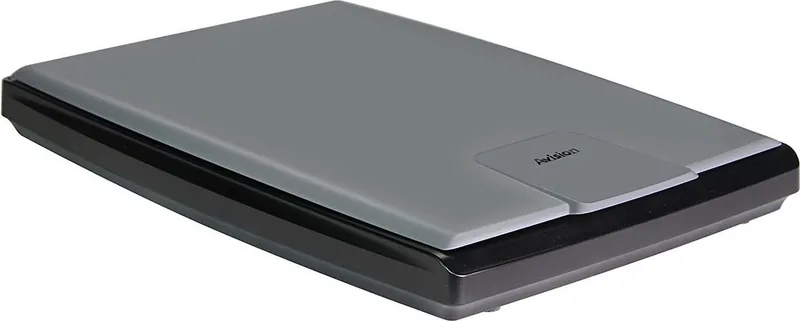
108 Pages
22 Pages
133 Pages
126 Pages
137 Pages
125 Pages
132 Pages
138 Pages
159 Pages
123 Pages
103 Pages
189 Pages
187 Pages
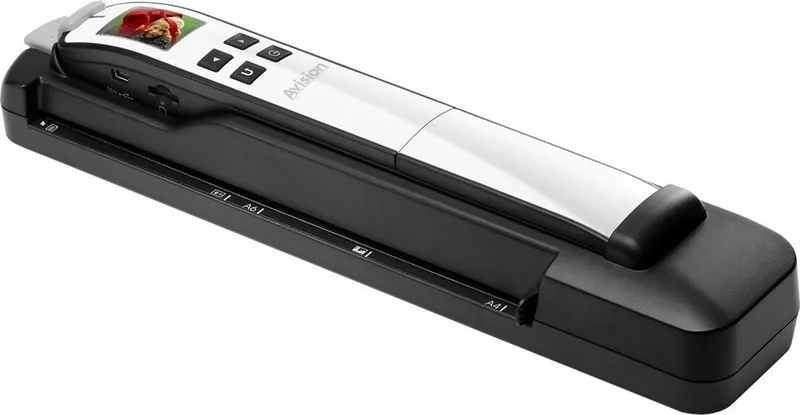
52 Pages
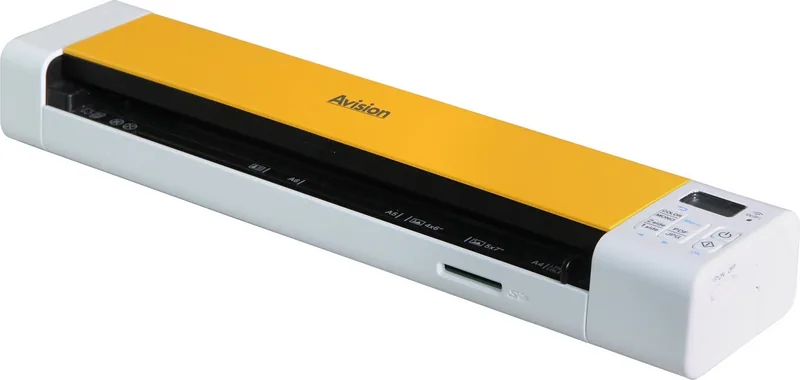
115 Pages
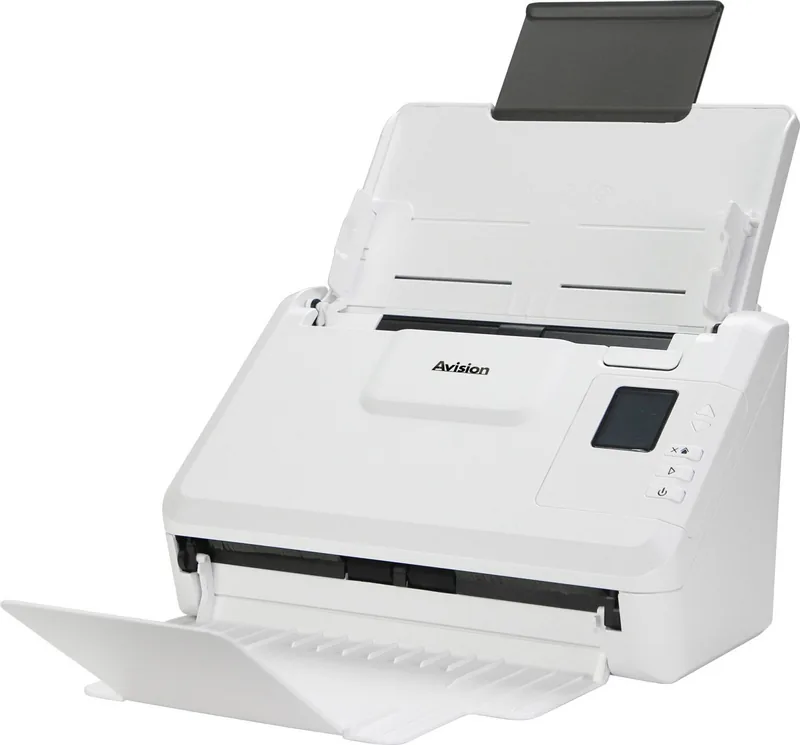
176 Pages
106 Pages
136 Pages
131 Pages
179 Pages
204 Pages
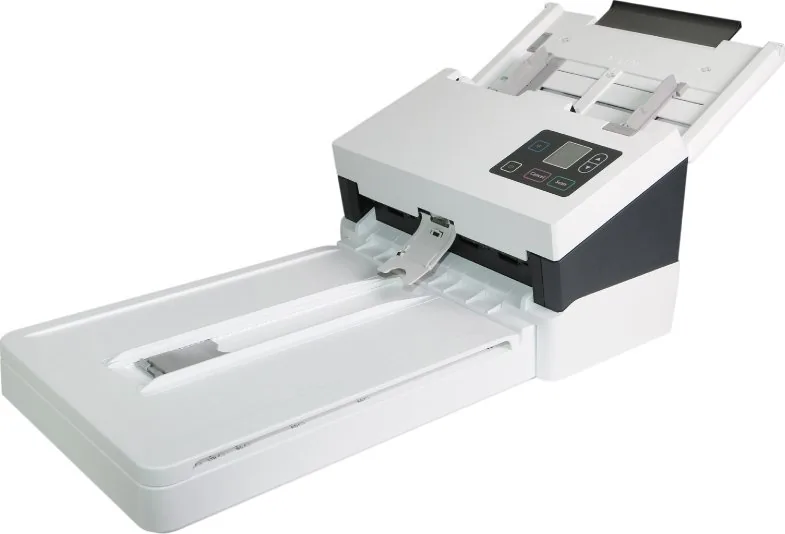
184 Pages
Categories

Free Avision Manuals - Read, Download & Print
Find Avision Manuals for Scanners and Document Imaging Equipment
Looking for a free Avision manual? This page helps users locate and use documentation for Avision scanners, document imaging devices, and related office equipment. Manuals are useful whether you are setting up a new scanner, replacing an older unit, resolving a connection issue, learning software features, or preparing a device for regular office use.
Avision products are commonly used for document scanning in homes, schools, small businesses, government offices, libraries, and professional workflows. Depending on the model, an Avision manual may include basic installation instructions, specifications, control panel explanations, driver guidance, maintenance procedures, troubleshooting steps, and scanning recommendations. Reading the correct manual can save time and help ensure that the scanner is used safely and effectively.
Read Avision Manuals Online
Online manuals make it easy to find important information without storing a file on your computer or printing unnecessary pages. You can read an Avision user guide directly in your browser and move between sections as needed. This is especially helpful when you need a quick answer while installing hardware, changing scanner settings, cleaning the device, or correcting a paper feed problem.
Most manuals are organized into practical sections. A typical guide may begin with safety information and an overview of the scanner. It can then explain what is included in the box, how to connect power and USB cables, how to install drivers, and how to load documents. Later chapters often cover scanner software, image settings, file formats, routine care, and error messages.
Reading online is convenient for users who only need a specific section. For example, you may want to check supported paper sizes, confirm how to scan cards or receipts, find the location of a cleaning sensor, or understand a warning light. Search functions within a browser or PDF viewer can make it faster to locate terms such as "driver," "ADF," "cleaning," "USB," "duplex," or "error code."
Common Information Found in an Avision User Guide
Avision manuals often provide clear instructions for everyday operation. The exact content varies by product, but many guides include the following topics:
- Product identification and scanner parts
- Safety notices and handling precautions
- Package contents and accessory information
- Driver and software installation
- USB, network, or wireless connection steps
- Automatic document feeder instructions
- Flatbed scanning guidance where available
- Supported document sizes and paper weights
- Image resolution, color mode, and file format settings
- Single-sided and double-sided scanning options
- Maintenance and cleaning procedures
- Jam removal instructions
- Troubleshooting and error code references
- Technical specifications and environmental requirements
Using the manual for your exact model is important. Similar Avision scanners can have different buttons, feeders, software packages, drivers, and maintenance requirements. Before following a procedure, verify the model number shown on the scanner label, packaging, or original purchase documentation.
Download Avision Manuals for Offline Access
Downloading a manual gives you a reliable reference when you do not have internet access. A saved PDF can be opened on a desktop computer, laptop, tablet, or phone. It is useful for IT teams, shared office environments, field workers, and anyone who wants to keep product documentation available for future maintenance.
An offline manual is particularly helpful during setup. If you are installing a scanner on a computer that has limited network access, you can keep the guide nearby while working through cable connections, software installation, and device detection. A downloaded copy also makes it easier to store instructions with other equipment records, warranty details, and service notes.
When downloading an Avision manual, choose the document that matches the full model name. Some products have similar names but different feature sets. A network-capable version may have instructions that do not apply to a USB-only model, while a portable scanner may require different power, battery, or media handling guidance than a desktop document scanner.
Tips for Using Downloaded Manuals
After saving an Avision PDF manual, rename the file with the scanner model and document type. For example, include terms such as user guide, quick start guide, service guide, or installation manual. This makes it easier to find later when several documents are stored in the same folder.
You can also bookmark frequently used pages in a PDF reader. Useful bookmarks may include scanner cleaning instructions, roller replacement details, software configuration steps, and troubleshooting charts. If the manual contains a table of contents with links, use it to move quickly between sections.
Keep in mind that a manual may not always include the newest software version. If you are installing drivers or companion software, compare the manual instructions with the current options provided for your operating system. The product documentation remains valuable for hardware setup and operational details, while current support resources can help with updated software compatibility.
Print the Pages You Need
Printing an Avision manual can be practical in locations where devices are shared or where a printed reference is easier to use. Instead of printing an entire document, consider printing only the pages that are most relevant to your work. This reduces paper use while still giving staff immediate access to important instructions.
For an office scanner, useful printed pages may include loading guidance, control panel descriptions, basic scanning steps, cleaning procedures, and common error solutions. A small printed troubleshooting sheet near the scanner can help employees resolve simple issues without interrupting a workflow.
If you choose to print a complete manual, use double-sided printing when possible. You may also want to print the table of contents and key maintenance pages first. Store printed documentation in a labeled binder near the equipment, especially if the scanner is used by multiple people.
When Printed Instructions Are Most Helpful
Printed Avision documentation can be useful in reception areas, records rooms, mailrooms, classrooms, healthcare offices, and other places where employees scan documents throughout the day. A physical guide is also helpful when a computer is being repaired, the network is unavailable, or a user is less comfortable reading technical instructions on screen.
For routine tasks, a concise printed reference can cover the basics: turn on the scanner, check the document stack, align pages, select a scan profile, verify the destination folder, and review the scanned file. For more complex problems, refer back to the full manual for detailed steps and warnings.
Set Up Your Avision Scanner Correctly
Proper setup is one of the best ways to prevent scanning problems. Start by placing the scanner on a stable, level surface with enough space for documents to enter and exit. Remove all shipping tape, locks, packing materials, and protective inserts before powering on the device. A manual will identify any transport lock or special preparation needed for the model.
Install the recommended driver and scanning software before connecting the device if the manual instructs you to do so. Some systems detect hardware automatically, but using the correct driver can provide access to full scanning features and improve reliability. Follow the manual's connection order for USB, Ethernet, wireless, or power cables.
After setup, run a basic test scan. Use a clean document in good condition and select a simple scan profile. Confirm that the image is clear, correctly oriented, and saved to the expected location. If a problem occurs, check the manual for connection, driver, document loading, and software settings guidance.
Maintain Scanner Performance
Regular maintenance helps preserve scan quality and reduce paper feeding errors. Dust, paper fibers, adhesive residue, and ink transfer can affect rollers, sensors, and glass surfaces. The correct cleaning process depends on the scanner model, so follow the instructions in the relevant Avision manual.
Before cleaning, turn off the scanner and disconnect power when directed. Use only recommended materials and avoid applying liquid directly to sensitive parts. Do not use harsh chemicals or abrasive cloths unless the product documentation specifically permits them. Clean the automatic document feeder rollers and separation pads as recommended, especially in high-volume environments.
If pages begin to skew, double-feed, jam, or feed slowly, inspect the documents and consult the maintenance section of the manual. Worn rollers or pads may need replacement. The guide may list compatible replacement parts and show how to install them safely.
Troubleshoot Common Avision Scanner Issues
Many scanner issues have simple causes. If the device is not detected, check the power connection, cable connection, driver installation, and selected scanner in the software. If a document jams, remove it carefully according to the manual's instructions and inspect the feeder path for torn paper or foreign objects.
Poor image quality may be caused by dirty glass, incorrect resolution, unsuitable color settings, or a document that is damaged or heavily marked. Feeding problems can occur when pages are curled, stapled, clipped, wet, too thin, or outside the supported size range. The manual can help you determine which document types are appropriate for your scanner.
For recurring errors, write down the full message, indicator light pattern, and actions that occurred before the problem started. This information makes it easier to find the relevant troubleshooting section and identify the correct solution.
Choose the Right Avision Manual
The best Avision manual is the one written for your exact device and task. A quick start guide is ideal for basic installation, while a full user manual offers detailed operational information. A maintenance guide can be useful for cleaning and consumable replacement, and software documentation may explain scan profiles, document routing, OCR, and file management.
Use free Avision manuals to read instructions online, download a copy for offline reference, or print the pages needed for daily operation. With the correct documentation at hand, you can set up your scanner with confidence, maintain consistent image quality, and solve common issues more efficiently.
Search for 67,706 Manuals online


Type-in Brand or Model