
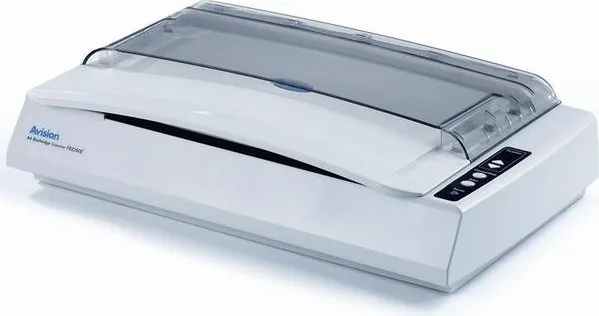
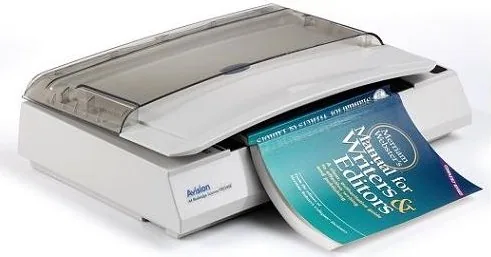
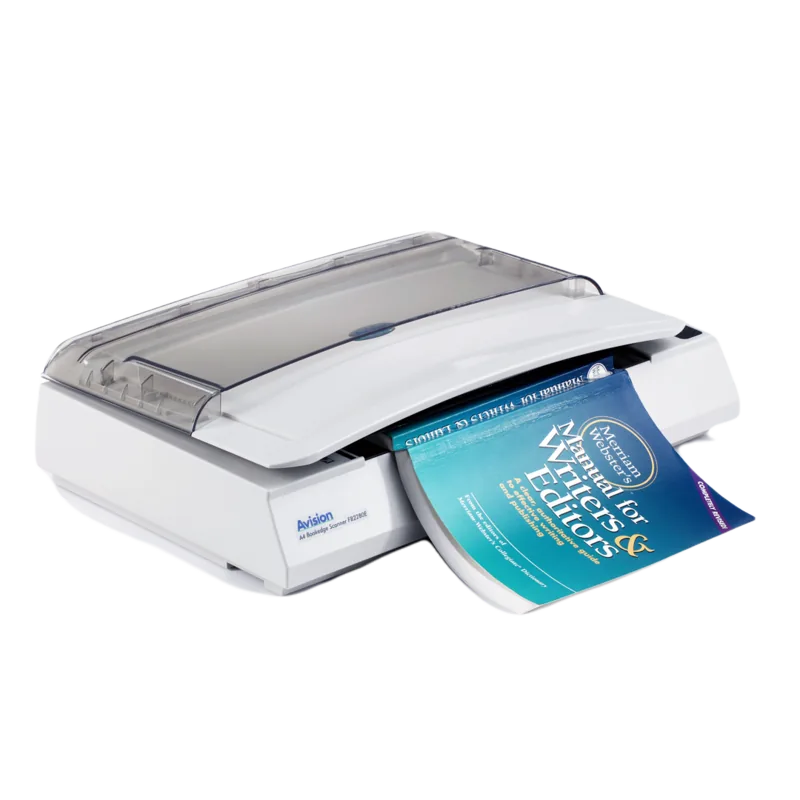
Avision FB2280E Manual
PDF manual · 127 Pages
English



Quick check
Incorrect answer, please try again.
Chat with your Avision FB2280E manual using AI
Get instant AI answers from your Avision FB2280E manual
Ask anything about the Avision FB2280E. Answers come from this manual, with the pages they are based on.
FB2280E Maintenance Schedule
After scanning about 20,000 pages, the pad may be worn. Replace it to avoid document feeding problems.
After scanning about 200,000 pages, the roll may be worn. Replace it to ensure proper document feeding.
Ask a Question
Do you recommend FB2280E?
Yes No
Katrin Weber
8 months ago
Is the scanner setup easy for beginners, and can I scan quickly without using my PC each time? I saw mention of presets and auto-naming.

Manual.ly
8 months ago
The initial setup is sometimes not fully self-explanatory, especially the correct settings. If you get stuck, our support team helps quickly via email or phone to find the right configuration. Once set up, the scanner is designed for fast, comfortable use: you can operate it directly on the device with up to 9 saved presets. A simple button press starts scanning immediately with the selected resolution. Results are stored automatically with a freely chosen naming pattern and a continuous numbering scheme inside the folder you selected. For example, a 600 dpi color scan can take only a few seconds before you can start the next one without using the keyboard or screen on your PC.
Frequently Asked Questions
Place the CD in your drive and run setup.exe after ensuring the scanner is off. Connect the USB cable only after the driver installation completes to ensure proper recognition.
Is this answer helpful?
Yes, by folding the paper in half and using the carrier sheet option for proper feeding. This method allows duplex scanning of larger formats effectively.
Is this answer helpful?
Check if the shipping lock switch is unlocked at the back. Ensure the device sits on a level flat surface to prevent mechanical issues during operation.
Is this answer helpful?
Use a lint-free cloth dampened with isopropyl alcohol to wipe the glass gently. Close the cover after cleaning to prepare for next use.
Is this answer helpful?
The device will stop scanning or alert you depending on settings. You must remove the stacked papers before resuming operation to fix the issue.
Is this answer helpful?
Advantages and Disadvantages
Advantages

- High optical resolution offers excellent detail for archival purposes.
- Multiple driver support including TWAIN and WIA for flexibility.
- Button Manager software allows fast one-touch scanning to apps.
- Energy Star compliance helps reduce overall power consumption costs.
Disadvantages

- Specific AC adapter is required to avoid potential electrical damage.
- Consumables like ADF pads must be replaced periodically for best function.
- Manual intervention is required to clear any paper jams immediately.
- Advanced configuration options require careful setup to activate properly.
Product Specification
Type
Flatbed Scanner (CCD)
Resolution
600x600dpi
Speed
15/15 S/min (B/W/Color)
Paper/Film Format
A4
Paper/Film Feed
Sheet Feed
Memory
128MB (RAM)
Connections
1x USB 2.0
Software
OCR Software
Power Consumption
30W (typical), 10W (standby), 5W (sleep)
Dimensions
18.90x4.53x11.34 in
Weight
14.33 lbs
Product Description
Discovering the Avision FB2280E Experience
When entering the world of digital imaging, finding the right equipment makes a significant difference in workflow efficiency. The Avision FB2280E stands out as a robust solution for businesses and professionals requiring high volume scanning capabilities. This device utilizes advanced optical technology to capture crisp, detailed images with minimal effort. Users often consult the Avision FB2280E Manual during setup to ensure optimal configuration for their specific environment.
Versatile Scanning Capabilities
Equipped with both flatbed and automatic feeder options, this machine handles various media types seamlessly. It supports color, grayscale, and black-and-white modes, adapting to diverse content needs. The optical resolution reaches up to six hundred dots per inch, ensuring every detail is preserved. Whether scanning photographs or text sheets, the output quality remains exceptional. Compatibility extends across major operating systems including versions of Windows 7, 8, and 10. Installation is straightforward using provided utilities that configure drivers like TWAIN and WIA efficiently.
Performance and Utility
Button management software enhances the user experience by assigning specific programs to physical buttons on the unit. A single touch initiates scanning into designated applications like image editors or data management tools. The software includes features for batch processing and automatic color detection. This automation saves valuable time during large jobs. Energy consumption is kept low through intelligent power management settings. The device meets Energy Star guidelines for environmental responsibility.
Maintenance and Safety
Long-term reliability depends on proper care and adherence to safety guidelines. Regular cleaning of the glass surface and rollers preserves image quality and feeding performance. The system includes warnings for potential hazards like electrical shock or overheating. Users must use the supplied power adapter to prevent damage. Safety certifications including FCC and CE compliance ensure the product meets international standards for electromagnetic interference and low voltage safety.
Final Thoughts
Investing in this hardware provides a reliable foundation for archive and digitization projects. Its blend of speed, quality, and ease of use makes it a top choice in its category.
The unit supports multiple paper sizes up to standard letter dimensions. This flexibility helps in various office settings where mixed media is common. The interface connection utilizes a USB port for high speed data transfer. Power requirements remain stable with the specific AC adapter provided with the bundle.
Troubleshooting issues regarding noise or lamp function can be addressed simply by checking connections. Users report that ensuring the device sits on a flat surface prevents mechanical errors during operation. Maintaining the feeders with alcohol wipes keeps the mechanism running smoothly over years.
Note: Always verify your settings before starting a batch scan for best results.
Search for 67,706 Manuals online


Type-in Brand or Model
Klaus Weber
6 months ago
Is the initial setup process intuitive, or will I need customer support to configure the settings correctly?
Manual.ly
6 months ago
Our support team is ready to help you via email or phone to complete the initial setup, as it is not always self-explanatory. Afterward, the device offers nine physical preset buttons for immediate scanning at your preferred resolution without needing a computer. It automatically saves files to your designated folders with sequential naming, completing 600dpi scans in about three seconds for a seamless experience.