
Avision FB15 Manual
PDF manual · 106 Pages
English



Quick check
Incorrect answer, please try again.
Chat with your Avision FB15 manual using AI
Get instant AI answers from your Avision FB15 manual
Ask anything about the Avision FB15. Answers come from this manual, with the pages they are based on.
Ask a Question
Do you recommend FB15?
Yes NoFrequently Asked Questions
Install the driver software from the included CD first. Connect the USB cable only after the driver is active. Run the Capture Tool to verify the connection works before scanning.
Is this answer helpful?
The device supports an optical resolution of 1200 dpi. This setting ensures high detail for both text and photographic content during the scanning process.
Is this answer helpful?
Yes, the software supports duplex scanning if the hardware model supports it. Settings must be configured in the image tab for automatic reversal of sides.
Is this answer helpful?
Yes, but ensure the surface is flat and stable to prevent vibration. Avoid direct sunlight to protect the internal components from heat damage.
Is this answer helpful?
The unit requires a 12Vdc power supply with a 1.5 Amp draw. Do not use other adapters as it may void the warranty or cause electrical issues.
Is this answer helpful?
Use the color dropout feature in the software settings. Select the background color to filter it out automatically during the image processing stage.
Is this answer helpful?
Contact the local Avision support center in your region. Prepare the serial number and hardware configuration details before reaching out for assistance.
Is this answer helpful?
Advantages and Disadvantages
Advantages

- High optical resolution up to 1200 dpi for detailed imaging
- Contact image sensor ensures vibrant color accuracy
- USB 2.0 connection provides fast data transfer speeds
- Supports Windows 7, 8, and 10 operating systems easily
- Advanced color adjustment tools improve final image output
Disadvantages

- No wireless connectivity option included in the base design
- Requires a specific voltage adapter to prevent damage
- Driver installation must be done before connecting hardware
- Limited support for extra long pages without specific tools
- Glass surface requires careful cleaning with specific fluids
Product Specification
Type
Flatbed Scanner (CIS)
Resolution
1200x1200dpi
Paper/Film Format
A5
Paper/Film Input
Single Sheet
Memory
64MB (RAM)
Ports
1x USB 2.0
Software
OCR Software (PaperPort)
Power Consumption
10W (typical), 4W (standby), 2W (sleep)
Dimensions
10.91x12.13x13.07 inches
Weight
2.43 lbs
Product Description
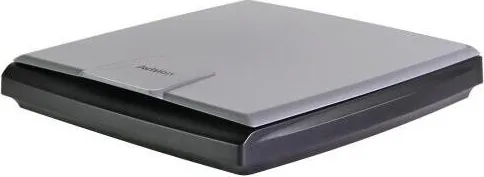
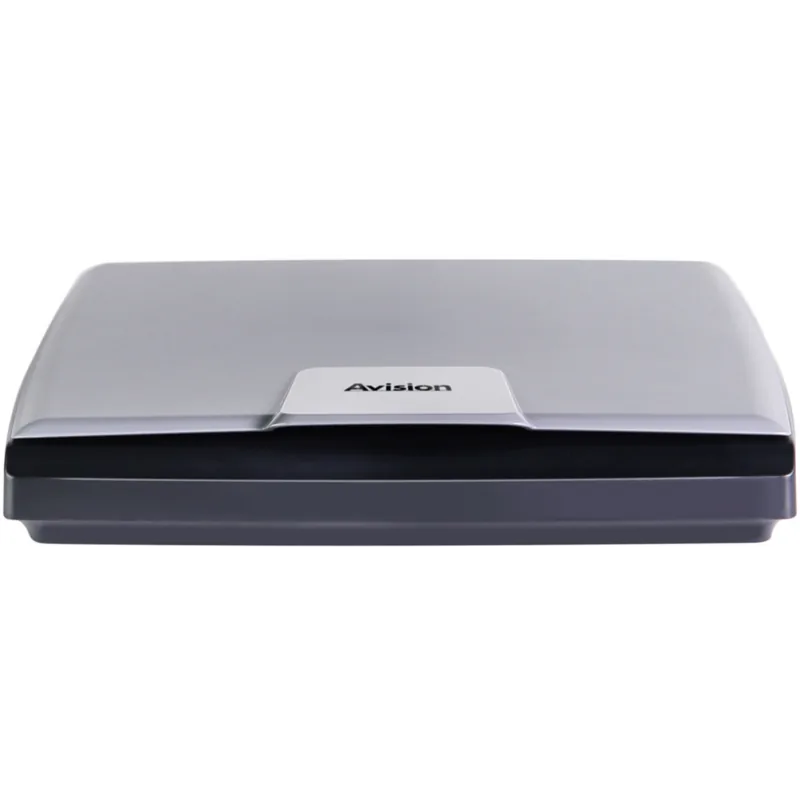
Avision FB15 Scanner Overview
The Avision FB15 stands out as a high-performance flatbed scanner designed for modern item management needs. It combines robust hardware with versatile software capabilities to ensure professional results for both home and office users. Whether you are archiving important items or digitizing photographs, this device delivers consistent quality. The interface supports multiple operating systems including Windows 7, 8, and 10, ensuring broad compatibility across different environments. It also meets European Union safety regulations regarding power and electromagnetic compatibility for reliable use within the specified standards.
A standout feature of the FB15 is its contact image sensor technology. This advanced sensor provides a true resolution of 1200 dpi, allowing for detailed scans of text and images. Users can choose from various image modes such as true color, grayscale, or black and white. The software suite includes tools like color dropout and background processing to enhance the final output. This makes it suitable for handling complex items with mixed content types efficiently. The inclusion of automatic sheet detection streamlines the scanning process significantly for batch operations involving multiple sheets. Adjusting brightness and contrast manually allows for precise customization of the final image quality.
Installation is straightforward, utilizing a standard USB 2.0 connection for data transfer. The included Capture Tool simplifies the scanning process for first-time users. Additional options like automatic sheet detection and separation further streamline workflows. Safety features are integrated into the design, requiring specific voltage adapters to prevent electrical hazards during operation. Proper maintenance ensures longevity for the glass surface and internal components. Users should avoid exposing the unit to dust or extreme moisture to maintain performance over time.
Notes: Ensure the Avision FB15 Manual is accessible for reference. Ensure the power adapter provided is used exclusively to avoid warranty voiding. Keep the scanner away from direct sunlight. Use the software profile system for custom scan settings. Always connect the device to a grounded outlet for safety during long sessions. Verify USB connections are secure before operating. Maintain a cool environment around the unit to prevent overheating.
Search for 67,706 Manuals online


Type-in Brand or Model