

Free Perixx Manuals – Read, Download & Print
18 Manuals
Manuals
14 Pages
14 Pages

1 Pages

14 Pages
21 Pages

12 Pages

23 Pages

23 Pages
30 Pages
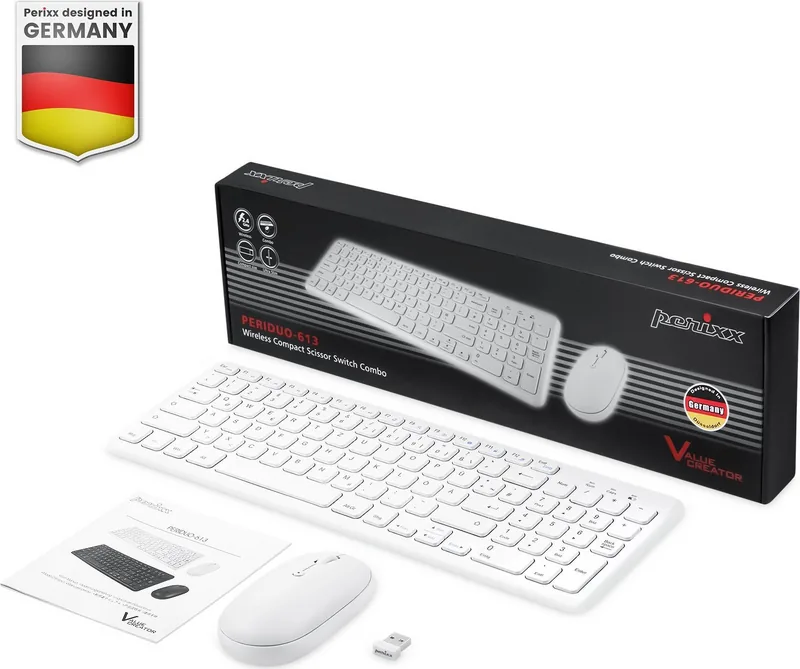
30 Pages
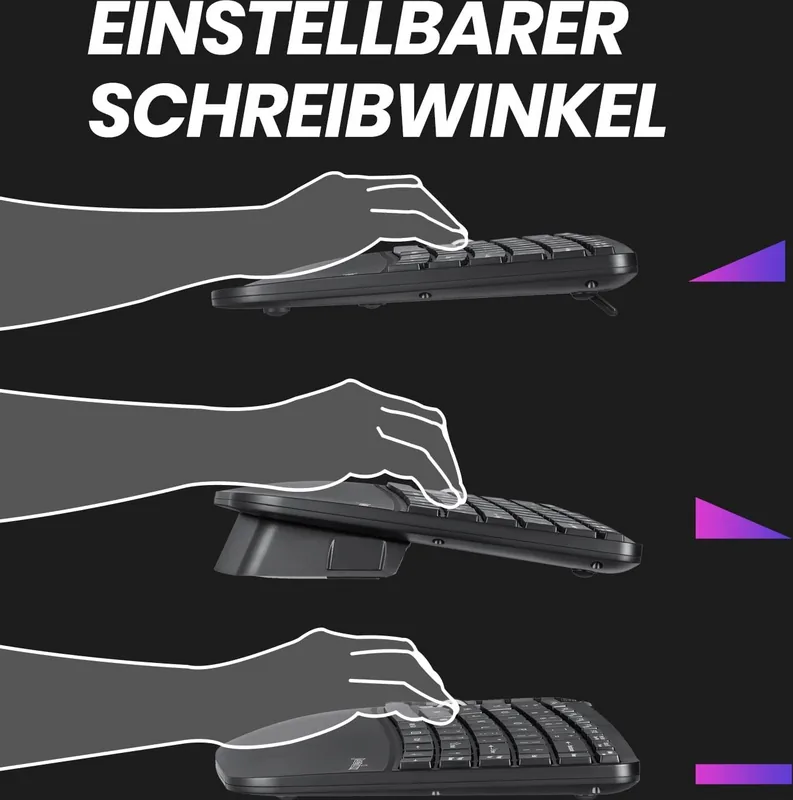
34 Pages

56 Pages

12 Pages

21 Pages
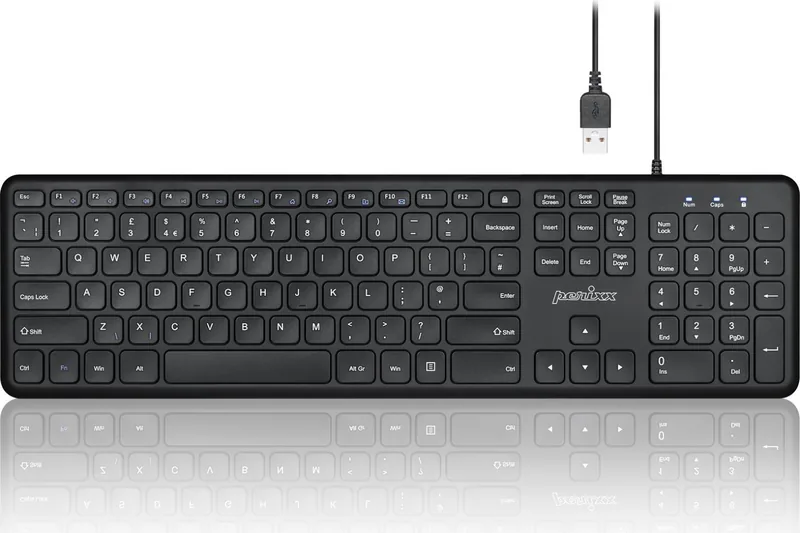
21 Pages
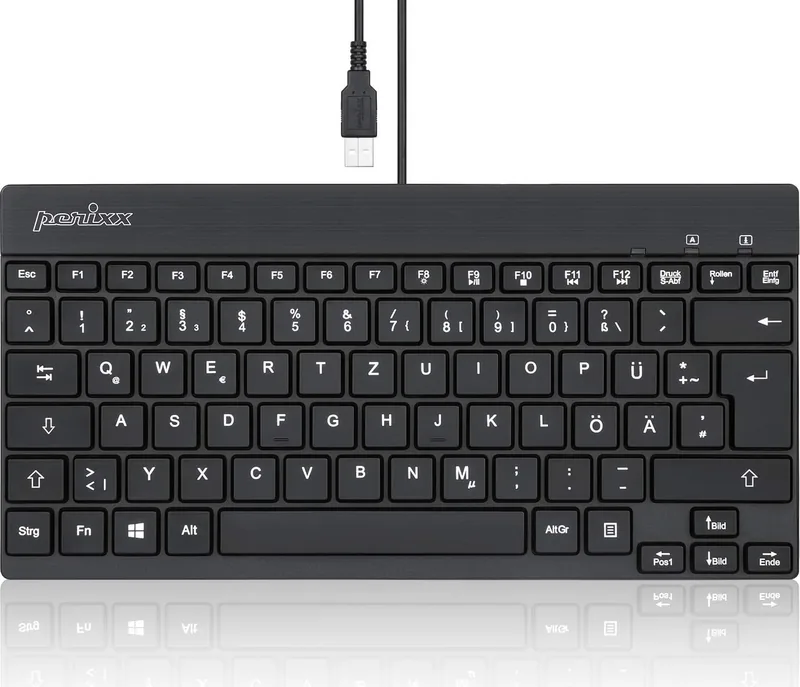
30 Pages

13 Pages
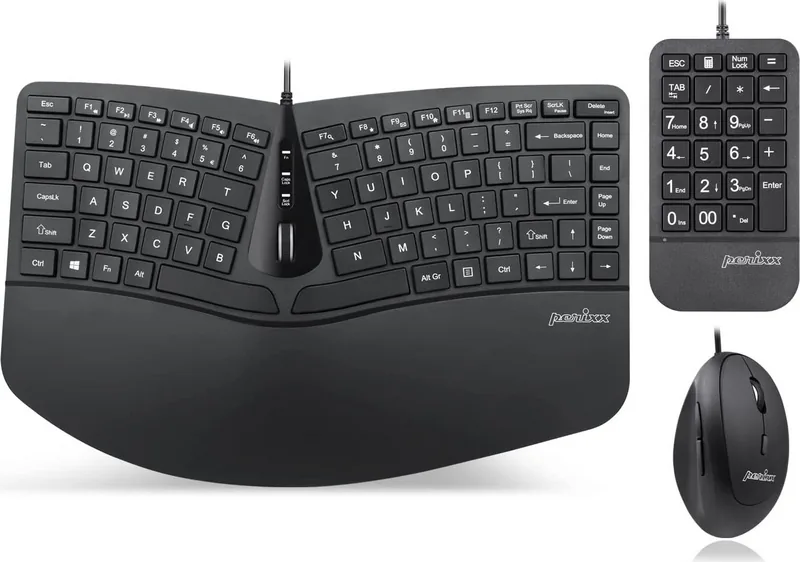
33 Pages
Categories

Free Perixx Manuals - Read, Download and Print
Find helpful Perixx manuals for keyboards, mice, ergonomic input devices, numeric keypads, trackballs, adapters, and other computer accessories. This page is designed to make it simple to locate product documentation in one place, whether you need a quick setup guide, a detailed user manual, troubleshooting information, or technical specifications. Read manuals online, download a copy for later, or print the pages you need for convenient reference.
Perixx products are often selected for home offices, business workstations, accessibility-focused setups, and everyday computing. Because models can include wireless pairing functions, programmable controls, ergonomic designs, rechargeable batteries, multiple connection modes, and operating system-specific features, the correct manual can be especially useful. Product documentation helps you understand what each button, switch, indicator light, port, and accessory is intended to do.
Find the Right Manual for Your Device
Start by identifying the exact Perixx model number. The model name is commonly printed on the underside of a mouse or keyboard, on a product label, on the original packaging, or within the device's battery compartment. It may also appear on an included quick-start leaflet, invoice, or order confirmation. Searching with the full model number is the most reliable way to find the matching guide.
Many Perixx products have similar names but differ in layout, wireless technology, receiver type, color, regional keyboard arrangement, or available features. For example, two compact keyboards may look alike while using different function key combinations or pairing procedures. A mouse with a similar shape may use a different battery type or DPI adjustment method. Checking the model number before following instructions can prevent unnecessary setup issues.
Manuals for Perixx Keyboards
Perixx keyboard manuals can help with initial installation, wireless receiver connection, Bluetooth pairing, battery installation, charging, and keyboard layout details. They may explain how to activate multimedia shortcuts, use function lock settings, switch between paired devices, or access special keys. This is particularly useful for compact, mini, split, mechanical, and ergonomic keyboard models where keys can perform more than one action.
If your keyboard is not responding, consult the manual for supported operating systems and recommended connection steps. Some models require a specific pairing sequence, while others use a USB receiver that must be connected directly to the computer. The documentation may also provide instructions for changing batteries, checking power switches, resetting a connection, or confirming the status of LED indicators.
For ergonomic keyboards, the manual can clarify proper placement and adjustment options. A comfortable typing position may depend on using the correct tenting angle, palm support, or split-keyboard orientation. Reviewing the product guide can help you get the intended benefits from the design while learning the location of navigation, media, and shortcut controls.
Manuals for Perixx Mice and Trackballs
Perixx mouse and trackball manuals provide useful information about button functions, scroll wheel behavior, pointer speed settings, optical sensors, wireless operation, and charging or battery requirements. Some devices include adjustable DPI settings that allow you to change cursor sensitivity. The manual may explain which button cycles through available sensitivity levels and how indicator lights display the active setting.
Vertical mice, ergonomic mice, and trackballs can take time to get used to, so documentation may include basic guidance for setup and use. It can also identify the intended hand orientation, receiver storage location, device dimensions, and compatibility notes. If your mouse has programmable buttons or software-supported features, the manual can indicate whether additional software is required and where to find relevant controls.
Troubleshooting sections are helpful when a cursor skips, a wireless connection drops, or buttons do not work as expected. Common checks include confirming that the device is switched on, replacing or charging batteries, removing obstructions between the device and receiver, trying another USB port, and verifying that Bluetooth is enabled on the computer. Always review the model-specific instructions before attempting a reset or changing any settings.
Wireless, Bluetooth and USB Setup Information
A Perixx manual can make connection setup much easier. Wired devices usually work after being connected to a compatible USB port, but wireless and Bluetooth models may require additional steps. Documentation often explains how to enter pairing mode, select a Bluetooth channel, connect a USB receiver, and recognize the device in your computer's Bluetooth settings.
For multi-device products, manuals can explain how to switch between computers, tablets, or phones. This may involve dedicated channel buttons, numbered indicators, or keyboard shortcuts. Follow the sequence listed for your particular model, as timing and button combinations can vary. If a connection does not succeed on the first attempt, remove the existing pairing entry from your device list and repeat the recommended process.
USB receiver instructions are also important. Some receivers are designed for a single matching device and may not work with another keyboard or mouse, even if they look similar. Keep the original receiver with the product whenever possible. Manuals may also advise on receiver placement, including using an extension cable to improve wireless range in crowded desk setups.
Read Online, Download or Print
Reading a Perixx manual online is useful when you only need a fast answer, such as identifying a key combination or checking which batteries are required. Online viewing also makes it easier to search within the document for terms like "pairing," "battery," "reset," "DPI," or "Bluetooth."
Downloading a manual lets you keep a local copy on your computer, phone, or tablet. This is convenient when you need instructions without an internet connection or want to save documentation for several devices in one folder. A downloaded guide can also be useful for IT teams, offices, schools, and households that maintain multiple peripherals.
Printing is a practical option for setup instructions, shortcut reference pages, maintenance guidance, and troubleshooting steps. Before printing the full document, consider selecting only the pages you need. This can save paper while still giving you an easy-to-read reference beside your workstation. If the manual contains diagrams, use print settings that preserve layout and image quality.
Troubleshooting Common Perixx Device Issues
Product manuals usually include a troubleshooting section for common problems. For wireless keyboards and mice, begin with basic power checks. Make sure batteries are installed in the correct direction, rechargeable devices have sufficient charge, and any physical power switch is set to the on position. Confirm that the USB receiver is firmly connected or that the Bluetooth device is paired with the correct computer.
If keys produce unexpected characters, verify the keyboard language and input settings in your operating system. A mismatch between the physical keyboard layout and the configured language can cause symbols and letters to appear differently than expected. The manual may identify the keyboard's regional layout and provide details about alternate characters or function key behavior.
When a device works intermittently, move it closer to the receiver or computer and reduce possible sources of interference. Nearby wireless devices, metal surfaces, hubs, and low battery power can affect performance. Try connecting the receiver to a different USB port, preferably one with a clear path to the keyboard or mouse. For wired models, inspect the cable and connector for visible wear.
Care, Safety and Product Specifications
Perixx manuals may include important care and safety recommendations. Keep keyboards, mice, and trackballs away from liquids, excessive heat, and dusty environments. Clean devices with a soft, dry cloth unless the manual specifies a different method. Do not use harsh cleaning chemicals or allow moisture to enter openings, switches, charging ports, or battery compartments.
For battery-powered devices, use the battery type listed in the documentation. Do not mix old and new batteries or different battery types. Remove batteries if the device will not be used for an extended period, where recommended, to reduce the risk of leakage. Rechargeable models should be charged using compatible cables and power sources described in the product guide.
Specifications sections can provide details such as dimensions, weight, wireless range, sensor resolution, battery requirements, supported operating systems, USB version, and package contents. These details are useful when comparing products, planning desk space, replacing accessories, or confirming compatibility with an existing computer or tablet.
Keep Your Manual Available
Saving the correct Perixx manual is a simple way to make future setup and support easier. Keep the file with your purchase records, label it with the device model, and note where the original USB receiver or charging cable is stored. Whether you are setting up a new ergonomic keyboard, reconnecting a wireless mouse, or looking up a shortcut, the right manual provides clear product-specific guidance when you need it.
Search for 67,732 Manuals online


Type-in Brand or Model