
Eizo ColorEdge CS2740 Manual
PDF manual · 49 Pages
English



Quick check
Incorrect answer, please try again.
Chat with your Eizo ColorEdge CS2740 manual using AI
Get instant AI answers from your Eizo ColorEdge CS2740 manual
Ask anything about the Eizo ColorEdge CS2740. Answers come from this manual, with the pages they are based on.
ColorEdge CS2740 Maintenance Schedule
Wipe the casing and LCD display surface with a soft cloth dampened with water. Do not use alcohol or other chemicals.
Check if the screen has become dark or flickering, which indicates limited backlight life requiring replacement by an EIZO representative.
Free maintenance reminders
Timed to your purchase date. Always free, unsubscribe anytime.
Ask a Question
Do you recommend ColorEdge CS2740?
Yes No
alias_sapiente
10 months ago
I want to use this monitor for photo or image editing. Is it actually worth the price for that purpose?

Manual.ly
10 months ago
Yes, based on customer feedback and typical use cases, it is well suited for image editing. Reviewers specifically use it for picture editing and say it is worth every cent. For best results, set the right picture mode for editing, adjust brightness and contrast to your workspace, and if available, enable any color or sRGB settings. If you do professional work, consider calibrating the display for your workflow to ensure consistent colors across devices. Overall, the panel quality and editing-friendly viewing experience make it a solid choice if image work is your main goal.
Frequently Asked Questions
It pairs a wide-color IPS panel with 10-bit color depth and multiple color modes designed for consistency. It is also intended to integrate with ColorNavigator 7 calibration workflows and Quick Color Match for display-to-print color alignment. The DUE uniformity feature helps reduce unevenness for more predictable viewing.
Is this answer helpful?
Yes, for compatible devices. USB Type-C supports DisplayPort Alt Mode video transfer and USB Power Delivery up to 60 W. Charging depends on whether your notebook supports USB Power Delivery, and video transfer depends on whether it supports USB-C video output.
Is this answer helpful?
Front custom keys let you assign frequently used actions for quick access. Based on the provided functions, you can switch brightness, return to a previous color mode for comparison, or view input and color information without navigating deep menus.
Is this answer helpful?
The monitor notes that different units can appear in different colors due to variations. It also advises fine tuning when matching multiple displays. Using ColorNavigator 7 with the sensor and calibrating calibration targets (CAL1 to CAL7) helps keep results aligned.
Is this answer helpful?
Afterimages are a typical LCD behavior when the same image is displayed for extended periods. Use the screen saver or the monitor's power-save function. If an afterimage appears even after shorter periods, change the image or keep the monitor powered off for several hours to help it fade.
Is this answer helpful?
For stains on the cabinet and panel, use a soft cloth lightly moistened with water. Avoid chemicals such as alcohol and antiseptic solutions, and never use thinner, benzine, wax, or abrasive cleaners. Optional ScreenCleaner is recommended for convenience and safe results.
Is this answer helpful?
Advantages and Disadvantages
Advantages

- 4K resolution (3840 x 2160) with a wide-gamut IPS panel and 10-bit color depth for precise work.
- Works with ColorNavigator 7 for calibration targets, plus Quick Color Match for easier display-to-print consistency.
- USB Type-C supports DisplayPort Alt Mode and up to 60 W USB Power Delivery for compatible notebooks.
- DUE (Digital Uniformity Equalizer) helps reduce unevenness and supports better visual consistency.
- Custom keys enable quick access to tasks like brightness, previous color mode, and detailed information.
Disadvantages

- Calibration quality depends on using the correct external sensor with ColorNavigator 7.
- Long static images can cause afterimages, so screen saver or power save is recommended.
- Backlight has a fixed lifetime; brightness changes may require service or replacement.
- Power and image behavior can vary with connected devices, signal formats, and USB-C video support.
Product Specification
Function
Monitor (stationary)
Diagonal
27" (27.01in)
Resolution
3840x2160 (4K UHD), 16:9, 163ppi
Panel
IPS
Backlight
LED, flicker-free
Brightness
350cd/m² (typical)
Contrast
1,000:1 (static)
Response time
10ms (GtG)
Refresh rate
60Hz (3840x2160)
Signal frequency
25-137kHz (H) / 23-61Hz (V)
Ports
1x HDMI 1.4, 1x DisplayPort, 1x USB-C 3.0 with DisplayPort 1.2 (Upstream, 5Gb/s, PD 60W), 1x USB-B 3.0 (Upstream, 5Gb/s), 2x USB-A 3.0 (Downstream, 5Gb/s), 2x USB-A 2.0 (Downstream, 480Mb/s), 1x AC-In C13 (power connection)
Shape
straight (flat)
Viewing angle
178°/178°
Coating
non-glare (matt)
Color depth
10bit (1.07 billion colors)
FRC
N/A (10bit native)
sRGB
100%
Adobe RGB
99%
DCI-P3
94%
LUT (Lookup table)
16bit, hardware calibration
Ergonomics
with stand, height adjustable (6.10in), Pivot (+90°), swivel (+172°), tilt (+35°/-5°)
VESA
100x100 (occupied)
Power consumption
168W (maximum), 36W (typical), 1W (Standby), 42W (Energy label old A+++ to G)
Energy efficiency SDR (A to G)
38kWh/1000h (G)
Energy efficiency old (A+++ to G)
61.3kWh (B)
Special features
HDCP 2.2
Screen-to-Body-Ratio
83.33% (calculated)
Dimensions
25.12x15.91x10.43in (WxHxD) with stand compressed, 25.12x14.88x2.95in (WxHxD) without stand
Color
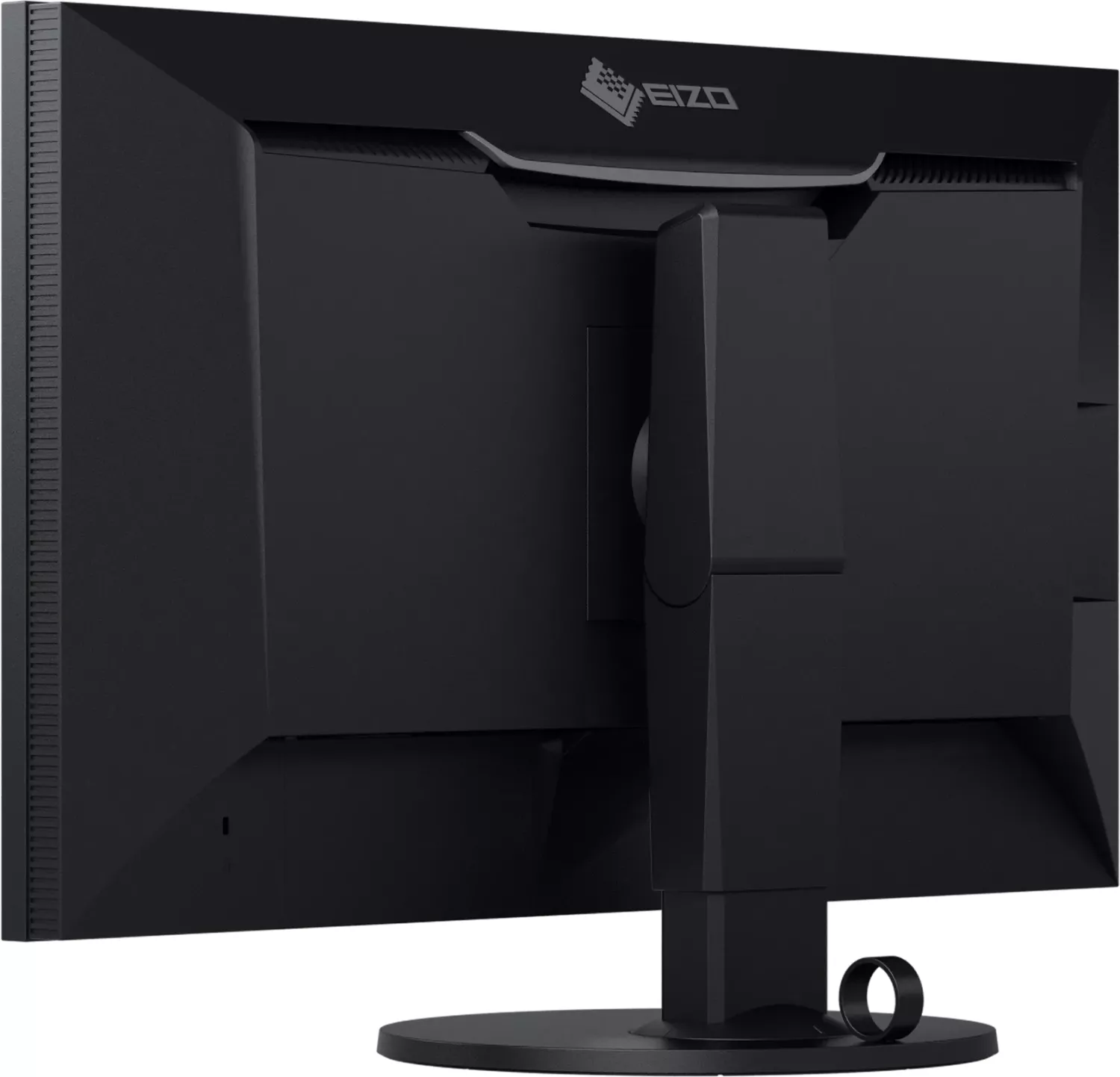
black (display frame) / black (lower bezel) / black (stand) / black (back)
Weight
22.71lb (with stand), 14.77lb (without stand)
Power supply
internal
Warranty
five years (on-site replacement service)
USB notation
Link
Product Description
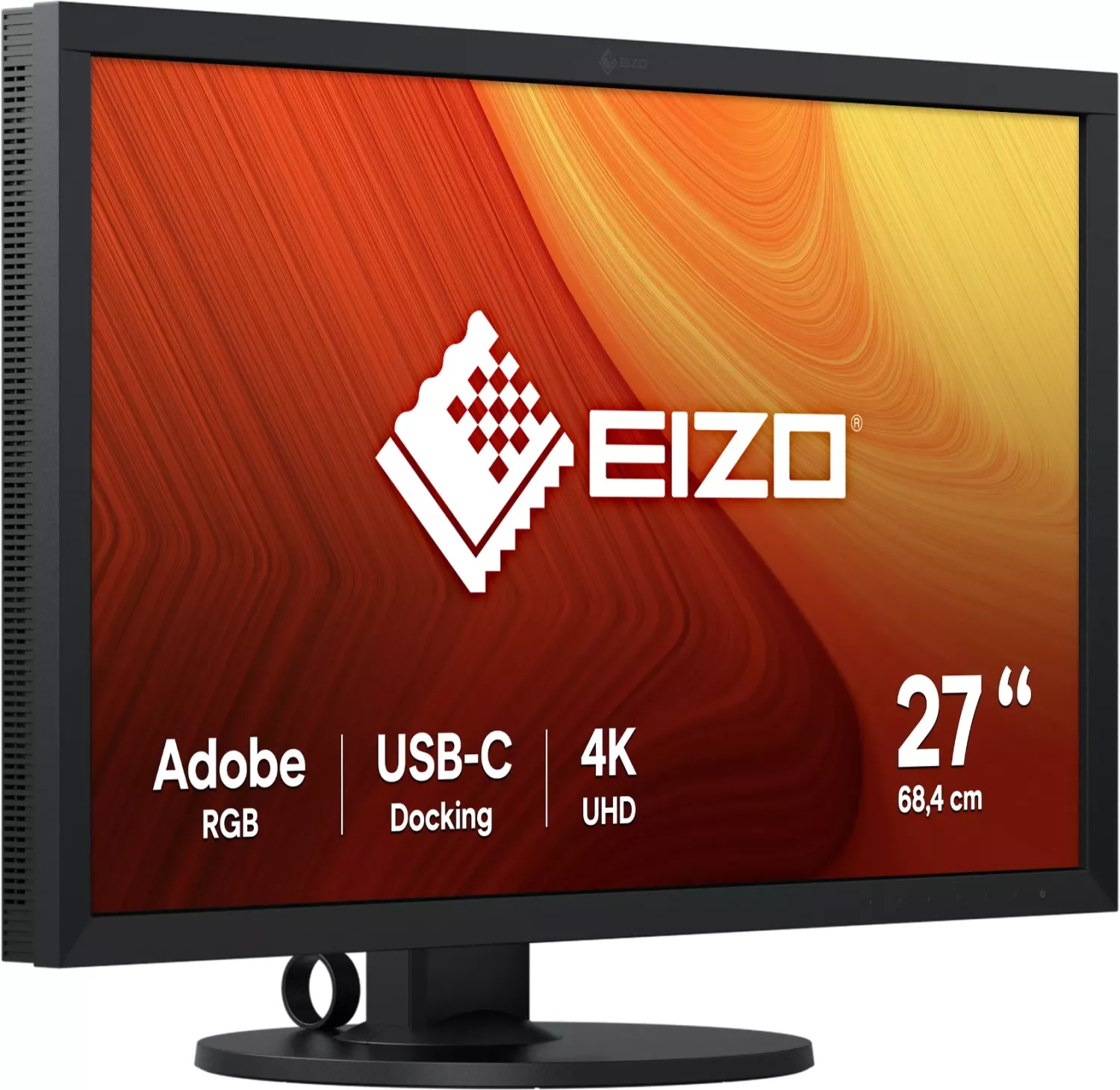
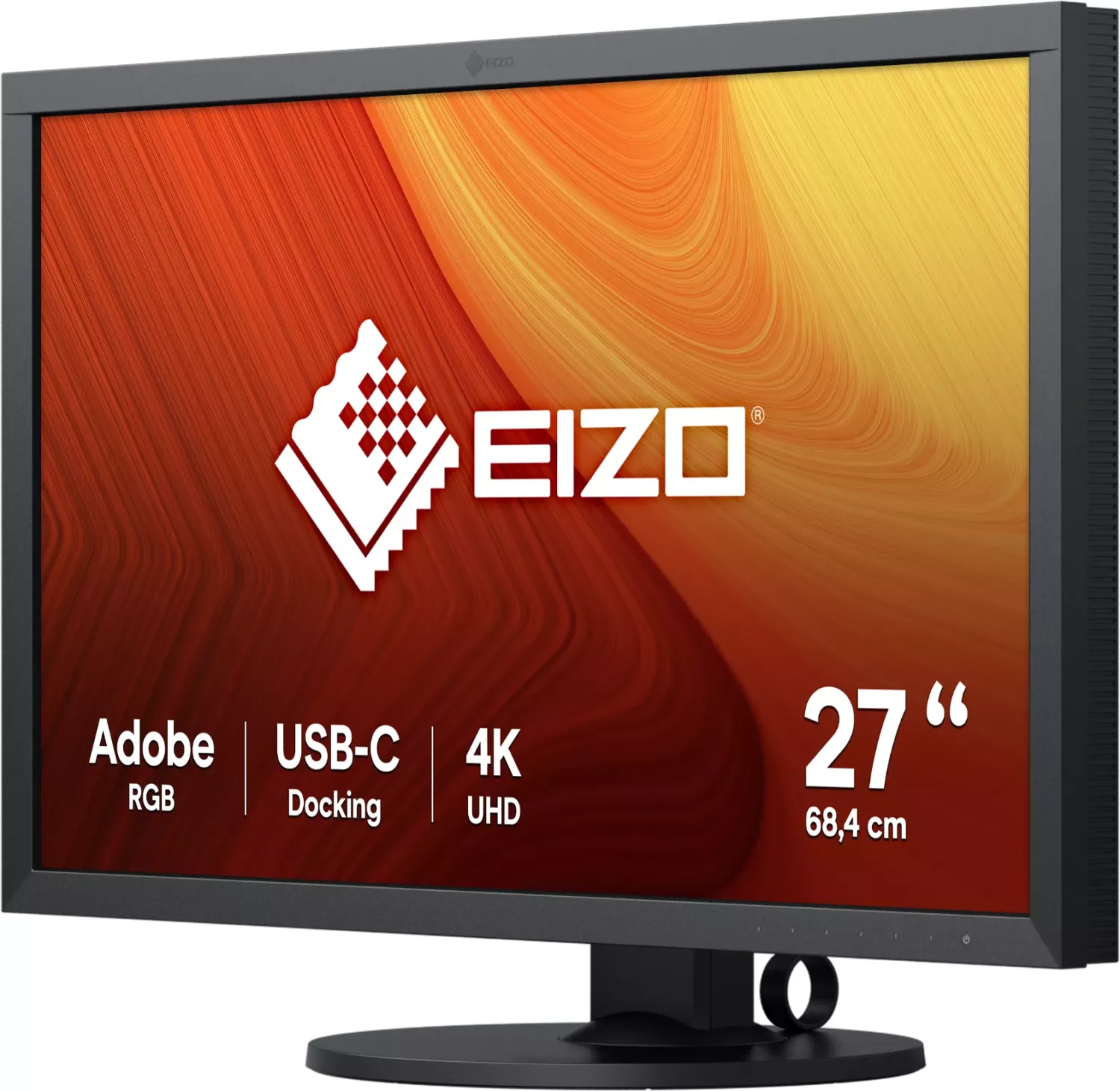
Eizo ColorEdge CS2740 27"
A studio-grade 27 inch display for color-critical work
The Eizo ColorEdge CS2740 27" is designed for creators who need reliable color reproduction, from graphics production to digital photo processing. It combines a wide-color IPS panel with 10-bit color depth, giving you smooth tonal transitions and faithful rendering for demanding workflows. With a resolution of 3840 x 2160 and a viewing setup suited for long sessions, it helps keep your output consistent from design review to final edits.
Color management and easy calibration workflows
A standout feature of the ColorEdge series is streamlined calibration and color matching. The monitor is built to work with ColorNavigator 7, allowing you to calibrate performance using an external sensor (sold separately). For fast comparisons against prints, Quick Color Match supports simplified color matching between the display and compatible retouch and printer setups.
You can also tailor color behavior using multiple display modes, including dedicated presets and calibration target modes (set through ColorNavigator 7). For additional stability, the DUE (Digital Uniformity Equalizer) option helps reduce display unevenness. When DUE settings change, recalibration is recommended so your results stay accurate.
Connectivity built for modern desks
The CS2740 offers flexible input options for professional setups, including DisplayPort, HDMI, and USB Type-C. USB Type-C supports DisplayPort Alt Mode video transfer, and USB Power Delivery provides up to 60 W to power compatible notebooks through a single cable. A built-in USB hub simplifies peripheral connections, and USB downstream devices can remain active even in power-saving states, depending on your configuration.
Custom keys on the front let you quickly switch tasks such as brightness, previous color mode comparisons, and on-demand information.
Comfort, longevity, and day-to-day care
To maintain a stable image, the display needs time to settle after power-on (about 30 minutes under the provided measurement conditions). The monitor also includes practical power-saving behavior and guidance to reduce eye strain by adjusting brightness and taking regular breaks.
When cleaning, use a soft cloth with water for the cabinet and panel. Avoid harsh chemicals, thinners, benzene, wax, and abrasive cleaners to prevent cosmetic and image-quality issues.
Notes
- Let the monitor stabilize for about 30 minutes after turning it on before critical color adjustments.
- Avoid long static images to reduce afterimage risk; use a screen saver or power-save mode.
- If the unit has dew condensation after moving from cold to warm, do not power it on until the moisture disappears.
Key results (most important)
- Wide-gamut IPS with 10-bit color supports color-critical editing at 4K resolution.
- Designed for ColorNavigator 7 and Quick Color Match to speed calibration and print consistency.
- USB Type-C with DisplayPort Alt Mode and up to 60 W USB Power Delivery reduces desk cable clutter.
- DUE uniformity options help improve evenness for more consistent output.
- Built-in controls, power save behavior, and safe cleaning guidance support long-term daily use.
Search for 67,706 Manuals online


Type-in Brand or Model
Jessica Schenk
9 months ago
Is this screen really good for photo and image editing, or is it mainly for basic use?
Manual.ly
9 months ago
Based on customer feedback, it is well suited for image and photo editing. Reviewers specifically mention using the screen for image processing and say it is worth the money. If you plan to edit images regularly, this is the kind of display people use for that purpose and appreciate the results enough to recommend it.