
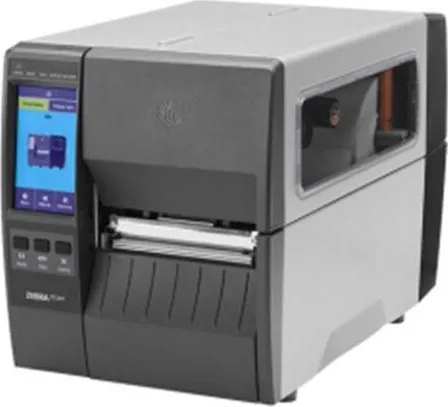
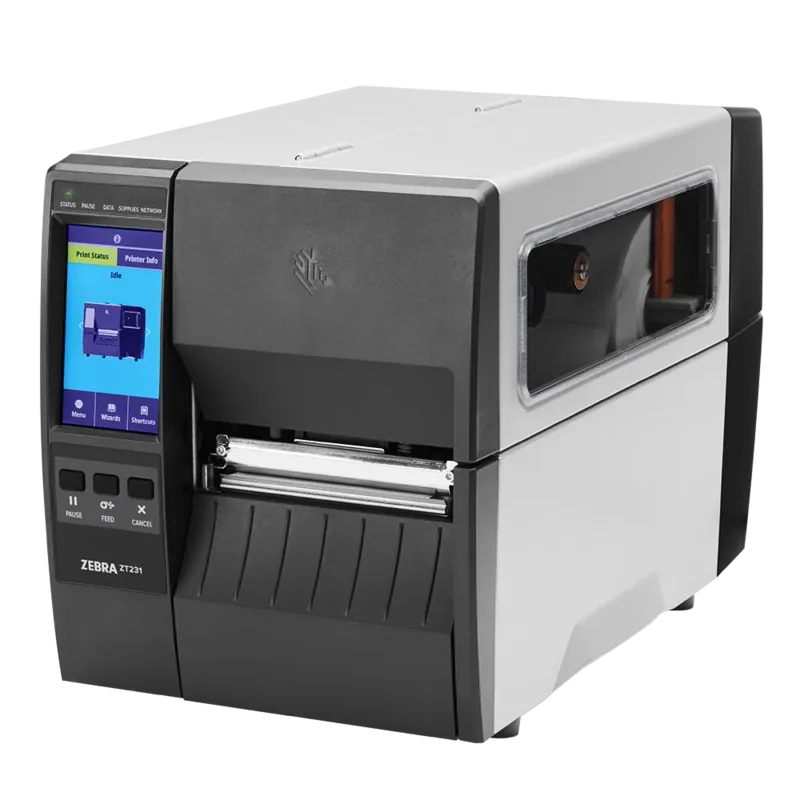
Zebra ZT231 Manual
PDF manual · 196 Pages
English



Quick check
Incorrect answer, please try again.
Chat with your Zebra ZT231 manual using AI
Get instant AI answers from your Zebra ZT231 manual
Ask anything about the Zebra ZT231. Answers come from this manual, with the pages they are based on.
ZT231 Maintenance Schedule
Use solvent from Preventive Maintenance Kit or 99.7% isopropyl alcohol. Apply minimum force to avoid bending.
Remove accumulated paper lint and dust using air blow.
Use solvent from Preventive Maintenance Kit or 99.7% isopropyl alcohol on a lint-free cloth. Allow to evaporate.
Use solvent from Preventive Maintenance Kit or 99.7% isopropyl alcohol on a lint-free cloth. Allow to evaporate.
Use solvent from Preventive Maintenance Kit or 99.7% isopropyl alcohol. More often depending on application.
Use solvent and air blow. Follow specific cleaning and lubrication steps for the cutter blades.
Free maintenance reminders
Timed to your purchase date. Always free, unsubscribe anytime.
Ask a Question
Do you recommend ZT231?
Yes NoFrequently Asked Questions
The printer operates at a high resolution of 300 dpi, providing sharper text and barcode quality compared to standard 203 dpi models. This ensures better readability for small labels and intricate graphics in industrial settings.
Is this answer helpful?
Yes, the Zebra ZT231 supports reliable LAN connections via wired Ethernet ports. It can detect network settings automatically or accept static IP configurations to integrate smoothly into existing warehouse networks.
Is this answer helpful?
You can calibrate sensors automatically using the Power Up Action settings or manually through the User Menus. Hold FEED and PAUSE keys to initiate calibration or use the Printer Wizards for guided setup.
Is this answer helpful?
The device supports Direct Thermal and Thermal Transfer media types. It handles various widths and thicknesses as long as they meet the specified sensor and ribbon requirements for the installation.
Is this answer helpful?
Yes, with the Cutter option installed, the model separates individual labels instantly for maximum speed efficiency. Delayed cut modes also allow for precise programming control over final output timing.
Is this answer helpful?
Yes, standard drivers are provided for Windows environments to ensure full compatibility. Configuration adjustments can be made remotely from the computer host settings for efficient management.
Is this answer helpful?
Indicator lights on the control panel alert users to supply levels or potential errors immediately. The display also shows status messages and guides users through maintenance protocols to resolve issues quickly.
Is this answer helpful?
Advantages and Disadvantages
Advantages

- High resolution 300 dpi provides sharp barcode quality for small fonts
- LAN connectivity ensures stable network integration for high volume operations
- Color touch display simplifies navigation and menu access significantly
- Versatile media handling includes Tear Off, Peel Off, and Cutter modes
- Energy Star mode reduces power consumption during idle periods effectively
Disadvantages

- Thermal transfer setup requires ribbon purchases which add operating costs
- Initial driver installation requires specific steps to avoid conflicts
- Routine maintenance demands specific cleaning schedules to prevent damage
- Limited to wired Ethernet for LAN unless wireless print server is added
- Printhead cleaning requires solvents and careful handling procedures
Product Specification
Type
Label Printer
Technology
Direct Thermal
Print Resolution
300 dpi
Roll Diameter
3.19 in
Paper Thickness
0.00-0.01 in
Print Width
4.09 in
Print Speed
5.98 in/s
Memory
128MB (RAM), 128MB (Flash)
Connections
USB 2.0, Serial
Network
LAN
Display
Monochrome
Emulation
ZPL II, ZPL, EPL
Dimensions
9.49x10.98x17.01 in
Weight
20.06 lbs
Features
Dispensing Edge
Manufacturer Warranty
1 Year
Product Description
Zebra ZT231 Thermodirect 300dpi, LAN Manual Product Overview
Industrial printing demands exceptional reliability and precision for business operations. The Zebra ZT231 delivers both qualities through its advanced 300 dpi resolution technology. This specific setup provides significantly sharper text and higher barcode quality compared to standard lower resolution printer models. Businesses requiring small fonts or intricate details benefit immensely from this hardware upgrade capability.
Connectivity and Network Integration
Modern workplaces rely heavily on stable networks for seamless data flow. This model supports reliable LAN connections via wired Ethernet ports. Installation involves standard drivers for Windows environments to ensure compatibility. The printer detects network settings automatically or accepts static IP configurations easily. Stability is absolutely crucial for high-volume printing operations where downtime directly impacts revenue.
Versatile Media Handling Modes
Workflow efficiency depends heavily on how labels exit the physical machine effectively. Operators can select Tear Off for simple daily tasks easily. Peel Off modes assist with liner removal automatically during printing cycles. Cutter options separate individual labels instantly for maximum speed efficiency. Delayed cut modes allow for precise programming control over final output. These flexible features accommodate various diverse application requirements without needing hardware changes.
User Interface and Setup Procedures
A color touch display simplifies daily interaction and menu navigation significantly. Users navigate menus to adjust technical settings quickly without external tools. Printer wizards guide installation for print quality and sensor calibration steps perfectly. Sensors detect media gaps and black marks with high accuracy rates. The interface supports multiple languages for international teams working across different regions. Power up actions determine startup behavior like automatic calibration or immediate feed.
Maintenance and Equipment Longevity
Durability matters greatly for equipment investment and operational costs over time. Routine cleaning prevents expensive printhead damage from adhesive residue or dust accumulation. Guidelines specify solvent usage for rollers and internal sensors specifically. Indicator lights alert users to supply levels or potential errors immediately. Energy Star mode reduces power consumption during idle times to save electricity. Replacement parts are accessible through authorized channels for repairs if needed.
Software Compatibility and Design
Label creation software integrates smoothly with the driver stack provided. Applications like ZebraDesigner work well with this unit for format design. Drivers allow configuration adjustments from the computer host settings remotely. Network printing queues manage multiple requests efficiently with priority settings. This robust connectivity ensures data flows from the system to the printed page without latency issues present elsewhere.
Search for 67,706 Manuals online


Type-in Brand or Model