
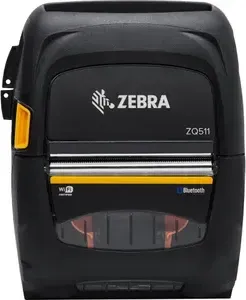
Zebra ZQ511 Manual
PDF manual · 71 Pages
English



Quick check
Incorrect answer, please try again.
Chat with your Zebra ZQ511 manual using AI
Get instant AI answers from your Zebra ZQ511 manual
Ask anything about the Zebra ZQ511. Answers come from this manual, with the pages they are based on.
ZQ511 Maintenance Schedule
Wipe the thin gray line on the printhead with a Zebra cleaning pen, from the center outward. Clean more often if needed.
When using linerless media, clean the printhead after every media roll.
Rotate and thoroughly clean the platen roller using a lint-free swab or cloth lightly moistened with at least 90% medical alcohol.
Use the adhesive side of the media to clean the scraper on units for linerless media.
Carefully clean designated interior areas with 90% ethanol and a cotton swab.
Remove the battery if the printer will not be used for at least one day and no maintenance charging is being performed.
Replace the battery when it reaches poor status at 600 or more charge cycles; the printer shuts down after the warning.
Ask a Question
Do you recommend ZQ511?
Yes NoFrequently Asked Questions
To configure the network, download the Zebra Setup Utilities software on a computer. Connect the printer to the computer using a USB cable. Launch the software and follow the setup wizard. Select your wireless network and enter the security details. Save the configuration settings to apply them to the printer. You can then verify the connection by printing a configuration report from the printer menu.
Is this answer helpful?
The printer supports various media types including labels, receipts, and tickets. It works with direct thermal and thermal transfer ribbons. Media thickness ranges from approximately 2.3 mil to 6.5 mil. The device automatically detects gap, black mark, and continuous media types. You can use roll-based paper with center cores of 19 mm or 12.5 mm.
Is this answer helpful?
The PowerPrecision battery automatically tracks its own health status. You can view the battery status on the LCD display on the printer face. The display will show Good, Replace, or Bad status depending on cycle count. Detailed information is also available by printing a configuration report or using Zebra Setup Utilities software.
Is this answer helpful?
Yes, the printer supports Made for iPhone technology via Bluetooth. It authenticates with iOS devices running version 10 or higher. The printer uses a standalone Bluetooth 4.1 radio unit for this connection. Ensure Bluetooth is enabled on the iPhone and that NFC pairing is used for simplicity if available.
Is this answer helpful?
Use a Zebra cleaning stick or a soft cotton swab with ethanol solution. Do not use sharp objects as they can scratch the print head. Turn off the printer and let it cool down before cleaning. Wipe from the center of the print head toward the outside. Perform this cleaning after every five media rolls or when print quality degrades.
Is this answer helpful?
You can reset the printer by printing a configuration report while holding the feed button. Alternatively, use the Zebra Setup Utilities to restore factory settings. This will erase custom network configurations and settings. You must have the physical printer accessible to perform the initial reset via buttons. The manual provides steps for a forced download or reset mode.
Is this answer helpful?
Advantages and Disadvantages
Advantages

- Fast thermal printing speed up to five inches per second.
- Integrated NFC and Bluetooth for easy wireless connectivity.
- Durable IP54 rating protects against dust and water spray.
- Smart PowerPrecision battery technology monitors health in real time.
- Supports multiple interface languages including CPCL and ZPL.
Disadvantages

- Thermal print media may fade over time with heat exposure.
- Maximum print width is limited on the ZQ511 model compared to ZQ521.
- Battery must be charged before first use from factory settings.
- Certain accessories like soft cases are sold separately for full protection.
- Wireless range is limited to ten meters for Bluetooth connections.
Product Specification
Type
mobile thermal printer
Technology
Direct Thermal
Print Resolution
203 dpi
Roll Diameter
2.01 in
Print Width
2.83 in
Print Speed
5 in/s
Connections
USB 2.0
Display
monochrome
Emulation
ZPL, CPCL
Dimensions
4.72x5.91x2.44 in
Weight
1.39 lbs
Manufacturer Warranty
2 Years
Product Description
Introduction
In the modern era of mobile computing efficiency is critical for success. The Zebra ZQ511 Manual serves as the definitive guide for unlocking the full capabilities of this exceptional mobile printer. If you are a warehouse manager, retail associate, or field technician understanding this device is non-negotiable. The Zebra ZQ511 is engineered for speed and durability. It combines reliability with advanced wireless features. This article explores why understanding the manual ensures success with this hardware.
The foundation of the ZQ511 is its versatility. It utilizes advanced thermal printing technology. Whether you need barcodes or text the output is crisp. Printing quality remains high under all conditions. The manual clarifies how to load media correctly. This prevents feeding errors. It details the media thickness limits. Understanding these limits avoids hardware stress. The printer connects via USB or Wi-Fi. The manual explains the network configuration steps. You can use Zebra Setup Utilities for easy setup. This software streamlines the installation process. Software support includes drivers for Windows. You can download these from the website. This helps integrate the printer into your existing workflow easily.
Battery management is crucial for mobile work. The Zebra ZQ511 Manual emphasizes PowerPrecision technology. This smart lithium-ion battery tracks its own status. Alerts notify you of charging needs. It prevents unexpected shutdowns. You can find info on battery cycles in the troubleshooting section. Carrying extra batteries is often recommended. This ensures continuous operation across shifts. The device supports vehicle stations for charging on the go. Different models offer varying battery life. The ZQ511 and ZQ521 have similar specs. Choose the right model for your label sizes. The manual lists these specs clearly. Read the section on battery cycles for maintenance tips.
Security and connectivity are also important. Bluetooth security modes are discussed in depth. NFC pairing simplifies the connection process. The manual warns against unauthorized changes to security settings. It ensures your data remains protected from unauthorized access. This is vital for financial and logistics applications.
Maintenance keeps the printer running smoothly. Cleaning the print head prevents smudges. The manual advises using specific materials. Using improper cleaners can damage the device. Regular maintenance extends device life. Dust removal is also covered in the guide. This prevents mechanical jams. Proper storage is also advised. The device is also easy to carry around daily.
In conclusion the Zebra ZQ511 Manual is your key to productivity. It covers installation troubleshooting and specifications. Ignoring it risks warranty voidance or errors. Take the time to read it thoroughly. Your operations will benefit significantly from this knowledge investment. With proper knowledge you will maximize uptime. The device offers robust support for various industries. It is essential for long-term reliability.
Search for 67,706 Manuals online


Type-in Brand or Model