
Zebra ZQ210 Manual
PDF manual · 67 Pages
English


Quick check
Incorrect answer, please try again.
Chat with your Zebra ZQ210 manual using AI
Get instant AI answers from your Zebra ZQ210 manual
Ask anything about the Zebra ZQ210. Answers come from this manual, with the pages they are based on.
ZQ210 Maintenance Schedule
Use a Zebra cleaning pen to swab the thin gray line on the printhead from center to outside edges. For linerless media, clean after every roll.
Rotate and clean with a fiber-free swab or lint-free cloth moistened with 90% medical grade alcohol.
Use the adhesive side of media to clean the scraper on linerless units.
Clean thoroughly with 90% medical grade alcohol and a fiber-free swab.
Clean thoroughly with 90% medical grade alcohol and a cotton swab.
Wipe with a water-dampened cloth or 90% medical grade alcohol wipe.
Gently brush out the printer ensuring Backside and Frontside Sensor windows are free of dust.
Ask a Question
Do you recommend ZQ210?
Yes NoFrequently Asked Questions
The ZQ210 offers USB Type-C for charging and wired communications, embedded Dual Mode Bluetooth (2.1+EDR and 4.1 Low Energy) for wireless printing, and passive NFC (Print Touch) for pairing and app/web launching. It also supports Apple MFi for iOS Bluetooth authentication.
Is this answer helpful?
Standard media width is 58 mm; optional spacers allow 49.5 mm, 40 mm, and 30 mm widths. The printer supports linered and linerless direct thermal media, die-cut labels, continuous media, and black-mark or gap sensing for pre-printed receipts.
Is this answer helpful?
The ZQ210 uses a 1500 mAh 2-cell Li‑Ion battery. Under moderate use (about 25 stops and 25 power cycles per day) it can last multiple workdays and recharges in under 3.5–4 hours using a 10W USB charger or via a 5-bay docking cradle. First use requires a full charge; use only Zebra-approved chargers.
Is this answer helpful?
Pair via Bluetooth using standard pairing procedures or use the NFC Print Touch tag to trigger pairing, app launch or web content. For iOS devices, MFi support enables authenticated Bluetooth pairing. Security modes (SSP, Numeric Comparison, Just Works) and minimum security settings can be configured via Zebra Setup Utilities.
Is this answer helpful?
Regularly clean the printhead and platen (frequency increases with linerless media), clear tear bars safely, and keep sensors dust-free. Use only recommended cleaning materials (Zebra cleaning pen or 90% medical grade alcohol) and genuine Zebra media. Replace battery when capacity degrades and follow proper disposal guidelines.
Is this answer helpful?
Print a configuration report by powering off, loading journal media, holding the Feed button while pressing Power, or via the Settings>Print menu. From the report you can enter Communications Diagnostics (DUMP) mode by pressing Feed when prompted to capture incoming data and generate a .dmp file for troubleshooting.
Is this answer helpful?
Download software, drivers (ZebraDesigner, Zebra Setup Utilities), and manuals from Zebra’s support site. Contact regional technical support via the Zebra contact portal; have your model, serial number, and Product Configuration Code (PCC) available for faster assistance.
Is this answer helpful?
Advantages and Disadvantages
Advantages

- Compact, rugged direct-thermal design for reliable field printing without ink or toner.
- Modern connectivity: USB-C charging, Dual Mode Bluetooth (4.1 LE + EDR), NFC Print Touch, and MFi support.
- Long operational battery life for typical daily use and fast recharge via USB or multi-bay cradle.
- Supports multiple media types (liner, linerless, black-mark, gap) and optional spacers for narrow rolls.
- Full Zebra ecosystem support: CPCL language, Zebra Setup Utilities, ZebraDesigner, and fleet management tools.
Disadvantages

- Direct thermal media can fade over time or with heat and sunlight exposure.
- Limited print width (up to 48 mm) restricts larger label or receipt formats.
- Battery is proprietary; using non‑Zebra chargers or batteries voids warranty and risks safety.
- Printhead and platen require regular cleaning, especially with linerless media, increasing maintenance.
- Bluetooth security and pairing nuances may require configuration for higher-security deployments.
Product Specification
Type
mobile receipt printer
Technology
Direct thermal
Print resolution
203dpi
Roll diameter
1.18in
Print width
1.89in
Print speed
3.54in/s
Memory
16MB (RAM), 16MB (Flash)
Connections
USB 2.0
Network
Bluetooth 4.1, AirPrint
Display
N/A
Emulation
CPCL
Dimensions
3.37x1.75x4.65in
Weight
0.58lb
Special features
Black Mark Sensor, Gap sensor, Battery (Li-Ion, 1550mAh)
Manufacturer warranty
2 years
Product Description
Zebra ZQ210 BT Thermodirect Manual — Product Overview
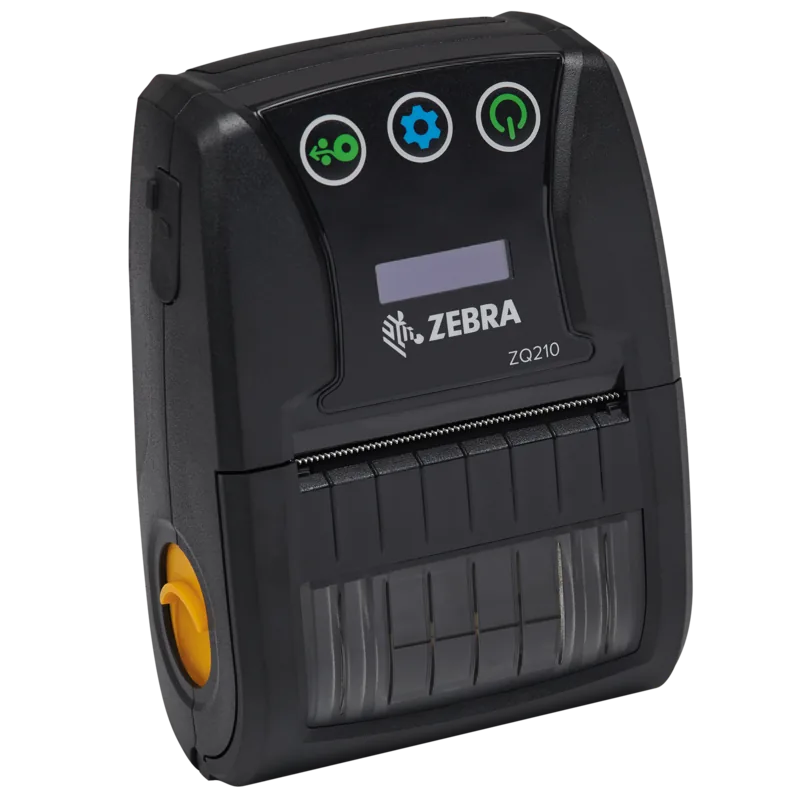
The Zebra ZQ210 BT Thermodirect is a compact, rugged direct-thermal mobile printer engineered for quick, reliable receipt and label printing in on-the-go environments. Designed with USB Type-C charging, embedded Dual Mode Bluetooth (2.1+EDR / 4.1 Low Energy), NFC Print Touch, and Made for iPhone (MFi) compatibility, the ZQ210 blends modern connectivity with proven Zebra mobile printing reliability.
Key features and use cases
This model prints at 203 dpi using direct thermal technology, eliminating the need for ink or toner and producing crisp text, graphics and barcodes. It supports media widths up to 58 mm (with optional spacers for narrower sizes), handles linerless and linered media, and accommodates pre-printed receipts using black-mark or gap sensing. The 1500 mAh Li‑Ion battery delivers multi-day operation under moderate use and recharges in under four hours via a 10W USB charger or multi-bay cradle. Typical environments include retail point-of-sale, parking enforcement, delivery and field service, event ticketing, and hospitality.
The ZQ210 runs CPCL programming language for label design and integrates with Zebra utilities—Zebra Setup Utilities, ZebraNet Bridge Enterprise and ZebraDesigner—for configuration, label creation, and fleet management. Bluetooth pairing options include Secure Simple Pairing (SSP) modes and cached bonding to simplify reconnecting across power cycles. NFC facilitates instant pairing and app or web-launching via the printer’s Print Touch tag.
Practical operation and maintenance
User interaction is via a three-button interface and an OLED display showing status icons (Status, Media, Data, Bluetooth, Battery) and informational messages. Common operations—battery removal/installation, media loading, printing a configuration report, entering diagnostics (DUMP) mode—are straightforward. Routine maintenance recommendations include cleaning the printhead and platen regularly (especially with linerless media), following Zebra-approved charging practices, and replacing batteries that show reduced capacity. Safety notes stress using only Zebra-approved batteries and chargers and proper battery disposal through recycling programs.
Accessories and support
Available accessories include a 5-bay docking cradle for simultaneous charging, spare batteries, media spacers, soft case with shoulder strap, belt clips, and USB Type-A to Type-C cables. Full software downloads, programming guides, and support resources are available through Zebra’s website and support portal.
Notes
- Prints best with genuine Zebra media and recommended spacers for nonstandard widths.
- NFC and MFi enhance pairing and Apple device compatibility; security modes can be configured via Zebra Setup Utilities.
- Regular cleaning and correct media selection extend printhead life and battery longevity.
Search for 67,706 Manuals online


Type-in Brand or Model