
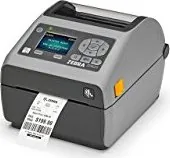
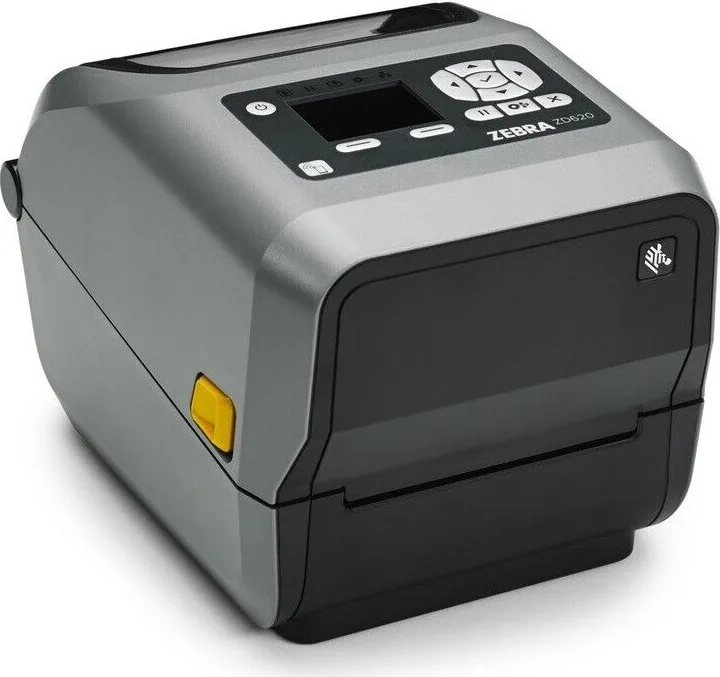
Zebra ZD620 Manual
PDF manual · 344 Pages
English



Quick check
Incorrect answer, please try again.
Chat with your Zebra ZD620 manual using AI
Get instant AI answers from your Zebra ZD620 manual
Ask anything about the Zebra ZD620. Answers come from this manual, with the pages they are based on.
ZD620 Maintenance Schedule
Clean the printhead after every five media rolls using a new printhead cleaning pen. Let cleaned areas dry before closing the printer.
Regularly remove dust from the media sensors using a brush or canned air. Do not use an air compressor.
Regularly install the latest firmware to obtain new features, improvements, and media-handling and communication upgrades.
Ask a Question
Do you recommend ZD620?
Yes NoFrequently Asked Questions
The range supports direct thermal and thermal transfer printing. Direct thermal uses heat-sensitive media without ribbon. Thermal transfer uses a ribbon and compatible media to create more durable printed output.
Is this answer helpful?
It can be configured for labels, tags, tickets, receipts, folded media, and other supported thermal media formats. The best material depends on the intended application, environment, and durability requirements.
Is this answer helpful?
Configurations may include USB, Ethernet, Wi-Fi, Bluetooth Classic, Bluetooth Low Energy, and NFC-based Print Touch functions. Exact connectivity depends on the chosen printer model and installed modules.
Is this answer helpful?
Yes. Supported standalone workflows can use stored formats, USB-host accessories, mobile connections, or programmed operations. Available methods depend on the printer configuration and software setup.
Is this answer helpful?
Clean the printhead, sensors, media path, platen roller, and installed accessories on a regular schedule. Use compatible media and ribbons, perform calibration when supplies change, and inspect for debris or worn components.
Is this answer helpful?
Check status indicators for media, ribbon, printhead, temperature, cutter, or network alerts. Confirm that the cover is closed, supplies are loaded correctly, and the selected print method matches the loaded media.
Is this answer helpful?
Advantages and Disadvantages
Advantages

- Supports direct thermal and thermal transfer workflows for varied labeling needs.
- Compact desktop format suits retail, healthcare, office, and shipping work areas.
- Optional Ethernet, Wi-Fi, Bluetooth, Bluetooth LE, and NFC support flexible connectivity.
- Expandable with peeler, cutter, linerless media options, roll adapters, and battery base.
- Link-OS tools, diagnostics, calibration, and status indicators support easier management.
Disadvantages

- Available features vary by model and installed options, so configuration must be verified.
- Thermal transfer printing requires compatible ribbons and media, adding supply management.
- Optional cutters and peelers add capability but may require installation and maintenance.
- Print performance depends on media type, resolution, temperature, and selected speed settings.
- Some advanced networking and touch-display functions may not be present on every unit.
Product Specification
Type
Label printer
Roll diameter
5 in
Paper thickness
3.15-7.48 mil
Memory
256 MB (RAM), 512 MB (Flash)
Ports
USB 2.0, 1x USB-A 2.0 (Host), serial
Manufacturer warranty
1 year
Product Description
Zebra ZD620 - Read, Download & Print Free
The Zebra ZD620 is a compact desktop thermal label printer designed for organizations that need dependable, high-quality labels, tags, tickets, and receipts. Built for busy workspaces, it supports a practical blend of performance, flexible media handling, and straightforward daily operation. Its small footprint makes it suitable for retail counters, healthcare stations, warehouse desks, shipping areas, and office environments where space matters.
Flexible thermal printing for everyday labeling
This printer family approach supports both direct thermal and thermal transfer printing workflows. Direct thermal printing uses heat-sensitive media and does not require a ribbon, making it useful for short-life labels such as shipping labels or receipts. Thermal transfer printing uses ribbon and compatible media to produce more durable output for applications requiring better resistance to handling, moisture, or longer storage periods.
Supported media can include labels, tags, tickets, receipt paper, folded media, and specialty formats. Adjustable media sensing helps accommodate gap, notch, and black-mark media, while the OpenAccess design makes loading supplies and checking the print path easier. Depending on the configuration, users can add a peeler, cutter, linerless handling option, roll-core adapters, or a battery base for mobile power flexibility.
Connectivity and intelligent control
Zebra Link-OS capabilities help simplify deployment, configuration, and management. USB connectivity is available for direct connection, while select configurations support Ethernet, Wi-Fi, Bluetooth Classic, and Bluetooth Low Energy. NFC Print Touch can assist with compatible mobile-device pairing and access to printer information.
The control interface provides clear status feedback for media, data, network activity, pause conditions, and printhead alerts. Certain models offer a color touch display for guided setup, configuration adjustments, diagnostics, and printer information. Compatibility with ZPL and EPL languages, plus virtual device support, can help businesses replace older equipment or integrate the printer into existing workflows.
Built for maintainable operation
Routine care is central to consistent barcode and text quality. The printer design supports regular cleaning of the printhead, sensors, media path, platen roller, cutter, and optional peeler. Tool-free replacement of selected service components can reduce downtime. Diagnostic reports, calibration tools, firmware updates, and status indicators help users identify common issues such as missing media, ribbon alerts, open printheads, connectivity problems, or temperature conditions.
Notes
- Confirm the exact model, print resolution, and installed options before ordering supplies or accessories.
- Use media and ribbons matched to the selected direct thermal or thermal transfer method.
- Print speed varies by model, resolution, label material, and print settings.
- Zebra ZD620 - Read, Download & Print Free is a useful search phrase for locating product-related setup and operating resources.
Search for 67,706 Manuals online


Type-in Brand or Model