
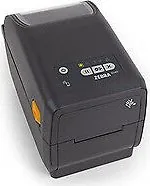
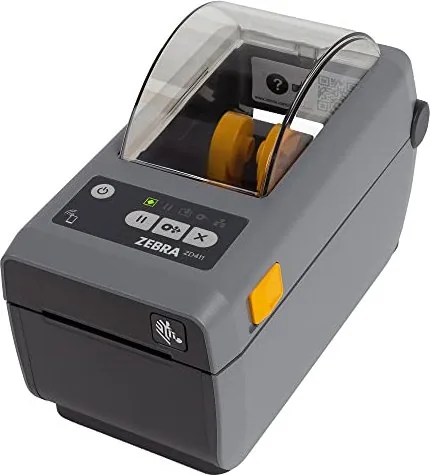
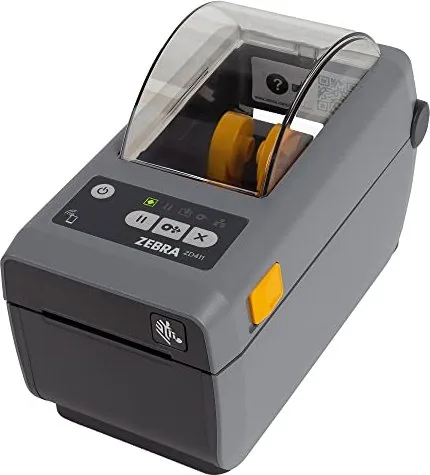
Zebra ZD411 Manual
PDF manual · 2 Pages
English



Quick check
Incorrect answer, please try again.
Chat with your Zebra ZD411 manual using AI
Get instant AI answers from your Zebra ZD411 manual
Ask anything about the Zebra ZD411. Answers come from this manual, with the pages they are based on.
Ask a Question
Do you recommend ZD411?
Yes NoFrequently Asked Questions
Open the printer, spread the roll holders, place the roll so it spins freely, pull the media past the front edge, press it under the guides, and align the sensor to center for standard labels or to sensor marks for marked labels.
Is this answer helpful?
Yes. Install the driver from zebra.com/setup before connecting the USB cable to your computer. Connecting without the driver installed on Windows can cause complications and connection issues.
Is this answer helpful?
To align labels, press and hold the Pause and Cancel buttons for two seconds. To print a configuration report, press and hold the Feed and Cancel buttons for two seconds.
Is this answer helpful?
When media is out, the printer and media status lights turn red. Open the printer, remove and discard the empty roll, insert a new roll following the loading steps, and close the printer until it locks.
Is this answer helpful?
Use a printhead cleaning pen and clean from the middle to the outside. The cleaning pen is intended specifically for the printhead; regular cleaning helps maintain print quality and extend head life.
Is this answer helpful?
Visit zebra.com/setup for drivers, zebra.com/supplies for genuine media, zebra.com/supportcommunity for user community, and zebra.com/contact for direct support and product assistance.
Is this answer helpful?
The ZD411 commonly includes USB connectivity; many configurations offer optional network or wireless interfaces. Verify your model’s specs to confirm available connectivity options.
Is this answer helpful?
Advantages and Disadvantages
Advantages

- Compact footprint ideal for counters and small workspaces.
- Simple media loading with adjustable sensor for different label types.
- Clear status LEDs and button combos for quick alignment and reports.
- Supports direct thermal and thermal transfer printing for flexibility.
- Extensive online support, drivers, and genuine supplies from Zebra.
Disadvantages

- Requires driver installation before USB connection to avoid issues.
- Limited to small- to medium-volume labeling—less suited for heavy industrial use.
- Cleaning requires manual printhead maintenance to keep quality optimal.
- Optional connectivity (network/wireless) may increase cost if required.
- Roll size and capacity are constrained by compact form factor.
Product Specification
Type
Label printer
Roll diameter
5 in
Paper thickness
3.15-12.01 mil
Print length
39.02 in
Print speed
5.98 in/s
Memory
256MB (RAM), 512MB (Flash)
Ports
USB 2.0, 1x USB-A 2.0 (Host)
Display
N/A
Emulation
ZPL II, EPL II, XML, ZBI, PDF
Manufacturer's warranty
1 year
Product Description
Zebra ZD411 — Compact Desktop Label Printer
The Zebra ZD411 is a compact, fast, and user-friendly desktop label printer designed for small- to medium-volume labeling tasks. Built on Zebra’s proven platform, the ZD411 offers reliable direct thermal and thermal transfer printing in a space-saving chassis. It caters to retail, healthcare, light manufacturing, shipping, and office environments where dependable, high-quality label output is required.
Key features and overview
The ZD411 emphasizes simplicity and speed. Loading media is straightforward: open the printer, place the roll on the holders, feed the label material under the guides, and align the sensor depending on label type. The printer supports regular center-aligned labels and marked labels via a movable sensor. A clear power and status LED provides instant feedback—green when ready, red when media is out.
Connectivity is flexible and user-focused. Use USB for direct connection (install the driver before connecting the cable to avoid problems), and optional network or wireless interfaces are available on many models. The printer’s control buttons support useful onboard functions: a feed/align combo for label alignment and a configuration report print via a two-button press.
Maintenance and supplies are simple. Replace rolls easily by removing the empty core and inserting a new one; ensure the roll spins freely on its holder. Cleaning the printhead is quick with a dedicated cleaning pen—clean from the center outward to preserve print quality. Zebra recommends using genuine Zebra supplies for consistent results and offers online resources for drivers, support, and supplies.
Practical benefits
This printer brings Zebra’s reliability into a smaller footprint, making it ideal where counter or shelf space is limited. The ZD411’s intuitive media loading, clear indicators, and on-device alignment tools reduce downtime and training needs. With straightforward driver installation instructions and extensive online support, integrating the ZD411 into existing workflows is fast and low-friction.
Notes
- Install the printer driver from zebra.com/setup before connecting the USB cable to avoid installation complications.
- Align the media sensor to the center for standard labels or to the marks for pre-marked labels.
- Clean the printhead with a cleaning pen from center to edges to maintain print quality.
- Use genuine Zebra supplies for best performance and reliability.
Search for 67,706 Manuals online


Type-in Brand or Model