
Zebra ZC100 Manual
PDF manual · 34 Pages
English



Quick check
Incorrect answer, please try again.
Chat with your Zebra ZC100 manual using AI
Get instant AI answers from your Zebra ZC100 manual
Ask anything about the Zebra ZC100. Answers come from this manual, with the pages they are based on.
ZC100 Maintenance Schedule
Use the LCD menu or driver software to run the cleaning cycle when the amber indicator flashes.
Use alcohol-moistened foam swabs to clean stubborn deposits if print anomalies persist.
Turn off the printer and use an alcohol-moistened swab to clean the encoder element.
Ask a Question
Do you recommend ZC100?
Yes NoFrequently Asked Questions
It is commonly used for printing ID badges, visitor cards, membership cards, access cards, and other plastic card applications that need clean, reliable output.
Is this answer helpful?
Yes, wireless capability is available on supported configurations. Signal strength depends on placement, nearby objects, and network conditions.
Is this answer helpful?
Yes, double-sided printing is possible when the flipper module is installed. Without that option, the printer operates as a standard single-sided unit.
Is this answer helpful?
It supports CR70 and CR80 PVC or PVC-composite cards. Depending on the setup, it can also work with magnetic stripe, contact smart, and contactless smart cards.
Is this answer helpful?
Use the correct ribbon, load cards in the proper orientation, clean the printer when prompted, and keep the printhead free of dust or residue.
Is this answer helpful?
Open the printer, remove the ribbon cartridge if needed, and use the manual advance wheel to clear the card. Avoid using tools, since they may damage the printer.
Is this answer helpful?
Advantages and Disadvantages
Advantages

- Compact design with an integrated feeder and flipper helps save space while keeping card production efficient.
- LCD navigation and soft keys make setup, help menus, and printer tasks easy to manage.
- Supports USB, Ethernet, and optional Wi-Fi, plus encoding and smart card options for flexible workflows.
- Built-in cleaning reminders and simple maintenance steps help preserve print quality.
Disadvantages

- Card and ribbon loading must be done carefully, or misfeeds and errors can occur.
- Wireless performance depends heavily on printer placement, nearby obstacles, and interference.
- Advanced functions may require optional modules or factory-installed upgrades.
- Regular upkeep and genuine supplies are important, which adds ongoing maintenance needs.
Product Specification
Type
Card printer
Technology
Dye sublimation, multicolor
Print resolution
300dpi
Paper thickness
0.010-0.040in
Print speed
700 cards/h (monochrome), 150 cards/h (color)
Memory
2GB (Flash)
Ports
USB 2.0
Display
monochrome
Dimensions
6.18x10.16x15.08in
Weight
8.60lb
Manufacturer warranty
2 years
Product Description
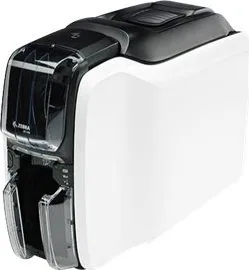
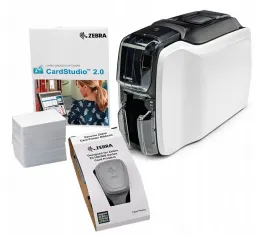
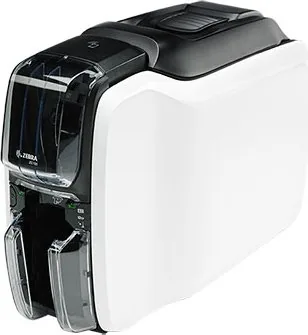
Zebra ZC100 Card Printer: Compact Performance for Everyday Card Issuance
The Zebra ZC100 Card Printer is built for teams that want professional card printing without the hassle of a steep learning curve. It is a strong fit for ID badges, visitor passes, membership cards, and access credentials, especially in offices, schools, healthcare settings, and front-desk environments. The Zebra ZC100 Card Printer Manual points to a printer that focuses on simple operation, reliable output, and quick day-to-day handling.
One of the standout qualities of this printer is how approachable it feels. The LCD interface, soft keys, and built-in help features are designed to guide users through common tasks such as loading ribbon, inserting cards, checking printer status, and starting sample prints. That makes it easier for new users to get comfortable quickly while still giving experienced operators the control they need.
The ZC100 also offers practical flexibility. It supports standard PVC and composite cards, and it can be configured for magnetic stripe encoding, contact smart cards, contactless smart cards, and double-sided printing. USB and Ethernet connections are standard, while wireless capability is available on selected setups. This variety helps the printer adapt to different workflows, whether it is used at a single workstation or across a networked office.
Maintenance is another area where the printer is designed with usability in mind. Cleaning alerts help users know when action is needed, and the supported cleaning routines make routine upkeep easier to manage. When maintained properly, the printer can help produce sharp text, clear images, and consistent card quality over time.
For anyone comparing compact card printers, the Zebra ZC100 Card Printer offers a dependable blend of speed, simplicity, and expandability. It is especially appealing when you need a printer that does the basics well, supports optional upgrades, and keeps the user experience straightforward. If your goal is smooth card issuance with minimal friction, this model deserves attention.
Notes
- Use genuine Zebra ribbon cartridges for the best compatibility.
- Follow card orientation instructions carefully to avoid jams.
- Keep the printer clean and respond to cleaning alerts promptly.
- Wireless performance depends on placement and signal strength.
Search for 67,706 Manuals online


Type-in Brand or Model