
Wacom Cintiq 12WX Manual
PDF manual · 76 Pages
English



Quick check
Incorrect answer, please try again.
Chat with your Wacom Cintiq 12WX manual using AI
Get instant AI answers from your Wacom Cintiq 12WX manual
Ask anything about the Wacom Cintiq 12WX. Answers come from this manual, with the pages they are based on.
Ask a Question
Do you recommend Cintiq 12WX?
Yes NoVideo Manual
Cintiq12 - Setting Up & Installing
Frequently Asked Questions
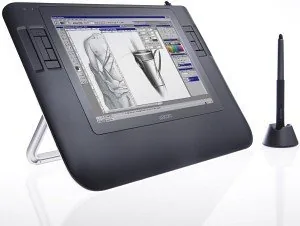
The Cintiq 12WX package includes the pen display with attached cable, power supply and cable, converter unit, Grip Pen with replacement nibs and pen stand, Wacom Pen Tablet Driver CD, DVI and DVI-to-VGA cables, USB cable, and an accessory set of rubber feet.
Is this answer helpful?
Installation has two stages: first connect the display via the converter unit to your computer’s DVI (preferred) or VGA port and power it on, then connect the USB cable for pen input and install the Wacom pen tablet driver from the included CD or Wacom’s website to enable full pen functionality and calibration.
Is this answer helpful?
Open the Wacom Tablet control panel, select the Grip Pen tool and the Calibrate tab, choose the correct monitor if multiple displays are present, then follow the on-screen crosshair prompts to align the pen tip to the cursor. Recalibrate whenever you change the display angle or viewing position.
Is this answer helpful?
Use the converter unit OSD to select AUTO ADJUST in the IMAGE menu. If issues persist, manually adjust CLOCK and PHASE via the OSD while viewing the calibration pattern, and ensure your video adapter supports the Cintiq’s native resolution and refresh rates.
Is this answer helpful?
Open the Wacom Tablet control panel, select FUNCTIONS, and assign ExpressKey and Touch Strip actions (modifier keys, keystrokes, zoom, scroll, etc.). You can set application-specific mappings and use Display Toggle on multi-monitor setups.
Is this answer helpful?
Clean the screen with an anti-static or slightly damp cloth, avoiding solvents or strong detergents. Replace worn nibs using the nib extractor to prevent sharp edges that could damage the screen coating. Store the pen in its stand when not in use.
Is this answer helpful?
Download the latest drivers and software updates from Wacom’s support website for your region. If problems persist after following the manual’s troubleshooting steps, contact Wacom technical support with your serial number, driver version, system specs, and a description of the issue.
Is this answer helpful?
Advantages and Disadvantages
Advantages

- Natural pen-on-screen interaction with pressure and tilt sensitivity for realistic strokes.
- Compact 1280x800 display with integrated adjustable stand and rotation pivot for flexible working angles.
- Customizable ExpressKeys and dual Touch Strips speed up common actions and improve workflow.
- Cordless, battery-free Grip Pen reduces downtime and includes replaceable nibs and eraser functionality.
- Converter unit supports both DVI and VGA video, plus USB and power through a single hub component.
Disadvantages

- Relatively low native resolution (1280x800) compared with larger modern displays.
- Requires the included converter and specific power adapter; using others may damage the unit or void warranty.
- VGA connections may need manual clock and phase adjustments for optimal display quality.
- Protective screen coating can be damaged by sharp nibs or solvents; nib replacement and careful cleaning required.
- Limited to typical office environment use; not rated for waterproof, medical, or military applications.
Product Specification
Type
Graphics tablet with display
Active Area
10.28x6.42in
Pen
wireless, nib, eraser function, 2 buttons
Resolution
5080lpi
Pressure Levels
1024
Tilt Range
80° (120 levels)
Max. Pen Reading Height
0.20in
Display
12.1", 1280x800, IPS, tiltable (65°)
Signal Input
DVI-I
Brightness
180cd/m²
Contrast
600:1
Response Time
25ms
Buttons
10x Buttons, 2x Touch Ring, 2x Touchstrip
CPU
N/A
RAM
N/A
Storage
N/A
Graphics
N/A
Host Connection
USB
Other Connections
N/A
Wireless
N/A
Card Reader
N/A
Webcam
N/A
Operating System
N/A
Power Consumption
29W (typical), 2W (Standby), <1W (Sleep)
Battery
N/A
Dimensions
15.94x10.63x0.67in
Weight
3.97lb
Special Features
VESA mount (2.95x2.95), Stand
Package Contents
Brand software, Replacement nibs, Main unit, USB cable, DVI-I to VGA cable, DVI cable
Product Description
Wacom Cintiq 12WX — USB Manual Overview
The Wacom Cintiq 12WX is a compact interactive pen display that blends an LCD screen with Wacom’s battery-free Grip Pen technology, giving artists and designers direct pen-on-screen control. Built around model DTZ-1200W, the Cintiq 12WX offers a 1280 x 800 native resolution display, an integrated adjustable stand with rotation pivot, and a converter unit that handles video (DVI/VGA), USB, and power connections. The device ships with the Grip Pen (replaceable nibs and stand), power adapter, converter unit, video/USB cables, and a driver CD to enable full pen functionality.
Key features and how it helps your workflow
The Cintiq 12WX provides precise pressure sensitivity and tilt recognition so strokes respond naturally in pressure-aware applications. Hardware ExpressKeys and dual Touch Strips on the display let you map common modifiers and zoom/scroll actions for faster, more fluid workflows. The pen is cordless and battery-free, with a DuoSwitch side toggle and eraser for context-sensitive tool control. The integrated stand supports multiple working angles and the unit can be mounted to VESA 75-compatible arms for customized setups.
Installing the Cintiq is a two-step process: first set it up as a display (connecting DVI or VGA and power through the converter unit) and then install the pen tablet functionality via USB and the Wacom driver software. The manual emphasizes using the included converter and power adapter, proper cable handling, calibrating the pen to align the cursor, and configuring the Wacom Tablet control panel to personalize pen, ExpressKey, and Touch Strip behavior.
Practical considerations and care
The manual details environmental and safety precautions—operating temperature/humidity ranges, avoiding liquids or solvents on the screen, and warnings about not opening the unit. It advises cleaning the screen with an anti-static or slightly damp cloth, replacing worn pen nibs to protect the display coating, and proper disposal/recycling. Troubleshooting sections cover display sync (clock/phase, auto-adjust for VGA), pen diagnostics, and driver updates.
Notes
- Native resolution: 1280 x 800; best results with DVI connection.
- Includes driver CD; updated drivers are available from Wacom’s support site.
- Calibrate pen after positioning the display; multiple-monitor Display Toggle available via an ExpressKey.
Search for 67,706 Manuals online


Type-in Brand or Model