
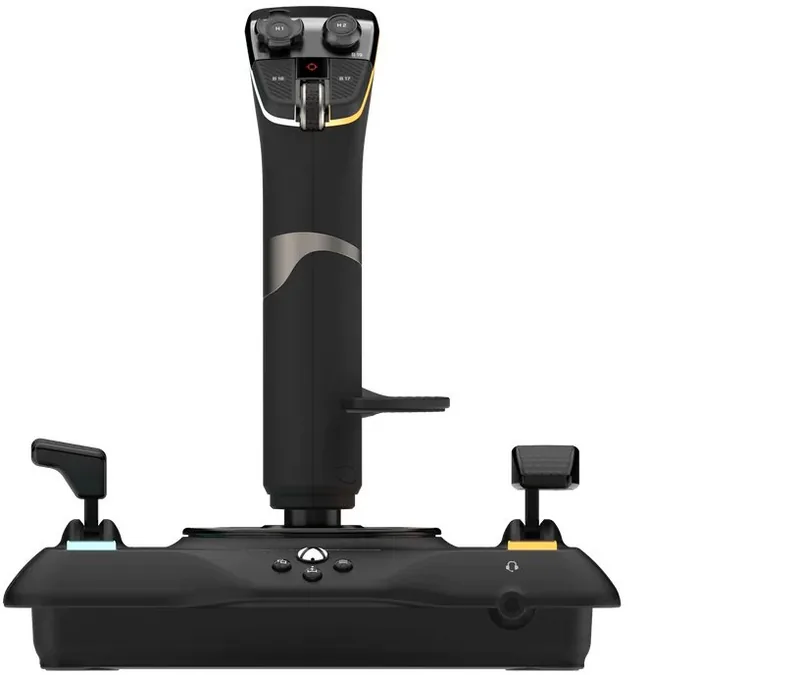
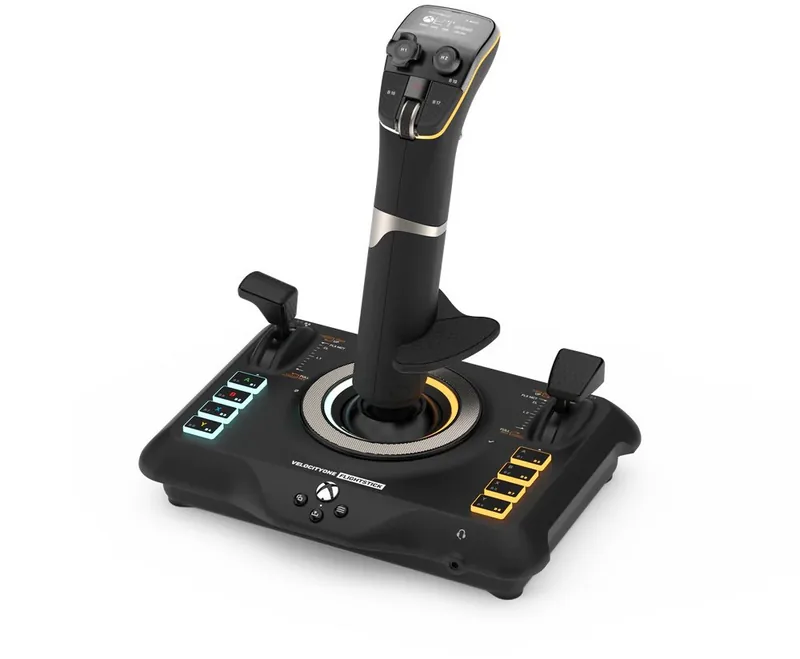
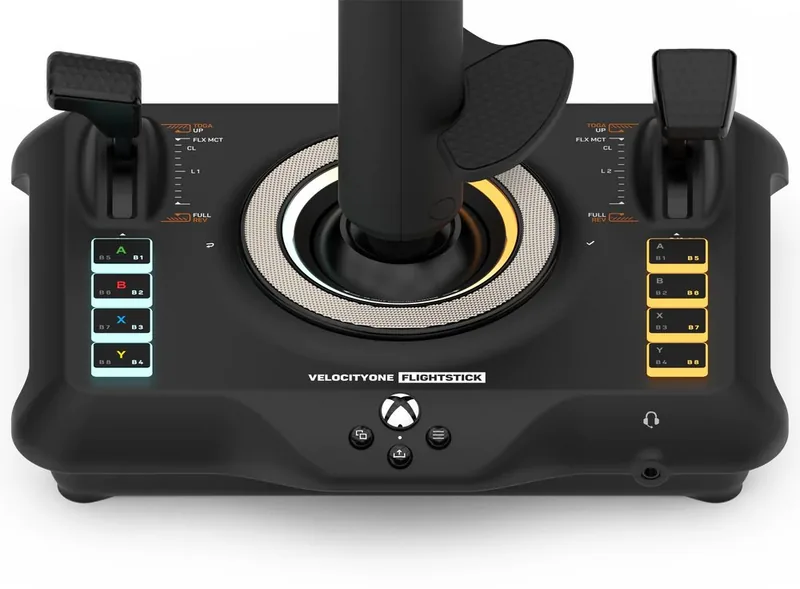
Turtle Beach VelocityOne Flightstick Manual
PDF manual · 28 Pages
English



Quick check
Incorrect answer, please try again.
Chat with your Turtle Beach VelocityOne Flightstick manual using AI
Get instant AI answers from your Turtle Beach VelocityOne Flightstick manual
Ask anything about the Turtle Beach VelocityOne Flightstick. Answers come from this manual, with the pages they are based on.
Ask a Question
Do you recommend VelocityOne Flightstick?
Yes No
Amanda Holmes
5 months ago
Is the base stable enough for intense flight movements, or does the joystick tip over easily?

Manual.ly
5 months ago
The base is functional for light use, but the narrow footprint may cause tipping during aggressive inputs. To ensure stability, please use the three included screws to mount the stick securely to your desk surface. This will prevent unwanted movement and improve precision during flight simulator sessions.
Frequently Asked Questions
Rotate the FMD Configurator Wheel and right-click to select Input Mode. Rotate again to choose PC and click to confirm. The mode saves in memory automatically.
Is this answer helpful?
Yes. The Orientation feature swaps button and axis mappings. The adjustable wrist rest also moves to the preferred side for comfortable use.
Is this answer helpful?
Pro Aim temporarily reduces the sensitivity of the main stick axes. This is useful for making critical in-flight adjustments or honing your aim.
Is this answer helpful?
You can connect a 3.5mm headset to the dedicated port on the flightstick. Audio controls are accessible via the Flight Management Display.
Is this answer helpful?
Use the FMD Stick Performance menu. You can select Standard for 1:1 control, Precision for fine adjustments, or Fast for arcade style movement.
Is this answer helpful?
They are expansion ports for future VelocityOne peripherals. Currently, no additional products use them, but firmware updates may enable functionality later.
Is this answer helpful?
In PC mode, the touchpad controls the mouse cursor. Clicking the touchpad replicates the left-click of a standard mouse for desktop interaction.
Is this answer helpful?
Advantages and Disadvantages
Advantages

- Adjustable wrist rest supports left or right-handed use comfortably for better ergonomics
- Hall effect stick ensures long-lasting durability without mechanical wear over time
- Flight Management Display provides on-the-fly configuration without external software
- USB-C connection works directly with Xbox and PC for versatile gaming platforms
- Pro Aim feature helps reduce sensitivity for critical aiming and landing adjustments
Disadvantages

- Auxiliary ports currently unused until future VelocityOne accessories and firmware arrive
- Bluetooth companion app requires specific Android or iOS device versions to run
- Rudder lock disables yaw input which may hinder certain flight simulation scenarios
Product Specification
Type
Joystick
Compatibility
PC, Xbox Series X, Xbox One
Material
Plastic
Connection
Wired, USB
Power
USB
Features
incl. slider, Coolie Hat, lighting, programmable buttons
Product Description
Welcome to the Turtle Beach VelocityOne Flightstick Experience
Overview
Welcome to the overview of Turtle Beach VelocityOne Flightstick (PC/Xbox SX/Xbox One) Manual. When you dive into flight simulations, having the right tools makes all the difference. This setup includes a Hall effect sensing stick that offers smooth rudder twist control without physical wear over time. An adjustable wrist rest ensures comfort during long sessions and supports both right and left-handed configurations. You can swap the position with a simple screw adjustment to fit your hand size perfectly. The central hub features a Flight Management Display wheel that changes settings instantly. You might adjust the audio mix or switch between Standard and Fast stick profiles while in a mission. There are no menus on a phone or computer required for these basic adjustments. The FMD shows your stick orientation, mode, and axis profile at a glance. A chronometer function even helps you time your flight waypoints accurately.
Connectivity and Setup
Lighting customization allows you to match your LED colors to your gaming setup. The Pro Aim feature temporarily reduces stick sensitivity for critical aiming adjustments or landing sequences. You simply hold a programmed button to activate the reduction. The digital 8-way POV provides precise camera control, while microswitch buttons offer tactile feedback for various actions. A 3.5mm headset port connects directly for clear communication with your squadron. Connectivity requires a USB-C cable for both platforms, though it defaults to Xbox mode. Switching to PC mode needs a simple rotation of the configurator wheel and a click to save. Expansion ports sit nearby for future peripherals from the VelocityOne range. You can connect to a smart device via Bluetooth to enable real-time customization of product features using the companion app. This app requires specific operating system versions to function correctly. Regulatory notes state that radio frequencies must comply with local laws for specific countries. Proper recycling procedures should be followed for electronic waste disposal.
Controls and Hardware
Buttons B1 to B4 and B5 to B8 are distinct programmable areas for additional functions. The throttle heads can be swapped to suit your preferences simply and quickly. You pull the throttle heads off and then push back on to the lever until they click. This hardware setup allows for personalized throttle feel without complex software. The multi-function levers include 2 detent buttons for specific flight gear actions. Trigger buttons allow for firing mechanisms in combat simulations effectively. Face buttons accept back and other system options depending on handedness settings. The Xbox navigation controls let you change view, share your content and open menus easily. You can navigate your Xbox system using the controls on the Flightstick directly. In PC Mode the Touchpad can be used to control the mouse cursor. Clicking the Touchpad will replicate the left-click of a mouse for standard input. Home Screen provides an overview of the current stick configuration and active axis profile. Stick Performance gives you the ability to get live feedback from the stick via the Test option. Profiles come in three versions to suit different flying styles and needs. The trim wheel offers analog precision or digital button pulses for different simulation aircraft types. Rudder lock blocks yaw input when utilizing external rudder pedals for specific scenarios. Touchpad sensitivity is adjustable to control mouse cursor movement speed efficiently. Navigation on Xbox changes view, shares content, and opens menus without needing a second controller. The FMD - Orientation section helps improve the Flightstick experience whether you are right or left-handed. It avoids the need for uncomfortable hand movements. Once your input preference is set, it will be displayed on the Home Screen for easy reference. Custom lighting themes let you tune brightness of the LEDs and the FMD to your preference.
Search for 67,706 Manuals online


Type-in Brand or Model
Lukas Fischer
5 months ago
Does the joystick base stay stable during intense simulation sessions or does it tip over easily?
Manual.ly
5 months ago
Thank you for your inquiry. The joystick base is generally stable on flat surfaces. However, users recommend mounting it to a desk using the included screws for maximum stability during strong movements. This prevents the unit from tipping. If mounting is not an option, ensure the surface has good grip. We take all feedback seriously regarding the base design and are always looking for ways to improve the user experience.