4. Stelle unter Headset-Audio das Headset-Format auf Windows Sonic
PT
1. Prime o Botão Xbox no comando
2. Vai para o separador Perfil e Sistema ( )
3. Selecionar Definições >> Geral >> Saída de Volume e Áudio
4. Configura o formato dos Auscultadores na coluna de áudio dos
Auscultadores para Windows Sonic para Auscultadores
DK
1. Tryk på Xbox-knappen på din controller
2. Gå ind under fanen "Profil og system" ( )
3. Vælg Indstilinger >> Generelt >> Lydstyrke og lydoutput
4. Indstil headset-formatet under "Lyd i hovedtelefoner" til
Windows Sonic til hovedtelefoner
EN
1. Press the Xbox Button on your controller.
2. Go to the Profile & System Tab. ( )
3. Select Settings >> General >> Volume & Audio Output.
4. Set Headset format under the Headset audio column to
Windows Sonic for Headphones.
ES
1. Pulsa el botón Xbox en tu mando.
2. Ve a Perfil y después a la pestaña Sistema. ( )
3. Selecciona Configuración >> General >> Volumen y Salida de audio.
4. En la columna Sonido de los auriculares, selecciona Windows
Sonic para auriculares como formato de los auriculares.
IT
1. Premi il pulsante Xbox sul controller.
2. Vai alla scheda Profilo e sistema. ( )
3. Seleziona Impostazioni >> Generale >> Volume e uscita audio.
4. Imposta il formato delle cuffie nella colonna Audio cuffie su
Windows Sonic per cuffie.
SE
1. Tryck på Xbox-knappen på handkontrollen.
2. Gå till fliken för profiler och system. ( )
3. Välj Inställningar >> Allmänt >> Volym och ljudutdata
4. Välj Windows Sonic for Headphones under headsetkolumnen.
NL
1. Druk op de Xbox-knop op je controller.
2. Ga naar het tabblad Profiel en systeem. ( )
3. Selecteer Instellingen >> Algemeen >> Volume- en audio-uitvoer.
4. Stel Headsetindeling in de kolom Headsetgeluid in op Windows
Sonic voor hoofdtelefoon.
HEADSET CONTROLS
COMMANDES
SUR CASQUE
Microphone Jack
Prise jack microphone
Master Volume Dial
Molette de volume principal
Microphone Mute Button
Bouton pour désactiver
le microphone
SETUP FOR
XBOX
CONFIGURATION
POUR
XBOX
Not seeing what you're looking for here?
Visit turtlebeach.com/supportfor the
latest Tech Support information.
Vous n'avez pas trouvé ce que vous cherchiez?
Rendez-vous sur turtlebeach.com/support pour
consulter les dernières informations de
l'assistance technique.
SETUP FOR
PLAYSTATION
®
CONFIGURATION
POUR
PLAYSTATION
®
SETUP FOR
NINTENDO SWITCH
™
CONFIGURATION
POUR
NINTENDO
SWITCH
™
SETUP FOR
PC/MAC
®
& MOBILE
CONFIGURATION
POUR
PC/MAC
®
&
MOBILE
To access the rating label:
Pour accéder à l'étiquette:
2. Once you’ve released the cloth from the lip on
top, pull the ear pad straight back and it should
slip right off.
2. Une fois le haut du tissu dégagé, tirez le
coussinet versvous pour le retirer facilement.
1. Remove the left ear pad by pulling the ear pad
straight up using your thumb.
1. Retirez le coussinet gauche en le tirant vers le
haut à l'aide de votre pouce.
To replace the ear pad, follow the same process in reverse.
Pour remettre le coussinet en place, veuillez suivre la
procédure inverse.
QUICK START GUIDE
GUIDE DE DÉMARRAGE RAPIDE
READ BEFORE USING
IMPORTANT
À LIRE
LIRE AVANT UTILISATION
turtlebeach.com/support
Model:Recon 500
Any questions?Des questions ?
RECON
™
500
/1
%
Quick check
I'm not a robot
Incorrect answer, please try again.
Chat with your Turtle Beach Recon 500 manual using AI
Get instant AI answers from your Turtle Beach Recon 500 manual
Ask anything about the Turtle Beach Recon 500. Answers come from this manual, with the pages they are based on.
Ask a Question
0/1000
Do you recommend Recon 500?
YesNo
Frequently Asked
Questions
A
Yes. The Recon 500 works with Xbox One controllers that have a 3.5mm headset jack. For original Xbox One controllers without a built-in jack, Turtle Beach’s Ear Force Headset Audio Controller adapter is required (sold separately).
Is this answer helpful?
A
If your PC uses separate green (audio) and pink (microphone) jacks, you will need a 3.5mm PC splitter cable to use both microphone and audio. Single-combination-jack laptops and many desktops with a single headset jack work without an adapter.
Is this answer helpful?
A
Yes. The headset is compatible with Nintendo Switch in handheld mode via the console’s 3.5mm jack. Some TV/console dock configurations may not pass microphone input when docked, so handheld mode is recommended for full functionality.
Is this answer helpful?
A
On consoles that support 3D audio (like PlayStation or Xbox), enable the console’s 3D audio profile in system audio settings. For Xbox, set Headset format to Windows Sonic under Settings > Profile & System > Volume & Audio Output.
Is this answer helpful?
A
Yes. The Recon 500 ear pads are removable for cleaning or replacement. Pull the ear pad straight off to remove and reverse the process to reinstall. Replacement pads and parts are available from turtlebeach.com.
Is this answer helpful?
A
Yes. The headset includes an onboard microphone mute button and a master volume dial for quick, tactile control during gameplay.
Is this answer helpful?
A
Turtle Beach provides technical support, replacement accessories and compliance information at turtlebeach.com/support and through product pages on their website.
Is this answer helpful?
M: OA-GPT-5-NAN
Advantagesand
Disadvantages
Advantages
60mm high-output drivers deliver strong bass and clear in-game audio for immersive experiences.
Durable, metal-reinforced headband and removable ear pads for longevity and easy maintenance.
Simple wired 3.5mm compatibility across consoles, PC, Mac and mobile devices.
Accessible controls: master volume dial and mic mute button for quick adjustments.
Supports console audio enhancements like Windows Sonic and 3D audio profiles.
VS
Disadvantages
Wired-only design limits mobility compared with wireless headsets.
May require additional adapter for original Xbox One controllers (sold separately).
PC users with separate mic/headphone jacks need a splitter cable.
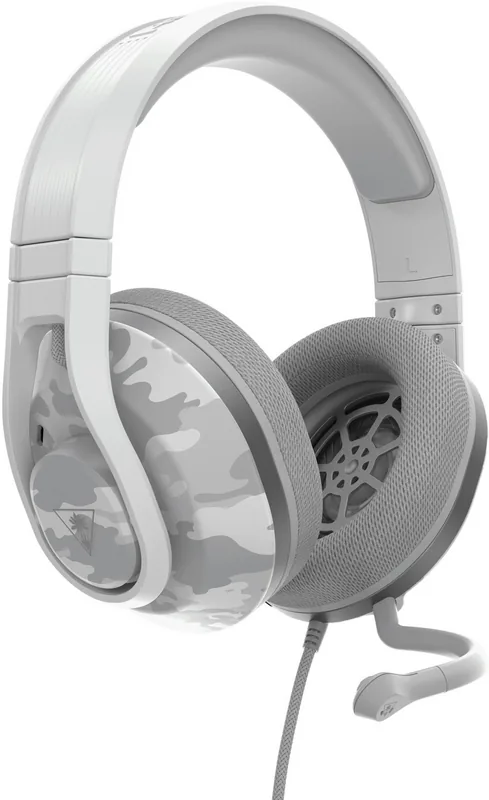
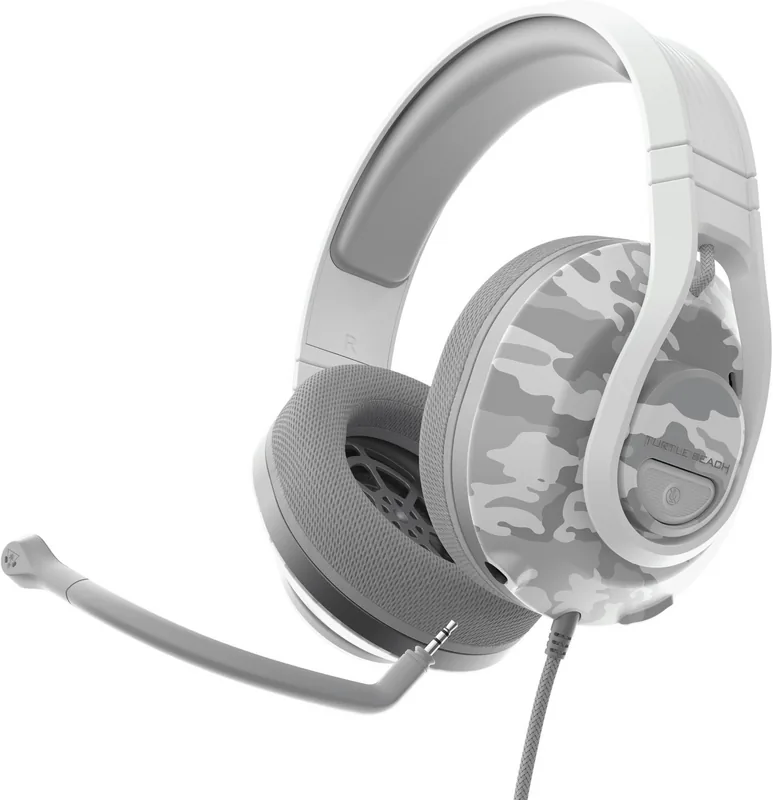
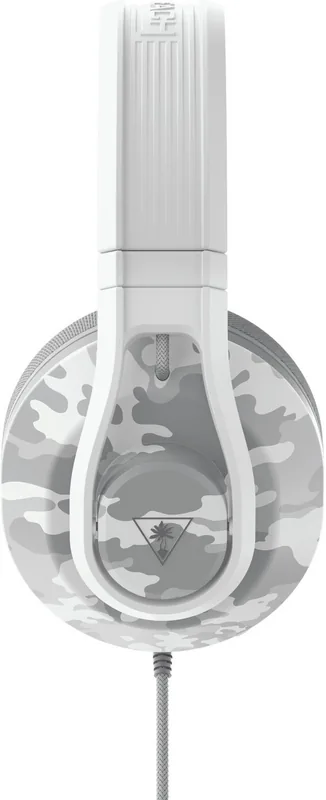
The Turtle Beach Recon 500 delivers a bold, bass-forward audio profile and a rugged, comfortable build aimed at competitive and casual gamers alike. Designed with 60mm high-output speakers and a durable metal-reinforced headband, the Recon 500 emphasizes punchy low-end for immersive explosions and deep in-game bass while preserving clear mids and highs for voice and environmental detail. An easy-to-access master volume dial and convenient microphone mute button make on-the-fly adjustments simple across platforms.
Connectivity is straightforward: the Recon 500 uses a wired 3.5mm connection compatible with modern consoles, handheld Switch mode, PCs, Macs and mobile devices. On Xbox One models without a built-in 3.5mm jack, an optional Ear Force Headset Audio Controller adapter is required. For PCs with separate pink/green mic and audio jacks, a splitter cable is recommended. The headset supports in-game chat on compatible titles and can be used with console audio enhancements such as Windows Sonic for Headphones or console 3D audio profiles.
Comfort and usability are practical priorities: large over-ear cushions, a reinforced headband, and easily removable ear pads allow for prolonged sessions and simple cleaning or replacement. The Recon 500 also includes clear instructions for platform-specific audio configuration (PlayStation, Xbox, Nintendo Switch, PC/Mac), microphone setup and volume tuning, plus guidance for enabling 3D audio profiles where available.
Safety, compliance and support are covered thoroughly: the product meets multiple international regulatory standards and includes guidance about proper disposal and recycling. Turtle Beach provides online support resources and replacement accessories like the PC splitter or the Xbox adapter via turtlebeach.com.
Notes
Requires Xbox One controller with 3.5mm jack or optional adapter for older controllers.
Nintendo Switch compatibility applies in handheld mode.
PC splitter required if your computer uses separate mic and headphone jacks.
Visit turtlebeach.com/support for firmware, compatibility updates and replacement parts.