
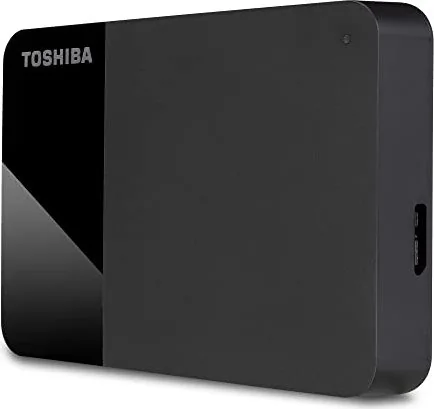
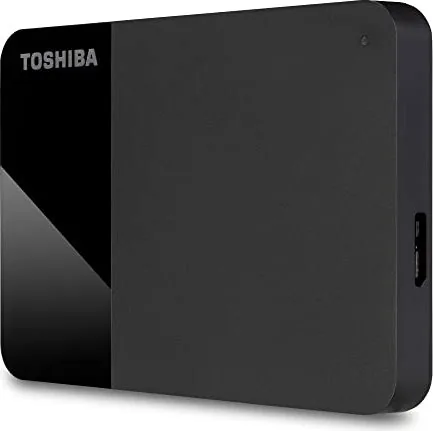
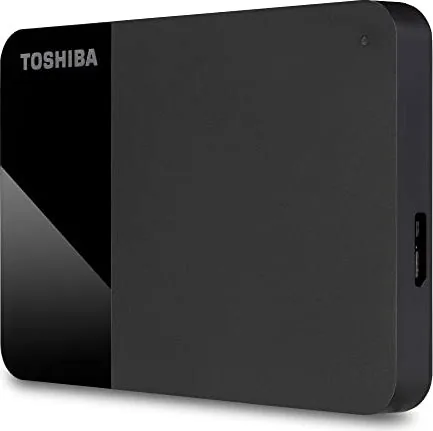
Toshiba Canvio Ready HDTP3 Manual
PDF manual · 185 Pages
English



Quick check
Incorrect answer, please try again.
Chat with your Toshiba Canvio Ready HDTP3 manual using AI
Get instant AI answers from your Toshiba Canvio Ready HDTP3 manual
Ask anything about the Toshiba Canvio Ready HDTP3. Answers come from this manual, with the pages they are based on.
Canvio Ready HDTP3 Maintenance Schedule
To prevent data loss, regularly back up as much of your data as possible on another storage device.
Ensure the drive is disconnected. Use standard cleaning products and wipe off any remaining liquid from the surface.
Ask a Question
Do you recommend Canvio Ready HDTP3?
Yes NoFrequently Asked Questions
No, USB drivers are already built into the Windows operating system. You can plug the drive in and use it immediately without installing any additional software.
Is this answer helpful?
No, Windows does not support booting from external hard drives. You must follow the specific installation instructions provided by your operating system supplier to install or copy an OS.
Is this answer helpful?
The drive is engineered with optimal heat dissipation technology, which allows it to operate efficiently without a fan. This design choice ensures the device runs almost silently during use.
Is this answer helpful?
Manufacturers calculate capacity using the decimal system, while computers use the binary system. For example, a 1TB drive appears as approximately 931GB on Windows due to this difference in calculation methods.
Is this answer helpful?
No, it is normal for the drive to feel warm during operation. This indicates proper function and does not pose a danger to the device or your data.
Is this answer helpful?
On Windows, use the hardware eject icon. On Mac, Ctrl-click the drive icon and select Eject, or drag it to the trash. Wait for the notification that it is safe before unplugging.
Is this answer helpful?
Advantages and Disadvantages
Advantages

- Bus-powered design requires no external AC adapter
- Near-silent operation due to lack of cooling fan
- Plug-and-play compatibility with Windows systems
- Compact and portable physical design
- Backward compatible with USB 2.0 ports
Disadvantages

- Requires reformatting for macOS compatibility
- Cannot boot operating system from the drive
- Passive USB hubs do not provide sufficient power
- Transfer speeds drop to USB 2.0 rates on older ports
- Capacity appears lower in Windows due to binary calculation
Product Specification
Form factor
2.5"
External interface
1x USB 3.0 Micro-B
RAID level
N/A
Fan
N/A
Color
black
Manufacturer warranty
two years
USB spelling
Link
Product Description
Toshiba Canvio Ready External HDD Review
The Toshiba Canvio Ready HDTP3 is a sleek and reliable external hard drive designed for seamless data storage and transfer. This device stands out as an essential tool for users seeking to expand their computer's storage capacity without the hassle of complex setups. Powered directly through the USB connection, it eliminates the need for a separate power adapter, making it incredibly portable and convenient for on-the-go use.
Upon connecting the drive to a Windows PC or Mac, the system automatically recognizes the device, allowing you to start saving files immediately. The drive comes pre-formatted in NTFS, ensuring full compatibility with Windows 10 and 8.1 right out of the box. While macOS users will need to reformat the drive for optimal performance, the process is straightforward and supported by clear instructions within the included safety guide. The bus-powered design ensures that the drive draws all necessary energy from your computer's USB port, whether it is USB 3.0 or the backward-compatible USB 2.0.
One of the most notable features of the Canvio Ready is its silent operation. Thanks to an intelligent heat dissipation design, the drive does not require a cooling fan, resulting in near-silent performance even during heavy data transfers. This makes it ideal for quiet office environments or home use where noise can be distracting. Additionally, the drive features a compact enclosure that protects internal components while maintaining a professional aesthetic.
For users concerned about data integrity, the manual emphasizes safe dismounting procedures to prevent data loss. Whether using Windows or macOS, simply ejecting the drive before unplugging ensures that no active writes are interrupted. Regular backups are also recommended to safeguard valuable information against unexpected failures or accidental deletion. With robust regulatory compliance and a commitment to environmental standards like REACH, the Toshiba Canvio Ready offers peace of mind alongside high performance.
Key Notes
- Always use the provided USB cable for best results.
- Avoid using passive USB hubs as they may not supply enough power.
- Keep data backed up regularly to prevent permanent loss.
Search for 67,706 Manuals online


Type-in Brand or Model