
Toshiba Canvio Advance Manual
PDF manual · 185 Pages
English



Quick check
Incorrect answer, please try again.
Chat with your Toshiba Canvio Advance manual using AI
Get instant AI answers from your Toshiba Canvio Advance manual
Ask anything about the Toshiba Canvio Advance. Answers come from this manual, with the pages they are based on.
Canvio Advance Maintenance Schedule
Ensure the drive is physically disconnected from the computer before cleaning. Use standard cleaning products and wipe off any remaining liquid on the surface.
To prevent data loss, regularly back up as much of your data as possible on another storage device.
Ask a Question
Do you recommend Canvio Advance?
Yes NoFrequently Asked Questions
No, USB drivers are already built into the Windows operating system, so no additional installation is required.
Is this answer helpful?
No, Windows does not support booting from external hard drives, so this drive cannot be used as a primary boot device.
Is this answer helpful?
It is normal for the drive to feel warm because it relies on natural heat dissipation rather than a fan, and this does not indicate a malfunction.
Is this answer helpful?
Manufacturers use the decimal system (1TB = 1000GB) while operating systems use the binary system (1TB = 1024GB), causing the visible difference.
Is this answer helpful?
Use the 'Safely Remove Hardware' option in Windows or drag the icon to the trash on Mac before unplugging to prevent data loss.
Is this answer helpful?
No, the product has only been tested for residential and light commercial use and may cause interference or fail in industrial settings.
Is this answer helpful?
Advantages and Disadvantages
Advantages

- Bus-powered operation eliminates the need for an external power adapter
- Quiet operation with no cooling fans required
- USB 3.0 interface ensures fast data transfer speeds
- Plug-and-play compatibility with Windows 10 and 8.1 out of the box
- Compact and portable design suitable for travel
Disadvantages

- Requires reformatting for macOS compatibility
- Cannot be used to boot a Windows operating system
- Not suitable for industrial or medical environments without verification
- No resistance to moisture or shock damage
- Display capacity appears lower than stated due to OS calculation methods
Product Specification
Form factor
2.5"
External interface
1x USB 3.0 Micro-B
RAID level
N/A
Fan
N/A
Manufacturer warranty
two years
USB spelling
Link
Product Description
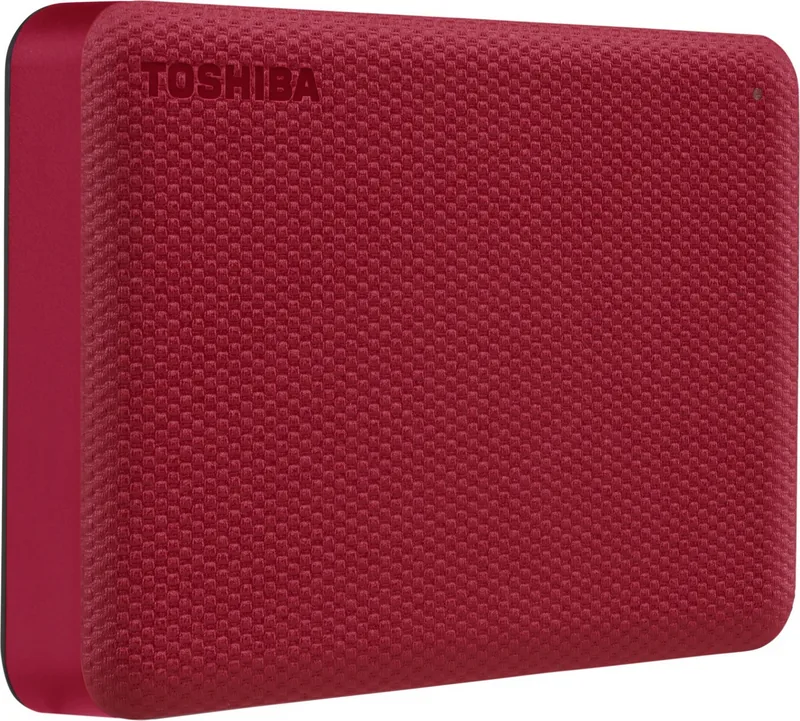
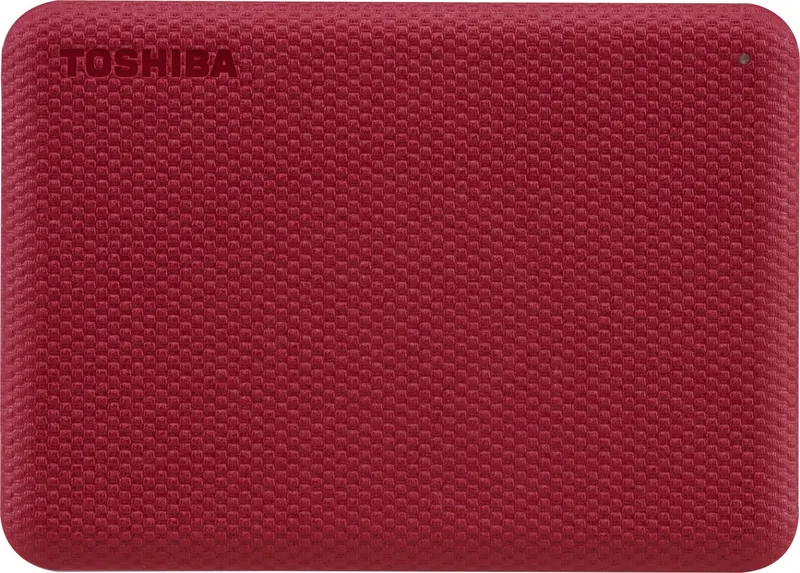
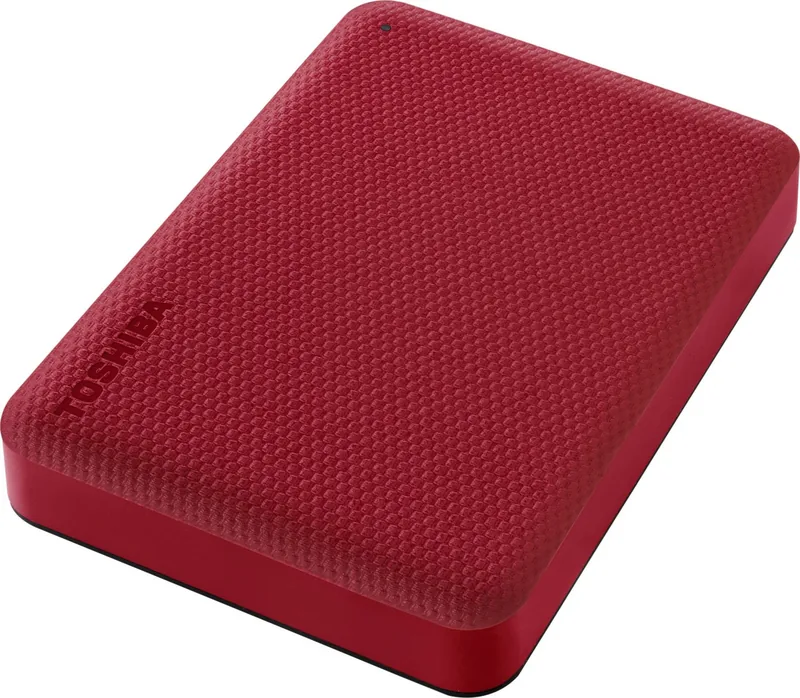
Discover the Toshiba Canvio Advance External HDD
The Toshiba Canvio Advance External HDD is a reliable and efficient storage solution designed for users who need to expand their digital life without compromising on performance. This sleek drive offers seamless connectivity and robust data protection, making it an ideal companion for both home and office environments.
Why Choose the Canvio Advance?
When you choose the Toshiba Canvio Advance, you are opting for a device that prioritizes ease of use and durability. The drive comes pre-formatted in NTFS for Windows, ensuring immediate plug-and-play functionality for most users. For Mac users, a quick reformatting step is all it takes to get started with macOS versions 10.13 through 10.15. The compact design fits easily into any bag, allowing you to carry your important files, photos, and videos wherever you go.
Seamless Connectivity and Power
One of the standout features of this external hard drive is its bus-powered operation. You do not need to worry about finding an extra power outlet or carrying a bulky adapter. Simply connect the included USB 3.0 cable to your computer, and the drive draws all necessary power directly from the USB port. This design not only simplifies setup but also ensures quiet operation since no cooling fans are required. The drive dissipates heat naturally, keeping noise levels to a minimum while maintaining optimal performance.
Data Safety and Maintenance
Protecting your data is paramount. The manual advises against simply unplugging the drive while data is being written, as this can lead to corruption. Instead, always use the safe removal feature in your operating system before disconnecting. Regular backups are highly recommended to safeguard against unexpected failures. Additionally, keeping antivirus software installed adds an extra layer of security against malicious threats. Cleaning the enclosure should be done with standard products after ensuring the drive is physically disconnected from the computer.
Versatile Usage
Whether you are backing up critical documents, storing large media libraries, or transporting data between computers, the Canvio Advance handles it all with ease. It supports high-speed transfers via USB 3.0, which is backward compatible with USB 2.0 ports, ensuring flexibility across different systems. While it cannot be used to boot a Windows system or copy an operating system directly, it excels at general file storage and management tasks.
Important Notes
- Always eject the drive safely to prevent data loss.
- Do not use passive USB hubs; ensure active power supply if using a hub.
- Avoid using the drive in extreme environments like industrial settings or near explosive atmospheres.
- Be aware that the displayed capacity may appear lower than advertised due to binary vs. decimal calculation differences.
Search for 67,706 Manuals online


Type-in Brand or Model