
Tenda V12 Manual
PDF manual · 15 Pages
English



Quick check
Incorrect answer, please try again.
Chat with your Tenda V12 manual using AI
Get instant AI answers from your Tenda V12 manual
Ask anything about the Tenda V12. Answers come from this manual, with the pages they are based on.
Ask a Question
Do you recommend V12?
Yes No
aperiam_a
6 months ago
Can anyone confirm if this device supports CLP profiles on German fiber networks?
Frequently Asked Questions
Locate the RST button on the back of the device. When the Power LED is solid green, press and hold the RST button for about 6 seconds. Release it when all LEDs blink once. Wait for the Power LED to turn solid green again, indicating a successful reset to factory defaults.
Is this answer helpful?
First, ensure your device is connected to the router's WiFi or via an Ethernet cable. Disable mobile data on smartphones. Verify you are entering 192.168.1.1 in the browser address bar, not the search bar. Clear your browser cache or try a different browser. If issues persist, perform a factory reset.
Is this answer helpful?
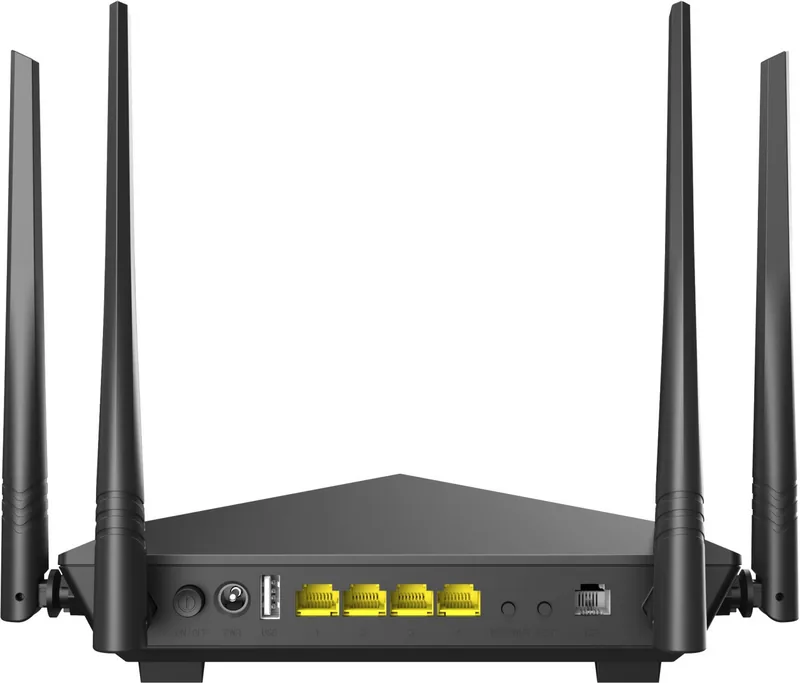
A red blinking INET light indicates no internet connection. Check that the phone cable is securely connected between the DSL port and the wall jack. If using Port 4 for WAN, verify the Ethernet connection to the upstream modem. Ensure your ISP settings like PPPoE username and password are entered correctly in the web UI.
Is this answer helpful?
Yes, but indirectly. While the built-in modem is for DSL/ADSL, you can connect a fiber ONT (Optical Network Terminal) to Port 4, which acts as a WAN port. Configure Port 4 as a WAN interface in the settings to bridge the fiber connection to the router.
Is this answer helpful?
Check the label on the bottom or back of the Tenda V12 unit. It lists the default SSID (network name) and WLAN Key (password). If you changed these and forgot them, you must reset the router to restore the default credentials printed on the label.
Is this answer helpful?
The provided text specifies the USB port is for connecting USB storage devices for file sharing. It does not explicitly confirm printer sharing capabilities in the basic installation guide. For printer support, consult the full manual on the manufacturer's website.
Is this answer helpful?
Advantages and Disadvantages
Advantages

- Supports both VDSL and ADSL for versatile ISP compatibility
- Dual-band AC1200 Wi-Fi offers speed and range balance
- Gigabit Ethernet ports ensure fast wired connections
- Built-in USB port allows for network file sharing
- Simple web interface with auto-detection for quick setup
Disadvantages

- No advanced parental control features mentioned in basic guide
- Limited to standard WPA2 security without enterprise options
- No mention of MU-MIMO technology for multi-device efficiency
- 5 GHz range may be shorter than 2.4 GHz due to physics
- Reset process requires holding button for specific duration
Product Specification
Modem
ADSL2+/VDSL2+, Annex L/M/Q
Modem connection
1x RJ-11
WAN
1x 1000Base-T
LAN
3x 1000Base-T
Telephone
N/A
Wireless
WLAN 802.11a/b/g/n/ac (Wi-Fi 5)
Transfer rate
300Mbps (2.4GHz), 867Mbps (5GHz)
Security
64/128bit WEP, WPA, WPA2, WPS
Antennas
4x external
Connections
1x USB-A 2.0
Power consumption
No data (consumption, operation), 12V/1.5A/18W (max. power supply output)
Dimensions
8.66x5.57x2.32 inches
Features
VLAN, VPN passthrough (PPTP/L2TP/IPSec), IPv6, VDSL2-Vectoring (Profile 17a), VDSL2-SuperVectoring (Profile 35b)
Band capability
Dual Band
Note
In some cases, the manufacturer's maximum power consumption figure only reflects the maximum output power of the power supply and is therefore not a meaningful indication of daily power consumption.
Product Description
Tenda V12: The Ultimate Dual-Band Connectivity Solution
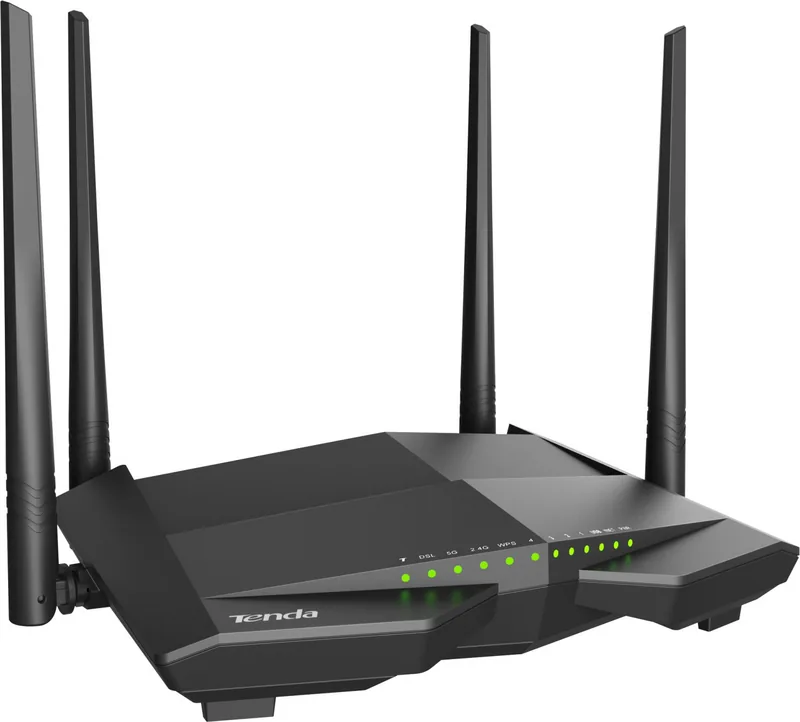
The Tenda V12 stands as a robust gateway for modern home and small office networking needs. This AC1200 Dualband Wi-Fi Gigabit VDSL/ADSL Modem Router combines high-speed wireless capabilities with versatile wired connectivity, ensuring seamless internet access across all your devices. Whether you are streaming high-definition content, gaming online, or working from home, the Tenda V12 delivers the performance required to keep you connected without interruption.
Designed with efficiency in mind, this device supports both 2.4 GHz and 5 GHz frequency bands simultaneously. The 2.4 GHz band offers extensive range and compatibility with legacy devices, while the 5 GHz band provides faster speeds ideal for bandwidth-intensive tasks. The inclusion of Gigabit Ethernet ports ensures that wired connections reach their maximum potential speed, making it perfect for desktop computers, smart TVs, and gaming consoles that require stable, low-latency links.
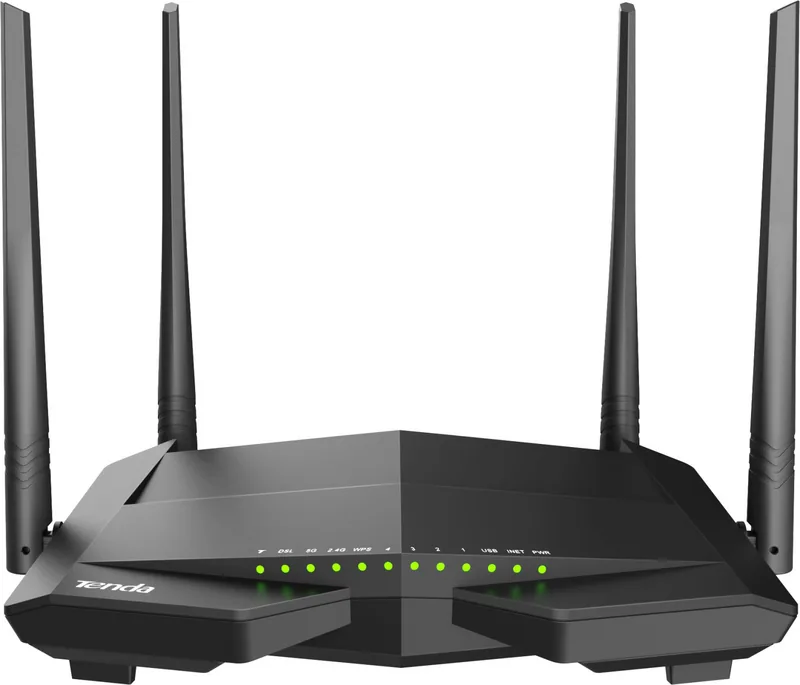
Installation is straightforward, catering to users who prefer plug-and-play simplicity. The router features clear LED indicators that provide real-time status updates on DSL connection, internet activity, and wireless network health. A dedicated WPS button allows for quick and secure pairing of compatible devices without the need to manually enter complex passwords. Additionally, the USB port enables easy file sharing and storage expansion, adding value to the hardware beyond just connectivity.
For users with existing telephone lines, the integrated VDSL/ADSL modem eliminates the need for separate hardware, streamlining your setup. The device automatically detects link types and guides you through configuration via an intuitive web interface accessible at 192.168.1.1. With its compact design, it can be placed on a desk or mounted on a wall, fitting discreetly into any environment while maintaining optimal signal distribution.
Key Features Overview
- Dual-Band Wi-Fi: Simultaneous 2.4GHz and 5GHz support for flexible coverage.
- Gigabit Ports: Four LAN ports plus one WAN/LAN port for high-speed data transfer.
- Integrated Modem: Supports both VDSL and ADSL connections for direct line entry.
- USB Sharing: Connect external drives for media or file sharing over the network.
- Easy Setup: Auto-detection of internet parameters simplifies initial configuration.
Important Notes
Ensure the power adapter is securely connected before powering on the device. For best results, place the router centrally in your home to maximize signal strength. Always update firmware regularly to maintain security and performance standards.
Search for 67,732 Manuals online


Type-in Brand or Model
illum48
5 months ago
Does this modem work properly with Telekom Supervectoring connections, or are there compatibility issues?
Manual.ly
5 months ago
Based on user reports and external tutorials, this modem may experience failures when connected to Telekom's Supervectoring lines. Specifically, CLP Tutorials indicate that the device does not function correctly in this configuration. We recommend verifying your specific line profile or considering alternative hardware if you encounter connectivity issues.