Patienter jusqu'à ce que la notication suivante apparaisse dans le coin
inférieur droit du bureau, et connecter à un réseau WiFi.
Si l'installation échoue, veuillez vous-référer à l'annexe.
Conseil
Tenda Wireless USB Adapter
Initializing wireless USB adapter... Please wait.12%
Exécuter Setup.exe
Éditeur non spécié
Toujours faire ceci pour les logiciels et jeux:
Installer ou exécuter un programme depuis son support
Connecter à réseau WiFi
2
Les étapes sont indiquées ci-dessous.
Cliquer le nom de votre WiFi.
1
Entrer le mot de passe WiFi et cliquer OK.
2
Connecté.
Annexe
1. Si la boîte de dialogue de Exécution automatique ne s'affiche pas, effectuez la
procédure suivante (exemple: Windows 7):
a.Double cliquer sur Ordinateur au niveau du bureau.
b.Double cliquer sur Disque CD (X): Sans fil pour démarrer l'installation.
2. Si votre ordinateur ne reconnait pas le disque CD, effectuez la procédure
suivante (exemple: Windows 7):
a. Cliquer sur Démarrer et ensuite sur le panneau de contrôle.
b. Cliquer pour désinstaller un programme.
c. Désinstaller les autres adaptateurs USB sans fil, et reconnecter cet adaptateur
USB sans fil pour démarrer l'installation.
Connexion à un réseau
Entrez la clé de sécurité du réseau
Clé de sécurité:
Masquer les caractères
Tenda_01
Ouvrir le Centre Réseau et partage
Non connecté
10:32 PM
5/21/2018
Des connexions sont disponibles
Tenda_01
Ouvrir le Centre Réseau et partage
Actuellement connecté à:
Acces Internet
Tenda_01
Connecté
Připojte USB adaptér bezdrátové sítě k portu USB na Vašem počítači
pomocí prodlužovacího USB kabelu.
Tento bezdrátový USB adaptér nezávislý na ovladačích je kompatibilní se všemi významnými
operačními systémy, včetně Windows XP/7/8/8.1/10.
Tip
Instalace USB adaptéru bezdrátové sítě
1
1
1
2
Klikněte a Spustit Setup.exe.
Instalace začíná. Čekejte, prosím. Když lišta zobrazující průběh dosáhne
100 %, průvodce instalací zmizí.
Vyčkejte, než se v pravém dolním rohu pracovní plochy zobrazí následující
zpráva, a připojte se k síti WiFi.
Jestliže instalace selže, podívejte se do Dodatku.
Tip
Tenda Wireless USB Adapter
Initializing wireless USB adapter... Please wait.12%
Spustit Setup.exe
Není zadán vydavatel.
Vždy tuto akci pro software a hry:provést
Nainstalovat nebo spustit program z mdiaé
Připojení k síti WiFi
1
2
Níže jsou uvedeny potřebné kroky:
Klikněte na název své sítě WiFi.
1
Zadejte heslo k síti WiFi a klikněte na OK.
2
Připojeno.
Příloha
1. Jestliže se nezobrazí dialogové okno Přehrát automaticky proveďte následující
postup (příklad: Windows 7):
a. Dvojitě klikněte na Počítač na pracovní ploše.
b. Dvojitě klikněte na CD mechaniku (X:) Bezdrátová síť k zahájení instalace.
2. Jestliže Váš počítač mechaniku CD nerozpoznává, proveďte následující
postup (příklad: Windows 7):
a. Klikněte na Start a poté na Ovládací panel.
b. Klikněte na Odinstalovat program (Uninstall a program).
c. Odinstalujte ostatní bezdrátové USB adaptéry nezávislé na ovladačích a znovu
připojte tento bezdrátový USB adaptér, aby byla zahájena instalace.
Připojit k síti
Zadejte klíč zabezpečení sítě.
Klíč zabezpečení:
Skrýt znaky
Tenda_01
Otevřít Centrum síťových připojení a sdílení
Nepřipojeno
10:32 PM
5/21/2018
Připojení jsou k dispozici.
Tenda_01
Otevřít Centrum síťových připojení a sdílení
Právě připojeno k:
Přistup k Internetu
Tenda_01
Připojeno
Kablosuz USB adaptörünü, bilgisayarınızın USB yuvasına bağlayın
USB uzatma kablosunu kullarvarak.
Bu sürücüsüz kablosuz USB adaptörü Windows XP/7/8/8.1/10 dahil olmak üzere yaygın işletim
sistemi ile uyumludur.
İpucu
Kablosuz USB adaptörünü takın
1
1
1
2
Setup.exe çalıştır’ye tıklayın.
Kurulum başlar. Lütfen bekleyin. İlerleme çubuğu %100’e ulaştığında, kurulum
sihirbazı kaybolur.
Masaüstünde sağ alt köşede aşağıdaki bildirim görünene kadar bekleyin ve bir
WiFi ağına bağlanın.
Eğer kurulum başarısız olursa, Ek’e göz atın.
İpucu
Tenda Wireless USB Adapter
Initializing wireless USB adapter... Please wait.12%
Setup.exe çalistir
Yayimci belirtilmemiş
Yazilim ve oyunlar için her zaman bunu yap:
Medyanizdan program yükleyin veya çalıştırın
Bir WiFi ağına bağıan
1
2
Kablosuz USB adaptörünü ve Tenda ağ bağdaştırıcısı programınv başarıyıa
kurduktan sonra, herhangi bir kablosuz ağa bağıanabilirsiniz.
WiFi adınızı tınızı tıklantın.
1
WiFi şifrenizi girin ve Tamam tıklantın.
2
Bağlandı.
Ek
1. Eğer Otomatik Kullan diyalog kutusu görünmezse şu işlemi gerçekleştirin
(örnek: Windows 7):
a. Masaüstünde Bilgisayarım’a çift tıklayın.
b. CD Sürücü(X:) Wireless’a çift tıklayarak kurulumu başlatın.
2. Eğer bilgisayarınız CD-sürücüsünü tanımazsa, şu işlemleri gerçekleştirin
(örnek: Windows 7):
a. Başlat’a ve Denetim Masası’na tıklayın.
b. Program kaldır’a (Uninstall a program) tıklayın.
c. Diğer sürücüsüz kablosuz USB adaptörlerini kaldırın ve bu kablosuz USB
adaptörünü tekrar bağlayarak kurulumu başlatın.
Bir Ağa Bağlan
Ağ güvenlik anahtarını yazın
Güvenlik anahtarı:
Karakterleri gizle
Tenda_01
Ağ ve Paylaşim Merkezi'ni aç
Bağlı değil
10:32 PM
5/21/2018
Bağlantı var
Tenda_01
Ağ ve Paylaşim Merkezi'ni aç
Şu an baglanılan yer:
Internet erişimi
Tenda_01
Bağlandı
Conectați adaptorul USB fără r la portul USB al computerului dvs.
Acest adaptor USB fără fir şi fără driver este compatibil cu sistemele de operare mainstream,
inclusiv Windows XP/7/8/8.1/10.
Sfat
Instalați adaptorul USB fără fir
1
1
1
2
Faceţi clic Executare Setup.exe.
Începe instalarea. Vă rugăm să aşteptaţi. Când bara de progres ajunge la
100 %, asistentul de instalare dispare.
Aşteptaţi până cnd apare următoarea noticare în colţul din dreapta jos a
ecranului, apoi conectaţi-vă la o reţea WiFi.
Dacă instalarea eşuează, consultaţi Anexa.
Sfat
Tenda Wireless USB Adapter
Initializing wireless USB adapter... Please wait.12%
Executare Setup.exe
Editor nespecicat
Întotdeauna se procedează astfel pentru software ş
Instalare sau executare program de pe suport
Conectați-vă la o rețea WiFi
1
2
Pașii sunt indicați mai jos.
Clic pe numele WiFi.
1
Introduceți parola WiFi și faceți clic pe OK.
2
Conectat.
Anexă
1. În cazul în care caseta de dialog Redare automată nu apare, efectuaţi următoarea
procedură (exemplu: Windows 7):
a. Faceţi dublu-clic pe desktop.
b. Faceţi dublu-clic pe CD Drive (X:) Wireless pentru a porni instalarea.
2. În cazul în care calculatorul dvs. nu recunoaşte CD drive-ul, efectuaţi procedura
următoare (exemplu: Windows 7):
a. Faceţi clic pe Start şi apoi pe Control Panel.
b. Faceţi clic pe Uninstall a program.
c. Dezinstalaţi celelalte adaptoare USB fără fir şi fără driver şi reconectaţi acest
adaptor USB wireless pentru a porni instalarea.
Conectare la o rețea
Tastați cheia de securitate în rețea
Cheie de
securitate:
Ascundere caractere
Tenda_01
Deschidere Centru rețea şi partajare
Neconectat
10:32 PM
5/21/2018
Sunt disponibile conexiuni
Wireless Network Connection
Tenda_01
Deschidere Centru rețea şi partajare
Conectat acum la:
Acces Internet
Tenda_01
Conectat
Helyezze be a vezeték nélküli USB adatpert számítógépe USB portjába.
Ez a konfigurációmentes vezeték nélküli USB adapter kompatibilis a legelterjedtebb operációs
rendszerekkel, mint például a Windows XP/7/8/8.1/10.
Tipp
Wireless (WiFi) USD adapter telepítése
1
1
1
2
Kattintson a Setup.exe futtatása feliratra.
A telepítés elkezdődik. Kérem, várjon. Ha a folyamatjelző eléri a 100%-ot,
a telepítő varázsló eltűnik.
Várjon, ameddig a következő üzenet meg nem jelenik a képernyő jobb alsó
sarkában, és kapcsolódjon a WiFi hálózathoz.
Amennyiben a telepítés sikertelen a Mellékletben szereplő utasításokat kövesse.
Tipp
Tenda Wireless USB Adapter
Initializing wireless USB adapter... Please wait.12%
Setup.exe futtatása
Nincs megadva a közzétevő
Szoftverek és játékok esetén mindig az alábbi
művelet végrehajtása:
Program telepítése vagy futtatása az adathordo...
Csatlakozás a wi-fi hálózathoz
1
2
A vezeték nélküli USB adapter és a Tenda hálózati adapter program sikeres
telepítését követöen Ön máris csatlakozhat a vezeték nélkülihálózathoz.
Kattintson az Ön wi- jének nevére.
1
Adja meg a wi- jelszót, majd kattintson az OK.
2
Csatlakoztatva.
Melléklet
1. Ha az Automatikus lejátszás ablak nem jelenik meg, a következő lépéseket valósíthatja
meg (példa: Windows 7):
a. Kattintson kétszer a Számítógép (Computer) feliratra az Asztalon.
b. Kattintson kétszer a CD meghajtóra (X:) hogy a vezeték nélküli telepítés elkezdődjön.
2. Ha számítógépe nem ismeri fel a CD meghajtót, hajtsa végre az alábbi
lépéseket (példa: Windows 7):
a. Kattintson a Start menüre majd a Control Panel feliratra.
b. Kattintson a Ne telepítsen programot (Uninstall a program) feliratra.
c. Távolítsa el az egyéb konfigurációmentes vezeték nélküli USB adaptereket, és kapcsolja
újra össze ezt a vezeték nélküli USB adaptert, hogy a telepítést el tudja kezdeni.
Csatlakozás hálózathoz
A hálózati biztonsági kulcs megadása
Biztonsági kulcs:
Karakterek elrejtése
Tenda_01
Hálózati és megosztási kőzpont megnyitása
Nincs csatlakozás
10:32 PM
5/21/2018
Rendelkezésre állnak kapcsolatok
Tenda_01
Hálózati és megosztási kőzpont megnyitása
Jelenlegi kapcsolat
Internetelérés
Tenda_01
Csatlakoztatva
FCC Statement
This equipment has been tested and found to comply with the limits for a Class B digital device, pursuant
to Part 15 of the FCC Rules. These limits are designed to provide reasonable protection against harmful
interference in a residential installation. This equipment generates, uses and can radiate radio frequency
energy and, if not installed and used in accordance with the instructions, may cause harmful interference
to radio communications. However, there is no guarantee that interference will not occur in a particular
installation. If this equipment does cause harmful interference to radio or television reception, which can
be determined by turning the equipment off and on, the user is encouraged to try to correct the
interference by one or more of the following measures:
— Reorient or relocate the receiving antenna.
— Increase the separation between the equipment and receiver.
— Connect the equipment into an outlet on a circuit different from that to which the receiver is connected.
— Consult the dealer or an experienced radio/TV technician for help.
This device complies with Part 15 of the FCC Rules. Operation is subject to the following two
conditions: (1) this device may not cause harmful interference, and (2) this device must accept any
interference received, including interference that may cause undesired operation.
Radiation Exposure Statement
This device complies with FCC radiation exposure limits set forth for an uncontrolled environment and it
also complies with Part 15 of the FCC RF Rules.
Caution:
Any changes or modications not expressly approved by the party responsible for compliance could void
the user's authority to operate this equipment.
This transmitter must not be co-located or operating in conjunction with any other antenna or transmitter.
NOTE:(1) The manufacturer is not responsible for any radio or TV interference caused by unauthorized
modications to this equipment. (2) To avoid unnecessary radiation interference, it is recommended to use
a shielded RJ45 cable.
Realtek 8811CU Wireless LAN 802.11ac USB NIC
Software de controlador de dispositivo instalado com êxito.
Realtek 8811CU Wireless LAN 802.11ac USB NIC
Installazione driver di dispositivo completata.
Realtek 8811CU Wireless LAN 802.11ac USB NIC
Die gerätetreibersoftware wurde erfolgreich installiert.
Realtek 8811CU Wireless LAN 802.11ac USB NIC
Oprogramowanie sterownika urządzenia zainstalowano pomyślnie
Realtek 8811CU Wireless LAN 802.11ac USB NIC
Установка драйвера для устройства успешно завершена.
Cancelar
Annulla
Abbrechen
Anuluj
Отмена
Realtek 8811CU Wireless LAN 802.11ac USB NIC
Controlador de dispositivo instalado correctamente.
Realtek 8811CU Wireless LAN 802.11ac USB NIC
Le pilote de périphérique a été installé.
Realtek 8811CU Wireless LAN 802.11ac USB NIC
Software ovladače zařízení byl úspěšně nainstalován.
Realtek 8811CU Wireless LAN 802.11ac USB NIC
Aygit sürücüsü yazilimi başarıyla yüklendi.
Realtek 8811CU Wireless LAN 802.11ac USB NIC
Software-ul de driver pentru dispozitiv s-a instalat cu succes.
Realtek 8811CU Wireless LAN 802.11ac USB NIC
Az eszkőzillesztő szoftver telepítése sikeresen megtőrtént.
CancelarAnnuler
Storno
Tamamİptal
Revocare
Mégse
)
10:32 PM
5/21/2018
10:32 PM
5/21/2018
10:32 PM
5/21/2018
10:32 PM
5/21/2018
10:32 PM
5/21/2018
10:32 PM
5/21/2018
10:32 PM
5/21/2018
10:32 PM
5/21/2018
10:32 PM
5/21/2018
10:32 PM
5/21/2018
10:32 PM
5/21/2018
10:32 PM
5/21/2018
/1
%
Quick check
I'm not a robot
Incorrect answer, please try again.
Chat with your Tenda U9 manual using AI
Get instant AI answers from your Tenda U9 manual
Ask anything about the Tenda U9. Answers come from this manual, with the pages they are based on.
Ask a Question
0/1000
Do you recommend U9?
YesNo
Frequently Asked
Questions
A
Yes, the Tenda U9 is fully compatible with Windows 10. It supports driver-free installation on many versions, but you can also manually install the driver using the Setup.exe file provided.
Is this answer helpful?
A
The 2.4GHz band offers better range and wall penetration, while the 5GHz band provides faster speeds and less interference. This adapter allows you to switch between them based on your needs.
Is this answer helpful?
A
No, the Tenda U9 is designed primarily for Windows operating systems including XP, 7, 8, and 10. It does not officially support macOS or Linux natively.
Is this answer helpful?
A
If the driver does not install automatically, insert the CD or access the downloaded files, double-click Setup.exe, and follow the on-screen instructions to complete the installation manually.
Is this answer helpful?
A
Yes, the 5GHz band capability reduces latency and interference, making it a good choice for online gaming, provided your router supports dual-band connections.
Is this answer helpful?
M: QW-35-FL
Advantagesand
Disadvantages
Advantages
Supports dual-band 2.4GHz and 5GHz frequencies for optimal speed and range
Driver-free installation on most modern Windows operating systems
Compact mini design prevents obstruction of neighboring USB ports
Compatible with Windows XP, 7, 8, 8.1, and 10 for broad OS support
VS
Disadvantages
Only includes a USB-A 2.0 interface which may limit theoretical max speeds
Requires manual driver installation if auto-detection fails on some systems
No external antenna provided, relying on internal chip performance
Not compatible with macOS or Linux without third-party driver solutions
M: QW-35-FL
Product
Specification
Type
WLAN Adapter
Form factor
1x USB stick
Connection
1x USB-A 2.0 (plug)
Connection type
1x WLAN 802.11a/b/g/n/ac (1x 2.4GHz or 1x 5GHz), 1x power amplifier (20dBm), 1x antenna (integrated, 2x electrical)
Tenda U9: Seamless Dual-Band Connectivity for Your PC
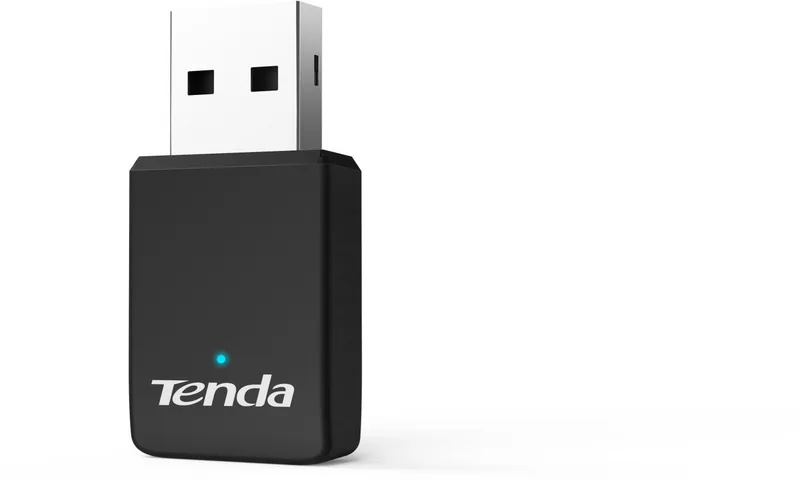
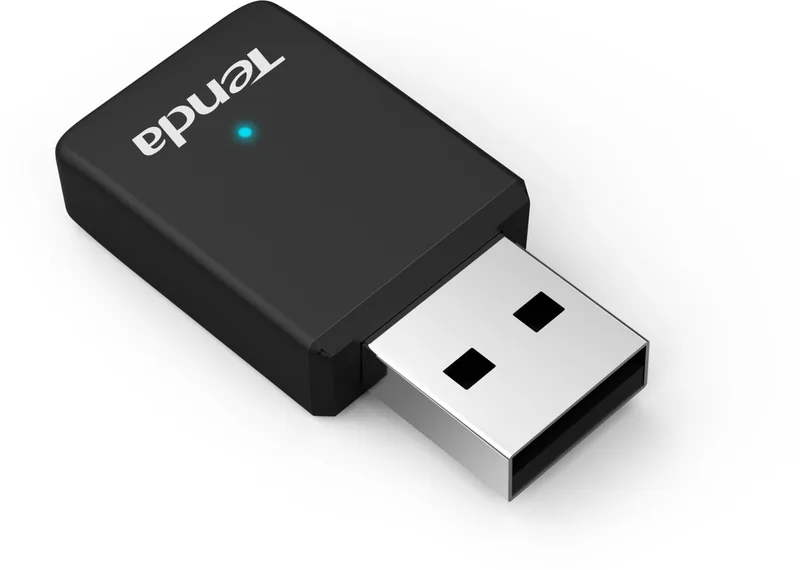
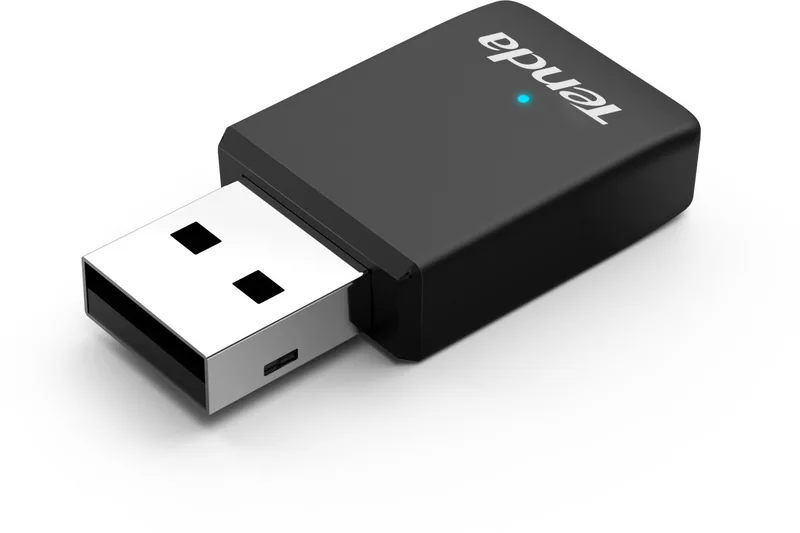
The Tenda U9 is a compact and efficient wireless USB adapter designed to bring high-speed internet connectivity to desktops, laptops, and all-in-one PCs that lack built-in Wi-Fi or require an upgrade. Supporting both 2.4GHz and 5GHz bands, this AC650 Mini Wireless Dual Band Adapter ensures you get the best possible signal strength and speed depending on your network environment. The device utilizes the Realtek 8811CU chipset, offering reliable performance for streaming, gaming, and general browsing.
One of the standout features of the Tenda U9 is its driver-free installation capability on mainstream Windows operating systems. Simply plug the device into a USB 2.0 port, and the system often recognizes it automatically. For full functionality, users can run the Setup.exe file from the included media or download the latest drivers directly from the Tenda website. The installation process is straightforward, guiding you through a simple wizard that confirms when the device is ready to connect.
Once installed, connecting to your home or office network is intuitive. You simply select your preferred SSID from the list of available networks, enter your security key, and click OK. The adapter supports standard WPA/WPA2 encryption protocols, ensuring your data remains secure while you enjoy fast wireless speeds. Whether you need the range of the 2.4GHz band or the low latency of the 5GHz band, the Tenda U9 adapts to your needs effortlessly.
This adapter is perfect for extending the life of older computers or upgrading workstations in environments where Ethernet cabling is not feasible. Its small form factor means it does not obstruct adjacent ports, making it ideal for tight spaces. With support for Windows XP through Windows 10, it offers broad compatibility for various user setups. Experience stable and fast wireless internet with the Tenda U9 today.