
Tenda PH10 Manual
PDF manual · 32 Pages
English



Quick check
Incorrect answer, please try again.
Chat with your Tenda PH10 manual using AI
Get instant AI answers from your Tenda PH10 manual
Ask anything about the Tenda PH10. Answers come from this manual, with the pages they are based on.
Ask a Question
Do you recommend PH10?
Yes NoFrequently Asked Questions
Connect P3 to a router LAN port and plug it into a wall outlet. Plug PA7 into an outlet where you need coverage. Wait for both adapters' LEDs to become solid. Pair them using the Pair button if needed, then connect devices using the Wi‑Fi credentials on the included label.
Is this answer helpful?
If the router lacks WPS, log in to the PA7 web UI at plc.tendawifi.com using the default password (admin) and manually change the 2.4 GHz and 5 GHz SSIDs and passwords under the Wi‑Fi settings.
Is this answer helpful?
Press the Pair button on the new adapter, then within two minutes press the Pair button on either P3 or PA7. Wait until both LEDs turn solid on. Repeat for additional adapters; note only two adapters pair at a time during the pairing process.
Is this answer helpful?
A red LED indicates poor powerline connection quality. Try moving the adapter to a different wall outlet on the same circuit, avoid surge protectors, and ensure both adapters are on the same electrical meter for better performance.
Is this answer helpful?
Open the PA7 web UI, go to Internet Status > Attached Devices, identify unknown devices and add them to the blacklist. Blacklisted devices cannot connect; you can remove devices later from the Blacklist page if needed.
Is this answer helpful?
Hold down the Pair/Reset button on the device for about 6 seconds until the LED turns off; the adapter will restore factory defaults. Alternatively use System > Reset in the web UI. Reconfigure after reset as credentials will revert to defaults.
Is this answer helpful?
You can perform an online upgrade via the web UI if available, or download the latest firmware from tendacn.com, then use System > Firmware Upgrade > Local Upgrade in the PA7 web UI to upload and apply the firmware file.
Is this answer helpful?
Advantages and Disadvantages
Advantages

- Easy plug-and-play installation with Pair button for secure powerline grouping.
- AV1000 powerline and AC650 dual-band Wi‑Fi deliver good throughput for streaming and gaming.
- Gigabit Ethernet port on extender provides wired performance for TVs and consoles.
- Web UI (plc.tendawifi.com) offers Wi‑Fi/guest/blacklist/schedule management and firmware updates.
- Wi‑Fi Clone simplifies matching router SSID/password when router supports WPS.
Disadvantages

- Performance depends on house wiring and requires adapters on the same electrical circuit.
- Wi‑Fi Clone requires router WPS; otherwise manual configuration is needed.
- Plugging into surge protectors or power strips can degrade powerline performance.
- Maximum theoretical rates may not reflect real-world throughput under interference.
- Some advanced features require navigating the web UI which may be unfamiliar to novices.
Product Specification
Type
Powerline adapter, WLAN access point, Bundle
Connection
1x RJ-45 (10/100/1000Base-T), 1x RJ-45 (10/100/1000Base-T)
Connectivity
HomePlug AV2, 1x WLAN 802.11a/b/g/n/ac (1x 2.4GHz/1x 5GHz simultaneous, WPS button)
Transfer Rate
1x HomePlug AV2 (1000Mb/s, 128bit AES), 1x 2.4GHz WLAN (200Mb/s, 1x1), 1x 5GHz WLAN (433Mb/s, 1x1)
Dimensions
4.33x3.07x1.97in
Compatibility
HomePlug AV2
Special Features
Bundle (2x Adapters)
Band Capability
Dual Band (simultaneous)
Security
128bit AES
Product Description
Tenda PH10 2er-Bundle Manual
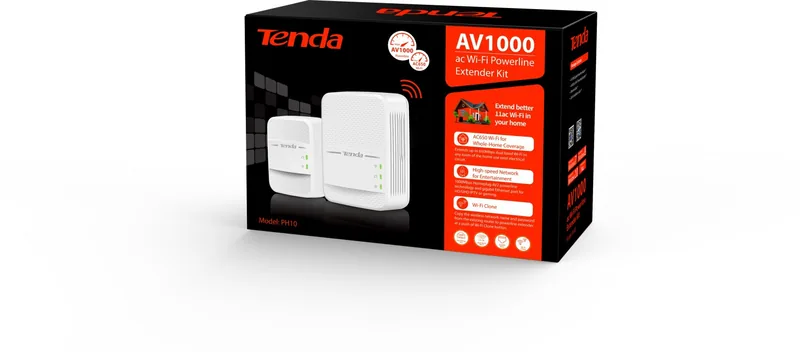
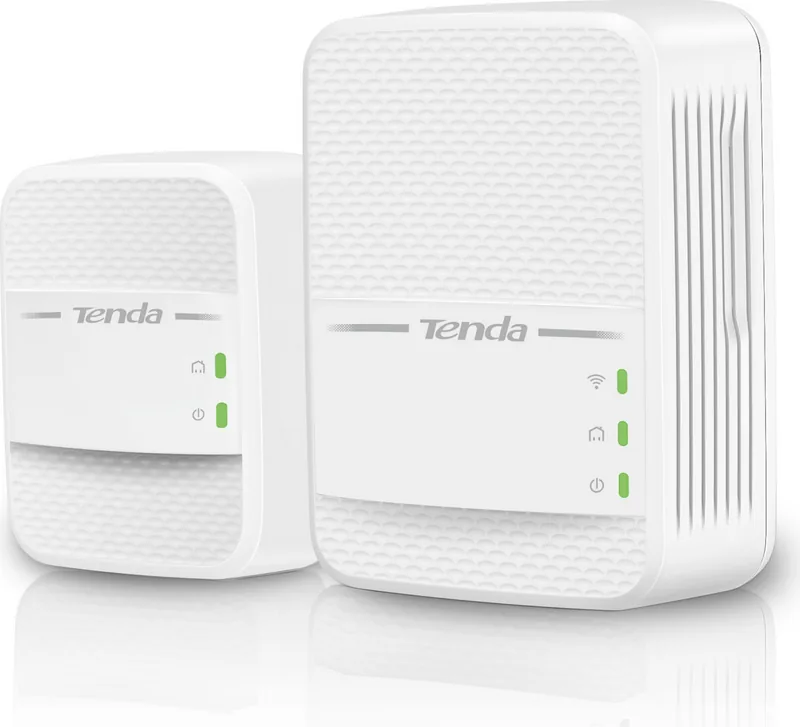
The Tenda PH10 2er-Bundle delivers a practical and affordable solution for extending wired and wireless network coverage across a home using existing electrical wiring. Built on HomePlug AV2 powerline technology with AV1000 throughput and dual-band AC650 Wi‑Fi, the kit pairs a router-side adapter (P3) with a remote extender (PA7) to bring gigabit Ethernet and stable Wi‑Fi to rooms that suffer from weak signals. Setup is intentionally simple: plug the adapters into wall outlets, pair them with the dedicated Pair button, and either use Wi‑Fi Clone (with router WPS) or the web UI to manage SSIDs, passwords, and schedules.
What the bundle offers
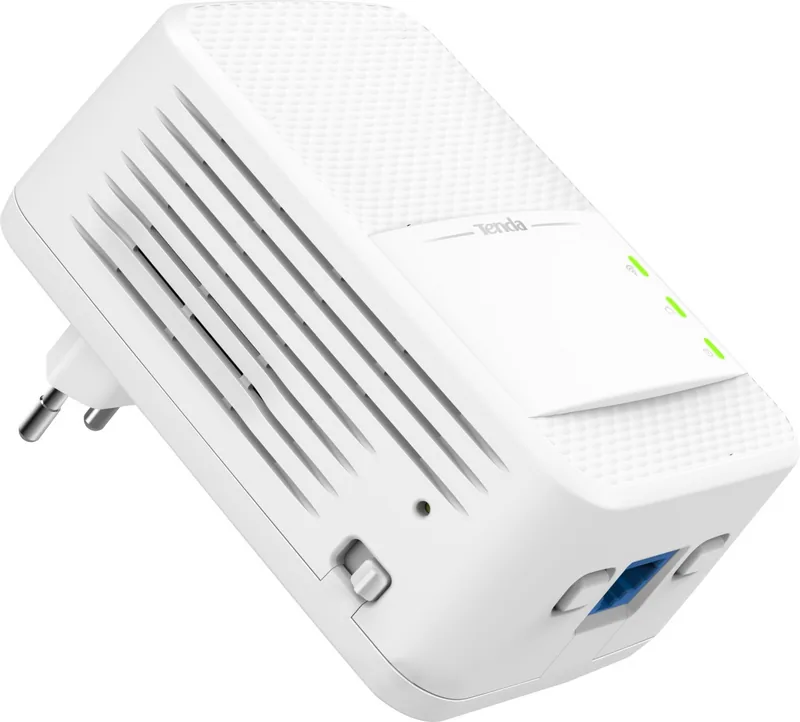
The kit supports up to 1000 Mbps powerline transmission and provides both 2.4 GHz and 5 GHz wireless bands for broader device compatibility and higher throughput. A gigabit Ethernet port on the PA7 enables direct connection for bandwidth-sensitive devices such as set-top boxes, gaming consoles, or smart TVs. The PA7 exposes useful management via a local web UI (plc.tendawifi.com) where you can view powerline device status, connected clients, blacklists, guest networks, Wi‑Fi schedules, LED behavior, firmware upgrades, and export system logs for troubleshooting.
Setup and management
Out-of-the-box use follows a plug-and-play flow: connect P3 to your router LAN, plug PA7 where you need coverage, wait for solid LEDs, and connect devices using credentials on the included label. For secure networks or multiple adapters, use the Pair button to create encrypted powerline groups. If your router supports WPS, the Wi‑Fi Clone feature copies router SSID and password to PA7 using a one-button process; otherwise, Wi‑Fi credentials are editable in the web UI. Advanced options include enabling guest Wi‑Fi with user isolation, setting Wi‑Fi schedules, adjusting wireless modes and channels, and controlling LEDs on a schedule.
Reliability and compliance
Tenda provides firmware updates and a support channel for troubleshooting. The product complies with HomePlug AV/AV2 and relevant regional regulations (CE, FCC), with attention to indoor use and radiation exposure guidelines. Basic troubleshooting steps include ensuring adapters share the same electrical circuit, re-pairing devices, and factory reset via the Pair/Reset button if necessary.
Notes
- Wi‑Fi Clone requires a router with WPS support; otherwise use the web UI.
- Place adapters directly into wall outlets (avoid surge protectors) and ensure adapters are on the same electrical circuit for best performance.
- Use the guest network feature to isolate visitor traffic from your primary network.
- Keep firmware up to date via online or manual upgrade to maintain security and compatibility.
Search for 67,732 Manuals online


Type-in Brand or Model