
Tenda nova MW5s Manual
PDF manual · 41 Pages
English



Quick check
Incorrect answer, please try again.
Chat with your Tenda nova MW5s manual using AI
Get instant AI answers from your Tenda nova MW5s manual
Ask anything about the Tenda nova MW5s. Answers come from this manual, with the pages they are based on.
Ask a Question
Do you recommend nova MW5s?
Yes NoFrequently Asked Questions
Open the Tenda WiFi App, log in, and use the account registration flow to create a Tenda account. Then connect your phone to your nova WiFi, log in with the registered account, and complete the login. After that, your nova network is bound to the administrator account for management.
Is this answer helpful?
Local management means you configure the mesh while your phone is connected to the nova WiFi. Remote management lets you control settings anytime, but the nodes must already be connected to the internet, and you must log in with the bound or authorized account. If the network is bound, it cannot be bound to another account.
Is this answer helpful?
Yes. Use the Guest Network function in the app to enable a separate SSID with its own password and a validity period. This keeps the main network more secure while still allowing temporary access for visitors.
Is this answer helpful?
Parental control lets you create device groups and then define rules that either allow or block internet access. You choose which devices belong to each group, then set a schedule with start and end times and applicable dates. The app applies the rule based on the defined time period.
Is this answer helpful?
The system supports PPPoE, DHCP, Static IP Address, and Bridge. Use PPPoE when your ISP provides a PPPoE username and password, DHCP for automatic addressing, and Static IP when you receive fixed IP parameters. Bridge is used when a different internet-capable router provides the connection in wired form, but it disables several app features.
Is this answer helpful?
This can be a DNS resolution issue. In the app, go to DNS settings and switch between Automatic (default) or Manual. If you choose Manual, enter the correct primary (and secondary) DNS server IP addresses provided by your ISP or another trusted DNS source.
Is this answer helpful?
In the app, open Firmware Upgrade, then use Detect Latest Firmware. If a new version is found, start the update and wait until all nodes finish. Do not remove power during the upgrade, then continue managing the network after completion.
Is this answer helpful?
Advantages and Disadvantages
Advantages

- Account binding and authorization improves secure access to your whole home mesh network.
- Local and remote management options let you configure settings at home or from anywhere.
- Real-time node and device visibility (speeds, connected devices, node status) makes troubleshooting easier.
- Family-focused tools include guest network scheduling and parental control by device groups.
- Advanced connectivity support covers PPPoE, DHCP, Static IP, and Bridge modes with clear setup steps.
Disadvantages

- Remote management depends on the nodes being online and on the correct bound or authorized account.
- If your network uses Bridge, several features are disabled, including guest network, parental control, QoS, DNS, and UPnP.
- Port forwarding can fail if server firewall, antivirus, or security software blocks required traffic.
- Some advanced language-specific connection options appear only when the mobile setup language is Russian or Ukraine.
- Device management features like grouping and rules require a bit of configuration time in the app.
Product Specification
Modem
N/A
WAN
1x 1000Base-T (Router, 1 device)
Wireless
WLAN 802.11a/b/g/n/ac (Wi-Fi 5), simultaneous
Transfer rate
300Mbps (2.4GHz), 867Mbps (5GHz)
Security
WPA2
Antennas
internal
Ports
N/A
Dimensions
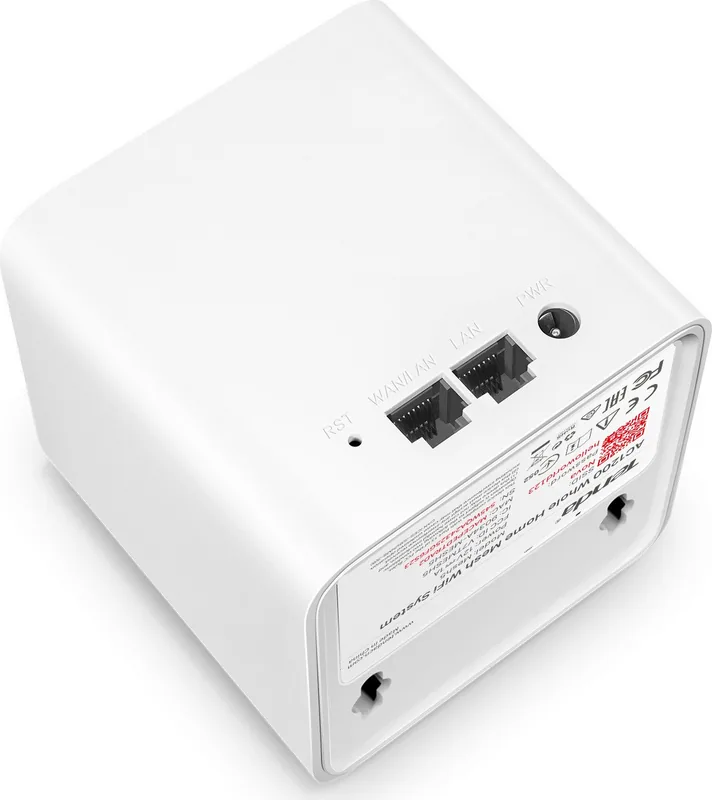
3.66x3.58x3.58in
Features
MU-MIMO, VPN passthrough (PPTP/L2TP/IPSec), Mesh (shared band), Roaming
Band capability
Dual Band (simultaneous), Mesh (shared band)
Mesh base
1x Router (Mesh5/MW5), Total base connections: 1x 1000Base-T WAN, 1x 1000Base-T LAN
Manufacturer's warranty
two years
Product Description
Tenda nova MW5s Manual: Set Up and Manage Whole-Home Mesh WiFi with Confidence
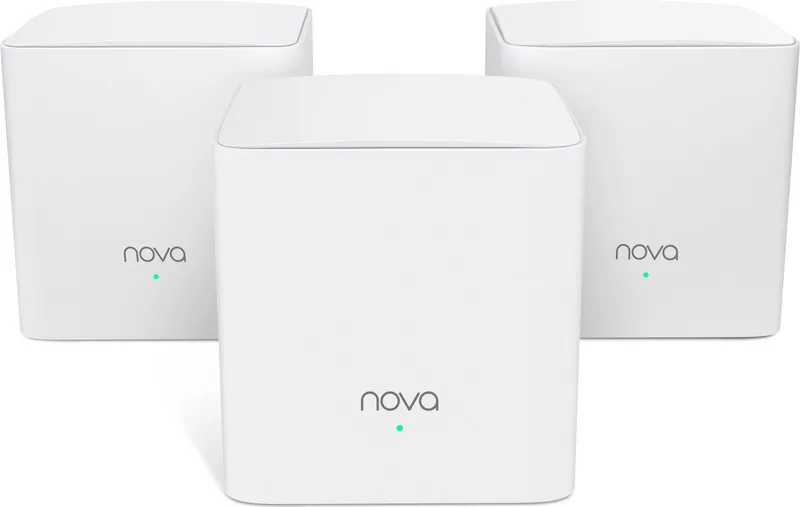
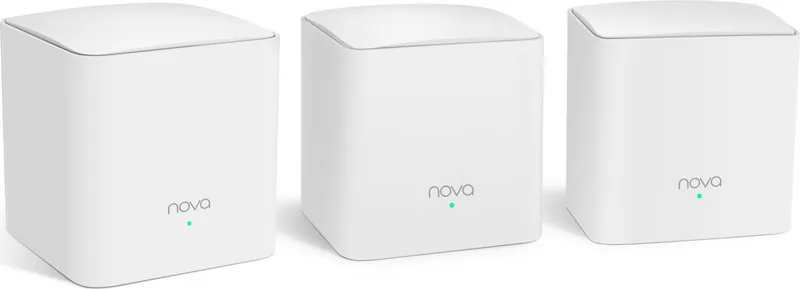
The Tenda nova MW5s Manual focuses on getting the most out of your whole home mesh WiFi using the Tenda WiFi App. With Tenda nova nodes working together under one network name, you can monitor connection health, manage devices, and adjust settings from your phone. It is designed for both quick first-time setup and ongoing control, whether you are at home or away.
A key part of the experience is account registering and binding. After you set up the system in the app, you can authorize the Tenda WiFi App with third-party accounts (such as Google, Facebook, or Twitter) or register a dedicated Tenda account. Binding your nova network to an administrator account helps keep management secure and enables remote control.
The guide also explains local vs remote management. Local management lets you configure the mesh after connecting your phone to the nova WiFi. Remote management requires the nodes to be online, and you must log in with the bound or authorized account. Only the administrator can authorize other family members, and the system cannot be bound to a new account once already bound.
From the home dashboard, you can view real-time upload and download speeds, the number of connected devices, node status, and internet information. You can rename nodes, toggle LED indicators, and manage connected devices. For safety and flexibility, the app supports guest network creation with a separate WiFi name, password, and validity period.
For families, parental control adds timed access rules. Create device groups and define allowed or blocked internet access windows, so you can build healthier online habits. If you want smoother gaming and web browsing, QoS prioritizes traffic by letting you enter your bandwidth and enable prioritization settings.
Advanced features are also covered, including multiple internet connection types (PPPoE, DHCP, Static IP, and Bridge). Be aware: when using Bridge, certain functions like guest network, parental control, port forwarding, UPnP, DNS, QoS, and the DHCP server become unavailable. The manual also covers adding nova nodes for expansion; for MW5/MW5s models, the supported total nodes can reach up to 6, depending on the system.
Other practical tools include Fast Roaming for fewer interruptions while moving around the house, Smart Assistant to help set up devices that require 2.4 GHz WiFi, port forwarding and UPnP for hosting services and compatible applications, DNS adjustments if domain access fails, and firmware upgrade to keep performance up to date. You can also schedule periodic reboots with optional delayed reboot behavior for stability.
Notes
- Always upgrade firmware when prompted by the app.
- Use accurate internet parameters for your ISP to avoid connectivity issues.
- Plan account authorization carefully since only the administrator can grant management rights.
Search for 67,732 Manuals online


Type-in Brand or Model