
Tenda nova MW3 Manual
PDF manual · 2 Pages
English



Quick check
Incorrect answer, please try again.
Chat with your Tenda nova MW3 manual using AI
Get instant AI answers from your Tenda nova MW3 manual
Ask anything about the Tenda nova MW3. Answers come from this manual, with the pages they are based on.
Ask a Question
Do you recommend nova MW3?
Yes NoFrequently Asked Questions
Download the Tenda WiFi app, connect the primary node to your modem, and follow the on-screen instructions. The app guides you through naming the network and finishing the connection.
Is this answer helpful?
Solid green indicates a good connection, solid yellow means the connection is fair, and solid red shows the node is disconnected. A blinking green light usually means the node is joining the network.
Is this answer helpful?
Yes. Open the Tenda WiFi app, go to Settings, then Wireless Settings. Update the SSID and password, save the changes, and reconnect your devices with the new details.
Is this answer helpful?
Yes. The app includes an option to add Nova nodes. You can expand the mesh network by following the app instructions and pairing the new units with your existing system.
Is this answer helpful?
In the Tenda WiFi app, tap the node you want to remove, open the menu, and choose Delete. This action restores that node to factory settings, so it will need to be set up again if reused.
Is this answer helpful?
With the nodes powered on, press and hold the RST button on the primary node for about six seconds using a paper clip. When the LED blinks fast, the reset process is complete and all nodes return to factory state.
Is this answer helpful?
Advantages and Disadvantages
Advantages

- App-guided setup keeps installation quick and beginner-friendly.
- Mesh design helps expand coverage across larger homes.
- LED indicators make it easy to check connection quality at a glance.
- LAN ports support wired devices alongside wireless connections.
Disadvantages

- Performance depends heavily on placing nodes in the right spots.
- Advanced customization appears limited compared with high-end routers.
- Indoor use restrictions reduce flexibility for outdoor environments.
- Reset or removal actions can restore factory settings and erase changes.
Product Specification
Modem
N/A
Wireless
WLAN 802.11a/b/g/n/ac (Wi-Fi 5), simultaneous
Transmission Rate
300Mbps (2.4GHz), 867Mbps (5GHz)
Security
WPA2
Antennas
internal
Ports
N/A
Power Consumption
18W (consumption, operation), not specified (max. power supply unit output)
Dimensions
3.54x3.54x3.54in
Special Features
MU-MIMO, VPN passthrough (PPTP/L2TP/IPSec), Roaming (Qualcomm Wi-Fi SON), Mesh (shared band)
Band Capability
Dual Band (simultaneous), Mesh (shared band)
Manufacturer Warranty
two years
Product Description
Tenda nova MW3 Manual: A Practical Mesh WiFi Overview
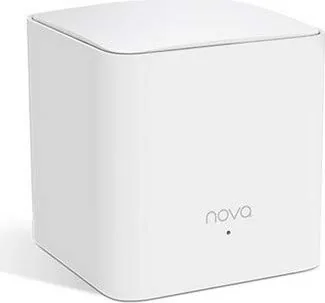
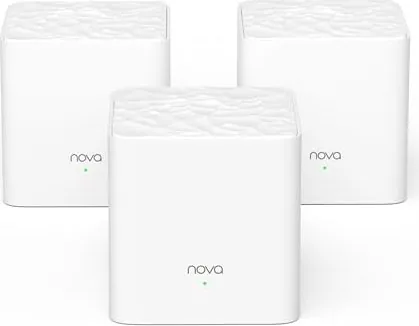
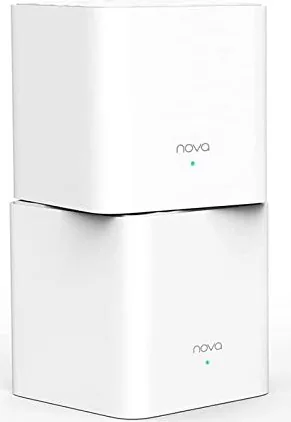
The Tenda nova MW3 is an AC1200 whole-home mesh WiFi system built to make home networking feel simpler and more reliable. Instead of relying on a single router to cover every room, it uses multiple nodes that work together as one network. The first unit becomes the primary node, while the others extend coverage as secondary nodes, helping reduce weak spots and connection drops.
Simple Setup for Everyday Users
A major highlight of the Tenda nova MW3 is its app-based installation. After downloading the Tenda WiFi app on iOS or Android, you can follow guided steps to connect the primary node to your modem and bring the network online. The setup process is designed to be fast, even for users who do not want to spend time on advanced router settings.
Smarter Coverage Across the Home
The system is meant to improve roaming and signal stability across different rooms. The manual recommends placing nodes in open, elevated areas and away from appliances that may cause interference, such as microwaves or refrigerators. Once connected, the LED indicators help confirm network status: green for a strong link, yellow for a fair connection, and red when a node is disconnected.
Flexible Connections and Daily Use
The MW3 also supports wired connections through its LAN ports, which is useful for desktops, smart TVs, or game consoles. Wireless devices can join using the SSID and password set during installation. If you need to manage the network remotely, the app makes it possible to adjust settings, add nodes, or update wireless details without restarting the entire system.
Notes
- Best results come from placing nodes with clear spacing and minimal interference.
- The network works indoors and follows standard safety and radio compliance rules.
- Factory reset and node removal actions may clear existing settings.
Overall, the Tenda nova MW3 stands out as a user-friendly mesh WiFi option for households that want better whole-home coverage without a complicated setup. The Tenda nova MW3 Manual reflects that goal clearly: install, connect, place the nodes well, and enjoy a more seamless internet experience.
Search for 67,732 Manuals online


Type-in Brand or Model