
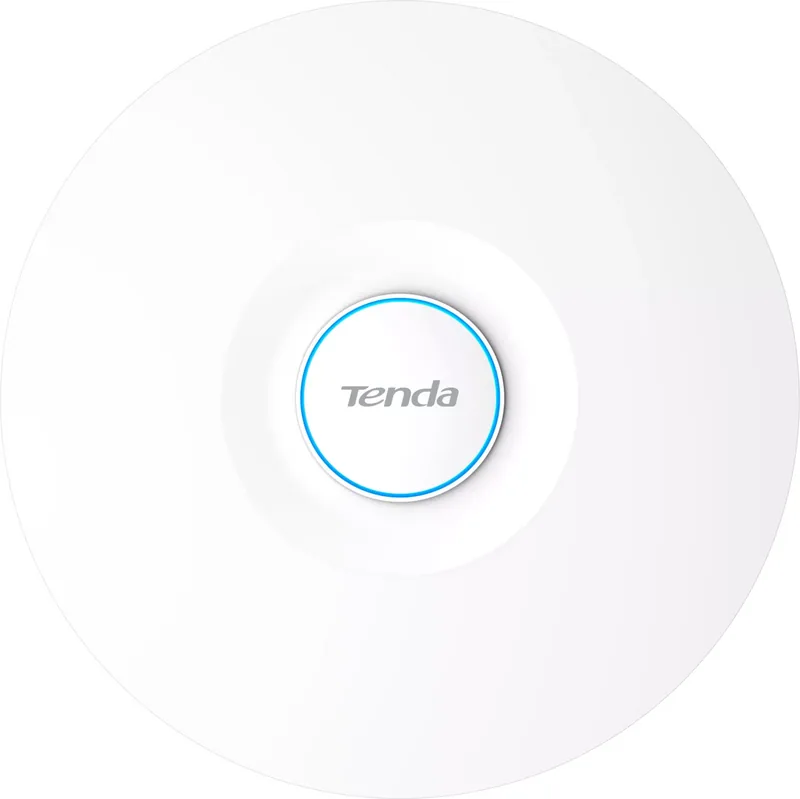
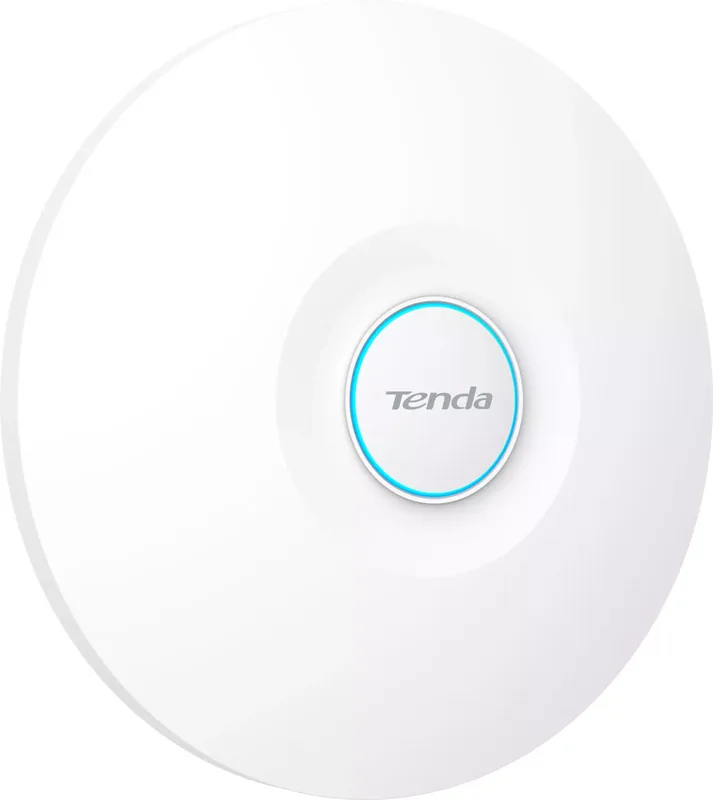
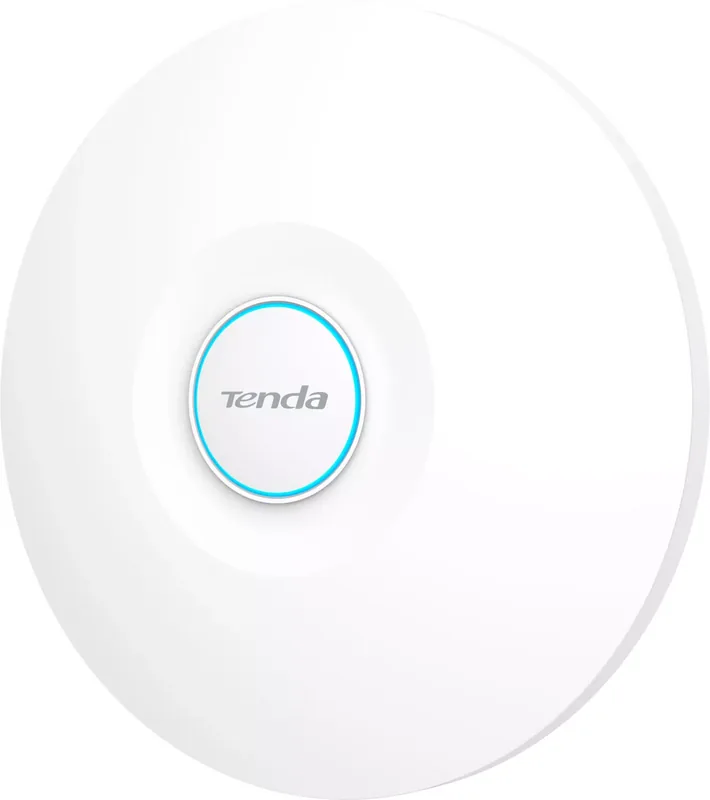
Tenda i29 Manual
PDF manual · 86 Pages
English



Quick check
Incorrect answer, please try again.
Chat with your Tenda i29 manual using AI
Get instant AI answers from your Tenda i29 manual
Ask anything about the Tenda i29. Answers come from this manual, with the pages they are based on.
i29 Maintenance Schedule
Enable Reboot Schedule to prevent performance degradation. Set a specific interval (e.g., 1440 minutes) or weekly time to auto-reboot.
If Uplink Detection is enabled, the AP pings specified hosts every 10 minutes by default to verify network status and trigger actions if failed.
Ask a Question
Do you recommend i29?
Yes NoDo you recommend i29?
Yes NoFrequently Asked Questions
Connect your computer to the device via Ethernet or Wi-Fi. Open a browser and enter 192.168.0.254 in the address bar. Use the default username admin and password admin to access the settings panel.
Is this answer helpful?
Locate the reset button on the device. Press and hold it for approximately 8 seconds while the device is powered on. Release the button and wait for the device to restart. Use the default login credentials to regain access.
Is this answer helpful?
Yes, you can configure a guest network through the wireless settings page. Enable the guest network option to allow clients to access the internet without accessing the local area network or private files.
Is this answer helpful?
You must be logged into the web interface to change the Wi-Fi password. Navigate to the wireless settings or SSID section. Enter the new password and save the configuration for the changes to take effect immediately.
Is this answer helpful?
While not mandatory, updating firmware improves stability and security. Check the maintenance section in the web UI for available updates. Download the file from the manufacturer website and upload it to the device.
Is this answer helpful?
The device supports multiple connections based on the Wi-Fi standard. You can limit connections per SSID using client limit settings. This helps manage bandwidth and prevent network congestion from too many users.
Is this answer helpful?
Yes, the Ethernet port supports Power over Ethernet for powering the device and data transmission. Ensure your upstream switch or injector provides the correct voltage and current specifications for proper operation.
Is this answer helpful?
Advantages and Disadvantages
Advantages

- Supports Wi-Fi 6 technology for higher speeds and capacity
- Web interface provides comprehensive network management tools
- Robust security options include WPA3 and WPA2 standards
- VLAN tagging capabilities for network segmentation
- Power over Ethernet support simplifies cabling and power
Disadvantages

- Requires an upstream router to function in AP mode
- Default login credentials may pose security risks initially
- Firmware updates require manual intervention through UI
- Limited to specific Ethernet configurations without switch
- Advanced RF settings need technical knowledge to optimize
Product Specification
LAN
1x 1000Base-T (PoE+ PD), 1x 1000Base-T
Wireless
Wi-Fi 802.11a/b/g/n/ac/ax (Wi-Fi 6), simultaneous
Data Rate
574Mbps (2.4GHz), 2402Mbps (5GHz)
Security
WPA, WPA2, WPA3, WPS
Antennas
internal
Ports
N/A
Power Consumption
Not specified (Operating Consumption), 15.74W (Max Consumption), Not specified (Max PSU Rating)
Dimensions
9.87 x 9.87 x 2.17 in
Features
MU-MIMO, VLAN, IPv6, Mesh (shared band), Roaming
Band Capability
Dual Band (simultaneous), Mesh (shared band)
Data Rate 802.11ax (Wi-Fi 6 / Wi-Fi 6E) 2.4GHz
574Mbps (Spatial Streams: 2x2, Bandwidth: 40MHz, Modulation: 1024-QAM)
Data Rate 802.11ax (Wi-Fi 6 / Wi-Fi 6E) 5GHz
2402Mbps (Spatial Streams: 2x2, Bandwidth: 160MHz, Modulation: 1024-QAM)
Note
Rate specification for 802.11ax at 2.4GHz and 5GHz. (802.11ax (2.4GHz) 2x2 40MHz 1024-QAM: 574Mbps, 802.11ax (5GHz) 2x2 160MHz 1024-QAM: 2402Mbps)
Note #2
In some cases, the manufacturer's maximum power consumption specification only corresponds to the maximum output power of the power supply and is therefore not a meaningful indication for power consumption in everyday use.
Product Description
Tenda i29 AX3000 Performance Insights and Features
This device serves as a versatile access point designed for high-speed connectivity needs in modern homes and offices. The Tenda i29 leverages advanced Wi-Fi 6 technology to deliver reliable internet access across multiple frequency bands effectively. Users often search for the Tenda i29 AX3000 Manual to understand configuration options fully before deployment. The product targets environments requiring extended range and stable throughput for numerous connected clients simultaneously.
Setting up the network is a straightforward process primarily through the web user interface. Administrators can access the system using a standard web browser and default IP settings for initial connection. The interface guides users through quick setups for primary wireless networks easily. Security is a top priority with robust support for WPA3-SAE and backward compatibility with older standards like WPA2-PSK. This ensures broad compatibility with diverse wireless devices while maintaining strong data protection mechanisms in place.
Advanced features allow for granular control over network traffic and resource allocation. Quality of Service settings ensure that critical applications like video conferencing receive priority bandwidth during usage. Guest networks can be isolated to strictly protect the main local area network from public access attempts. The product also supports VLAN tagging, which helps in segmenting traffic effectively for better organization and security in larger deployments.
Maintenance tasks are fully accessible via the dedicated tools section in the administrative panel. Users can schedule automated reboots to prevent potential performance degradation over time. Firmware updates are handled directly through the web interface to ensure the device runs the latest stable software version available today. It is important to follow standard procedures when updating to avoid any potential issues with the configuration files.
Connectivity relies on standard Ethernet ports with specific power considerations. Power over Ethernet capabilities simplify installation in ceiling or wall mount locations efficiently. The access point manages connected devices by displaying detailed client lists and comprehensive traffic statistics for monitoring. Real-time monitoring helps identify potential congestion or unauthorized access attempts quickly. Overall, the solution balances ease of use with professional-grade management tools for diverse networking scenarios.
Search for 67,732 Manuals online


Type-in Brand or Model