detail-3734.html to download the Bluetooth driver.
Method 2: Scan the QR code below to download the
Bluetooth driver.
CD-ROM driver
NextCancel
Intel® Software Installer
Welcome to the Intel® Software Installer
This installation program will install Intel® PROSet/Wireless WiFi Software on
your computer. Click Next to continue or Cancel to exit.
The following components will be installed:
Intel® WiFi driver
Finish
Intel® Software Installer
Installation Completed
Installation has been completed successfully
Q1: After the completion of hardware installation,
the computer cannot identify the wireless
adapter, what should I do?
A1: Please try the following solutions:
− Wipe the metal pins of the wireless adapter's
PCI-E interface with an eraser.
− Use another PCI-E X1 slot.
− If the computer still cannot identify the network
card, please contact the reseller.
Install Bluetooth driver and use Bluetooth
3
1. Put the CD in your computer's CD-ROM driver.
Install the Bluetooth driver
CD-ROM driver
Tenda_XXXXXX
Secured
Connnect automatically
Connect
Network & Internet Settings
Change settings, such as making a connection metered.
Wi-Fi
Airplane mode
Mobile
hotspot
2. Access the contents of the CD. Double-click the
driver Bt_win10_64.exe and follow the prompts.
Installation completed.
Instalace byla dokončena.
Tipy
Pokud váš počítač nemá CD mechaniku, můžete si ovladač Bluetooth pro tento bezdrátový adaptér stáhnout pomocí
následujících metod.
Metoda1: Navštivte stránky https://www.tendacn.com/en/download/detail-3734.html a stáhněte si ovladač Bluetooth.
Metoda2: Naskenujte níže uvedený QR kód a stáhněte si ovladač Bluetooth.
2. Přistupte k obsahu na CD. Dvakrát klikněte na soubor Bt_win10_64.exe a postupujte podle pokynů.
Instalace byla dokončena.
Installation completed.
Intel® PROSet/Wireless Software
The wizard will check and download the required
prerequisites for this installation.
WARNING: This program is protected by copyright and
international treaties.
Welcome to the Intel® PROSet/Wireless
Tools Installation Wizard
<BackNext>Cancel
Intel(R) Wireless Bluetooth(R) Setup
Click the Finish button to exit the Setup Wizard.
Completed the Intel(R) Wireless
Bluetooth(R) Setup Wizard
BackFinishCancel
Add a Bluetooth Device
Allow a Device to Connect
Show Bluetooth Devices
Send a File
Receive a File
Join a Personal Area Network
Open Settings
Remove Icon
Wait a moment, the connection succeeds.
Add a device
Cancel
Choose the kind of device you want to add.
Bluetooth
Mice, keyboards, pens, or audio and other kinds of Bluetooth devices
Wireless display or dock
Wireless monitors, TVs, or PCs that use Miracast, or wireless docks
Everything else
Xbox controllers with Wireless Adapter, DLNA, and more
Add a device
Add a device
Cancel
Make sure your device is turned on and discoverable. Select a device
below to connect.
Bose QuietComfort 35
Audio
Add a device
Wireless AX3000 PCI Express Adapter
E30
Quick Installation Guide
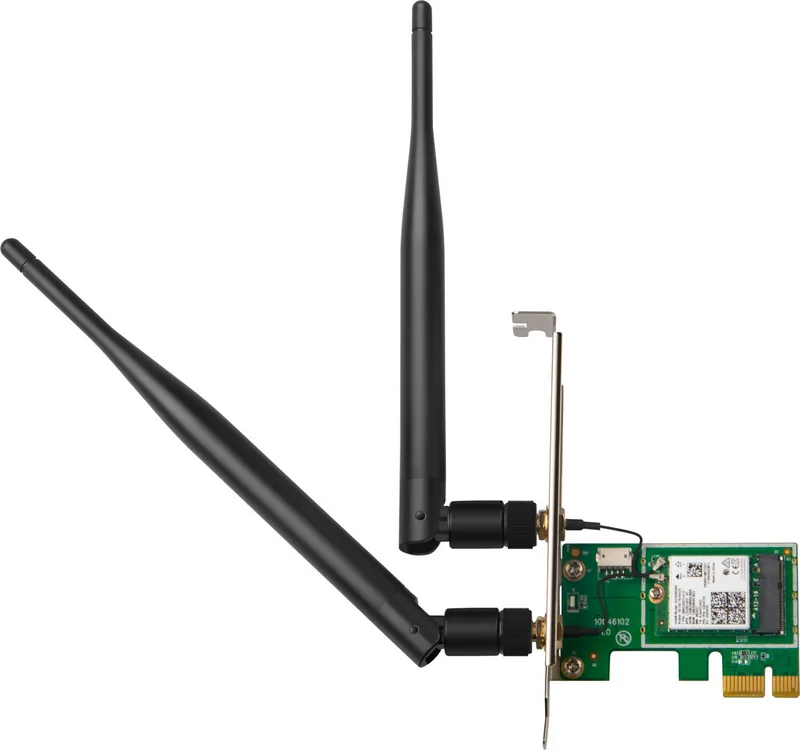
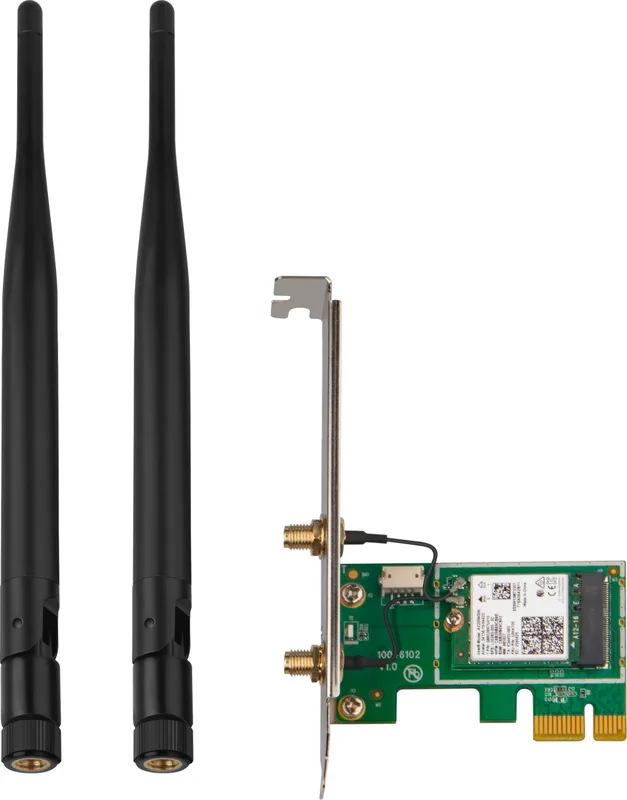
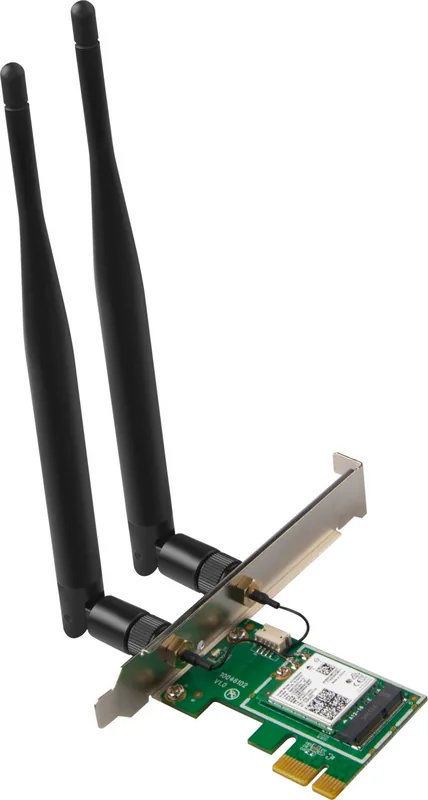
• Wireless adapter (with a high profile bracket) x 1
• Antenna x 2
• Driver CD x 1
• Low profile bracket x 1
• Bluetooth cable x 1
• Quick installation guide x 1
Package contents
The guide walks you through installation and how to perform first-time
configurations. For product details, please visit www.tendacn.com.
Poznámka
Nedotýkejte se kovových kolíků konektoru na bezdrátovém adaptéru, abyste bezdrátový adaptér nepoškodili statickou
elektřinou.
Français
Astuces
− Cette carte sans fil prend uniquement en charge le système d'exploitation Windows10 64bits.
−Si vous avez déjà installé une carte sans fil, veuillez désinstaller la carte sans fil existante. Référez-vous à l'annexe pour
connaître les étapes spécifiques.
− Si le support à profil haut est trop long pour le boîtier de votre PC, vous pouvez installer la carte sans fil à l'aide du
support à profil bas dans l'emballage.
Astuces
Si votre ordinateur ne dispose pas de lecteur CD, vous pouvez télécharger le pilote Wi-Fi de cette carte sans fil via les
méthodes suivantes.
Méthode 1: Accédez à https://www.tendacn.com/en/download/detail-3734.html pour télécharger le pilote Wi-Fi.
Méthode 2: Scannez le code QR ci-dessous pour télécharger le pilote Wi-Fi. En cas d'échec du téléchargement du
pilote Wi-Fi via le code QR WeChat, nous vous recommandons d'essayer avec un navigateur.
Astuces
Si vous ne trouvez pas le périphérique Bluetooth auquel vous souhaitez vous connecter, essayez les solutions suivantes.
Placez l'appareil à proximité de la carte sans fil.
Redémarrez le Bluetooth pour l'appareil.
Installation matérielle
1. Éteignez l'ordinateur et débranchez l'alimentation, puis retirez le panneau latéral du boîtier du PC.
2.Choisissez un emplacement PCI-E X1 disponible et retirez le support correspondant à l'emplacement sur
le boîtier du PC. Insérez ensuite la carte sans fil dans l'emplacement choisi et assurez-vous que la carte
sans fil entre correctement en contact avec l'emplacement.
3. Connectez l'extrémité à 4trous du câble Bluetooth au connecteur Bluetooth de la carte sans fil et l'autre
extrémité au connecteur à 9broches portant la mention USB sur la carte principale.
4. Installez les antennes sur la carte sans fil. Installez le panneau latéral du boîtier du PC, puis reconnectez
l'ordinateur à la source d'alimentation et allumez-le.
1
1. Cliquez sur dans le coin inférieur droit du bureau. Choisissez le réseau Wi-Fi auquel vous souhaitez
vous connecter et cliquez sur Connecter.
2. Si le réseau sans fil est chiffré, saisissez son mot de passe sans fil, cliquez sur Suivant, puis suivez les
invites du système.
Connexion réussie.
Connexion à un réseau Wi-Fi
FAQ
1. Activez le Bluetooth pour le périphérique à connecter, comme une souris sans fil, une chaîne Hi-Fi
stéréo sans fil, etc.
2. Activez le Bluetooth pour la carte sans fil.
(1) Cliquez sur dans le coin inférieur droit de votre bureau, puis cliquez sur Ajouter un périphérique
Bluetooth.
(2) Cliquez sur Ajouter un appareil Bluetooth ou autre.
(3) Cliquez sur Bluetooth.
(4) Cliquez sur l'appareil Bluetooth auquel vous souhaitez vous connecter.
Attendez un instant, la connexion réussit.
Connexion Bluetooth
Installation du pilote Wi-Fi et connexion
à un réseau Wi-Fi
2
1. Insérez le CD dans le lecteur de CD-ROM de votre ordinateur.
2. Accédez au contenu du CD. Double-cliquez sur le pilote wifi_driver_win10_64. exe et suivez les invites.
Installation du pilote Wi-Fi
Installation du pilote Bluetooth et
utilisation du Bluetooth
3
1. Insérez le CD dans le lecteur de CD-ROM de votre ordinateur.
Installation du pilote Bluetooth
1. Cliquez sur dans le coin inférieur gauche du bureau. Cliquez sur .
2. Cliquez sur Applications.
3. Recherchez et désinstallez tous les autres pilotes de carte sans fil installés.
Q1: Une fois l'installation matérielle terminée, l'ordinateur ne réussit pas à identifier la carte sans fil, que
dois-je faire?
R1: Veuillez essayer les solutions suivantes:
− Essuyez les broches métalliques de l'interface PCI-E de la carte sans fil avec une gomme.
− Utilisez un autre emplacement PCI-E X1.
− Si l'ordinateur ne parvient toujours pas à identifier la carte réseau, veuillez contacter le revendeur.
Annexe
Désinstallation du pilote de la carte sans fil déjà installé sur
votre ordinateur.
L'installation est terminée.
Astuces
Si votre ordinateur ne dispose pas de lecteur CD, vous pouvez télécharger le pilote Bluetooth de cette carte sans fil via les
méthodes suivantes.
Méthode 1: Accédez à https://www.tendacn.com/en/download/detail-3734.html pour télécharger le pilote Bluetooth.
Méthode 2: Scannez le code QR ci-dessous pour télécharger le pilote Bluetooth.
2. Accédez au contenu du CD. Double-cliquez sur le pilote Bt_win10_64.exe et suivez les invites.
L'installation est terminée.
Remarque
Ne touchez pas les broches métalliques du connecteur de la carte sans fil avec vos mains pour éviter que la carte sans
fil ne soit brûlée par l'électricité statique.
Tenda_XXXXXX
Secured
Network & Internet Settings
Change settings, such as making a connection metered.
You can also connect by pushing the button on
the router.
Wi-Fi
Airplane mode
Mobile
hotspot
Enter the network security key
NextCancel
Tenda_XXXXXX
Connected, secured
Network & Internet Settings
Change settings, such as making a connection metered.
Wi-Fi
Airplane mode
Mobile
hotspot
Properties
Disconnect
Windows Settings
Apps
Uninstall, defaults, optional
features
Add Bluetooth or other device
Häufig gestellte Fragen
F1: Der Computer kann den drahtlosen Adapter nach der Hardware-Installation nicht erkennen. Was soll
ich tun?
A1: Versuchen Sie die folgenden Lösungswege:
− Wischen Sie die Metallstifte der Schnittstelle des drahtlosen Adapters mit einem Radierer ab.
− Verwenden Sie einen anderen PCI-E X1-Steckplatz.
− Wenden Sie sich an den Verkäufer, wenn der Computer die Netzwerkkarte immer noch nicht finden kann.
2
3
Deutsch
Tipps
− Dieser drahtlose Adapter unterstützt nur das Betriebssystem Windows 10 64-Bit.
− Wenn Sie zuvor einen drahtlosen Adapter installiert haben, deinstallieren Sie den bestehenden drahtlosen Adapter. Die
genauen Schritte werden im Anhang angegeben.
− Wenn die große Halterung zu lang für Ihr PC-Gehäuse ist, können Sie für die Anbringung des drahtlosen Adapters die kleine
Halterung verwenden.
Tipps
Wenn Ihr Computer kein CD-ROM-Laufwerk besitzt, können Sie den WiFi-Treiber des drahtlosen Adapters wie folgt
herunterladen.
Methode 1: Gehen Sie auf https://www.tendacn.com/en/download/detail-3734.html, um den WiFi-Treiber herunterzuladen.
Methode 2: Scannen Sie den folgenden QR-Code, um den WiFi-Treiber herunterzuladen. Wenn der WiFi-Treiber nicht über
den WeChat-QR-Code heruntergeladen werden kann, wird ein Browser empfohlen.
Tipps
Wenn Sie das Bluetooth-Gerät, das Sie verbinden möchten, nicht finden können, versuchen Sie die folgenden Lösungen.
Bringen Sie das Gerät näher an den drahtlosen Adapter.
Starten Sie die Bluetooth-Funktion des Geräts erneut.
1. Klicken Sie in der unteren rechten Ecke des Desktops auf . Wählen Sie das WiFi-Netzwerk aus, mit
dem Sie eine Verbindung aufbauen möchten und klicken Sie auf Verbinden.
2. Wenn das drahtlose Netzwerk verschlüsselt ist, geben Sie das Passwort ein, klicken Sie dann auf Weiter
und befolgen Sie die Systemanweisungen.
Die Verbindung wurde erfolgreich aufgebaut.
Die Verbindung zu einem
WLAN-Netzwerkherstellen.
1. Aktivieren Sie für das zu verbindende Gerät (z.B. drahtlose Maus, drahtlose Lautsprecher, usw.) die
Bluetooth-Funktion.
2. Schalten Sie für den drahtlosen Adapter die Bluetooth-Funktion ein.
(1) Klicken Sie auf der unteren rechten Ecke Ihres Desktops auf , und klicken Sie auf
Bluetooth-Gerät hinzufügen.
(2) Klicken Sie auf Bluetooth-Gerät oder anderes Gerät hinzufügen.
(3) Klicken Sie auf Bluetooth.
(4) Klicken Sie auf das Bluetooth-Gerät, mit dem Sie eine Verbindung aufbauen möchten.
Warten Sie einen Moment, bis die Verbindung aufgebaut ist.
Verbindung mit Bluetooth
Installation des WiFi-Treibers und
Verbindung zu einem WiFi-Netzwerk
2
1. Geben Sie die CD in das CD-ROM-Laufwerk Ihres Computers.
2. Öffnen Sie den Inhalt der CD. Klicken Sie zwei Mal auf den Treiber wifi_driver_win10_64. exe und
befolgen Sie die Aufforderungen.
Installation des WiFi-Treibers
Installation des Bluetooth-Treibers und
Verwendung der Bluetooth-Funktion
3
1. Geben Sie die CD in das CD-ROM-Laufwerk Ihres Computers.
Installation des Bluetooth-Treibers
1. Klicken Sie auf der linken unteren Ecke Ihres Desktops auf . Klicken .
2. Klicken Sie auf Anwendungen.
3. Suchen Sie nach anderen installierten Treiber für drahtlose Adapter und deinstallieren Sie sie.
Anhang
Deinstallieren Sie den Treiber für den drahtlosen Adapter,
der bereits auf Ihrem Computer installiert ist.
Die Installation ist abgeschlossen.
Tipps
Wenn Ihr Computer kein CD-ROM-Laufwerk besitzt, können Sie den Bluetooth-Treiber des drahtlosen Adapters wie folgt
herunterladen.
Methode 1: Gehen Sie auf https://www.tendacn.com/en/download/detail-3734.html, um den Bluetooth-Treiber herunterzuladen.
Methode 2: Scannen Sie den folgenden QR-Code, um den Bluetooth-Treiber herunterzuladen.
2. Öffnen Sie den Inhalt der CD. Klicken Sie zwei Mal auf den Treiber Bt_win10_64.exe und befolgen Sie
die Aufforderungen.
Die Installation ist abgeschlossen.
1
Hardware-Installation
1. Schalten Sie den Computer aus und trennen Sie die Stromzufuhr, entfernen Sie dann die Seitenabdeckung
des PC-Gehäuses.
2. Wählen Sie einen verfügbaren PCI-E X1-Steckplatz aus und entfernen Sie die Halterung für den Steckplatz
im PC-Gehäuse. Stecken Sie dann den drahtlosen Adapter in den ausgewählten Steckplatz und stellen Sie
sicher, dass der drahtlose Adapter ordnungsgemäß im Steckplatz steckt.
3. Verbinden Sie das Ende mit den vier Löchern des Bluetooth-Kabels mit dem Bluetooth-Anschluss des
drahtlosen Adapters und das andere Ende mit dem 9-Pin-Anschluss auf der Hauptplatine, der mit „USB“
beschriftet ist.
4. Bringen Sie die Antennen des drahtlosen Adapters an. Bringen Sie die Seitenabdeckung des PC wieder
an, schalten Sie die Stromzufuhr an und schalten Sie den PC an.
1
Hinweis
Berühren Sie nicht die Metallstifte am Anschluss des drahtlosen Adapters, um eine Beschädigung des drahtlosen
Adapters durch eine statische Entladung zu vermeiden.
Español
Consejos
−Este adaptador inalámbrico solo es compatible con el sistema operativo Windows10 de 64bits.
−Si anteriormente ha instalado otro adaptador inalámbrico, desinstale el adaptador inalámbrico existente. Para obtener
información sobre los pasos específicos, consulte el Apéndice.
−Si el soporte de perfil alto es demasiado largo para el chasis de su ordenador, utilice el soporte de perfil bajo incluido en el
paquete para instalar el adaptador inalámbrico.
Consejos
Si el ordenador no dispone de una unidad de CD, siga los pasos que se indican a continuación para descargar el
controlador WiFi de este adaptador inalámbrico.
Método 1: Visite https://www.tendacn.com/en/download/detail-3734.html para descargar el controlador WiFi.
Método 2: Escanee el códigoQR que se muestra a continuación para descargar el controlador WiFi. Si no es posible
descargar el controlador WiFi mediante el códigoQR de WeChat, se recomienda utilizar un navegador.
Consejos
Si no encuentra el dispositivo con el que desea establecer conexión, pruebe las siguientes soluciones:
Acerque el dispositivo al adaptador inalámbrico.
Reinicie la función Bluetooth en el dispositivo.
Instalación de hardware
1. Apague el ordenador y desconéctelo del suministro eléctrico; a continuación, extraiga el panel lateral del
chasis del ordenador.
2. Seleccione una ranura PCI-EX1 disponible y extraiga el soporte correspondiente a la ranura del chasis del
ordenador. A continuación, inserte el adaptador inalámbrico en la ranura seleccionada; asegúrese de que
el contacto entre el adaptador inalámbrico y la ranura se ha establecido correctamente.
3. Conecte el extremo de 4 orificios del cable Bluetooth al conector Bluetooth del adaptador inalámbrico y
el otro extremo al conector de 9 clavijas con la marca USB de la placa principal.
4. Instale las antenas en el adaptador inalámbrico. Coloque el panel lateral del chasis del ordenador; a
continuación, conecte el ordenador al suministro eléctrico y enciéndalo.
1
1. Haga clic en en la esquina inferior derecha del escritorio. Seleccione la red WiFi a la que desea
conectarse y haga clic en Conectar.
2. Si la red inalámbrica está cifrada, introduzca la contraseña y haga clic en Siguiente ; a continuación,
siga las instrucciones del sistema.
La conexión se ha establecido correctamente.
Conexión a la red WiFi
Preguntas frecuentes
1. Active la función Bluetooth en el dispositivo con el que desea establecer conexión, como un ratón
inalámbrico, un sistema de sonido estéreo inalámbrico, etc.
2. Active la función Bluetooth en el adaptador inalámbrico.
(1) Haga clic en en la esquina inferior derecha del escritorio y, a continuación, en Agregar un
dispositivo Bluetooth.
(2) Haga clic en Agregar Bluetooth u otro dispositivo.
(3) Haga clic en Bluetooth.
(4) Haga clic en el dispositivo Bluetooth con el que quiere establecer conexión.
Espere un momento hasta que la conexión se establezca correctamente.
Conexión de Bluetooth
Instalación del controlador WiFi y
conexión a la red WiFi
2
1. Inserte el CD en la unidad de CD-ROM del ordenador.
2. Acceda a los contenidos del CD. Haga doble clic en el controlador wifi_driver_win10_64.exe
y siga las instrucciones.
Instalación del controlador WiFi
Instalación del controlador Bluetooth y
uso de Bluetooth
3
1. Inserte el CD en la unidad de CD-ROM del ordenador.
Instalación del controlador Bluetooth
1. Haga clic en en la esquina inferior izquierda del escritorio. Haga clic en .
2. Haga clic en Aplicaciones.
3. Identifique y desinstale todos los controladores de adaptadores inalámbricos instalados.
P1: Después de completar la instalación de hardware, el ordenador no detecta el adaptador
inalámbrico. ¿Qué debo hacer?
R1: Pruebe las siguientes soluciones:
−Limpie los pines metálicos de la interfaz PCI-E del adaptador inalámbrico con una goma.
−Utilice otra ranura PCI-E X1.
−Si el ordenador todavía no detecta la tarjeta de red, póngase en contacto con el vendedor.
Apéndice
Desinstale el controlador de adaptador inalámbrico
previamente instalado en el ordenador.
La instalación se ha completado.
Consejos
Si el ordenador no dispone de una unidad de CD, siga los pasos que se indican a continuación para descargar el
controlador Bluetooth de este adaptador inalámbrico.
Método 1: Visite https://www.tendacn.com/en/download/detail-3734.html para descargar el controlador Bluetooth.
Método 2: Escanee el códigoQR que se muestra a continuación para descargar el controlador Bluetooth.
2. Acceda a los contenidos del CD. Haga doble clic en el controlador Bt_win10_64.exe y siga las
instrucciones.
La instalación se ha completado.
Nota
Para evitar que el adaptador inalámbrico sufra daños por la electricidad estática, no toque los pines metálicos del
conector del adaptador inalámbrico con las manos.
/2
%
Quick check
I'm not a robot
Incorrect answer, please try again.
Chat with your Tenda E30 manual using AI
Get instant AI answers from your Tenda E30 manual
Ask anything about the Tenda E30. Answers come from this manual, with the pages they are based on.
Ask a Question
0/1000
Do you recommend E30?
YesNo
Frequently Asked
Questions
A
The device is designed to run only on the Windows 10 64-bit operating system. It will not function correctly on 32-bit versions or other operating systems like Linux or macOS. Ensure your system meets these specific requirements before installation.
Is this answer helpful?
A
You can download the necessary drivers directly from the Tenda website. Visit the specified download page to get the Wi-Fi and Bluetooth files. Scan the QR code provided in the guide if you are short on internet time.
Is this answer helpful?
A
Try cleaning the metal pins on the PCIe interface with an eraser. You might also need to use a different PCI-E X1 slot inside the case. Contact the reseller if these steps do not resolve the issue immediately.
Is this answer helpful?
A
Yes, the AX3000 standard provides low latency needed for online gaming. The dual band capability helps maintain a stable connection during high bandwidth video calls. It is suitable for heavy usage tasks without significant buffering.
Is this answer helpful?
A
Enable Bluetooth on your peripheral device first. Then go to the Windows settings to add a Bluetooth device. Select the option for Bluetooth and choose your specific peripheral from the list.
Is this answer helpful?
A
The device complies with FCC radiation exposure limits for indoor use. It generates radio frequency energy but stays within safe residential bands. Maintain a distance of 20cm from your body to ensure compliance.
Is this answer helpful?
A
You can contact Tenda Tech support via their global hotline or email. Visit their official website for service updates and contact details. Regional hotlines are available for the USA, Canada, and other specific locations.
Is this answer helpful?
M: QW-35-FL
Advantagesand
Disadvantages
Advantages
Supports latest Wi-Fi 6 AX3000 speeds for fast data transfer
Dual band 2.4GHz/5GHz WLAN reduces interference from other signals
Integrated Bluetooth 5.2 allows easy pairing with peripherals
PCIe x1 installation keeps USB ports free for other uses
Low profile bracket option available for smaller computer cases
VS
Disadvantages
Supports Windows 10 64-bit operating system only
Installation requires opening the PC case permanently
Sensitive to static electricity if metal pins are touched
No Wi-Fi drivers available for older Windows versions
Requires CD or internet connection to get software files
Modern tasks require reliable high-speed internet connectivity. The Tenda E30 adapter is designed specifically to enhance desktop performance. By utilizing the latest AX3000 technology, users gain access to Wi-Fi 6 speeds. This ensures reduced latency during online gaming or 4K video streaming sessions. The dual band capability covers both 2.4GHz/5GHz WLAN frequencies for optimal range. This allows users to switch between bands to avoid interference from neighbors. Overall network stability is a priority for heavy users.
Unlike wireless USB sticks, this card installs directly inside the chassis. It utilizes a standard PCIe x1 slot to maintain system stability. Please consult the PCIe x1 Manual for detailed handling instructions. Secure the high profile bracket if your case requires it. There is also a low profile bracket available for compact builds. Always disconnect power before opening the computer cover to prevent damage. Do not touch the metal pins to avoid static electricity shocks. Ensure the slot is properly seated before closing the panel.
The adapter features Bluetooth 5.2 for peripheral connections. You can pair wireless keyboards and audio devices instantly. Connection steps involve adding devices through the desktop interface. Place the device close to the adapter if pairing fails initially. Restarting the Bluetooth service on the host device often helps establish a link. The 4-hole end of the cable connects to the adapter. The other end links to the 9-pin USB connector on the motherboard. Audio quality remains high with minimal interference during calls.
Installing the correct drivers is crucial for functionality. If your computer lacks a CD drive, use the provided online link. Download the Wi-Fi driver for Windows 10 64-bit operating system. Double-click the installer and follow the on-screen prompts. Uninstall any previous wireless adapter drivers to avoid conflicts. This ensures a clean slate for the new Tenda E30 hardware. Drivers can also be obtained via the WeChat QR code. Check the website for the latest updates regularly.
Sometimes the computer may not identify the network card immediately. Wipe the metal pins of the interface with a soft eraser to remove oxidation. Use another PCI-E X1 slot if the primary one does not work. Contact the distributor if issues persist after these checks. Adhere to the FCC radiation exposure limits for safety. This product is certified for indoor usage only. Maintain at least 20cm distance from your body during operation. Regular maintenance ensures the hardware remains functional for years.