
Tenda AC6 Manual
PDF manual · 94 Pages
English



Quick check
Incorrect answer, please try again.
Chat with your Tenda AC6 manual using AI
Get instant AI answers from your Tenda AC6 manual
Ask anything about the Tenda AC6. Answers come from this manual, with the pages they are based on.
Ask a Question
Do you recommend AC6?
Yes NoFrequently Asked Questions
Connect the WAN port to your modem or ISP cable using an Ethernet cable. Launch a browser and type tendawifi.com or 192.168.0.1 to log in. Follow the setup wizard to configure DHCP, Static IP, or PPPoE settings based on your service provider requirements.
Is this answer helpful?
If you cannot remember your login password, press and hold the RST button on the router for about eight seconds until all LEDs light. This restores factory settings. You must then reconfigure all settings from scratch using the default access credentials provided in the documentation.
Is this answer helpful?
Yes, you can enable Universal Repeater or WISP mode. This allows it to connect to an existing wireless base station to extend coverage. Place the router in a location with some signal from your main router to achieve optimal repeater functionality.
Is this answer helpful?
Secure your network by setting a strong WiFi password and a separate login password for the interface. Choose WPA2-PSK security mode. Enable the Firewall feature and avoid using WPS if security is a high priority over convenience.
Is this answer helpful?
Parental Control lets you limit internet access for specific devices based on time schedules and website keywords. You can create Blacklist or Whitelist rules to block inappropriate sites or allow only approved access during designated hours for children.
Is this answer helpful?
Download the latest firmware from the official Tenda website. Connect to the router via Ethernet cable. Log in to the interface, navigate to System Settings, and select Firmware Upgrade. Choose the file and start the update process. Do not power off during this operation.
Is this answer helpful?
In Universal Repeater mode, features like Internet Settings, WiFi Schedule, WPS, Guest Network, and Bandwidth Control are unavailable. Channel configuration also does not take effect. This mode is designed primarily for extending connectivity rather than advanced management.
Is this answer helpful?
Advantages and Disadvantages
Advantages

- AC1200 Dual-Band WiFi supports faster speeds and better device connectivity
- Beamforming feature strengthens signals for unstable connections
- Parental Control allows restricting sites and access times for family safety
- Guest Network lets visitors access internet without risking private data
- WPS button enables quick secure pairing without typing passwords manually
Disadvantages

- Universal Repeater mode limits advanced features like Bandwidth Control
- Firmware updates require Ethernet connection to prevent failure risks
- Manual configuration needed for IP address ranges and DNS settings
- Sleeping Mode disables USB and WiFi unless Wake Up feature used
- Default settings may need changes for optimal performance in interference zones
Product Specification
Modem
N/A
WAN
1x 100Base-TX
LAN
3x 100Base-TX
Wireless
WLAN 802.11a/b/g/n/ac (Wi-Fi 5), simultaneous
Data Rate
300Mbps (2.4GHz), 867Mbps (5GHz)
Security
64/128bit WEP, WPA, WPA2, WPS
Antennas
4x external
Ports
N/A
Power Consumption
Not specified (consumption, operation), not specified (max. power supply rating)
Dimensions
8.66x5.59x1.93 inches
Features
VPN passthrough (PPTP/L2TP/IPSec), WLAN on/off switch, VPN passthrough
Frequency Bands
Dual Band (simultaneous)
Product Description
Experience Seamless Connectivity with Tenda AC6
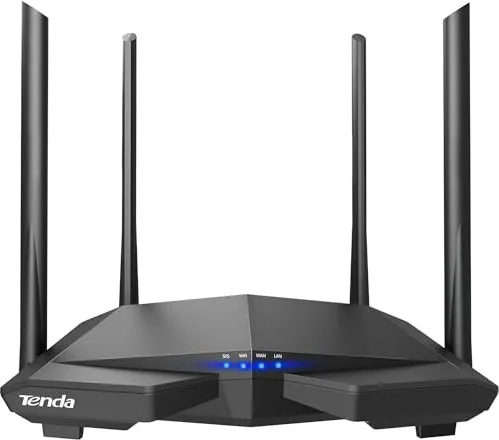
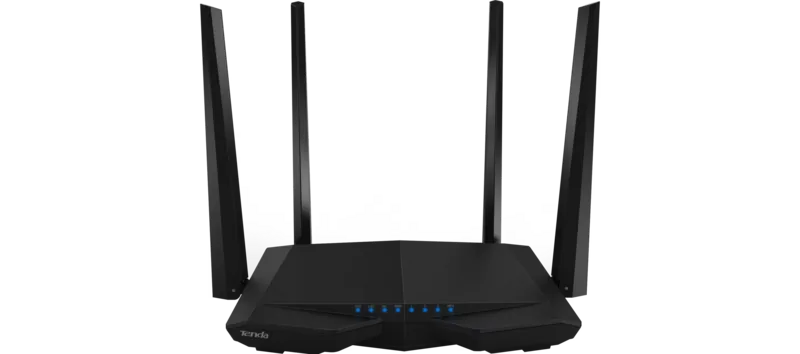
The Tenda AC6 Smart Dual-Band WiFi Router offers reliable internet access for modern homes and small offices. It supports AC1200 speeds, combining 2.4GHz and 5GHz bands for optimal performance across various devices. Position your router on a stable desk near wireless devices for best signals. Keep it away from interference sources like microwaves or metal surfaces to maximize range efficiently. The LED indicators show system status, WiFi activity, and connection ports clearly for troubleshooting.
Quick and Easy Setup
Accessing the internet requires connecting the WAN port to your modem or ISP cable directly. Launch a web browser and type tendawifi.com or 192.168.0.1 to log in securely. The router supports DHCP, Static IP, and PPPoE connections automatically or manually configured. Customizing your WiFi name and password ensures security for your household network. If you encounter issues, the Tenda AC6 Manual serves as a comprehensive guide for configuration troubleshooting. Resetting involves pressing the RST button for eight seconds until all lights blink simultaneously.
Advanced User Interface Features
Manage your network effortlessly using the user interface panel available online. You can schedule WiFi times to turn off signals during specific hours like sleeping mode. Restrict access to specific websites with Parental Control tools for children safety. Control bandwidth for connected devices to prioritize streaming or gaming sessions. Guest networks allow visitors online without risking private data on your main network. Beamforming technology strengthens signals for unstable connections between devices and the router hardware. WPS buttons enable quick secure pairing without typing long passwords manually.
Remote Management and Security
For security, set a strong login password different from WiFi credentials immediately after setup begins. Use DDNS to access your server from outside the home with a static domain name provider. Virtual Server maps ports for local services like FTP or web servers visible to the internet. Firewall protection remains active by default to shield your LAN from external attacks. System logs help identify issues when internet connectivity fails unexpectedly due to errors. Reboot the device if settings do not apply immediately after configuration changes occur.
Technical Specifications and Support
The product includes a power adapter, Ethernet cable, and install guide inside the box. Contact technical support via hotline or website if hardware faults occur during operation. Ensure firmware updates are performed via Ethernet cable to prevent upgrade failure risks. If sleeping mode is enabled, LEDs and USB drives may turn off automatically for power saving. Regular backups save your configurations before any major system resets occur on the unit.
Optimizing Your Network
To fix slow speeds, check channel settings or change bandwidth to 40 or 80 MHz. Ensure your computer is set to obtain IP addresses automatically. Try moving the router to a central location away from thick walls. Use Universal Repeater mode to extend coverage to other rooms easily. Verify DHCP settings if local devices cannot reach the internet gateways.
Search for 67,732 Manuals online


Type-in Brand or Model
Johannes Weber
5 months ago
Does this router provide better signal coverage than the older Linksys WTR54G models?
Manual.ly
5 months ago
Yes, customer feedback consistently highlights improved range compared to older Linksys models. This device offers enhanced connectivity for better coverage throughout your home.