Synology DiskStation Plus Series Manual
PDF manual · 48 Pages
English



Advantages and Disadvantages
Advantages

- Modular hardware: supports memory upgrades, two M.2 NVMe slots, and network upgrade modules for scalability.
- DSM Web Assistant simplifies initial setup and provides built-in diagnostics like S.M.A.R.T. and Storage Manager.
- Comprehensive troubleshooting and maintenance guides reduce downtime and aid self-service repairs.
- Multiple connectivity options: USB 3.2, eSATA, and standard LAN ports for flexible external and expansion device support.
- Robust safety and warranty coverage with spare parts and official support channels documented clearly.
Disadvantages

- Base LAN is 1GbE; higher network speeds require separate upgrade modules, adding cost and complexity.
- Using non-Synology memory or unsupported parts may void warranty and lead to unsupported configurations.
- Some repair/replacement steps expose internal components; improper handling risks damage or voided warranty.
- Overheating, fan failure, or persistent orange LED states require immediate intervention and possible replacement parts.
- Warranty and support scope vary by region; extended or advanced replacement services may carry extra conditions.
Ask a Question
Frequently Asked Questions
Connect drives, memory or M.2 SSDs if desired, attach LAN and power, power on the unit, then open a browser on the same network and go to find.synology.com or synologynas:5000. Follow Web Assistant prompts to download and install DSM and complete configuration.
Is this answer helpful?
Sign in to DSM and check Storage Manager > HDD/SSD for drive health. Restart the NAS, re-seat the drive, run manufacturer diagnostics or DSM S.M.A.R.T. tests. If problems persist, replace the drive or contact Synology support.
Is this answer helpful?
Yes. The Plus Series includes a network upgrade slot for installing Synology-compatible network upgrade modules. Power down, install the module in the expansion slot, secure it, then power on and verify functionality in DSM.
Is this answer helpful?
Most Plus models support up to two M.2 NVMe 2280 SSDs and two memory slots. Follow the manual’s slot numbering and installation steps, and ensure you use supported Synology memory to avoid warranty issues.
Is this answer helpful?
Use the troubleshooting checklist: verify power and LEDs, check cable connections, remove external devices, update DSM, test drives and ports, and gather product model, serial number, error messages, and environment details to provide to support.
Is this answer helpful?
DSM can be installed via Web Assistant which downloads the latest DSM version. Recommended browsers include Chrome, Firefox, and Edge. Ensure NAS and computer are on the same LAN and the NAS has internet access for Web Assistant to fetch DSM.
Is this answer helpful?
A continuously blinking ALERT LED often signals overheating or fan failure. Check DSM alerts for temperature or fan messages, power down, inspect and replace malfunctioning fans per the maintenance guide, and ensure proper ventilation and firmware updates.
Is this answer helpful?
Product Description
Synology DiskStation Plus Series Manual Overview
The Synology DiskStation Plus Series delivers compact, powerful NAS solutions aimed at home power-users and small businesses. Built around efficient AMD Ryzen processors and expandable memory and storage options, the Plus Series balances performance, energy efficiency, and ease of management. These devices support multiple drives (3.5"/2.5" SATA and M.2 NVMe SSDs), USB and eSATA connectivity, and network upgrade modules for flexible deployment.
Key Product Highlights
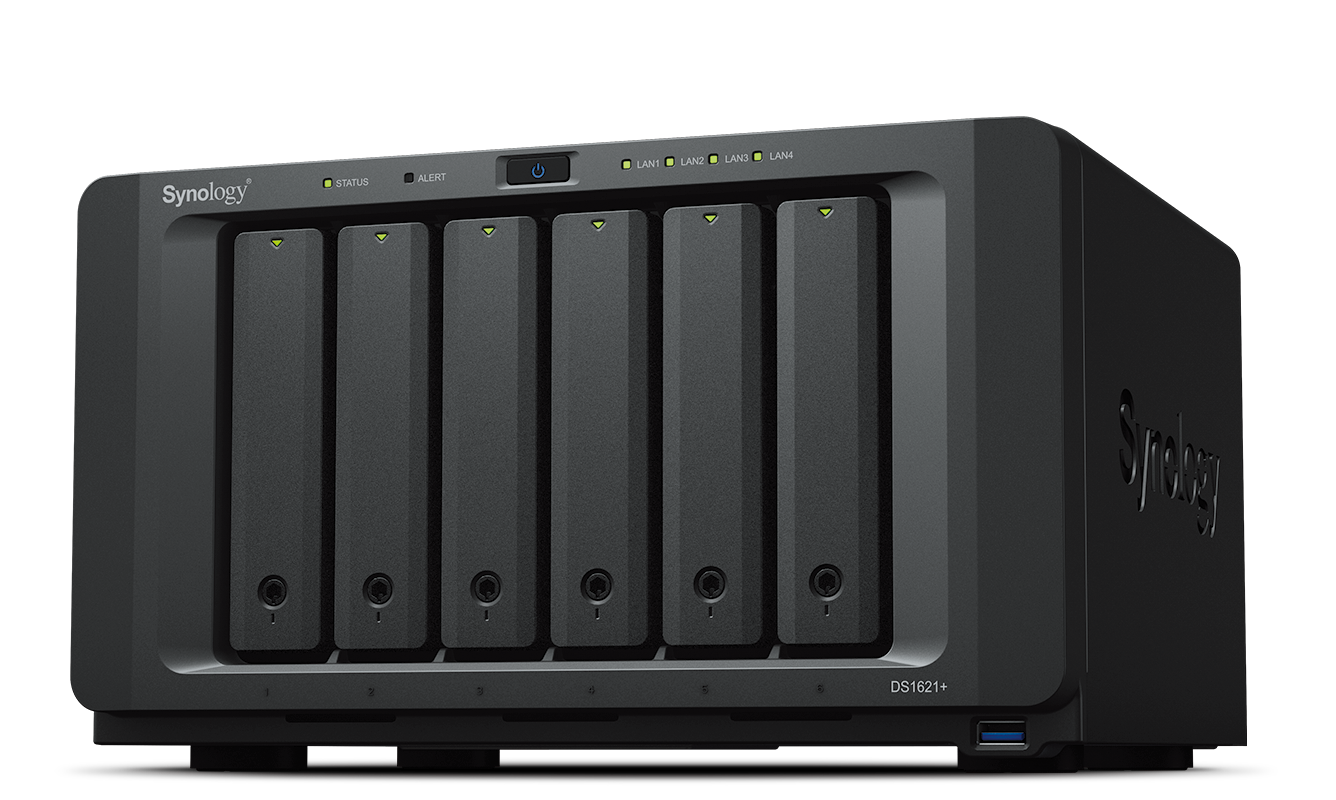
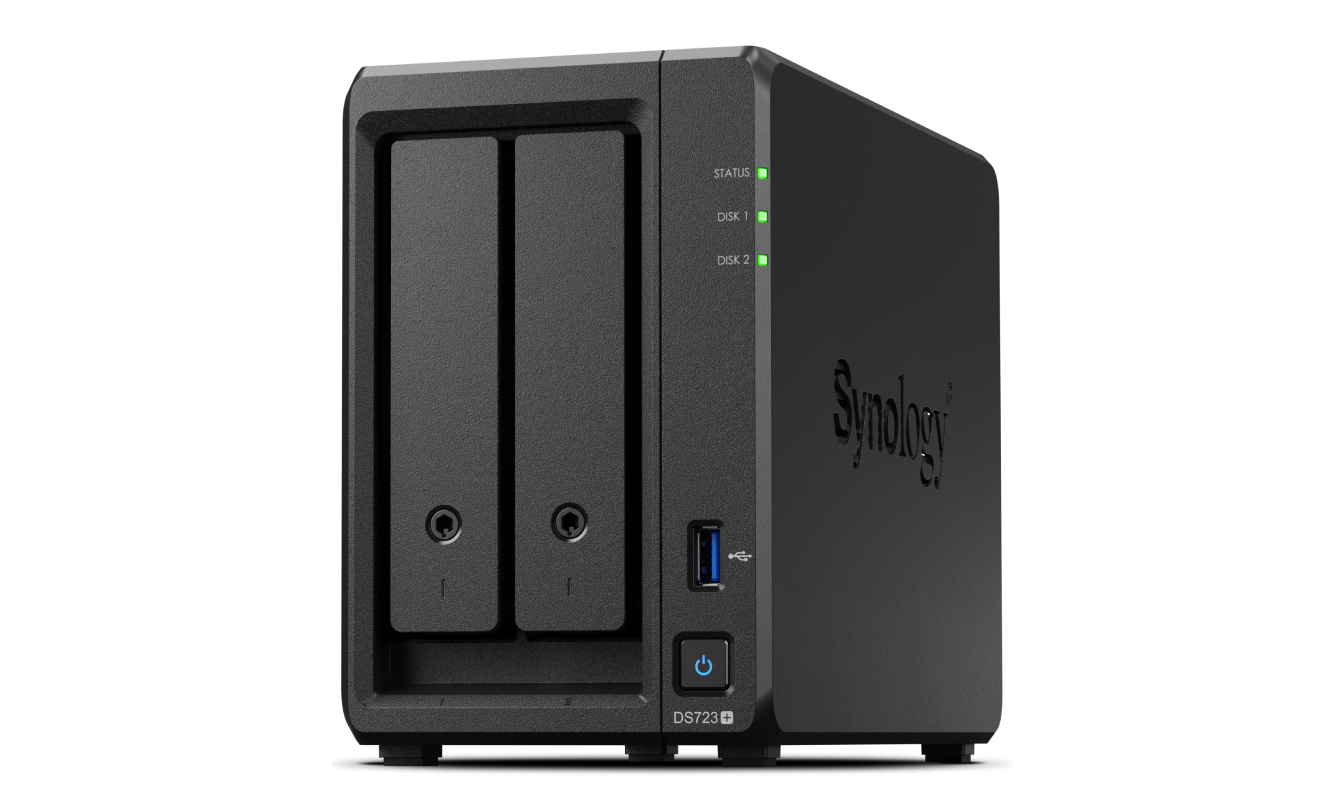
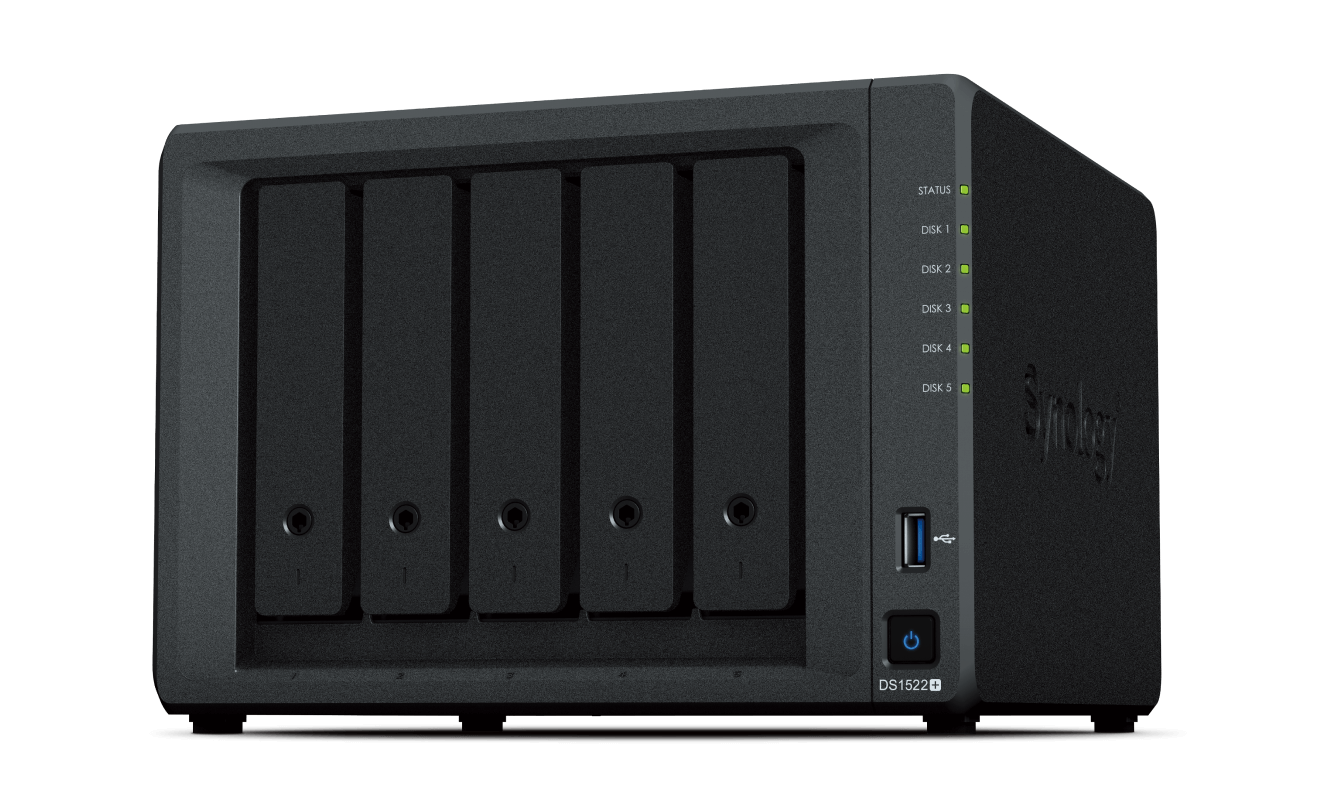
Synology DiskStation Plus units typically include a front panel with status and drive LEDs, drive trays with lockable handles, power and reset controls, and rear ports for LAN, eSATA, USB, and power. They support DSM (DiskStation Manager), Synology’s browser-based OS, which guides setup via Web Assistant and offers features like scheduled power control, HDD hibernation, Wake-on-LAN, and extensive storage management.
Hardware-wise, Plus Series models emphasize modular upgrades: add memory modules to increase RAM, install up to two M.2 NVMe 2280 SSDs for cache or storage, and fit network upgrade modules to expand LAN capabilities. The design also makes routine maintenance accessible—drive insertion/removal, fan replacement, and internal inspections follow clear, step-by-step procedures.
Setup and Maintenance
The setup flow is straightforward: unpack, install compatible drives, optionally add memory or M.2 SSDs, connect network and power, then install DSM via Web Assistant. DSM automates much of the initial configuration and provides diagnostic tools (S.M.A.R.T., Storage Manager) for drive health checks. A thorough troubleshooting section addresses common issues—network, drive recognition, external devices, expansion units, and power problems—plus recommended checks before contacting technical support.
Reliability, Safety, and Support
Synology emphasizes safety and proper environmental conditions (temperature, humidity, stable AC voltage) and provides spare parts and accessory compatibility lists. The product is covered by a limited warranty and EULA that define support, coverage, warranty periods, and replacement procedures. Knowledge Base, community forums, and Synology Technical Support are available for advanced help.
Notes
- The Plus Series supports both 1GbE LAN ports and optional network upgrades for higher throughput.
- LEDs indicate system modes, drive status, and alert conditions—static orange or continuous blinking signals a need for immediate attention.
- Always back up data before hardware changes; drive installation may reformat drives.
Pros and cons below summarize practical strengths and trade-offs based on features and maintenance guidance provided in the manual.
Search for 1 Mio. Manuals online


Type-in Brand or Model