
StarTech USB3SDOCKHDV Manual
PDF manual · 16 Pages
English



Quick check
Incorrect answer, please try again.
Chat with your StarTech USB3SDOCKHDV manual using AI
Get instant AI answers from your StarTech USB3SDOCKHDV manual
Ask anything about the StarTech USB3SDOCKHDV. Answers come from this manual, with the pages they are based on.
Ask a Question
Do you recommend USB3SDOCKHDV?
Yes NoFrequently Asked Questions
You can use two external displays in combinations such as HDMI + DVI or HDMI + VGA. Do not connect VGA, DVI-D, and HDMI simultaneously as this can cause configuration errors.
Is this answer helpful?
Yes. Install the provided DisplayLink drivers (from the CD or StarTech downloads) before connecting the docking station to ensure proper detection and functionality. Windows will then finalize driver installation when the device is attached.
Is this answer helpful?
Supported maximums include 2048 x 1152 for VGA and up to 1920 x 1200 for DVI-D, and 1920 x 1080 for HDMI. Lower inferred modes may be suggested if a display’s native resolution exceeds the dock’s limits.
Is this answer helpful?
Modes include Extend (default), Mirror, Set as Main Monitor, and Off. Change modes via Windows Display Settings or the DisplayLink tray icon; placement and rotation adjustments are available through the same interfaces.
Is this answer helpful?
Common fixes include re-plugging the device, rebooting, ensuring drivers (DisplayLink and primary GPU WDDM drivers) are up to date, and closing memory-intensive applications if system resources are low.
Is this answer helpful?
Yes. The dock includes a Gigabit RJ-45 Ethernet port with Auto MDIX and full-duplex support, enabling wired network connectivity via the single USB 3.0 connection.
Is this answer helpful?
The product is covered by a two-year StarTech warranty. StarTech offers lifetime technical support and online resources, including downloads and troubleshooting guides at www.startech.com/support.
Is this answer helpful?
Advantages and Disadvantages
Advantages

- Supports dual external displays via HDMI + DVI or HDMI + VGA for expanded workspace.
- Includes Gigabit Ethernet, audio in/out, and multiple USB 3.0 downstream ports for peripheral expansion.
- Wide resolution support up to 2048x1152 (VGA) and 1920x1200 (DVI-D) for compatibility with many displays.
- Universal power adapter and compact design make it portable and easy to deploy across locations.
- Backed by StarTech two-year warranty and lifetime technical support with online driver downloads.
Disadvantages

- Cannot use VGA, DVI-D, and HDMI simultaneously—limited to specific dual-output combinations.
- Requires driver installation (DisplayLink) and may need primary GPU WDDM drivers for full functionality.
- Performance depends on host system resources; low RAM can prevent enabling extended displays.
- Some advanced features may be blocked by vendor display utilities on certain systems.
- Maximum resolution limits may not match native resolutions of some modern high-DPI monitors.
Product Specification
Compatibility
USB 3.0
Ports
1x DVI, 1x HDMI, 1x VGA, 3x USB 3.0, 1x Gb LAN, 2x Jack
Power Supply
5V/4A
Weight
0.64 lb
Product Description
StarTech USB 3.0 Docking Station Manual Overview
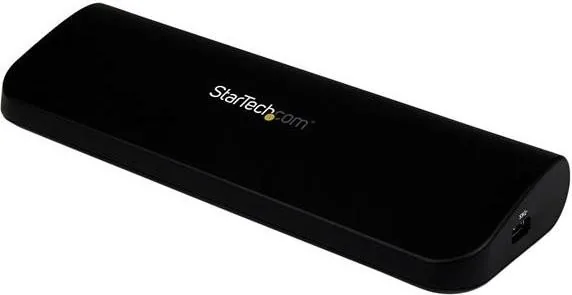
The StarTech USB 3.0 Docking Station is a versatile docking solution designed to expand the connectivity of laptops and desktops through a single USB 3.0 connection. Engineered for productivity, it supports multiple display outputs (HDMI, DVI-D, VGA) and provides network, audio, and multiple USB 3.0 ports to simplify desktop setups for remote work, presentations, or multi-monitor workflows.
Key Features and Use Cases
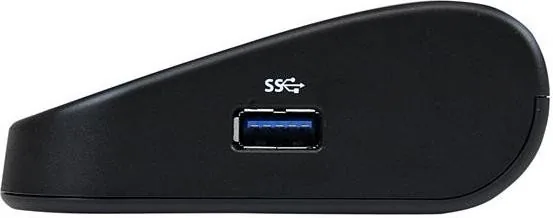
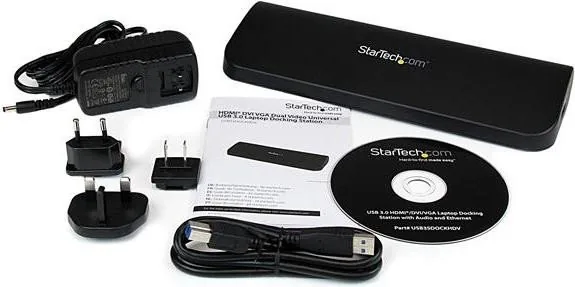
Packed with a DisplayLink-based USB video chipset and additional controllers for USB and Ethernet, the docking station enables dual-display configurations using combinations like HDMI + DVI or HDMI + VGA. It includes a Gigabit Ethernet port, headphone and microphone jacks, three downstream USB 3.0 ports, and a security lock slot. The unit ships with a 0.9 m USB 3.0 cable, universal power adapter, driver CD, and quick instructions to get users up and running quickly.
This dock is well suited for professionals who need extended desktop real estate, students needing simple multi-display setups, and anyone requiring stable wired networking and peripheral expansion without opening their laptop. It supports a range of resolutions up to 2048 x 1152 (VGA) and 1920 x 1200 (DVI-D), making it compatible with many modern displays and TVs.
Installation and Operation
Installation involves installing drivers (provided on CD or via downloads) before connecting the dock, plugging in power, then connecting the dock to the host via USB 3.0. Windows systems detect the device and integrate it via DisplayLink drivers. Display modes include Extend (default), Mirror, Set as Main Monitor, and Off. Users can adjust resolutions and rotation via Windows Display Settings or the DisplayLink tray icon. Optimize for Video and Fit to TV options help tailor playback and screen sizing for TVs or external monitors.
Reliability and Support
The docking station complies with FCC Class B standards and is backed by StarTech’s two-year warranty and lifetime technical support. Troubleshooting tips include re-plugging the device, updating primary GPU drivers to WDDM where required, and ensuring sufficient system RAM for extended displays.
Notes
- Do not connect VGA, DVI-D, and HDMI simultaneously; use the recommended dual-output combos.
- Install drivers before connecting the docking station for best results.
- Some features (e.g., Set as Main Monitor) may be impacted by vendor-specific GPU utilities.
Search for 67,706 Manuals online


Type-in Brand or Model