
StarTech USB32HD2 Manual
PDF manual · 2 Pages
English



Quick check
Incorrect answer, please try again.
Chat with your StarTech USB32HD2 manual using AI
Get instant AI answers from your StarTech USB32HD2 manual
Ask anything about the StarTech USB32HD2. Answers come from this manual, with the pages they are based on.
Ask a Question
Do you recommend USB32HD2?
Yes NoFrequently Asked Questions
It lets a Windows computer add two HDMI displays through a single USB 3.0 port. This is useful for extending your desktop, improving multitasking, or creating a cleaner dual-monitor setup without internal hardware changes.
Is this answer helpful?
The adapter is designed for Windows 7, 8, 8.1, and 10. The manual notes that operating system requirements can change, so checking the latest product page before buying is a good idea.
Is this answer helpful?
Yes. The driver should be installed before connecting the adapter to the computer. The setup may also require a restart, so save your work before starting the installation process.
Is this answer helpful?
The first HDMI port supports up to 4K at 30Hz, while the second port supports up to 2048x1152 at 60Hz. Lower standard and widescreen resolutions are also supported for flexible display matching.
Is this answer helpful?
Yes, audio can output over HDMI when the adapter is connected. If you prefer speakers or another device, you can change the default audio output in Windows Control Panel under Hardware and Sound.
Is this answer helpful?
Yes, multiple USB display adapters can be used, and no extra drivers are needed for each one. However, the manual recommends avoiding mixed chipset families, such as DisplayLink or Fresco Logic, in the same setup.
Is this answer helpful?
Advantages and Disadvantages
Advantages

- Adds two HDMI displays through one USB 3.0 port for easy workspace expansion.
- Supports up to 4K 30Hz on the primary HDMI output for sharper visuals.
- Works with Windows 7, 8, 8.1, and 10 for broad compatibility.
- Includes lifetime technical support and a two-year warranty for added confidence.
Disadvantages

- Requires driver installation before use, so it is not fully plug-and-play.
- Designed for Windows systems only, limiting use with other operating systems.
- Audio defaults to HDMI at first, so sound settings may need manual adjustment.
- Mixed chipset environments can cause issues when using multiple adapters or docks.
Product Specification
Input
USB-A 3.0
Output
2x HDMI
Resolution
max. 3840x2160@30Hz
Manufacturer Warranty
two years
Product Description
StarTech USB-A 3.0/2x HDMI Adapter, Black
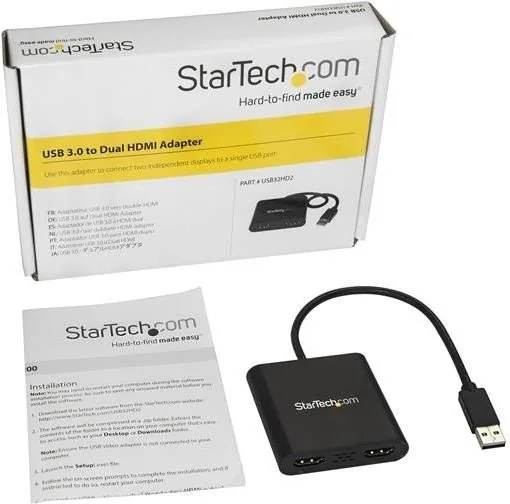
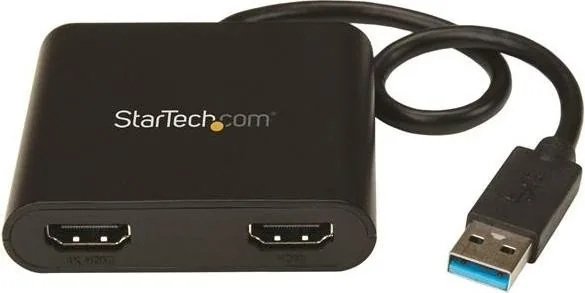
The StarTech USB-A 3.0/2x HDMI Adapter, black, is a straightforward way to expand a Windows laptop or desktop with two HDMI displays through a single USB 3.0 connection. Designed for users who want more screen space without opening the system or replacing internal hardware, it offers a clean, practical upgrade for workstations, home offices, and presentation setups.
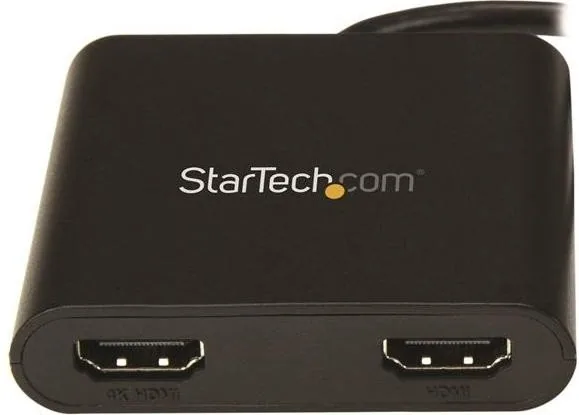
Its biggest appeal is the dual-display flexibility. The adapter supports two HDMI outputs, with the primary port reaching up to 4K at 30Hz and the second port supporting resolutions up to 2048x1152 at 60Hz. That balance makes it useful for multitasking, comparing documents, monitoring dashboards, or keeping reference material on one screen while working on another. The black finish and integrated USB 3.0 cable also help it blend into a simple desk setup without adding clutter.
Setup is centered around the Windows driver installation process. Users are instructed to download the latest software, install it before connecting the adapter, and restart if prompted. Once installed, the adapter can be connected and configured through standard Windows screen settings. If you need multiple units, the same installation approach can be repeated without additional driver complexity, which is helpful in larger office environments.
The adapter also supports audio over HDMI, which is convenient when using monitors with built-in speakers. If another sound output is preferred, Windows allows you to switch the default audio device manually. The manual also points out a few important compatibility notes, including the advice to avoid mixing different USB video chipset families in the same setup.
For users who value long-term peace of mind, StarTech backs the product with lifetime technical support and a two-year warranty. That support can be especially valuable when configuring multiple displays, adjusting resolution settings, or troubleshooting sound and driver behavior.
Notes
- Install the driver before plugging in the adapter.
- A restart may be required during setup.
- Audio may initially route through HDMI until changed in Windows.
- Check your monitor limits to choose the best resolution and refresh rate.
Overall, this adapter is built for dependable productivity rather than flashy extras. It gives Windows users a compact and effective way to run two HDMI displays from one USB 3.0 port while keeping setup, support, and day-to-day use manageable.
Search for 67,706 Manuals online


Type-in Brand or Model