
StarTech USB32DVIPRO Manual
PDF manual · 12 Pages
English



Quick check
Incorrect answer, please try again.
Chat with your StarTech USB32DVIPRO manual using AI
Get instant AI answers from your StarTech USB32DVIPRO manual
Ask anything about the StarTech USB32DVIPRO. Answers come from this manual, with the pages they are based on.
Ask a Question
Do you recommend USB32DVIPRO?
Yes NoFrequently Asked Questions
It adds an external video output through a USB 3.0 port, letting you connect a DVI- or VGA-capable display. It is useful for extending a desktop, mirroring a screen, or adding a second monitor to a laptop or desktop.
Is this answer helpful?
Yes. The setup instructions stress that drivers should be installed before the adapter is physically connected. This helps Windows recognize the device properly and avoids setup problems during installation.
Is this answer helpful?
The adapter supports Extend mode, Mirror mode, Set as Main Monitor, and Off. It also allows rotation and screen placement adjustments, giving you control over how the external display behaves.
Is this answer helpful?
The adapter supports up to 2048 x 1152 resolution. Actual performance depends on the computer, the display, the connection type, and whether the system is running one or multiple adapters.
Is this answer helpful?
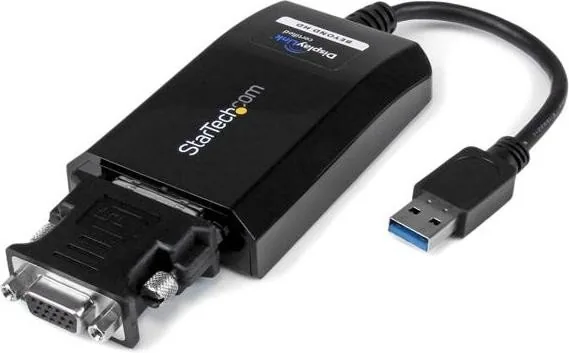
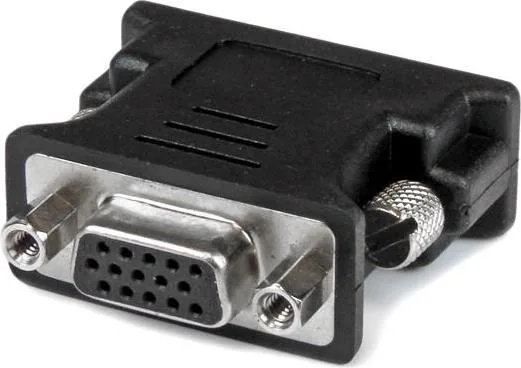
Yes. The package includes a DVI-to-VGA adapter, so you can connect to a VGA display as well as a DVI-capable one. That makes it more versatile for mixed or older display setups.
Is this answer helpful?
A single Windows computer can support up to five USB video adapters, provided the system meets the required CPU and RAM specifications. Higher adapter counts need stronger hardware for stable performance.
Is this answer helpful?
The manual lists Microsoft Windows Vista and Windows 7 in 32-bit and 64-bit versions. Compatibility may be limited on newer systems, so checking driver availability is important before purchase.
Is this answer helpful?
Advantages and Disadvantages
Advantages

- Turns one USB 3.0 port into an extra DVI display output for easy multi-monitor expansion.
- Supports extend, mirror, and main-monitor modes for flexible workspace setups.
- USB powered and compact, so it is easy to use without an external adapter.
- Includes a DVI-to-VGA adapter, improving compatibility with older displays.
Disadvantages

- Official compatibility is limited to Windows Vista and Windows 7, which narrows modern use.
- Driver installation must be completed before plugging in the adapter, adding an extra step.
- Best results rely on USB 3.0 and stronger system specs for multiple adapters.
- Maximum resolution is 2048 x 1152, which is lower than many current high-end display needs.
Product Specification
Input
USB-A 3.0
Output
DVI-I
Resolution
max. 2048x1152@60Hz
Manufacturer Warranty
two years
Product Description
StarTech USB 3.0 to DVI Adapter: A Practical Way to Add a Second Screen
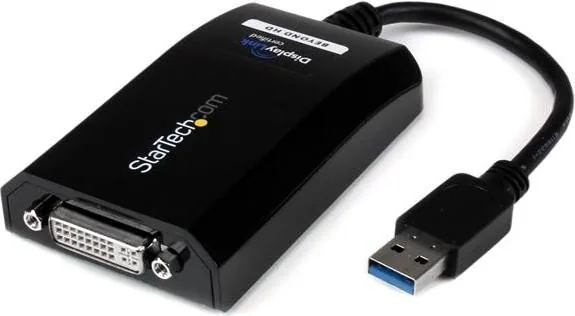
The StarTech USB 3.0 to DVI Adapter is a smart solution for anyone who wants more screen space without opening a desktop or replacing a laptop’s built-in graphics. If you’re searching for the StarTech USB 3.0 to DVI Adapter Manual, the big picture is simple: this compact accessory turns an available USB 3.0 port into a usable video output, making multi-monitor setups far easier to achieve.
A compact external graphics option
Designed as an external video adapter, this device behaves like a lightweight graphics card powered directly through USB. It supports resolutions up to 2048 x 1152, which is more than enough for everyday productivity tasks, web work, office applications, and general media use. It also includes a DVI-to-VGA adapter, so it can connect to a wider range of displays, projectors, and older monitors.
Flexible display modes for work and play
One of the strongest features is the choice of display modes. You can extend your desktop for a larger workspace, mirror your primary screen for presentations, or even set the adapter as the main monitor in compatible setups. That flexibility makes it useful in both home offices and business environments where screen sharing, multitasking, and better organization matter.
Setup notes that matter
The adapter works best when the latest drivers are installed before it is connected. The setup process is straightforward on Windows Vista and Windows 7, but the manual makes one thing clear: order matters. Install the software first, then plug in the device, and Windows should recognize it automatically. For the best results, USB 3.0 is recommended, though the device remains backward compatible with USB 2.0.
Why it stands out
This adapter is especially appealing for users who need a quick, portable display upgrade. It is USB powered, so no separate power brick is needed, and it supports up to five adapters on one Windows system when hardware requirements are met. That makes it a practical choice for advanced workstation setups as well as simpler dual-monitor needs.
Notes
- Best performance comes from USB 3.0 ports.
- Install drivers before physically connecting the adapter.
- Check display mode settings if you want to adjust placement or rotation.
- Warranty coverage and technical support add extra confidence for long-term use.
Search for 67,706 Manuals online


Type-in Brand or Model