
StarTech USB2VGA Manual
PDF manual · 15 Pages
English



Quick check
Incorrect answer, please try again.
Chat with your StarTech USB2VGA manual using AI
Get instant AI answers from your StarTech USB2VGA manual
Ask anything about the StarTech USB2VGA. Answers come from this manual, with the pages they are based on.
Ask a Question
Do you recommend USB2VGA?
Yes NoVideo Manual
USB VGA Multi Monitor Externe Video-adapter - USB2VGAE2 | StarTech.com
Frequently Asked Questions
The adapter supports Microsoft Windows 2000, XP, Vista, and 7 in both 32-bit and 64-bit editions. Note that Aero desktop effects on Vista are not supported and should be disabled for compatibility.
Is this answer helpful?
Yes. Install the provided driver (or download the latest from StarTech) before connecting the adapter. After driver installation you should reboot the computer, then plug in the USB2VGA adapter and connect the VGA cable to the secondary monitor.
Is this answer helpful?
No. The current drivers for the USB2VGA adapter do not support Direct3D acceleration. It is best suited for 2D desktop tasks, office work, and basic video; use the primary GPU for graphics-intensive applications.
Is this answer helpful?
Install the driver and plug in the first adapter, choose to postpone the reboot when prompted, then install each additional adapter one by one. After all adapters are installed, reboot the system and follow any final prompts.
Is this answer helpful?
Some manufacturer-supplied display utilities or drivers prevent other adapters from becoming primary. Check the system tray for such utilities and disable them before setting the USB adapter as primary.
Is this answer helpful?
The adapter supports multiple resolutions across common aspect ratios, including 1680x1050 (16:10), 1440x900, 1280x1024, 1600x1200, and standard 4:3 and 16:10 modes, with color depth options of 16- or 32-bit depending on resolution.
Is this answer helpful?
Visit StarTech.com/support to access drivers, documentation, troubleshooting tips, and lifetime technical support resources. Downloading the latest drivers can resolve many compatibility and performance issues.
Is this answer helpful?
Advantages and Disadvantages
Advantages

- Adds an extra VGA display via a USB 2.0 port without replacing the internal GPU
- Supports multiple display modes: Extended, Mirror, and Primary
- Compact, plug-and-play design with a system-tray utility for quick configuration
- Supports a variety of common resolutions up to 1680x1050
- Allows adding up to five adapters for multiple monitors
Disadvantages

- Drivers do not support Direct3D; limited for 3D/gaming and some video playback
- Aero theme and some display utilities may be incompatible or must be disabled
- Requires USB 2.0 port and can underperform if connected via hubs
- Maximum color depth/resolution limited compared to dedicated graphics cards
- Windows-only support (2000/XP/Vista/7) and no official modern OS support listed
Product Specification
Input
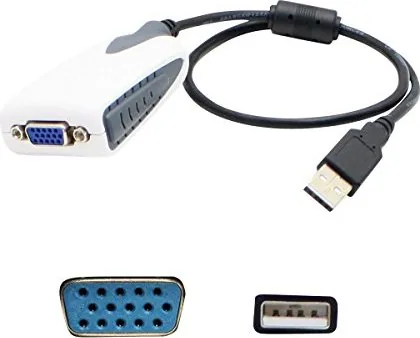
USB-A 2.0
Output
VGA
Resolution
max. 1600x1200@60Hz
Manufacturer's Warranty
two Years
Product Description
StarTech USB2VGA Manual: USB 2.0 to VGA Adapter Overview
The StarTech USB2VGA is a compact USB 2.0 to VGA external video adapter designed to add an extra monitor to Windows-based systems without upgrading the internal video card. It connects via a USB type-A port and outputs to a standard DE-15 VGA connector, enabling extended, mirrored, or primary display configurations. The adapter supports a variety of common resolutions (up to 1680x1050 in 16:10) and offers a practical solution for users who need extra screen real estate for productivity, presentations, or basic multimedia playback.
Key Features and Use Cases
The adapter ships with a driver CD and requires driver installation before connecting the device. It supports Windows 2000, XP, Vista, and 7 (32/64-bit), though Aero desktop effects are not supported. After driver setup and a reboot, the adapter installs a system-tray utility for quick access to display modes and resolution settings. Typical use cases include adding a secondary display for office multitasking, mirroring for presentations, or repositioning displays virtually to match physical monitor placement.
Installation is straightforward: install drivers, connect the USB adapter, attach the VGA cable to the secondary monitor, and restart as prompted. For multiple adapters, repeat the installation per adapter and reboot after installing all units. The included configuration utility and Windows Display Properties allow switching between Primary, Extended, and Mirror modes and adjusting resolution, color depth, and relative monitor positions.
Limitations and Compatibility Notes
Performance is tailored to 2D desktop tasks; the drivers do not support Direct3D, so graphics-intensive apps and many DVD playback scenarios may be limited on the USB display. Some OEM display utilities may block setting the USB adapter as the primary display—those utilities must be disabled first. Also, connecting through a USB hub or using a non-USB 2.0 port can cause issues; direct USB 2.0 port connection is recommended.
Support and Warranty
StarTech provides lifetime technical support resources online and a one-year limited warranty covering parts and labor for defects in materials and workmanship. The warranty excludes damage from misuse, alteration, or normal wear. Users are encouraged to download the latest drivers from the StarTech website for best compatibility.
Notes
- Ensure drivers are installed before connecting the adapter.
- Disable Aero on Vista and some visual effects for best compatibility.
- Use direct USB 2.0 ports (avoid hubs) and verify monitor refresh rates are supported.
- Multiple adapters are supported (up to five) but may require sequential installation and reboots.
Search for 67,706 Manuals online


Type-in Brand or Model