StarTech USB-C/HDMI/Mini DisplayPort to HDMI Adapter Manual
PDF manual · 2 Pages
English



Advantages and Disadvantages
Advantages
- Single cable supports USB-C, HDMI, and Mini DisplayPort inputs for simplified connectivity.
- Includes Micro-USB power cable to ensure stable operation when host power is insufficient.
- Three LED indicators provide clear, instant feedback on which input is active.
- Compact 2 m cable reduces clutter and replaces multiple separate adapters.
- Two-year warranty plus lifetime technical support and online resources.
Disadvantages
- Requires Micro-USB power in some setups, adding a dependency on an extra cable or adapter.
- Input priority is determined by connection order, which may require resetting to change.
- May not support advanced features (like certain DRM-protected formats) depending on source device.
- Physical design may differ from photos; exact port layout could vary.
- Limited liability clauses in the warranty restrict compensation to purchase price.
Ask a Question
Frequently Asked Questions
The adapter supports three inputs: USB-C, HDMI, and Mini DisplayPort, with a single HDMI output to connect to a display or projector.
Is this answer helpful?
Some setups require the included Micro-USB power cable to provide sufficient power to the converter. Connect it to a computer USB port or an AC USB adapter when sources don’t supply enough power or when instructed by the LEDs.
Is this answer helpful?
If multiple inputs are connected, the converter gives priority to the input that connected first. To change priority, disconnect and reconnect sources or press the recessed Reset button (use a pin) to reinitialize the device and allow a different input to become active.
Is this answer helpful?
There are three LEDs, one for each input. A green illuminated LED indicates that the corresponding input is active; if an LED is off, that input is not active.
Is this answer helpful?
Yes. The device complies with FCC Part 15 Class B limits and Canadian ICES-003 Class B standards. Follow installation guidance to minimize any potential radio interference.
Is this answer helpful?
StarTech offers a two-year warranty covering defects in materials and workmanship and provides lifetime technical support via the StarTech website with documentation, downloads, and help resources.
Is this answer helpful?
Compatibility with DRM-protected content or specific display features depends on the source device and its output capabilities. The adapter passes standard HDMI signals, but certain protected formats or advanced features may require compatible source hardware or drivers.
Is this answer helpful?
Product Description
StarTech USB-C/HDMI/Mini DisplayPort to HDMI Adapter Manual
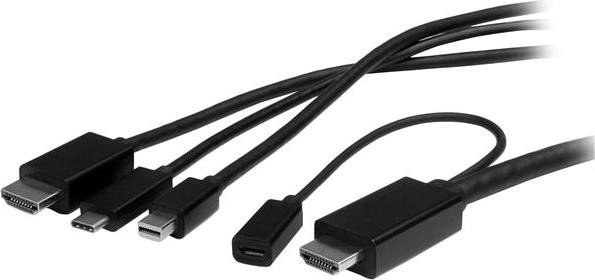
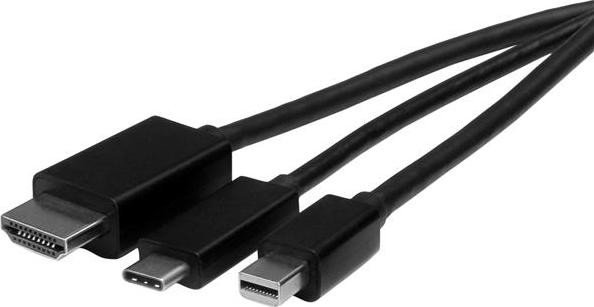
The StarTech USB-C/HDMI/Mini DisplayPort to HDMI Adapter is a versatile multi-input converter cable that simplifies connecting laptops and devices to HDMI displays and projectors. Combining USB-C, HDMI, and Mini DisplayPort inputs into a single adapter, the CMDPHD2HD removes the need for multiple standalone adapters or complex switchers. It’s ideal for users who switch between devices or frequently present from different laptops in meeting rooms, classrooms, or home office setups.
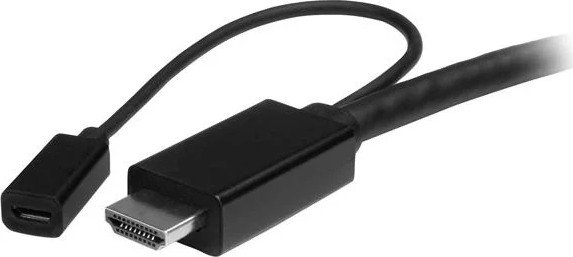
The adapter ships with a 2 m converter cable, a 2 m Micro-USB power cable, and a compact instruction booklet. The converter includes one HDMI output for the display and three input ports (USB-C, HDMI, and Mini DisplayPort). A Micro-USB power port supplies the unit when needed, and a reset button allows you to cycle power to resolve display conflicts or reassign input priority. Three LEDs indicate which input is currently active, helping you confirm connections at a glance.
Setup is straightforward: connect the HDMI output to your display, plug the Micro-USB power cable into a USB port or AC adapter, then attach the source device to the matching input. If multiple sources are connected, the adapter gives priority to the input that connects first; pressing the reset button reinitializes the converter, effectively removing and restoring power to let you change input priority. The adapter is FCC and Industry Canada compliant, meeting Class B emission limits to minimize interference in residential and office environments.
StarTech backs the adapter with two years of warranty coverage and lifetime technical support resources available online. The documentation clarifies trademark attributions, compliance statements, and warranty limitations, and provides troubleshooting guidance such as repositioning antennas or separating devices to address potential radio interference. This cable is suited for professionals, educators, and power users who value a compact, cost-effective way to manage multiple video inputs without swapping dongles.
Notes:
- Actual product appearance may vary slightly from photos.
- Ensure Micro-USB power is connected if connected sources do not provide sufficient power.
- Use a pin to press the recessed reset button if needed.
Search for 370 Manuals online


Type-in Brand or Model