
StarTech USB-C Dockingstation für Laptops Manual
PDF manual · 11 Pages
English



Advantages and Disadvantages
Advantages

- Supports dual 4K displays (up to 4096x2160 on HDMI) for high-resolution multi-monitor setups.
- USB Power Delivery charges compatible laptops through the dock while connected.
- Multiple USB 3.1 Gen 1 ports and a BC1.2 charging port provide fast data and device charging.
- Includes USB-C host cable and regional power adapter for plug-and-play convenience.
- StarTech lifetime technical support and a three-year warranty for reliability.
Disadvantages

- Requires a laptop USB-C port that supports DP Alt Mode and Power Delivery for full functionality.
- Dock’s power adapter must remain connected; it cannot receive power from the laptop.
- macOS may require manual DisplayLink installation and permission steps to enable video.
- Maximum refresh rates and resolutions vary by configuration and may be limited in dual-display mode.
- Some legacy USB-C ports may not support video or charging, limiting dock capabilities.
Ask a Question
Frequently Asked Questions
Yes — the dock provides USB Power Delivery to charge compatible laptops, but only when the dock’s included power adapter is connected. Your laptop’s USB-C port must support Power Delivery to receive charging.
Is this answer helpful?
Yes, the dock supports dual-display setups. HDMI and DisplayPort combinations can reach up to 4096x2160 on HDMI and 3840x2160 on DisplayPort, though maximum refresh rates and resolutions depend on the specific configuration and host capabilities.
Is this answer helpful?
The docking station supports modern Windows (including Windows 10) and macOS releases cited by StarTech. Windows usually installs drivers automatically; macOS may require manual driver installation and explicit permission for DisplayLink functionality.
Is this answer helpful?
Yes — the included power adapter must be connected to enable laptop charging and to allow the BC1.2 front USB port to fast-charge compatible devices. The dock cannot be powered from the laptop.
Is this answer helpful?
Install the DisplayLink drivers from StarTech’s support site, then open System Preferences > Security & Privacy and click Allow for DisplayLink within 30 minutes. If needed, reinstall the software and repeat the permission step.
Is this answer helpful?
Yes — the rear USB-A ports are USB 3.1 Gen 1 (also known as USB 3.0) supporting up to 5 Gbps for high-speed data transfers with compatible devices.
Is this answer helpful?
StarTech provides drivers, manuals, and lifetime technical support on their website under the product support pages for DK30CHDDPPD and DK30CHDPPDUE, and offers downloadable software and warranty information online.
Is this answer helpful?
Product Description
StarTech USB-C Dockingstation für Laptops Manual — Powerful Dual-4K USB-C Docking Station
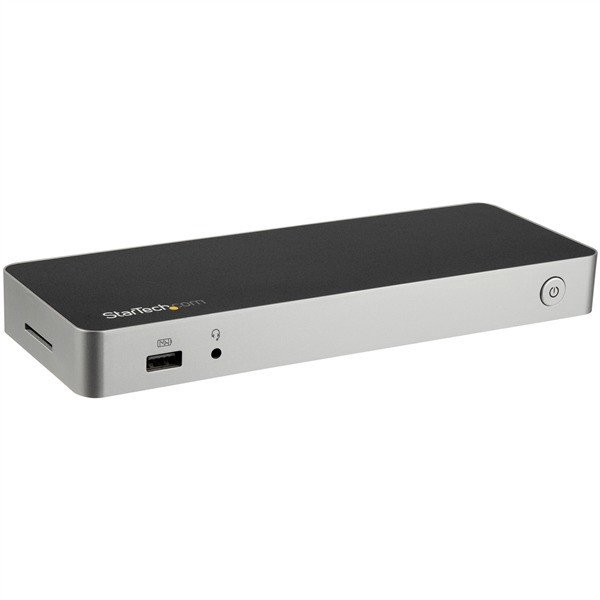
Transform your laptop setup with the StarTech USB-C Dockingstation für Laptops Manual — a versatile USB-C dock engineered to expand connectivity, deliver power, and support dual 4K displays. Designed for professionals, creators, and remote workers, the dock brings essential ports and reliable performance in a compact form factor. With a focus on compatibility and convenience, it supports USB Power Delivery, DP Alt Mode for video, and multiple USB 3.1 Gen 1 ports for high-speed peripherals.
Key features and functionality
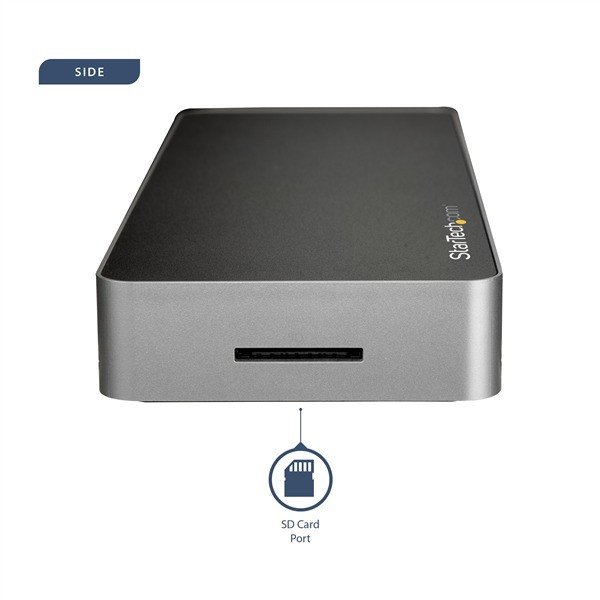
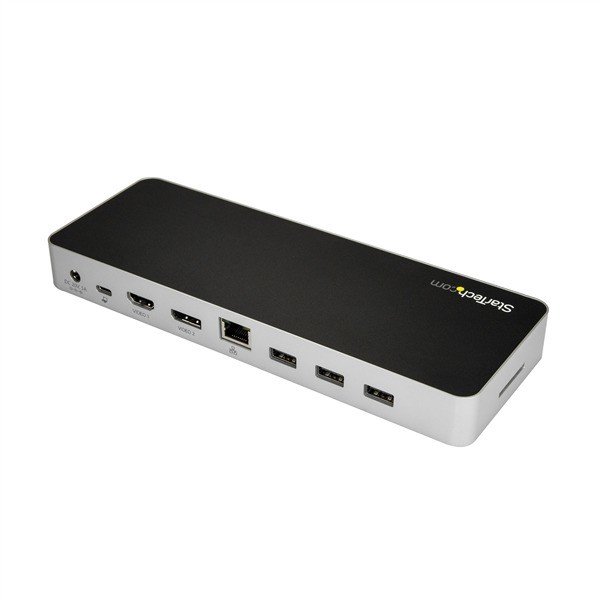
The dock includes HDMI and DisplayPort outputs that enable single or dual external displays at up to 4096x2160 (4K) depending on configuration, plus a DisplayPort capable of 3840x2160 at 30Hz or 2560x1600 at 60Hz. It ships with a USB-C host cable and a regional power adapter; the dock’s external power brick must remain connected to enable laptop charging via USB-C Power Delivery. Several high-speed USB-A ports (including a BC1.2 fast-charge front port) power and sync accessories; an SD card reader and other convenience ports help centralize peripherals.
Installation is straightforward: connect the power adapter, plug the USB-C cable into a compatible laptop USB-C port (one that supports Power Delivery and DP Alt Mode for full features), and allow driver installation. Windows machines typically install required drivers automatically; macOS may require manual software installation and explicit user approval for DisplayLink to enable video output on some macOS versions.
Practical use cases
- Multi-monitor productivity: Connect dual external displays for extended desktop workflows or presentations. Ideal for video editing, financial analysis, or multitasking.
- Single-cable docking: Charge your laptop while connecting external displays, storage, input devices, and headsets through one hub, reducing cable clutter.
- Travel and hot-desk setups: Compact design and included power adapters for specific regions make it suitable for mobile professionals who need consistent workstation connectivity.
Compatibility and support
The dock is compatible with modern Windows and macOS releases (check specific OS versions and driver requirements). For full video and charging functionality, ensure the laptop’s USB-C port supports DP Alt Mode and USB Power Delivery. StarTech provides lifetime technical support, driver downloads, and a three-year warranty for peace of mind.
Notes
- The dock requires its included power adapter to charge connected laptops and fast-charge devices via the BC1.2 port.
- macOS users may need to manually install DisplayLink drivers and grant system permissions within 30 minutes of installation.
- Supported resolutions vary by display configuration; lower refresh rates or resolutions may be required for certain dual-display setups.
Search for 370 Manuals online


Type-in Brand or Model