

StarTech SV431DVIUAHR Manual
PDF manual · 15 Pages
English



Quick check
Incorrect answer, please try again.
Chat with your StarTech SV431DVIUAHR manual using AI
Get instant AI answers from your StarTech SV431DVIUAHR manual
Ask anything about the StarTech SV431DVIUAHR. Answers come from this manual, with the pages they are based on.
Ask a Question
Do you recommend SV431DVIUAHR?
Yes NoFrequently Asked Questions
The switch supports Dual Link DVI resolutions up to 2560x1600. Higher resolutions can be achieved at lower refresh rates (for example, 3840x2400 at 30Hz).
Is this answer helpful?
Yes, the integrated USB 2.0 hub allows sharing up to three USB devices. However, some peripherals require reinitialization or dedicated drivers; power-hungry devices may need external power or a powered adapter for reliable operation.
Is this answer helpful?
Press and hold front panel buttons 1 and 2 simultaneously to cycle Scan Time. The options are 3, 8, 15, and 30 seconds. The default resets to 3 seconds after power loss.
Is this answer helpful?
The FUNC button enters a settings mode to adjust video equalization, output current, and pre-emphasis for each port, and to select audio tracking or non-tracking modes. Use FUNC with the numbered push buttons and follow beep confirmations to set values.
Is this answer helpful?
Some PCs may require BIOS tweaks: set HALT ON ERROR to 'ALL BUT KEYBOARD' and PNP OS INSTALLED to 'YES' with USB IRQ enabled to ensure proper keyboard/mouse switching.
Is this answer helpful?
Check device drivers, ensure the device is powered, verify USB cable connections, and if needed add an external power adapter or reboot the device. Removing unnecessary keyboard/mouse drivers can also help.
Is this answer helpful?
Yes, it can be installed in a standard 19-inch rack using an optional rack-mount kit (SV431RACK) that includes brackets and cable support.
Is this answer helpful?
Advantages and Disadvantages
Advantages

- Supports high-resolution Dual Link DVI up to 2560x1600 for crisp visuals and multimedia use.
- All-metal chassis offers long-term durability suitable for office or rack environments.
- Integrated USB 2.0 hub allows sharing up to three high-speed USB devices between four computers.
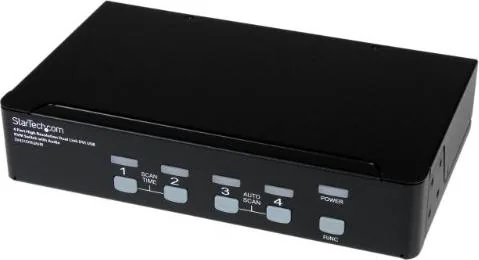
- Front-panel push-button selection, LED indicators, Auto Scan and customizable scan intervals.
- FUNC controls let you adjust video equalization, output current, and pre-emphasis for cable compensation.
Disadvantages

- USB self-powered limits peripheral current to standard USB specs; power-hungry devices may need external power.
- Some BIOS settings may require adjustment for seamless keyboard/mouse switching on certain PCs.
- DVI Dual Link functionality depends on both monitor and computer supporting dual-link mode.
- Keyboard and mouse are inoperable during Auto Scan, which may interrupt input during scanning.
- No cascading support; expansion beyond four ports requires additional hardware or different models.
Product Specification
Ports
4
Monitor
DVI-I (Dual-Link)
Keyboard/Mouse
USB
Audio
Speakers, Microphone
LAN
N/A
Resolution
2560x1600
Special Features
2-port USB 2.0 Hub
Product Description
StarTech SV431DVIUAHR Manual — 4-Port Dual Link DVI USB KVM Switch
The StarTech SV431DVIUAHR is a rugged 4-port Dual Link DVI USB KVM switch designed for multimedia, SOHO, and HTPC setups that require high-resolution video sharing and USB peripheral switching. Built with an all-metal chassis, this switch supports dual-link DVI resolutions up to 2560x1600 (and higher at lower refresh rates), enabling crisp visuals for graphics-intensive tasks. It consolidates a single DVI monitor, USB keyboard and mouse, audio I/O, and up to three USB devices across four connected systems, simplifying multi-computer workflows and reducing desktop clutter.
Key Features and Use
This KVM offers front-panel push-button selection and clear LED indicators for active and powered systems, plus an integrated USB 2.0 hub for sharing peripherals. Auto Scan cycles through live systems at configurable intervals (3, 8, 15, 30 seconds), and advanced "FUNC" settings let you fine-tune video equalization, output current, and pre-emphasis to compensate for cable length or quality. Audio can be set to track the selected computer or independently assigned to a specific port. The unit is USB-self-powered but supports externally powered devices and includes provisions for optional rack mounting.
Installation is straightforward: connect each computer via DVI and USB A-B cables, attach the console monitor and USB keyboard/mouse, and power the unit. The product includes a power adapter, rubber feet, and the switch itself. PC users may need minor BIOS adjustments (e.g., HALT ON ERROR and USB IRQ settings) for seamless keyboard/mouse switching. Troubleshooting guidance covers common issues like USB device power limits, driver conflicts, and steps to resolve Auto Scan, video, and peripheral initialization problems.
Practical Considerations
The SV431DVIUAHR is ideal where high-resolution DVI output and reliable USB peripheral sharing are necessary. For power-hungry USB devices, external power or powering the SV431DVIUAHR is recommended. When cascading or integrating into racks, an optional rack-mount kit is available. The switch is backed by StarTech’s three-year warranty and lifetime technical support resources.
Notes:
- Supports maximum video resolution of 2560x1600; higher resolutions possible at lower refresh rates (e.g., 3840x2400 @30Hz).
- USB self-powered: for devices needing more than standard USB current, use external power or a powered peripheral adapter.
- Auto Scan disables keyboard/mouse during operation; press any front button to return control.
Search for 67,706 Manuals online


Type-in Brand or Model